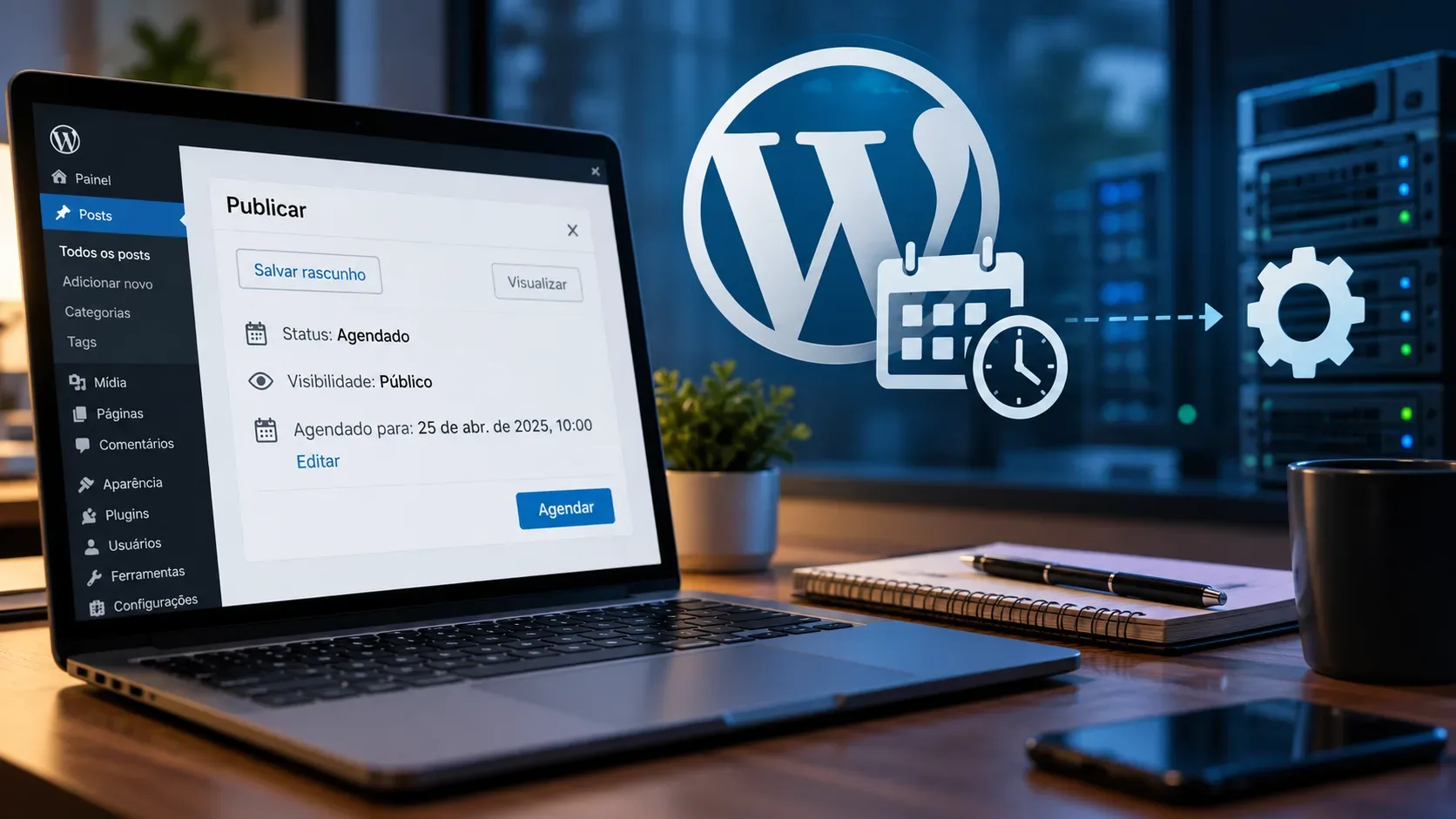
When a scheduled post does not publish at the expected time, the failure can sit in four different layers: the time stored by WordPress, the scheduled publication event, the mechanism that triggers WP-Cron, or the callback execution itself. Separating these layers avoids random fixes such as changing the timezone, installing another cron plugin, or disabling WP-Cron before confirming the cause.
What happens when a post is scheduled
WordPress uses WP-Cron for time-based tasks, including scheduled post publishing. The official documentation explains that WP-Cron checks pending tasks when the site receives page loads instead of running continuously like an operating system service. A low-traffic site can therefore execute a task after its intended time. See the WP-Cron documentation.
When a post has a future status, WordPress core schedules the publish_future_post hook. At execution time, WordPress confirms that the post still has the future status and publishes it. This behavior is documented in check_and_publish_future_post().
1. First confirm the timezone and the time actually stored
Before blaming cron, open Settings > General and check the site timezone. The timezone setting controls how WordPress calculates and displays dates and times. After saving, the screen shows UTC and local time, which helps reveal an accidental offset. See the General Settings documentation.
- Confirm that the post is still scheduled and that the displayed date is the intended one.
- Compare the local time shown by WordPress with the editor's expected time.
- If the stored time is wrong, correct the schedule before changing cron settings.
A timezone mistake can make a post look late even though the event was scheduled for a different instant. If date, time, and status are correct, move on to the execution mechanism.
2. Check Site Health and loopbacks
Open Tools > Site Health. WordPress reports when the site cannot complete a loopback request. Loopbacks are requests WordPress makes back to its own site and they are used to start scheduled events. The official loopback documentation specifically lists scheduled posts among the affected use cases.
If loopbacks fail, investigate plugin or theme conflicts first, then server rules, firewalls, DNS, SSL, or HTTP authentication. On production sites, prefer reproducing the issue on staging or using a maintenance window before disabling components.
3. Find out whether WP-Cron was disabled
Search wp-config.php for the DISABLE_WP_CRON constant. If it is set to true, WordPress no longer relies on visits to trigger WP-Cron. That is appropriate only when another reliable mechanism is calling the WordPress cron system.
A common mistake is reversing the safe order: disabling WP-Cron first and only then attempting to configure an external scheduler. If the server task is missing, points to the wrong URL, or is blocked, future posts can remain pending.
4. With WP-CLI, confirm that cron can start and that the event exists
If the hosting environment provides SSH and WP-CLI, two checks are useful. wp cron test tests the WP-Cron spawning system. Its documentation says the command checks DISABLE_WP_CRON, warns about ALTERNATE_WP_CRON, and attempts to spawn cron over HTTP. See wp cron test.
To inspect the queue without changing the schedule, use:
wp cron event list --hook=publish_future_post --fields=hook,next_run_gmt,next_run_relative
The listing command is documented at wp cron event list. If the future publication hook is present and overdue, the schedule exists and the investigation should focus on triggering or execution. If it is absent for a post that should be scheduled, review the post status and the process that created the schedule.
Caution: commands that test or run cron can trigger overdue plugin tasks, email, maintenance, or integrations. Do not assume an execution test is read-only.
5. Separate trigger failures from execution failures
| Signal | Likely interpretation | Next check |
|---|---|---|
| Future event does not exist | The post was not scheduled as expected or the event was removed | Post status, date, and the code or plugin that schedules it |
| Event exists and is overdue | WP-Cron was not triggered or could not start | Loopback, DISABLE_WP_CRON, external cron, and HTTP blocks |
| Cron starts but the post does not publish | The callback may be failing during execution | PHP logs, conflicts, and fatal errors |
| It only fails during no-traffic periods | Visit-based triggering may be insufficient | Server cron for more predictable triggering |
6. When to use server cron
For sites that need more predictable timing, WordPress documentation recommends using the system scheduler to call wp-cron.php at intervals defined by operations. After that external trigger is confirmed to work, visit-based WP-Cron can be disabled with define( 'DISABLE_WP_CRON', true );. See Hooking WP-Cron Into the System Task Scheduler.
In hosting control panels this feature may be called Cron Jobs, Scheduled Tasks, or a similar name. The label changes, but the purpose is the same: periodically execute a call that starts the WordPress queue. Do not confuse this with creating one server task for every post.
Safe migration order:
- Create the external task without disabling WP-Cron.
- Confirm that it actually runs on the server and processes overdue events.
- Monitor at least one scheduling cycle that matches the selected frequency.
- Only then set DISABLE_WP_CRON to true if there is a reason to avoid visit-based triggering.
7. If cron triggers, look for execution errors
When the event exists and the cron mechanism is active but publishing still fails, inspect server logs and, in a test environment, WordPress debugging facilities. The Debugging in WordPress documentation explains WP_DEBUG and WP_DEBUG_LOG and recommends staging or a backup before changes.
On production sites, do not leave debug messages visible on screen. Logs can contain paths, request data, and other sensitive information. Enable diagnostics only as long as needed, collect the error, fix the cause, and restore normal settings.
WP-Cron or server cron: what changes
| Aspect | WP-Cron triggered by visits | Server cron calling WordPress |
|---|---|---|
| Trigger | Depends on an opportunity created by a site page load | Depends on the configured server scheduler |
| Timing | Can be delayed during periods without traffic | More predictable when the external task is healthy |
| Setup | Default WordPress behavior | Requires hosting panel access, SSH, or provider support |
| Operational risk | Loopback and HTTP restrictions can prevent spawning | A broken external task can stop cron entirely if internal triggering is also disabled |
Rollback: how to return to the default behavior
If the move to external cron causes problems, restore default triggering by removing the line that sets DISABLE_WP_CRON to true or changing its value to false. Then confirm that the site can perform loopbacks and that new events appear in the queue.
Do not delete cron events in bulk as a first attempt. WordPress and plugins share the same queue for many routines. Identify the affected hook and the cause of the delay first.
Diagnostic flow in order
- Confirm post status, date, time, and timezone.
- Open Site Health and look for a loopback failure.
- Check whether DISABLE_WP_CRON is active.
- If WP-CLI is available, test the mechanism and list publish_future_post.
- If the event is overdue, fix the trigger path.
- If cron is triggering, inspect logs for execution errors.
- If you need more predictable timing, configure external cron first and only then consider disabling visit-based triggering.
- If the change makes things worse, roll back and return to default WP-Cron behavior.
This sequence reduces the risk of confusing timezone delay, low traffic, loopback failure, broken external cron, and a PHP error during publication.