
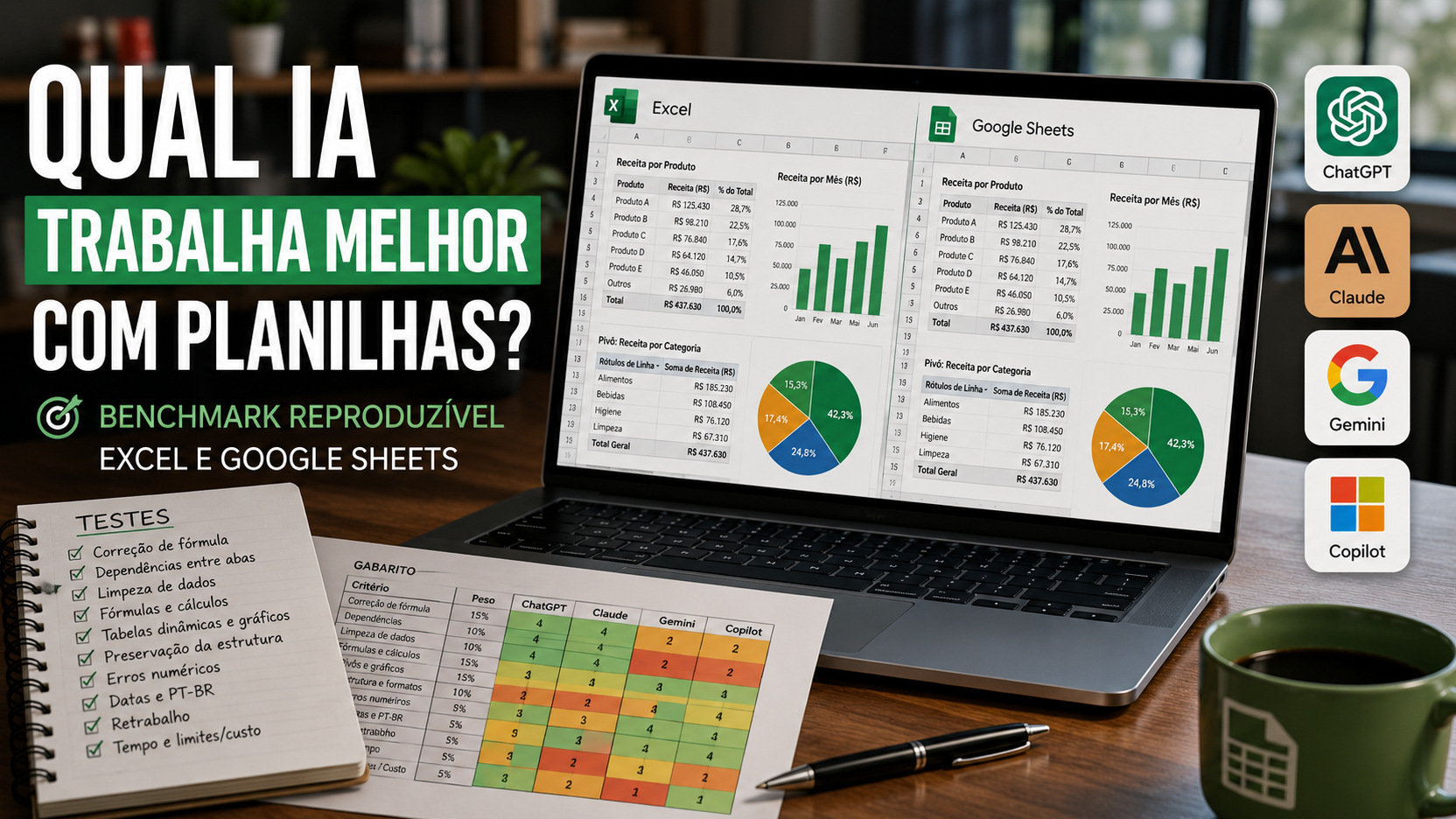
If the question is which AI makes the fewest errors in understanding, correcting and modifying a real spreadsheet, the responsible answer in August 2026 is less simple than choosing the product with the most beautiful integration. ChatGPT, Claude, Gemini and Copilot can already work directly with spreadsheets in some format, but declared capacity is not synonymous with accuracy. To find out which one works best in your flow, you need to run the same file, with the same template, the same instructions, and the same rework limits.
This distinction became more important in 2026 because the four products moved into the spreadsheet environment. ChatGPT gained native experiences in Excel and Google Sheets. Claude started working directly in Excel and also creates and edits XLSX files. Gemini operates on Google Sheets with formulas, tables, charts, pivot tables, and editing actions. Copilot, in turn, edits workbooks in Excel using native features such as formulas, charts, pivot tables and formatting.
The central point, therefore, is no longer to ask which model "knows Excel". The test needs to evaluate the product, interface and complete flow. A template can give a correct answer in chat and still fail to apply the change to the right cell, preserve a cross-tab reference, or keep a chart linked to the data source.
Why the technical sheet doesn't answer which AI makes the least mistakes
The official documentation shows an increasing overlap of features, but also differences that change the type of risk. OpenAI describes ChatGPT for Excel and Google Sheets as a native spreadsheet experience capable of working with large files, multiple tabs, formulas, references, and assumptions. In Excel, Flow with Codex can also inspect and update worksheets, formulas, values, formatting, and charts. The documentation itself warns, however, that advanced features such as VBA and macros may not be fully supported and recommends reviewing changed formulas, calculations and cells.
Anthropic claims that Claude for Excel can read, analyze, modify, and create workbooks, preserving formula structure and dependencies, as well as debugging formulas and populating templates. In May 2026, Claude's add-ins for Excel, PowerPoint and Word were described by the company as generally available. Separately, Claude also creates and edits XLSX files through his file creation experience.
In Google Sheets, Gemini can create formulas, generate analyses, build charts, apply conditional formatting, create pivot tables, sort, filter, find and replace content, and change number formats. There are, however, two important practical caveats in Google's documentation: the feature works best in native Sheets files and, to use Gemini's features in an XLSX, Google advises saving the file as Google Sheets. Additionally, graphs generated by Gemini are not necessarily linked to the original dataset in order to automatically respond to subsequent changes.
Copilot in Excel works directly in the workbook, being able to add, rename or delete spreadsheets, modify values and ranges, apply validation and formatting, generate formulas on multiple sheets, create and edit graphs and pivot tables and reorganize data. Microsoft also advises reviewing the content generated. In other words, all vendors treat human review as part of responsible use.
What recent benchmarks say about reliability
Two academic works published in 2026 help to show why a superficial comparison is insufficient. SpreadsheetBench 2 is built for business spreadsheet generation, debugging, and visualization tasks. There are 321 tasks, with an average of 11.8 tabs and hundreds of cells modified per task. In the main scenario, the best model reached 34.89% complete accuracy, and the debug category was well below that.
The same study manually ran some spreadsheet products on a subset of 30 examples. Claude for Excel and ChatGPT for Excel were among the products evaluated. No product outperformed the models in the standardized agent, and the best product in the subset achieved 15.4% complete accuracy. This result is not a ranking of ChatGPT, Claude, Gemini and Copilot, because Gemini and Copilot were not included in this specific match. It serves a more important conclusion: in complex tasks, editing many cells plausibly does not mean finishing the entire book without error.
Another work, Workbook Time Machine, published in August 2026, built a benchmark of 150 tasks involving formulas, graphs, pivot tables and conditional formatting. The authors found a strong effect of prompt specificity, agent orchestration, and the API used to control the spreadsheet. This reinforces that comparing just the model name hides a decisive part of the problem.
How to build a truly reproducible benchmark
The test file should represent a worksheet, not a collection of isolated questions. A good workbook includes raw data, a registration tab, a calculation tab, a management summary and a visualization area. Among them, the references must be real: a change made in one tab must have repercussions on the others.
The template must contain both the final values and the expected formulas when dependency matters. This avoids rewarding an AI that replaces a correct formula with a fixed number. If the sales total appears correct today, but stops updating when the base changes, the result is not equivalent to the feedback.
Each product must receive a clean copy of the same file. The initial prompt must be identical, except for adaptations strictly necessary for the environment. The maximum number of interactions must also be fixed. If a product receives five correction attempts and another only one, the test begins to measure the operator's patience, not the tool's capacity.
The ideal is to separate the benchmark into two tracks. The Excel trail uses XLSX as its official source and compares products that work directly with Excel. The Google Sheets trail uses an equivalent version, created from the same data set and logic template. For broader product comparison, the conversion required by a given flow should be recorded as part of the operating cost, not hidden.
Broken formula fix
Insert errors that produce either explicit failures, such as invalid references, or numerically plausible but logically wrong results. The test should verify that the AI finds the problematic cell without receiving the exact address, corrects the formula, and keeps the dependency chain working.
Dependencies between tabs
Include searches, conditional sums and cross-references. After editing, change an entry in the base and recalculate the file. If the result doesn't propagate correctly, the tool failed even if the first photo of the workbook looked right.
Data cleaning
Use names with extra spaces, categories written differently, mixed dates, and numeric values stored as text. The task should not just produce a clean column. It must preserve the correct lines, not delete valid records and not change fields that were not requested.
Creating formulas
Request new formulas that depend on more than one tab and can be filled in for multiple lines. The template must accept functionally equivalent solutions when there is more than one correct formula, but penalize fixed values, broken intervals and incorrect absolute or relative references.
Pivot tables and charts
The evaluation needs to verify the origin of the data, the fields used, the filters, the type of chart and the updateability. A graphic that is visually similar but disconnected from the source or fed from the wrong range should not receive the same grade.
Structure and formatting preservation
The tool should perform the requested task without unnecessarily renaming tabs, deleting unrelated formulas, changing currency formats, removing validations, or rebuilding the spreadsheet in a way that destroys the previous logic. The benchmark should also compare cells that should not have been touched.
Numeric errors and dates in PT-BR
Include decimal with comma, currency in reais, dates in the day/month/year pattern and at least one ambiguous case, such as 04/03/2026. The score must consider the value actually interpreted by the spreadsheet, not just the text that the AI claims to have understood.
Rework, time and cost
Record how many additional prompts were needed, how many manual corrections the operator made, and how long it took to get an approved file. The cost must be noted in the plan and rules in effect on the day of the test, as prices, credits and limits change. Comparing just the subscription price ignores the cost of rework.
How to score without hiding flaws
The most important note must be functional correctness: the file recalculates and delivers the correct values. Then come preservation of formulas and references, integrity between tabs, preservation of structure and formatting, quality of pivots and graphics, treatment of dates and local conventions, rework and time. It's helpful to publish all of these grades separately before showing any final averages.
The score should also penalize side effects. If the AI corrects ten cells and changes twenty others unnecessarily, the result cannot be treated as a complete success. Likewise, a formula that is syntactically valid but applied on the wrong line should be marked as failed.
An especially important practice is to recalculate the workbook after changes and run small mutation tests: change a price, a date, or an input category and see if the dependent results change as they should. This differentiates a living spreadsheet from a spreadsheet that just looks right at the time of delivery.
What can you conclude about ChatGPT, Claude, Gemini and Copilot today
Without running an identical file across all four tools, there is no honest basis for declaring which one makes the fewest errors. What can already be concluded is which flow deserves to be included in your test.
For Excel-centric teams, Copilot, Claude, and ChatGPT now offer direct workbook editing paths. Copilot has the operational advantage of being within the Excel ecosystem itself and using native features of the application. Claude and ChatGPT also work in Excel and add their own ways of reasoning, creating files and integrating with other contexts. This makes them natural candidates for the same XLSX track, but it doesn't prove it.
superiority of none of them.
For Google Sheets-centric teams, Gemini and ChatGPT offer native Sheets experiences. Gemini has deep integration with actions within the product itself, while ChatGPT brings its spreadsheet experience to both environments. If the primary requirement is to preserve an XLSX without conversion, Google's guidance to save the file as Google Sheets needs to enter the assessment as a relevant flow change.
The best choice, therefore, must come from your template. If the real job has lots of tabs, chained formulas, pivots, local formats, and the need to return the same file without surprises, this is the file to decide. The winning tool is not the one that promises the most features; is the one that delivers the correct, preserved and auditable workbook with less rework in the environment where your team actually works.