To check whether a PC is ready for the Secure Boot certificate transition, the main 2026 check is in the Windows Security app: open Device security > Secure Boot and read the certificate status message. Since April 2026, Microsoft has been showing there whether the required certificate updates have been applied. A green check mark by itself is not enough: the conclusive state is the one that says Secure Boot is enabled, the required certificate updates have been applied, and no further certificate changes are needed.
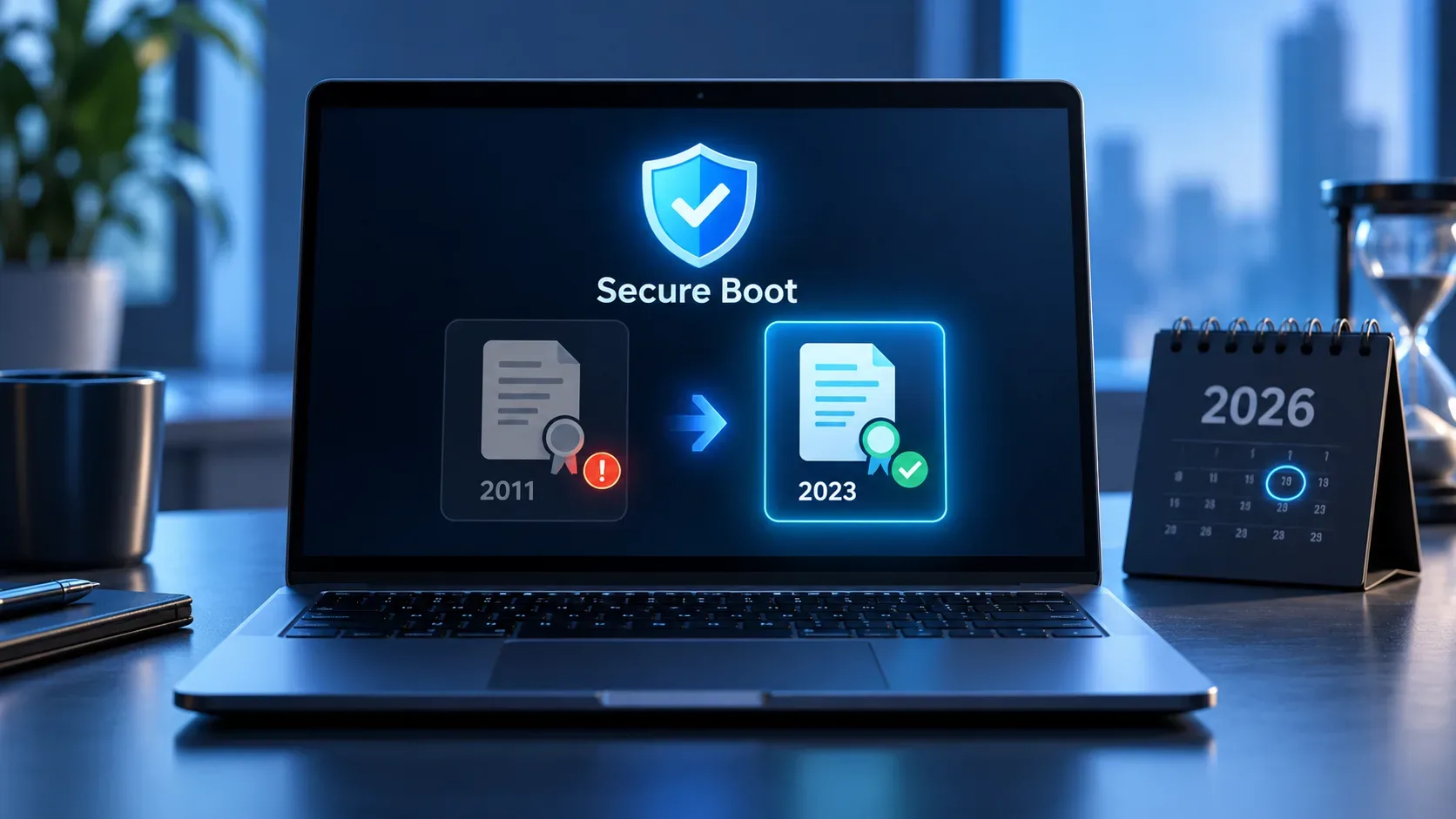
This matters because Microsoft's certificates issued in 2011 do not all expire on the same day. In 2026, some reached their expiration dates in June, while the certificate used to sign the Windows boot loader expires in October. A computer does not necessarily stop booting when an old certificate expires; the real problem is losing the ability to receive new protections for the boot chain.
Which 2011 certificates expire in 2026
Microsoft has published the official replacement schedule. The new 2023 certificates need to be incorporated into the firmware trust stores so Windows can continue receiving security updates related to the boot process.
| 2011 certificate | Expiration | 2023 replacement | Main role |
|---|---|---|---|
| Microsoft Corporation KEK CA 2011 | June 24, 2026 | Microsoft Corporation KEK 2K CA 2023 | Signs updates to the Secure Boot DB and DBX databases. |
| Microsoft UEFI CA 2011 | June 27, 2026 | Microsoft UEFI CA 2023 and Microsoft Option ROM UEFI CA 2023 | Provides trust for third-party UEFI boot loaders, EFI applications, and option ROMs. |
| Microsoft Windows Production PCA 2011 | October 19, 2026 | Windows UEFI CA 2023 | Signs the Windows boot loader. |
That means that by September 2026, the June 24 and June 27 dates have already passed, while October 19 remains an important milestone for the certificate tied to Windows Boot Manager. The official, maintained reference is Windows Secure Boot certificate expiration and CA updates.
How to check whether Windows received the 2023 certificates
- Open Start and search for Windows Security.
- Go to Device security.
- Open Secure Boot.
- Read the full status message next to the indicator rather than relying only on its color or icon.
The best result is the state Microsoft calls fully updated: the device has received all required Secure Boot certificate updates and the updated Boot Manager is installed. In that state, no further action is recommended.
If the app shows a state equivalent to not yet updated, the PC is still using an older boot trust configuration. For home users, Microsoft recommends keeping the device online, installing the latest Windows updates, and restarting when prompted. Rollout is gradual and, on many supported PCs that receive updates directly from Microsoft, the certificates arrive automatically through Windows Update.
Microsoft may also show a yellow warning when there is an actionable recommendation or a hardware/firmware limitation, and a red state when a boot security vulnerability cannot be addressed with the device's current configuration. Details are available in Secure Boot certificate update status in the Windows Security app.
msinfo32 helps, but it does not confirm the 2023 migration
There is a useful secondary check: press Windows + R, type msinfo32, and look for Secure Boot State. If it says On, Secure Boot is enabled in firmware.
That check only answers whether Secure Boot is enabled. It does not replace the certificate update status shown by Windows Security. A PC can have Secure Boot enabled and still be using an older trust configuration.
Still booting is not the same as still receiving new boot protections
| Situation | What happens |
|---|---|
| An old certificate expires and the PC has not received the new trust configuration | The device may continue to boot and operate normally; standard Windows updates can also continue to install. |
| New fixes require the 2023 certificates | The device may stop receiving new protections for Windows Boot Manager, Secure Boot databases, revocation lists, and mitigations for newly found early-boot vulnerabilities. |
| Security features depend on Secure Boot trust | Scenarios such as BitLocker hardening, boot-level code integrity, third-party boot loaders, and option ROMs can be affected when they rely on an updated chain of trust. |
This distinction is crucial: expiration is not a Windows “shutdown deadline.” The risk is that the PC remains usable while gradually falling behind on new protections for the boot process. Microsoft explains this behavior in When Secure Boot certificates expire on Windows devices.
When to look for an OEM firmware update
Check the PC or motherboard manufacturer's support resources when Windows Security says automated certificate updates are not supported because of hardware or firmware limitations, when a yellow warning remains after Windows updates and a restart, or when the displayed guidance specifically tells you to contact the OEM.
In those cases, the UEFI firmware may need a specific update to accept or apply the new certificate entries correctly. Microsoft maintains a page with links to manufacturers including Acer, ASUS, Dell, HP, Lenovo, Samsung, Positivo, and others: Original Equipment Manufacturer (OEM) pages for Secure Boot.
Do not disable Secure Boot simply to clear a certificate warning. Microsoft's general guidance is to update to the 2023 certificates and, when necessary, install the manufacturer's firmware update, because disabling Secure Boot reduces protection against boot-level malware and malicious changes early in the startup process.
What to check before assuming there is a problem
- Windows is current: install available updates and restart if requested.
- Secure Boot is enabled: confirm with msinfo32, but use Windows Security to verify certificate status.
- Status message: look for confirmation that all required certificate updates have been applied.
- Yellow or red warning: follow the text shown by Windows; firmware limitations can require OEM support.
- Windows 10: regular support ended on October 14, 2025; Microsoft's own guidance says Windows 10 devices need an applicable supported path, such as ESU where eligible, to continue receiving security updates.
Practical summary
For most supported home PCs, the path is straightforward: keep Windows updated and check Windows Security > Device security > Secure Boot. If the status says the required certificate updates have been applied, the PC is prepared for the 2023 trust chain. If it still shows an older configuration, update and restart first; if Windows reports a hardware or firmware limitation, check with the manufacturer. The key point is not to confuse “the PC still boots” with “the PC can still receive every new Secure Boot protection.”