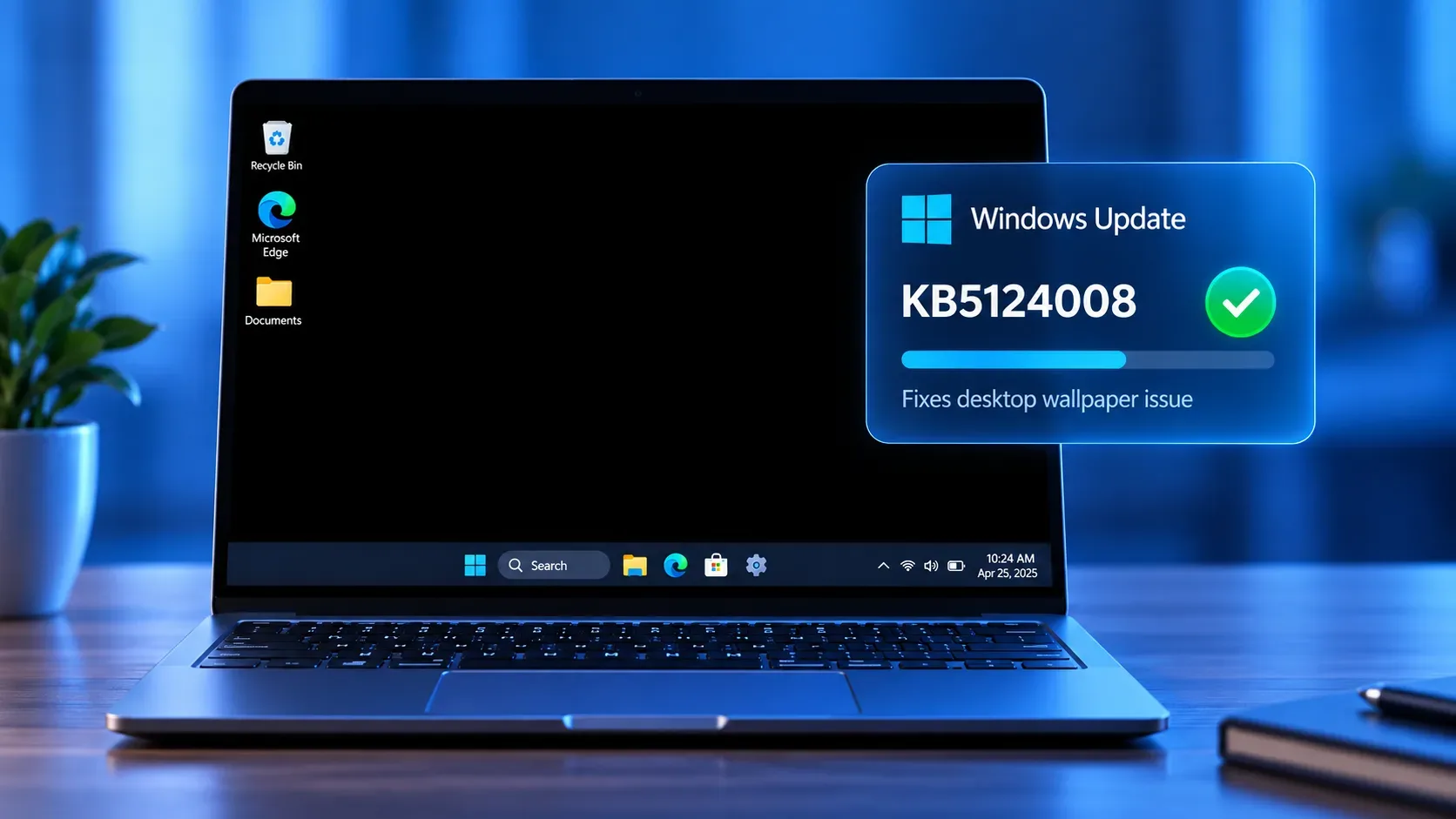
If Windows 11 is still working normally, with the taskbar, icons, and windows accessible, but the wallpaper turned into a solid black color after the late-August updates, the issue may be the personalization bug acknowledged by Microsoft. This is different from a “black screen” where Windows no longer displays the desktop or the PC loses its video signal. The official fix is in KB5124008, the security update released on September 8, 2026 for Windows 11 24H2 and 25H2.
What happened to the Windows 11 wallpaper
Microsoft documented the issue after KB5120998, released on August 27, 2026. On some devices, Windows Desktop settings failed to load correctly and the background was replaced by a solid black color. The company also said other personalization preferences could be affected, including slideshow settings and contrast themes.
The important detail is that, on PCs actually affected by this bug, choosing the wallpaper again might not fix it. According to Windows release health, the problem prevented the settings from loading regardless of the saved value, so Windows used the default black background instead. Microsoft marked the issue as resolved by KB5124008 and later updates.
Why KB5124008 fixes it
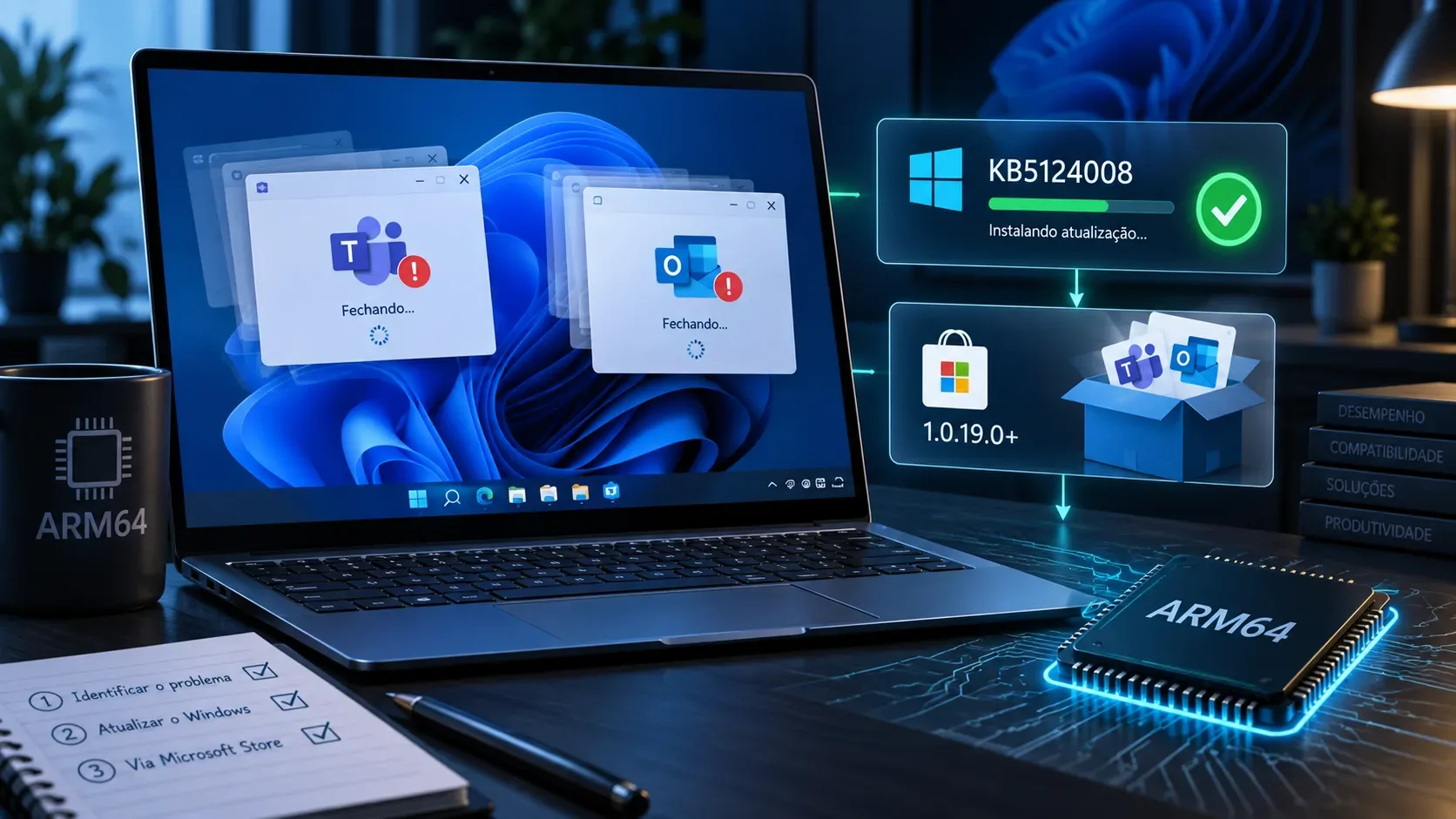
KB5124008 is the September 8, 2026 cumulative security update for Windows 11 24H2 and 25H2. The official release note explicitly lists a Personalization fix: the desktop background and other personalization settings might fail to load correctly, causing the desktop background to appear black.
The builds associated with the package are 26100.9445 on Windows 11 24H2 and 26200.9445 on Windows 11 25H2. Because the fix is cumulative, a later build that includes the September 8 updates also contains the resolution; you do not need to hunt for KB5124008 separately if the PC has already received a newer cumulative package.
Checklist: is this the right problem?
| Sign | Matches the bug? | How to interpret it |
|---|---|---|
| The wallpaper turns black, but the desktop remains usable | Yes | This is the pattern most consistent with the personalization-settings loading failure. |
| The issue started after KB5120998 or after August 27, 2026 | Yes | This is the package Microsoft identifies as the originating update for the issue. |
| Changing the wallpaper manually does not stick or the background returns to black | Yes | Microsoft says manually restoring preferences may not work on affected devices. |
| The display is completely blank before sign-in, loses signal, or the desktop never appears | Not necessarily | Those symptoms can involve video output, drivers, a monitor, startup, or another kind of black-screen problem. |
| Only one app turns black while the rest of Windows works | No | KB5124008 addresses the Windows desktop background and personalization settings, not an app-specific graphics failure. |
How to check the Windows version, KB, and build
- Check your Windows version. Open Settings > System > About and look under Windows specifications. Microsoft also documents the winver command as a way to check the version and OS build.
- Check update history. In Settings > Windows Update > Update history, look for KB5120998 and KB5124008. The first helps identify the originating update; the second confirms that the corrective package was installed.
- Compare the build. On 24H2, KB5124008 brings the system to build 26100.9445; on 25H2, to 26200.9445. Later build numbers are consistent with the fix already being incorporated.
Microsoft’s page for Windows device information shows where to find version and edition details. In managed environments, update availability may depend on Windows Update for Business, WSUS, or other administrative policies.
When to update and how to install it
If the PC is running Windows 11 24H2 or 25H2 and shows this symptom, the preferred action is to install KB5124008 or, better, the latest cumulative security update offered to the device. The reason goes beyond the wallpaper: the September package also includes security improvements and other fixes.
- Save any open work.
- Open Settings > Windows Update.
- Select Check for updates.
- Download and install the available updates, then restart if Windows asks you to.
- After restarting, confirm the build with winver and test Settings > Personalization > Background again.
This is the same basic process described in Microsoft’s guide to install Windows updates. KB5124008 is distributed automatically through Windows Update and is also available from the Microsoft Update Catalog for administrative or manual-installation scenarios.
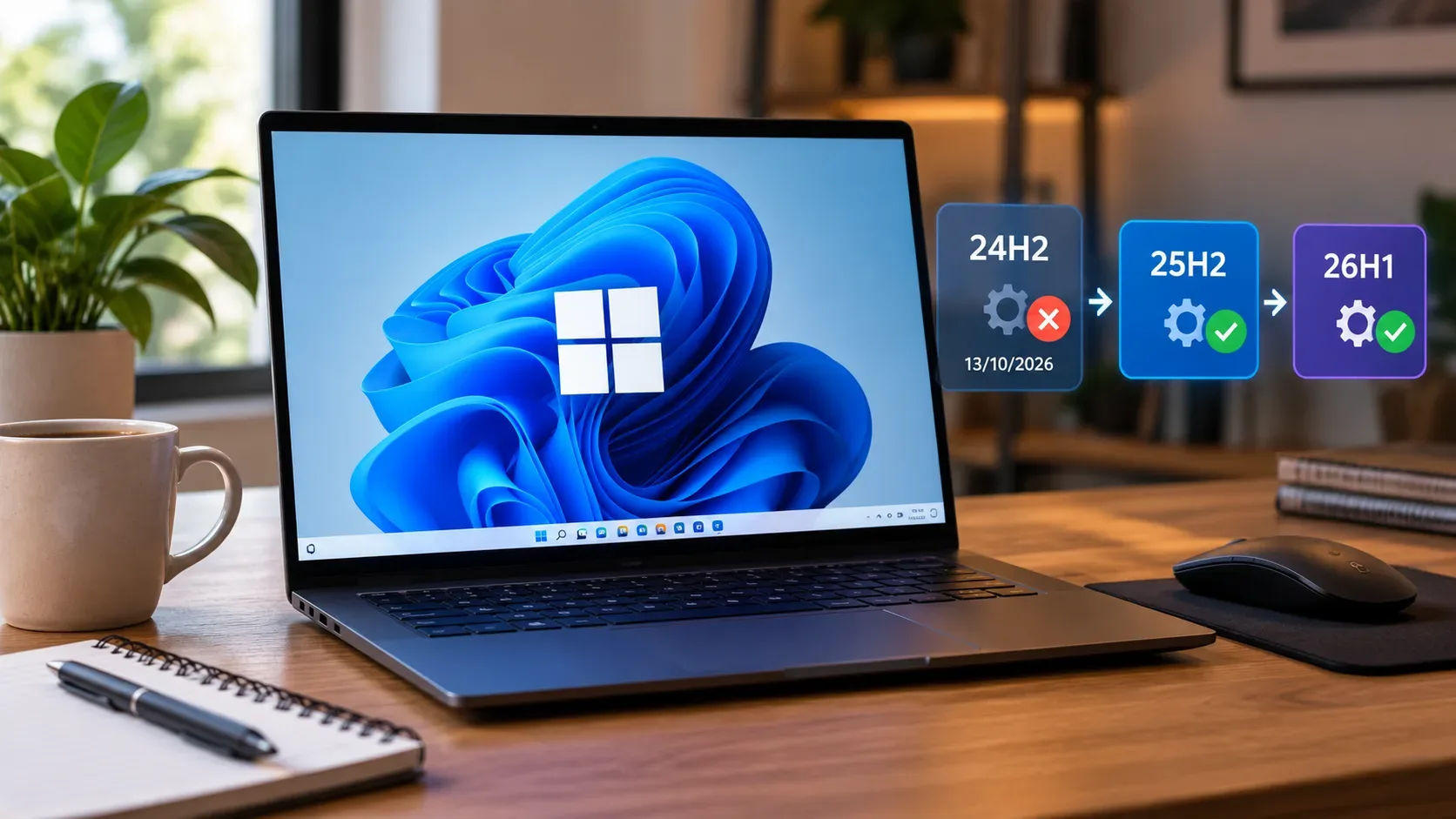
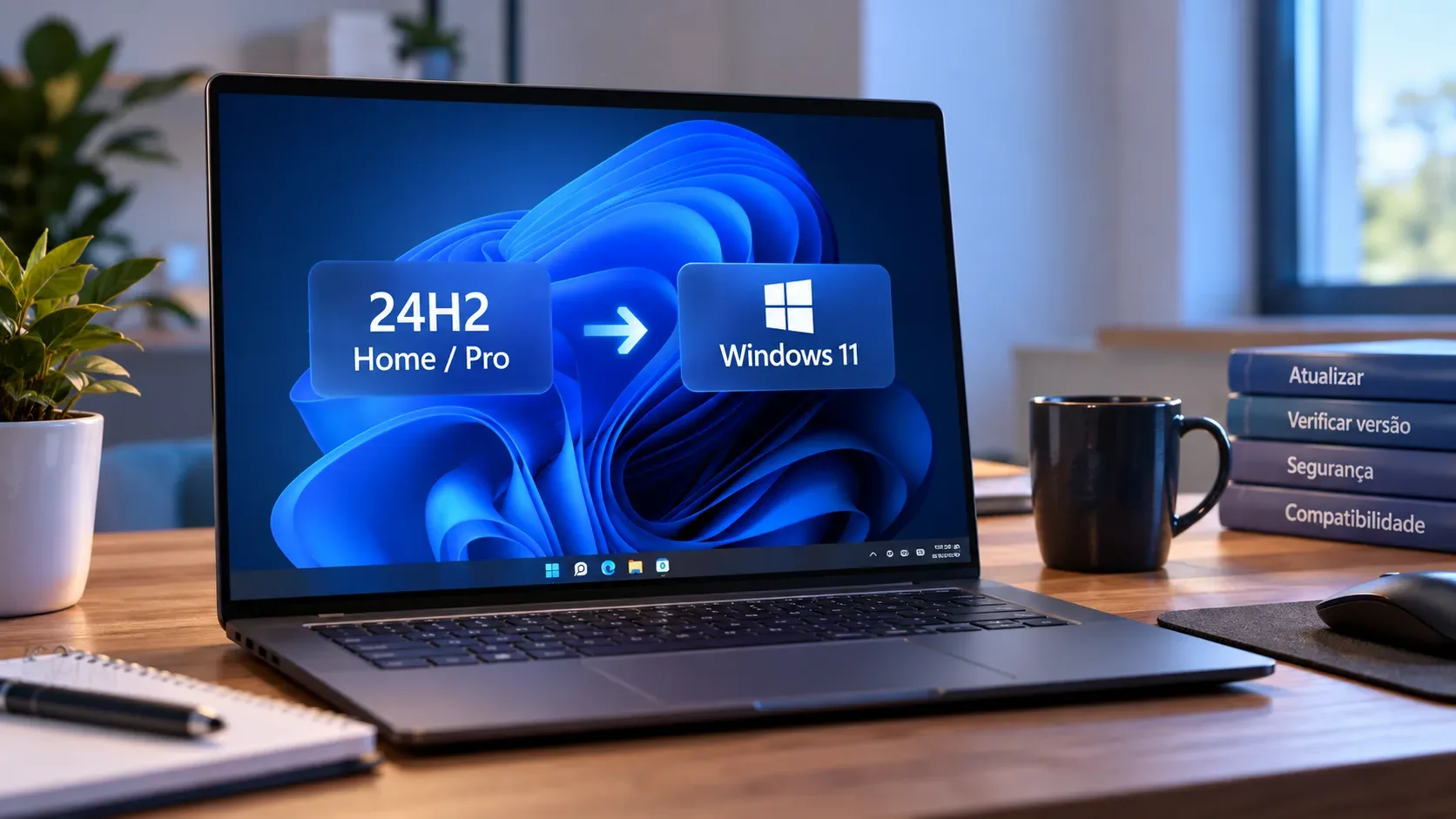
There is also a lifecycle consideration: Windows 11 24H2 Home and Pro reach end of updates on October 13, 2026. If you are still on that release, moving to a newer Windows 11 version should be part of the maintenance plan rather than treating this KB as the only required action.
When not to use this diagnosis
“Black screen” is a broad term. KB5124008 is a specific answer for a black desktop background caused by personalization settings failing to load. It should not be treated as a universal fix for any loss of display output.
- If there is no image at the boot screen or before signing in, investigate power, cables, the monitor, GPU, and video signal.
- If Windows signs in but the taskbar, icons, and the entire interface are missing, the issue may involve startup, Explorer, a graphics driver, or another component.
- If only games, browsers, or one specific app turn black, look for a fix related to that software or the graphics driver.
- If the problem occurs only on an external monitor, test the connection, video input, resolution, refresh rate, and driver before blaming the wallpaper bug.
If the background is still black after the update
- Confirm that installation completed and that the PC was restarted if required.
- Verify that the build is 26100.9445/26200.9445 or later. If it is not, run Windows Update again and check for an error or pending update.
- With the fix installed, open Personalization and set the background again. If the preferences now load, that behavior is consistent with the corrected bug.
- If the build already contains the fix and the background remains black, do not assume it is the same defect. Check corporate policies, contrast themes, image files, and video or user-profile issues according to the symptom.
The Windows 11 24H2 release health dashboard is the best reference for checking whether Microsoft has reopened the case, published a new limitation, or changed its guidance.
Practical summary
- Acknowledged origin: KB5120998, released August 27, 2026.
- Typical symptom: the wallpaper turns black while the desktop remains functional.
- Fix: KB5124008, released September 8, 2026, or a later cumulative update.
- Fix builds: 26100.9445 on 24H2 and 26200.9445 on 25H2.
- Do not confuse it with: complete video loss, a black screen before sign-in, or an app-specific graphics failure, which require a different diagnosis.