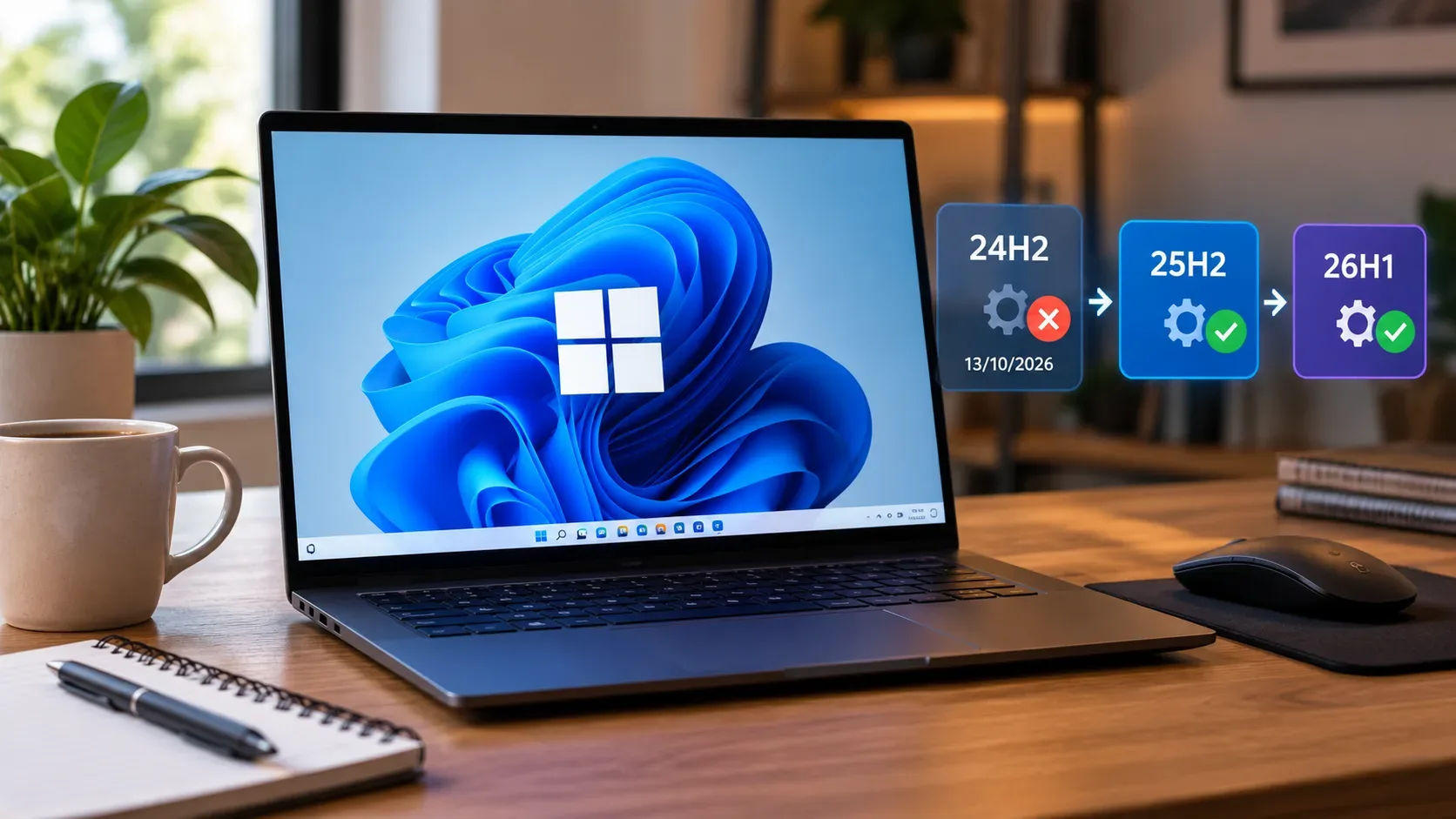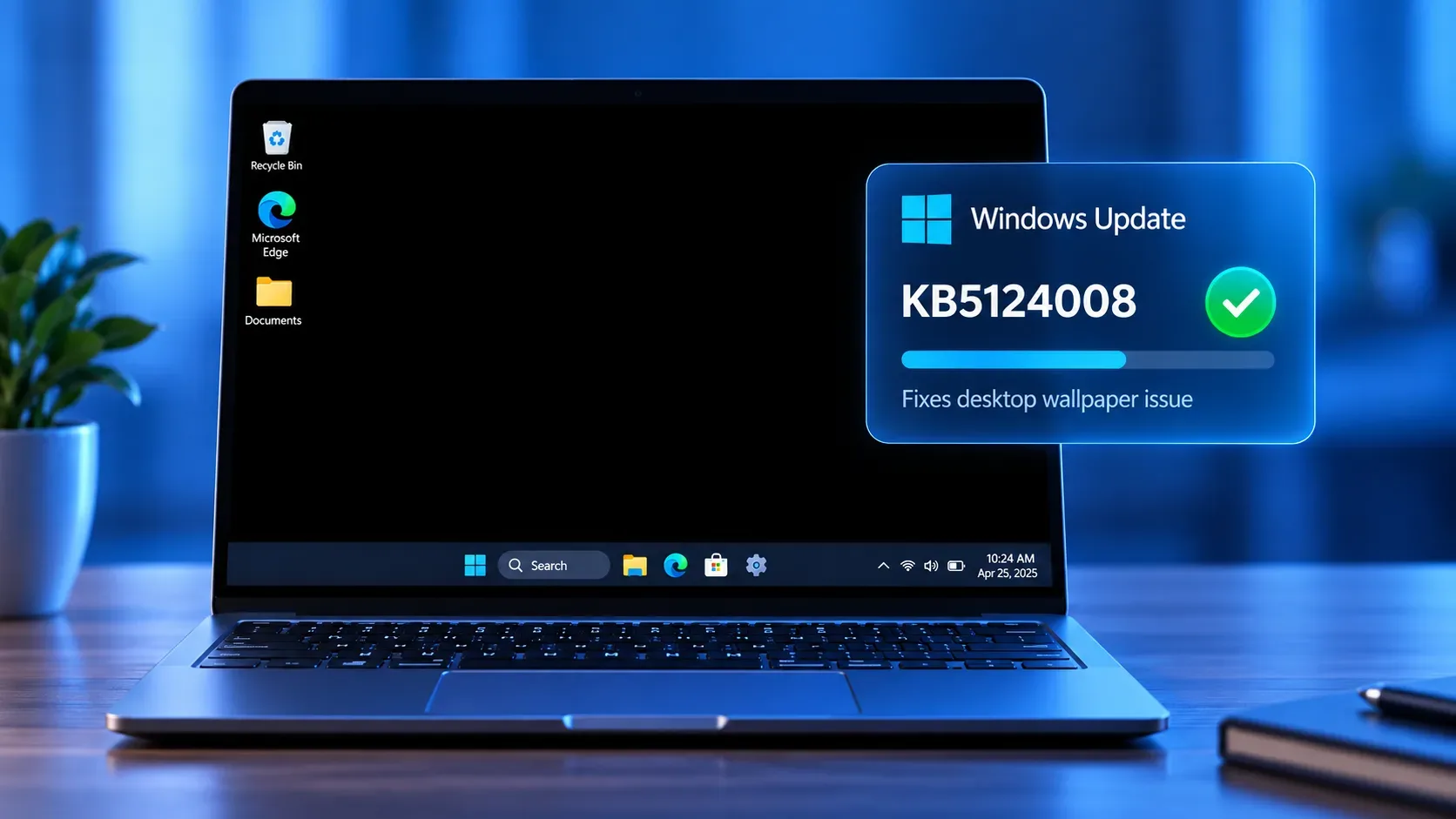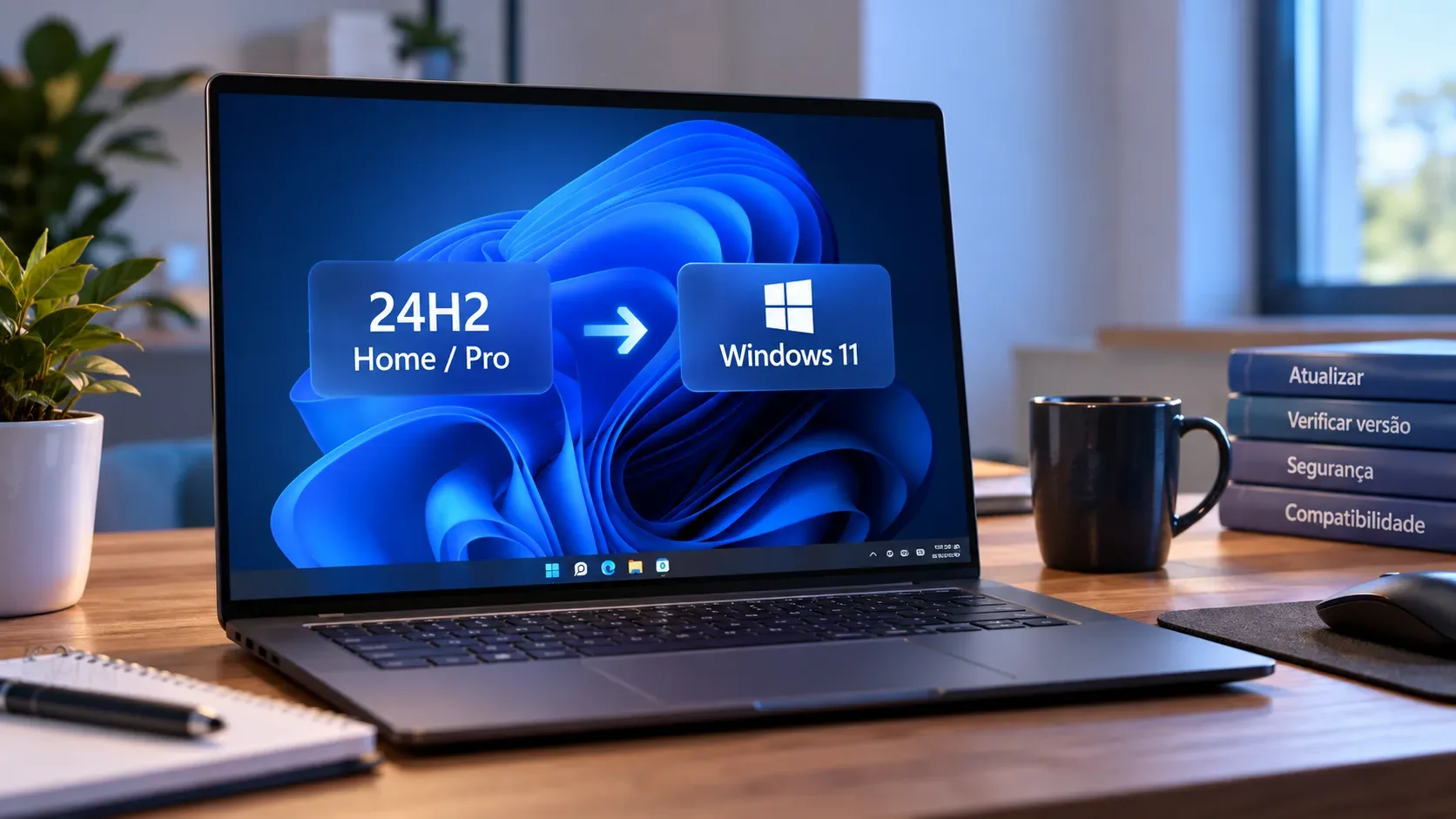
If your PC runs Windows 11 24H2 Home or Pro, the key date is October 13, 2026. Microsoft says that after this version reaches the end of updates, affected devices will no longer receive fixes for known issues, time zone updates, technical support, or monthly security and preview updates that include protections against the latest security threats. The notice appears on the KB5124008 update page and on the official Windows 11 Home and Pro lifecycle page.
This does not mean the computer will shut down or that Windows activation will disappear on October 14. The issue is different: staying on 24H2 Home/Pro means using a version outside its normal servicing lifecycle. For a personal PC that is not managed by an organization, the practical step is to check your edition and version now and move to a supported version when Windows Update offers it.
What stops for Windows 11 24H2 Home and Pro after October 13, 2026
Microsoft is specific about what ends. Once 24H2 Home/Pro reaches the end of updates, the following are no longer provided for that version:
| Item | What changes |
|---|---|
| Monthly security updates | 24H2 Home/Pro stops receiving monthly packages with protections against recent threats. |
| Preview updates | Monthly previews of fixes and improvements are no longer delivered to the version. |
| Fixes for known issues | Newly found or already identified problems no longer enter the normal 24H2 Home/Pro fix cycle. |
| Time zone updates | Official time zone changes are no longer serviced on this version. |
| Technical support | Microsoft stops providing the technical support tied to this out-of-servicing version. |
The most important effect is cumulative: the longer a version stays without servicing, the further it falls behind the security and reliability fixes released for supported versions.
How to tell whether your PC is affected
You need to check two pieces of information: the Windows edition and version. Microsoft recommends opening Settings > System > About and looking under “Windows specifications.” Another quick method is to search for winver and open that command. The process is described in Find information about your Windows device.
- If you see Windows 11 Home or Windows 11 Pro and the version is 24H2, this end-of-updates notice directly applies to your PC.
- If the version is 25H2, you are already on a version with a later servicing lifecycle.
- If the computer is managed by a company, school, or public organization, do not treat the Windows Update screen as the only reference: IT policies can control when and how the migration happens.
Home and Pro do not have the same deadline as Enterprise and Education
A common source of confusion is to look only at “24H2” and assume every edition ends at the same time. It does not. Microsoft's supported-versions table separates the servicing channels:
| Edition on version 24H2 | End of updates |
|---|---|
| Home, Pro, Pro Education, and Pro for Workstations | October 13, 2026 |
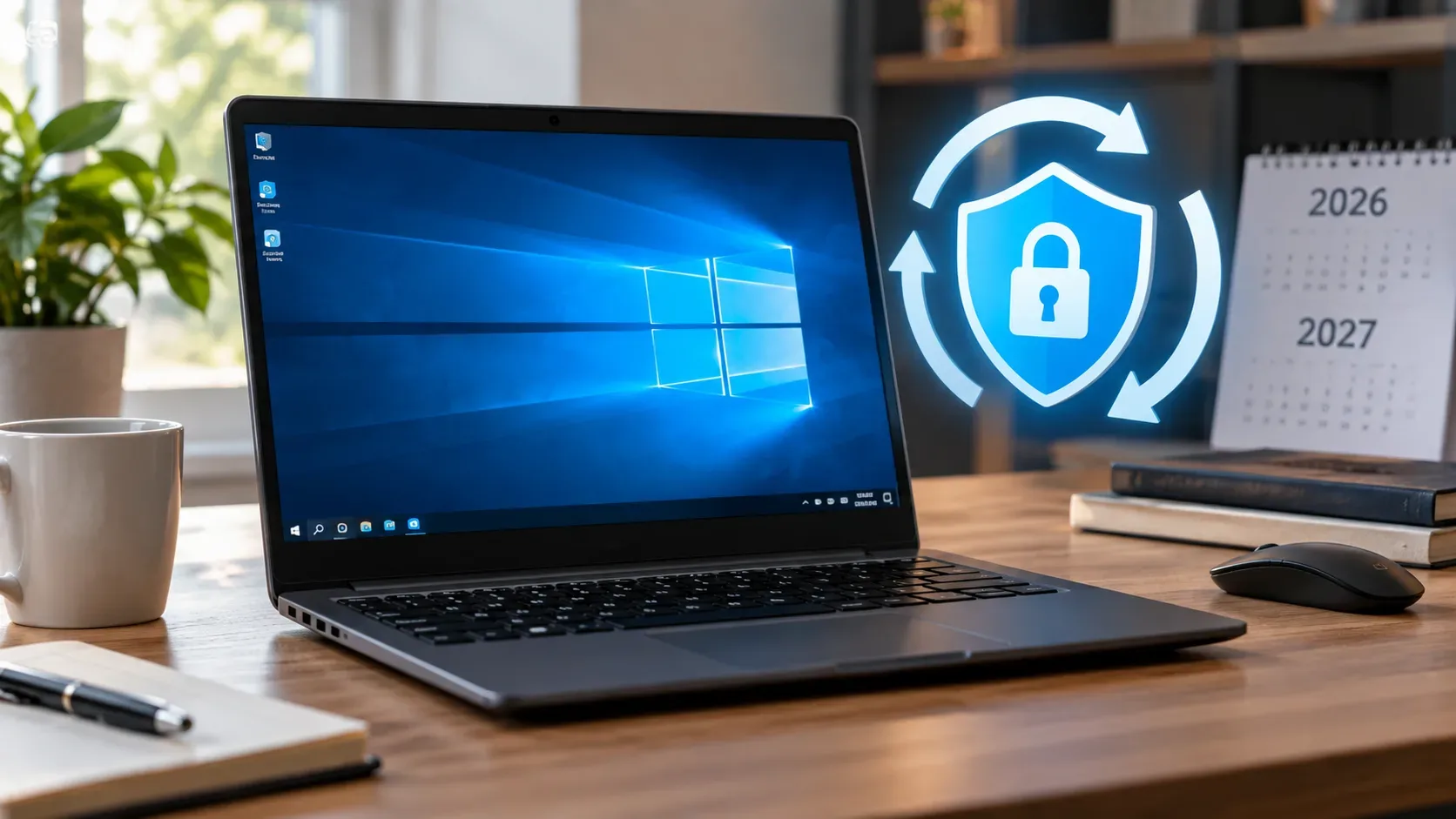
| Enterprise, Education, IoT Enterprise, and Enterprise multi-session | October 12, 2027 |
The dates are listed on Microsoft's supported versions of Windows client page. The Enterprise and Education lifecycle page also shows a longer timeline for 24H2 on those editions. LTSC editions follow separate lifecycle rules and should not be confused with regular Windows 11 Home or Pro.
Which version should a 24H2 PC move to?
For existing PCs running 24H2, the practical target is Windows 11 25H2. The 24H2 release-health page says 25H2 is the latest version available for this path and that Home and Pro devices not managed by IT departments receive the update automatically; users can choose when to restart or postpone the restart. You can also open Settings > Windows Update > Check for updates and, if the device is ready, use the option to download and install 25H2. See the official Windows 11 24H2 status page.
An important 2026 detail is not to confuse 26H1 with a normal feature update for 24H2 PCs. Microsoft's Windows 11 release information page says 26H1 was scoped to new devices with specific new hardware and is not offered as an in-place update from 24H2 or 25H2 on existing devices. Simply trying to move to the highest version number is therefore not a valid migration plan.
Checklist for a safer upgrade
- Confirm the edition and version. Make sure you really are on 24H2 Home/Pro before taking action.
- Install pending updates. In Settings > Windows Update, check for updates and restart if prompted. Microsoft documents this flow in Install Windows Updates.
- Back up important files. A feature update is designed to preserve data, but a backup remains a sensible precaution before changing OS versions.
- Use Windows Update first. If 25H2 is ready for your device, it will be offered there. This route best respects eligibility checks and any safeguard holds.
- Do not force the upgrade if there is a compatibility hold. Microsoft maintains release-health pages to document known issues and safeguard holds. Check the Windows 11 25H2 status before trying to bypass an update that has not been offered.
- For work or school PCs, contact IT. Managed devices may follow a different timetable, policy, and edition from home PCs.
What if Windows Update still does not offer 25H2?
Do not automatically conclude that your PC is “incompatible.” Availability can depend on device state, management policies, pending updates, or a safeguard hold tied to a driver, application, or another known issue. As of September 2026, Microsoft says 25H2 is available for eligible devices, while continuing to track known issues and safeguards on the version's release-health page.
For a personal PC, the safer sequence is to bring 24H2 up to the latest update available, restart, check Windows Update again, and review 25H2 release health if the option still does not appear. Avoid jumping straight to installation methods that ignore warnings before you understand why the offer was held back.
Quick questions
Can I keep using Windows 11 24H2 after October 13, 2026?
Microsoft does not present end of updates as a shutdown of the PC. The concern is remaining on a version that no longer receives the normal set of fixes, security updates, and support described in the official notice.
Does the October 13, 2026 deadline apply to every Windows 11 24H2 edition?
No. It is the deadline for the Home/Pro channel and related editions. Enterprise and Education 24H2 have a longer lifecycle, extending into October 2027, and LTSC follows its own lifecycle.
Do I need to buy a new PC?
Not necessarily. If your 24H2 device is offered 25H2 through Windows Update, the needed action is to update the OS version, not replace the computer. If the update is not offered, investigate why before concluding that there is a permanent compatibility problem.
Should I try to install 26H1 manually?
Not as the normal upgrade path for an existing 24H2 PC. Microsoft says 26H1 was designed for new devices and is not offered as an in-place update from 24H2 or 25H2.
In short
If your computer shows Windows 11 Home or Pro, version 24H2, mark October 13, 2026 as the end-of-updates date for that version. Before then, confirm the version, keep the system current, back up important files, and check Windows Update for Windows 11 25H2. The different deadline for Enterprise/Education and the existence of 26H1 do not change that guidance for a regular 24H2 home PC.