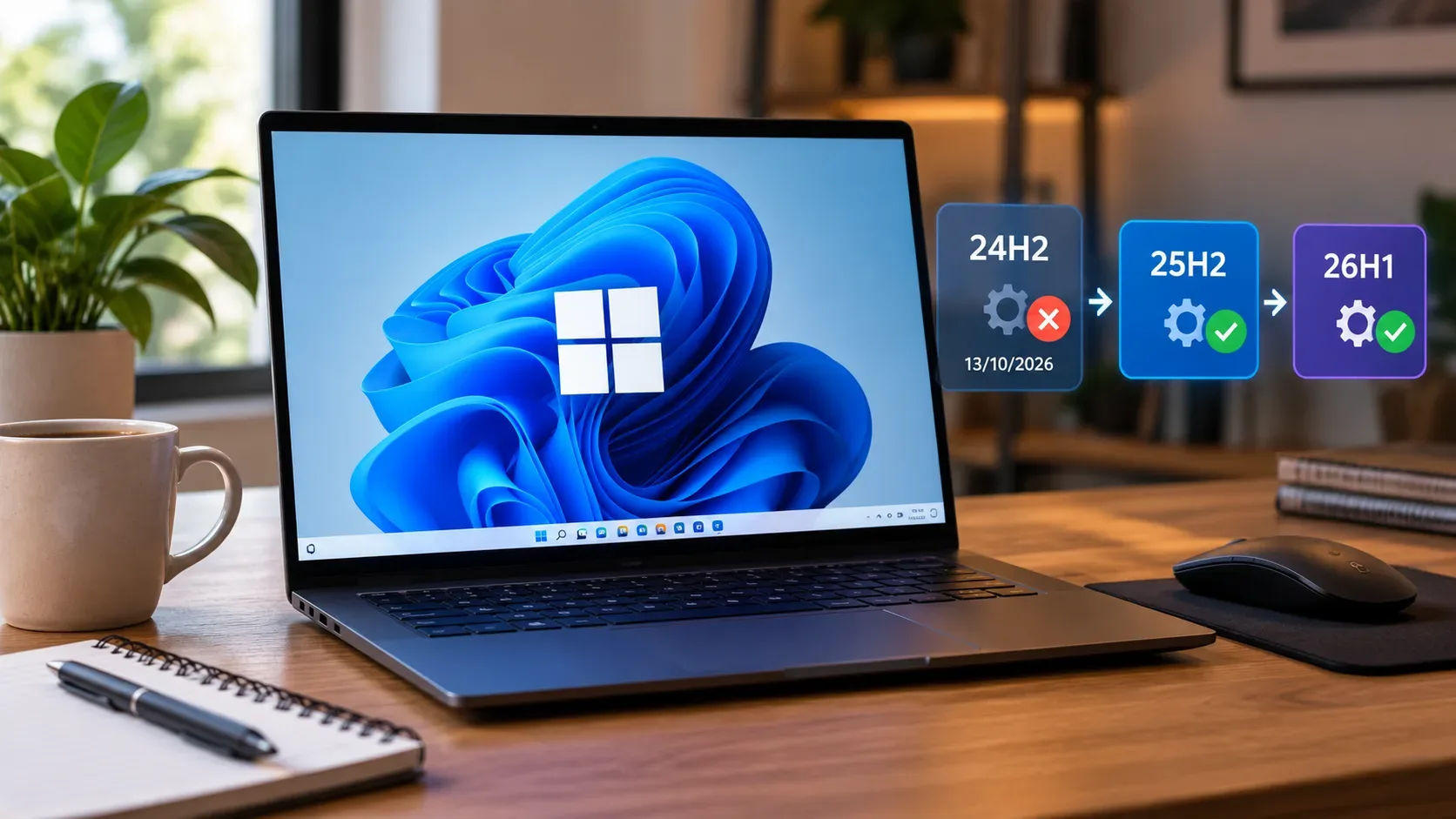
If your PC is running Windows 11, version 24H2, in the Home or Pro editions, the date that matters is October 13, 2026. Microsoft says that after that day those editions stop receiving the regular monthly security and quality updates. The notice was reinforced in the KB5124008 security update, released September 8, 2026. This does not mean the computer will stop booting the next day, but it does mean remaining on a version that no longer receives regular servicing for Home and Pro.
The main source of confusion is the presence of three similar names: 24H2, 25H2, and 26H1. For a computer already running 24H2 or 25H2, 26H1 is not the normal next upgrade. Microsoft says 26H1 was created for selected new PCs with next-generation hardware and is not offered as an in-place upgrade from 24H2 or 25H2. For a PC on 24H2 Home/Pro, the normal path is to check for the Windows 11 25H2 offer in Windows Update.
First, confirm the edition, version, and build
Before thinking about upgrading, confirm three items: the Windows edition, version, and operating system build. This prevents you from assuming a PC is close to end of updates just because it says “24H2.” The October 13, 2026 deadline highlighted in this article applies to Home and Pro; Enterprise and Education follow a different servicing schedule.
- Open Start > Settings > System > About.
- Under Windows specifications, find Edition, Version, and OS build.
- As a shortcut, search for winver on the taskbar and press Enter. The dialog shows the version and build.
Microsoft's official Windows 11 release information page lets you verify the current build families. In September 2026, 24H2 uses the 26100 family, 25H2 uses 26200, and 26H1 uses 28000. The digits after the decimal change with monthly updates, so that part should not be used by itself to decide which version you have.
| Version | Build family | What it means for an existing PC |
|---|---|---|
| 24H2 | 26100 | Home/Pro reach end of updates on October 13, 2026. |
| 25H2 | 26200 | This is the normal feature update for eligible PCs running 24H2. |
| 26H1 | 28000 | It was designed for selected new devices and is not an in-place upgrade from 24H2/25H2. |
What changes on October 13, 2026 for Home and Pro
End of updates is a servicing milestone, not a switch that disables the computer. According to Microsoft, after end of updates Windows 11 24H2 Home and Pro no longer receive fixes for known issues, time-zone updates, technical support, or the monthly security and preview updates that contain the latest protections. The date appears both on the Windows 11 Home and Pro lifecycle page and in the KB5124008 notice.
There is an important caveat: do not treat every “24H2” device as if support ends in October 2026. Microsoft's schedule separates consumer/professional editions from Enterprise and Education. If the About screen shows one of those enterprise editions, check its specific lifecycle before making a decision.
For 24H2 Home/Pro, the normal destination is 25H2
Windows 11 24H2 and 25H2 share the same core operating system and the same basic set of system files. Microsoft therefore moves devices from 24H2 to 25H2 using an enablement package: many of the components already arrive through 24H2 cumulative updates and are activated when the 25H2 package is installed. The KB5054156 documentation describes this process and says the feature update can be completed with one restart.
For a home or professional PC that receives updates directly from Microsoft, the simplest sequence is:
- Back up files you cannot afford to lose.
- Open Settings > Windows Update and install pending 24H2 cumulative updates.
- Restart if Windows asks you to.
- Return to Windows Update and select Check for updates.
- If Windows 11, version 25H2 appears, use the download and install option shown by Windows Update.
- After the update and restart, check Settings > System > About again or run winver to confirm that the version is now 25H2.
Microsoft says 25H2 is offered according to device readiness: Windows Update presents the feature update when compatibility data shows that the PC is ready. On the 25H2 release health page, Microsoft instructs users to check for updates and, if the device is ready, use the download and install option displayed by Windows Update.
26H1 is not “newer, therefore better” for an existing PC upgrade
The name 26H1 can look like a direct successor to 25H2, but Microsoft scoped this release differently. According to the official Windows 11, version 26H1 page, it was created to enable a new generation of silicon and hardware and began appearing preinstalled on selected devices in 2026.
For existing PCs, two practical rules are enough:
- 26H1 is not offered through Windows Update as a feature update for 24H2 or 25H2 PCs.
- 26H1 is not an in-place upgrade from 24H2 or 25H2.
So if your goal is to move a 24H2 Home/Pro notebook or desktop away from an approaching end-of-servicing date, it makes no sense to hunt for an ISO, package, or workaround to “jump” straight to 26H1. In this scenario, follow the 25H2 offer and the official guidance from Microsoft and your PC manufacturer.
What if 25H2 does not appear in Windows Update?
A missing offer does not automatically mean the PC is incompatible. Microsoft uses safeguard holds when it identifies hardware, driver, or software combinations that could cause an update to fail, roll back, lose connectivity, or create another serious problem during a feature update.
When a safeguard hold is active, Windows Update may say that an update is on the way but is not ready for that device yet. Microsoft's official guidance is to not attempt a manual update until the issue has been resolved and the hold has been removed. The Windows safeguard holds documentation explains that bypassing the hold can expose the device to the very problem the protection is intended to prevent.
Before looking for alternate methods:
- install the normal updates that remain available for 24H2;
- update drivers and firmware through the PC manufacturer's official channels;
- check Windows 11 release health for known issues;
- check Windows Update again after the block is resolved.
If there is no safeguard message and Windows Update still does not offer 25H2, use only Microsoft's official tools and instructions that apply to your device. The goal is not to install “at any cost,” but to reach a supported version without bypassing hardware requirements or compatibility protections.
Checklist to avoid confusion near the deadline
- Are you on 24H2 Home or Pro? Plan the move before October 13, 2026.
- Are you on Enterprise or Education? Do not automatically apply the Home/Pro deadline; check your edition's lifecycle.
- Does Windows Update offer 25H2? That is the normal upgrade path for an eligible 24H2 PC.
- Did you see 26H1 in news coverage or on a new PC? Do not treat it as a direct upgrade for existing 24H2/25H2 machines.
- Is 25H2 blocked? Find the reason and respect the safeguard hold instead of forcing the install.
- Finished the update? Confirm the edition, version, and build again in About or with winver.
In short, the problem is not choosing between 25H2 and 26H1 as if they were equivalent upgrade routes. For a Windows 11 24H2 Home/Pro PC, the October 13, 2026 deadline calls for an objective check of the edition and version; if the PC is ready, the normal move is to 25H2 through Windows Update. 26H1 belongs to a different hardware track and should not be used to justify a forced installation.