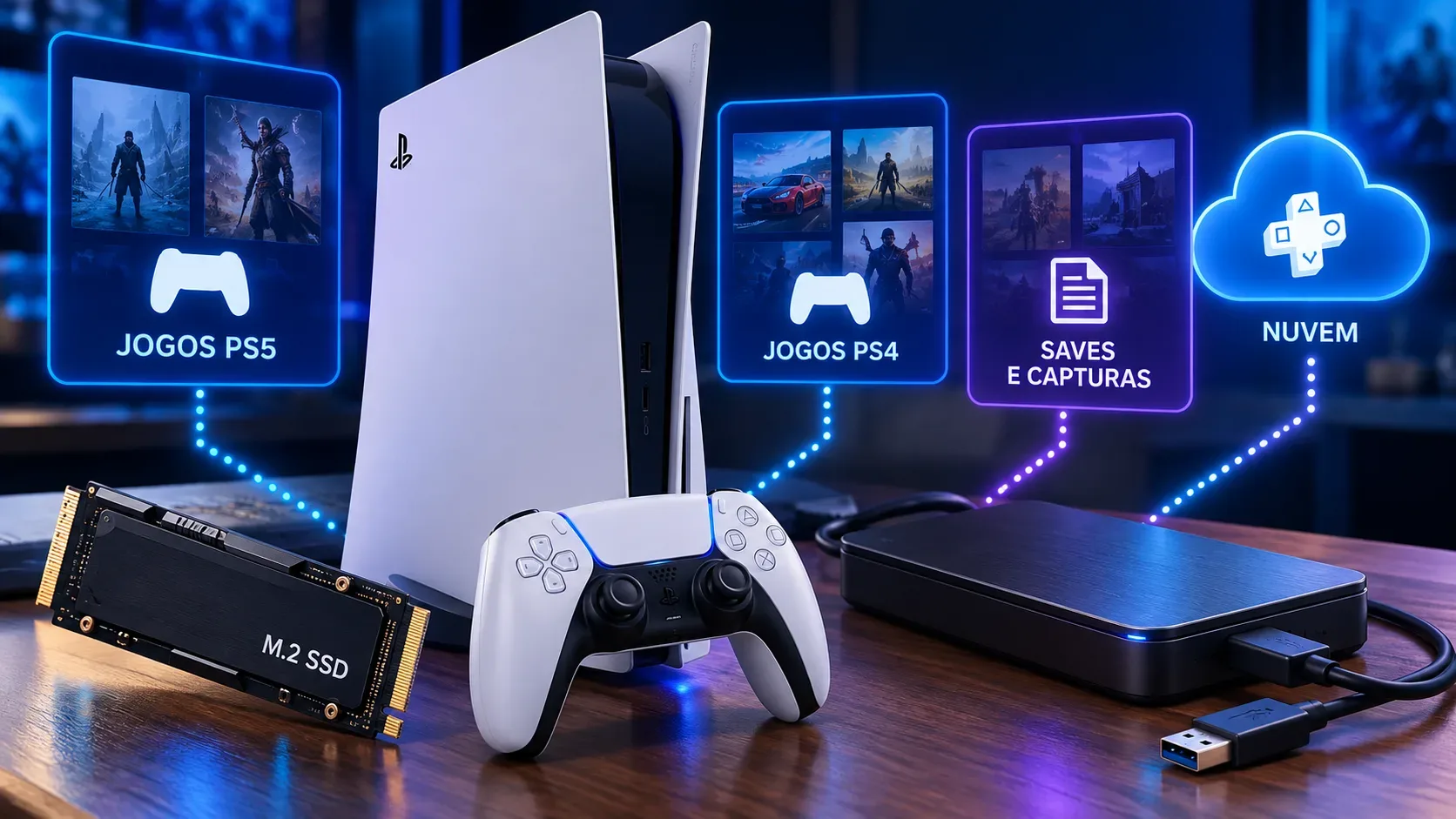
On PS5, the right storage choice depends on the type of data and, most importantly, where that data needs to run. PS5 games run from the console's internal storage or from a compatible M.2 SSD. USB extended storage can hold PS5 games, but they must be copied back to internal storage or the M.2 SSD before you can play them. PS4 games, by contrast, can be installed and played directly from USB extended storage.
Saved data follows a different set of rules. PS5 game saves live on console storage and can be synchronized with PlayStation Plus cloud storage. PS4 saves can also use the cloud and can additionally be copied to a compatible regular USB drive. That is why “where the game is stored” and “where progress is stored” are separate decisions.
Quick matrix: what can go where
| Data type | PS5 internal storage | Compatible M.2 SSD | USB extended storage | Cloud / regular USB drive |
|---|---|---|---|---|
| PS5 game | Store and play | Store and play | Store, but not play from it | No |
| PS4 game | Store and play | Store and play | Store and play | No |
| PS5 save | Yes | Not as a save destination | No | Cloud with PlayStation Plus |
| PS4 save | Yes | Not as a save destination | No | Cloud with PlayStation Plus or a regular USB drive |
| Screenshots and video clips | Yes | Not listed as a destination in Sony's storage matrix | No | Can be copied to a compatible regular USB drive |
Sony's official matrix distinguishes “USB extended storage”, which is used for game data, from a regular FAT or exFAT USB drive used for tasks such as copying PS4 saves and captures. This distinction prevents a common mistake: formatting a drive as extended storage and expecting it to behave like a general-purpose USB drive for every file type.
M.2 SSD: the expansion that can run PS5 games
An M.2 SSD installed in the expansion slot is the option for adding capacity without creating a copy-back step before playing. Once installed and formatted by the console, it can download, copy, and launch PS5 and PS4 games as well as media apps.
Not every M.2 drive is suitable. Sony requires an NVMe M.2 SSD with PCI Express Gen4x4, a capacity from 250 GB to 8 TB, and effective heat dissipation. The company recommends sequential read speeds of 5,500 MB/s or faster and publishes physical limits for width, length, and thickness. M.2 SATA SSDs are not supported.
Before buying, check the full specifications in Sony's official PS5 M.2 SSD guide. Sony also notes that it cannot guarantee every third-party device will work simply because it meets the listed specifications.
USB HDD or SSD: excellent for PS4 and for archiving PS5 games
A drive configured as USB extended storage has two different roles depending on the game generation. For PS4, it can be the installation and execution location. For PS5, it acts as an archive: you can move a game you are not currently using there and quickly free high-speed storage space.
When you want to play an archived PS5 title again, copy it back to console storage or the M.2 SSD. This can be more convenient than downloading the entire game again, especially on a slow or data-capped connection.
According to Sony's official USB extended storage guide, the drive must support SuperSpeed USB at 5 Gbps or faster and have a capacity from 250 GB to 8 TB. It cannot be connected through a USB hub, and only one USB extended storage drive can be used at a time.
Cloud storage: for saves, not game installation
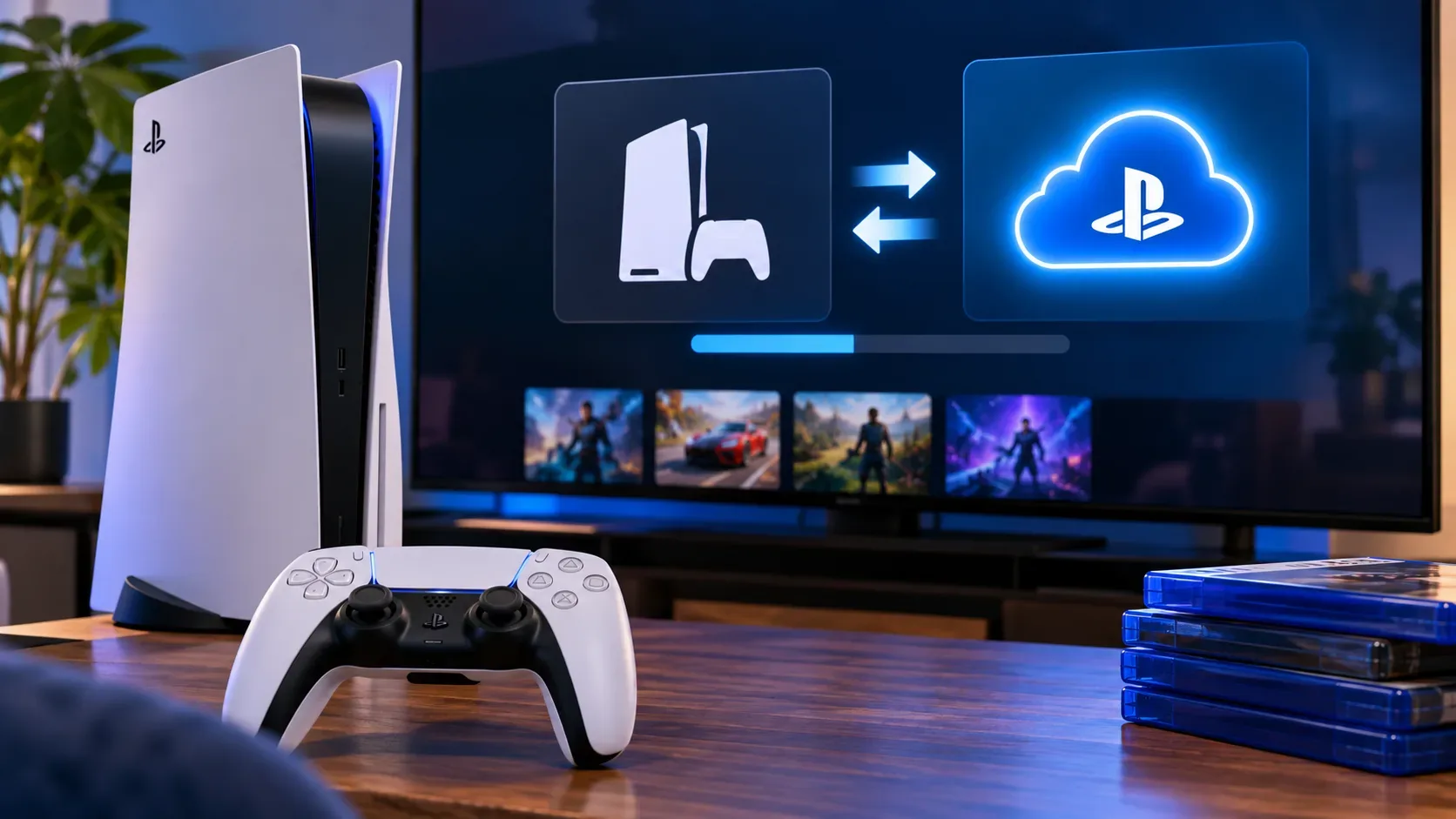
PlayStation Plus cloud storage is designed for saved data. It does not replace internal storage, an M.2 SSD, or USB extended storage for installing your game library. Its purpose is to keep an online copy of progress and make it easier to continue on another compatible console.
For PS5 games, automatic synchronization of saved data can be enabled. For PS4 games, uploads can be automatic, while downloading to PS5 console storage is done manually when needed. The feature requires a PlayStation Plus membership. Sony's cloud storage support guide explains synchronization, upload, download, and deletion.
PS5 saves and PS4 saves do not have the same options
This is one of the most important distinctions. Sony's storage matrix lists cloud storage for PS5 saves, but not a regular USB drive as a copy destination for those saves. For PS4 saves, PS5 supports both cloud storage and a compatible regular USB drive.
Buying an external HDD therefore does not automatically create a local backup option for PS5 saves. If your priority is protecting PS5 game progress outside the console, Sony's individual save option is PlayStation Plus cloud synchronization.
Captures use a regular USB drive, not extended storage
Screenshots and video clips also need to be treated separately. To copy this media to USB, Sony directs users to a commercially available drive formatted as FAT or exFAT, not as USB extended storage. The same type of regular drive can be used for PS4 saves.
This means one drive does not perform every role at the same time. Once a drive is formatted as extended storage, it takes on the specific job of holding game data compatible with that mode.
Which path fits each need
- I want more space to install and play PS5 titles: use a compatible M.2 SSD.
- I want a lower-cost way to archive PS5 games: use USB extended storage and copy the game back when you want to play.
- I have many PS4 games: USB extended storage lets you install and play them directly from the drive.
- I want to protect PS5 saves: use PlayStation Plus cloud storage and check synchronization status.
- I want to copy PS4 saves or captures: use a compatible regular USB drive formatted as FAT or exFAT.
How to migrate without confusing games and saves
To free space, first open Settings > Storage and identify what is using console capacity. Games can be moved between internal storage, the M.2 SSD, and, with the limitations already described, USB extended storage. Saves are managed under Settings > Saved Data and Game/App Settings.
When you move a game, do not assume its save moved with it. Installation files and progress are separate categories in the system. Keeping that distinction in mind also helps prevent accidental deletion when the goal is only to free storage space.
Precautions before formatting or disconnecting a drive
Formatting a drive erases the data already on it. Before setting up an M.2 SSD or USB drive for a specific PS5 role, make sure any files you need have been copied elsewhere. Do not power off the console or remove the drive while formatting is in progress.
When disconnecting USB extended storage while the PS5 is on, use the safe removal option under Settings > Storage > USB Extended Storage. Sony warns that improper disconnection can cause data loss or corruption.
A practical rule to remember
Think in three layers. Internal storage and a compatible M.2 SSD are where PS5 games can run. USB extended storage runs PS4 games and archives PS5 games. The cloud is for saved progress, while a regular USB drive covers specific tasks such as PS4 saves and captures. Separating these roles makes PS5 storage expansion more predictable and helps you avoid buying a device for a function the console does not provide.