
If your PS5 shows two versions of a game save, one on the console and one in the cloud, do not confirm an overwrite until you know which version contains the session you want to keep. Uploading sends local data to the cloud; downloading brings cloud data to the console. The direction you choose can cause the destination copy to lose progress that exists only there. Compare both versions, check the account and, when possible, preserve a backup before proceeding.
What the two copies are and who can use cloud storage
Save data in console storage is the local copy associated with the user who played. PlayStation Plus cloud storage holds another copy for synchronization and transfer between consoles. It is not the same as the installed game files. According to official support, cloud storage requires a PlayStation Plus subscription; in Brazil, the benefit is included in the Essential, Extra and Deluxe plans, with up to 100 GB for PS5 saves and 100 GB for PS4 saves.
There is an important distinction: for PS5 games, automatic synchronization can update both the console and the cloud with the latest data; for PS4 games played on a PS5, uploading can be automatic, but downloading to the console must be done manually. Therefore, do not treat a cloud copy as a permanent history of earlier versions.
Checklist before deciding which save to keep
- Stop and close the game. Avoid creating another save while investigating the conflict. Do not select delete, download or upload impulsively.
- Check the user and PlayStation account. Compare data belonging to the account that actually made the progress. Another profile on the same console does not necessarily represent the same save.
- Check the game and its version. In the save data list, distinguish Saved Data (PS5) from Saved Data (PS4). Do not assume saves from different versions are interchangeable; any cross-version import depends on the game itself.
- Compare the copies' date, time and identifiers, where shown. Note what is displayed for the local and cloud versions, including size or save slot if available. A later date indicates a later change, not necessarily the progress you prefer: a new game or overwritten save may also be recent.
- Reconstruct the last session. Recall which console you played on, whether you finished while connected to the internet and whether you closed the game. Check which copy appears to match the chapter, mission or slot you want to preserve.
- If it remains unclear, do not overwrite. Look for an independent copy or clarify synchronization status first. There is no guarantee the interface can undo an overwrite.
Where to check synchronization on PS5
On the games home screen, highlight the title and press the controller's options button. For PS5 games, PlayStation documents the Check Sync Status of Saved Data option. You can also go to Settings > Saved Data and Game/App Settings > Saved Data (PS5) > Sync Saved Data > View Sync Status. Use this check to identify pending synchronization before transferring files.
To inspect the available actions, open Settings > Saved Data and Game/App Settings and choose Saved Data (PS5) or Saved Data (PS4), depending on the game. The title's Upload/Download Saved Data shortcut transfers the most recent save data; when a conflict is unresolved, inspect the transfer direction before using that shortcut.
Upload or download: the choice depends on the copy you want to preserve
| Situation after checking | Appropriate direction | Main precaution |
|---|---|---|
| The local save contains the desired progress and the cloud is behind. | Upload: console to cloud. | Check that the destination is the older copy before confirming. |
| The cloud save contains the desired progress and the console is behind. | Download: cloud to console. | Preserve local data first if you might still need it. |
| Both copies contain different progress and both matter, or it is unclear which is correct. | Do not overwrite either one yet. | Look for an independent backup and verify game-specific details. |
A “most recent” indicator may help establish the timeline, but it cannot decide which save you want to keep. Uploading or downloading does not automatically merge two divergent playthroughs.
Safe backup and USB limitations
If you still have access to local data that could be lost, consider making an official console backup before overwriting it. Connect a compatible USB drive and go to Settings > System > System Software > Back Up and Restore > Back Up Your PS5. Select the data types, including saved data, and complete the procedure shown. PlayStation states that this backup is linked to the account and that the console restarts during the process.
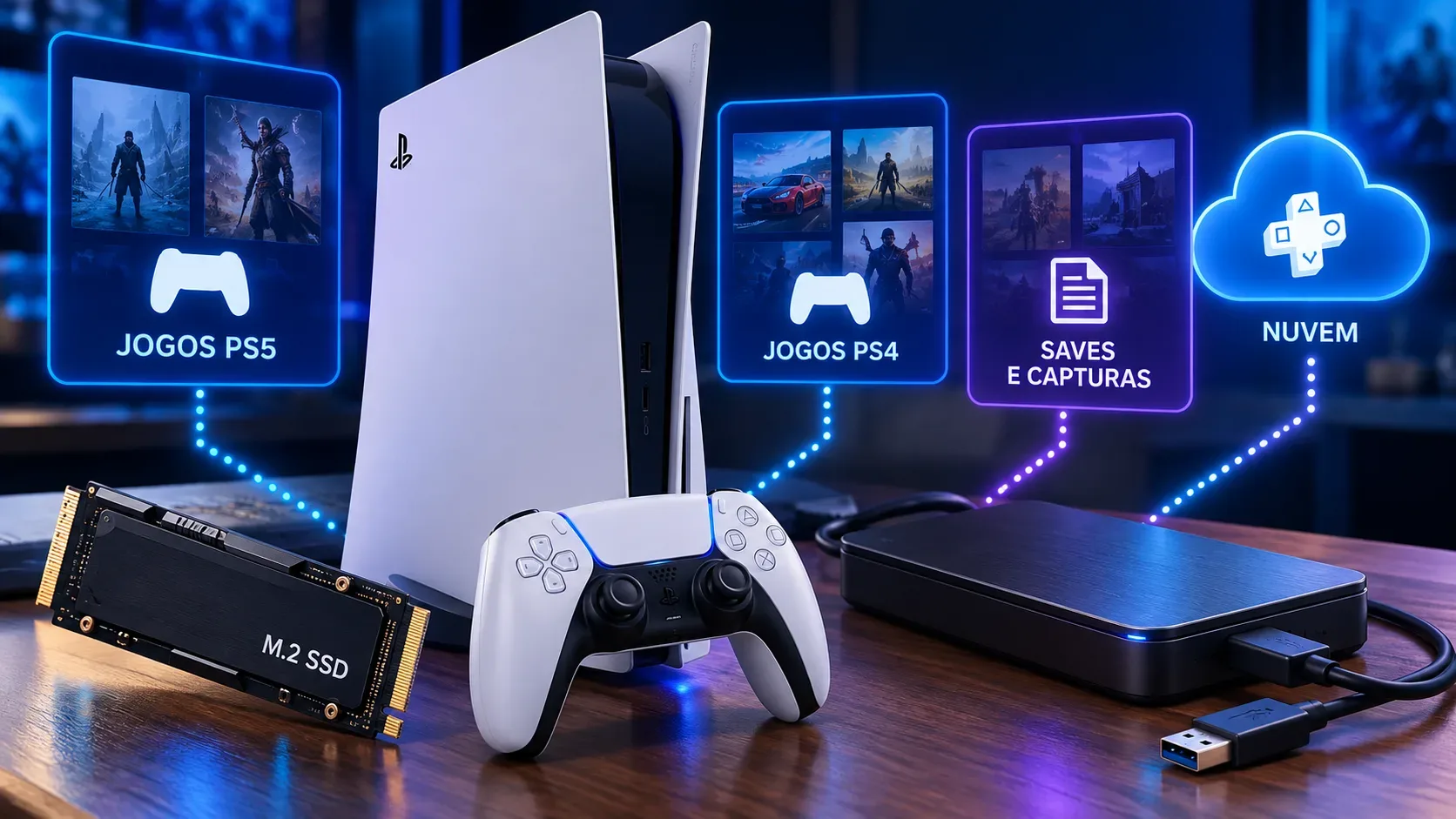
Do not confuse a full PS5 backup with copying an individual PS5 game save to a USB stick. The storage documentation says PS5 game saves can use cloud storage but cannot be copied individually to a USB drive; PS4 game saves support cloud and USB storage. An M.2 SSD or extended USB storage used for installing games is not an alternative destination for PS5 saves.
There is a critical risk: restoring a PS5 backup erases the saved data currently on the console, according to PlayStation support. Do not use restoration as a harmless test or assume that a USB backup is a browsable per-game version history. Nor should you assume a cloud upload is an immutable copy when automatic synchronization is enabled.
How to transfer data after choosing the correct version
If the local copy is the one you want in the cloud
- Open Settings > Saved Data and Game/App Settings.
- Choose Saved Data (PS5) or Saved Data (PS4).
- Open Upload or Delete from Console Storage and select the Upload to Cloud Storage tab.
- Select the correct game and data, review the operation and confirm Upload.
If the cloud copy is the one you want on the console
- Open Settings > Saved Data and Game/App Settings.
- Choose Saved Data (PS5) or Saved Data (PS4).
- Open Download or Delete from Cloud Storage and select the Download to Console Storage tab.
- Select the correct game and data, check the destination and confirm Download.
The paths above are English equivalents of the labels in the Brazilian support page consulted; wording on your console may vary by system language. Delete is separate from upload and download and does not resolve a conflict by itself. Follow the warnings actually shown on your console before confirming an overwrite.
How to reduce conflicts in future sessions
For PS5 saves, check Settings > Saved Data and Game/App Settings > Saved Data (PS5) > Sync Saved Data > Auto-Sync Saved Data and the Enable Auto-Sync setting. PlayStation also advises enabling automatic updates and, for rest mode, using Settings > System > Power Saving > Features Available in Rest Mode > Stay Connected to the Internet. You can adjust synchronization for each game.
For PS4 saves on PS5, the corresponding option is Auto-Upload; even when it is enabled, downloading to another PS5 console is manual. When switching consoles, check the copy's status before opening the game and avoid starting divergent sessions without confirming the transfer.
What if you have already overwritten the wrong progress?
Avoid making new saves and check whether an earlier USB backup or another genuinely preserved copy exists on another console. Do not treat another synchronization as a recovery mechanism: it may update the very copy you were trying to save. If you have a full backup, consider the restoration's effect on all current saved data on the console before using it. The documentation consulted does not promise version history or guaranteed reversal after an overwrite. Without an independent copy, recovery may not be possible.