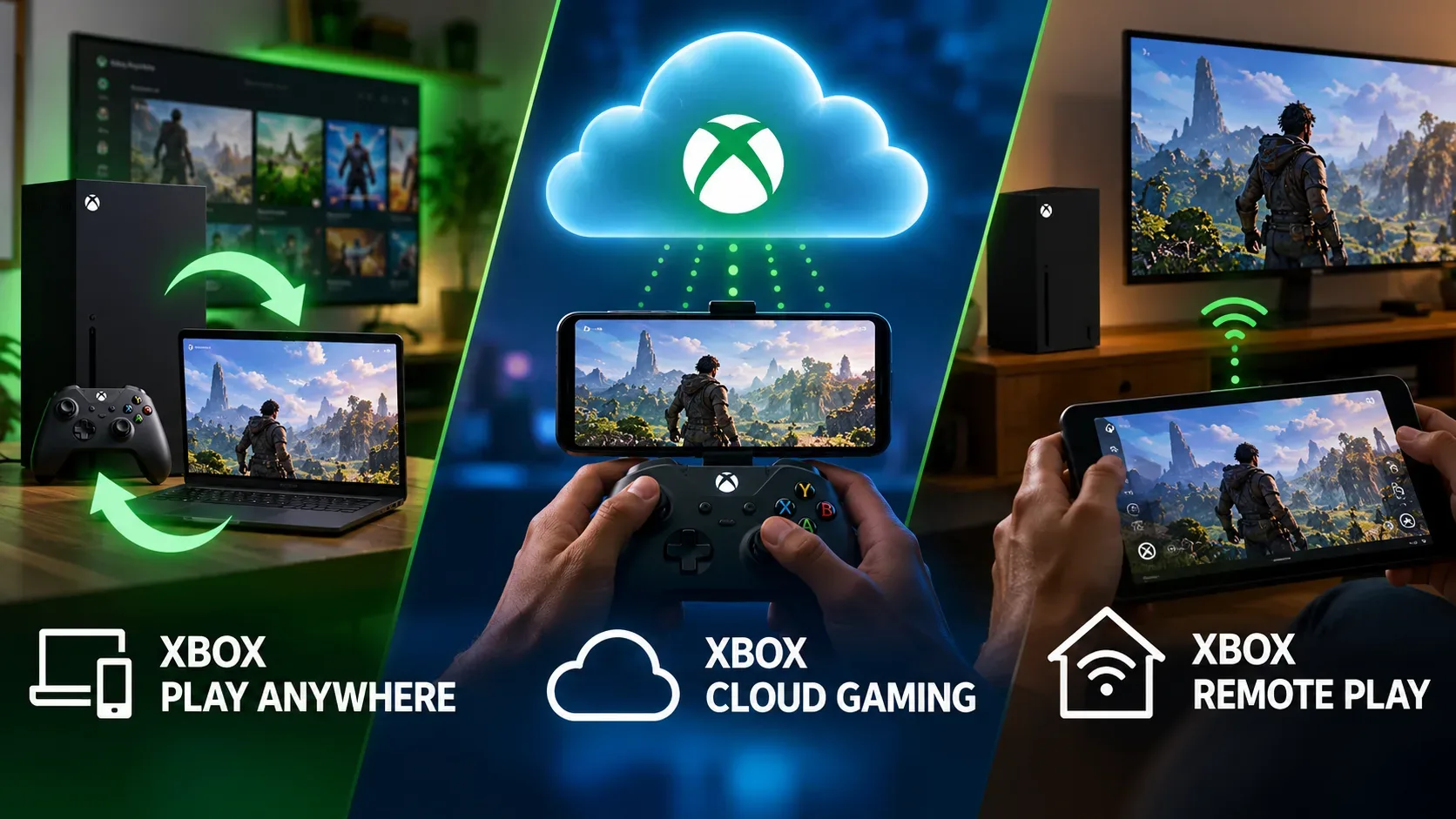
If the question is which feature lets you play without buying the same game twice, the most direct answer is Xbox Play Anywhere, as long as the title participates in the program and the digital purchase is made through a compatible Microsoft store. In that case, the same license provides access on a compatible Xbox console and Windows PC at no extra cost. Xbox Cloud Gaming and Remote Play solve different problems: they stream games over the internet, but they do not automatically turn a console license into a second native PC license.
This distinction prevents a common misunderstanding. Play Anywhere is mainly a cross-platform licensing and compatibility rule. Cloud Gaming is a way to run a game on remote servers and receive the video stream over the internet. Remote Play is a way to use your own Xbox console as the source of the stream.
Quick comparison: what each feature actually does
| Feature | Where the game runs | Do you need to buy it twice? | What you need | Main limitation |
|---|---|---|---|---|
| Xbox Play Anywhere | Locally on a compatible Xbox or PC | No, for participating titles bought digitally through a compatible store | Xbox account, Play Anywhere title, and compatible device | Not every game participates |
| Xbox Cloud Gaming | On Xbox cloud servers | It is not a double-purchase rule. Access depends on the game, subscription, and service conditions | Compatible game, supported region and device, internet, and in many cases an eligible Game Pass plan | Catalog, plans, and availability vary |
| Xbox Remote Play | On your own Xbox console | You use the game your console already has access to | Configured Xbox Series X|S or Xbox One, installed game, account, and internet | Depends on your console and the connection to the remote device |
Xbox Play Anywhere: one digital purchase for Xbox and PC on participating games
Microsoft describes Xbox Play Anywhere around the idea of buying once and playing across compatible devices. For a participating game purchased digitally from the Xbox Store or Microsoft Store, the license can appear on both an Xbox console and a compatible Windows PC. The official page also states that progress, add-ons, and achievements travel with the player across supported devices.
The decisive detail is participating game. Play Anywhere is not an automatic feature of every game that exists on both Xbox and PC. Before purchasing, check whether the title is identified as Xbox Play Anywhere. It is also important not to confuse the shared license with streaming: in normal Play Anywhere use, the appropriate version is installed and runs on the device itself.
This makes the feature especially useful for players who switch between an Xbox in the living room and a Windows PC or handheld. If the same title is part of the program, you do not need to buy separate console and PC copies just to move between those devices.
Official source: Xbox Play Anywhere.
Cloud Gaming: the game runs in the cloud, not on your device
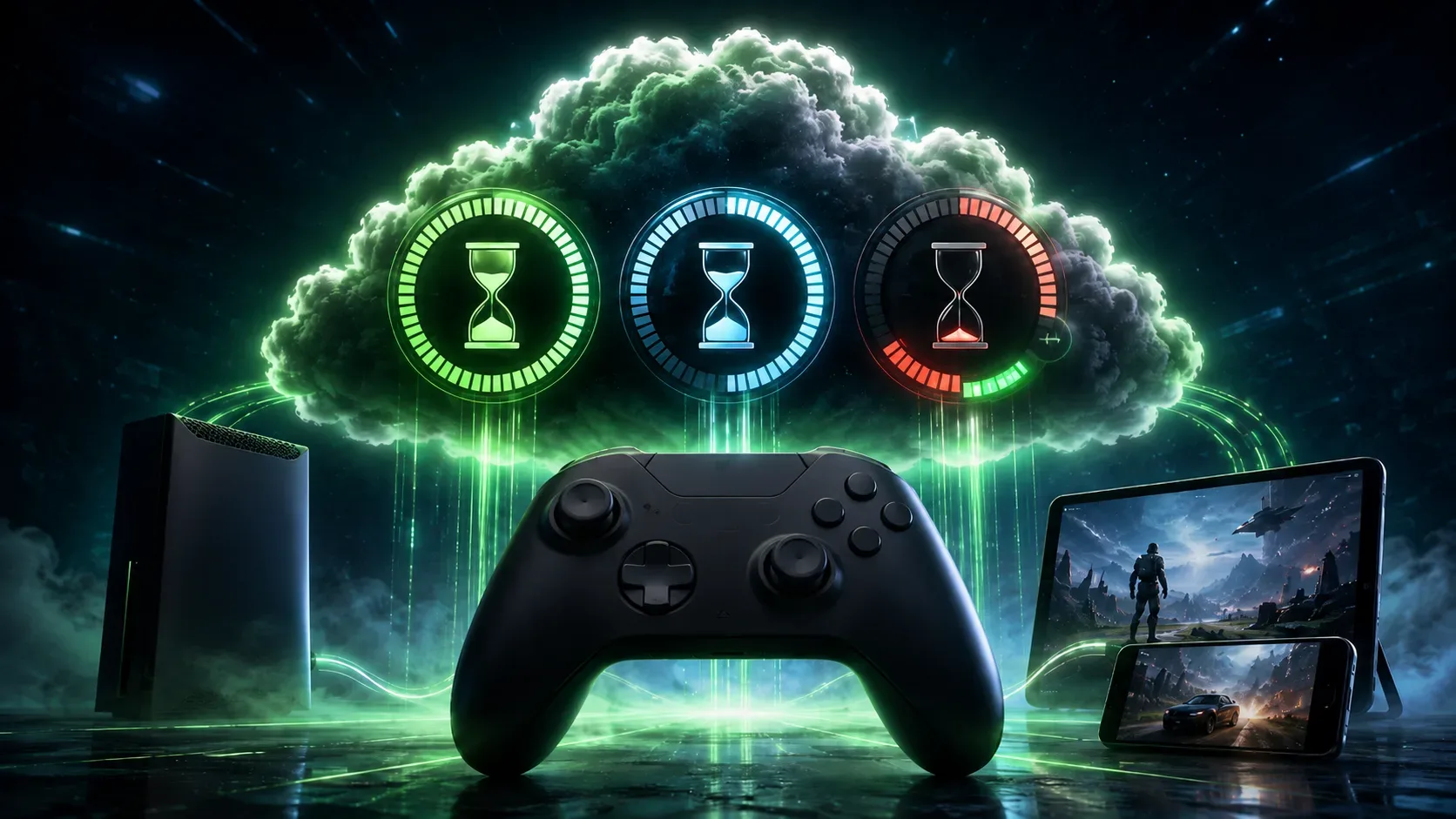
With Xbox Cloud Gaming, the device receives an interactive stream of the game. This makes it possible to play compatible titles without installing the full local version on many types of devices. Microsoft supports multiple device categories and notes that games, features, plans, and availability can vary by region and platform.
Cloud Gaming should not be interpreted as a universal PC and console license. The right to stream a title depends on the service rules. There are Game Pass catalog games available in the cloud, compatible free-to-play games, and certain owned titles that are enabled for streaming. Xbox also states that some owned games can be streamed even when they are not in the Game Pass catalog, provided they are cloud playable and the applicable requirements are met.
In practice, this means that owning a game does not guarantee that it can be streamed from the cloud. You need to check whether that specific title supports Cloud Gaming and which subscription conditions apply. A stable connection is also essential because controls, video, and audio travel over the network throughout the session.
Official source: Xbox Cloud Gaming.
Remote Play: your console is the machine running the game
Remote Play follows a different model. Instead of an Xbox server running the game, your own console at home runs the title and streams the session to a compatible device. Microsoft says the feature works with games installed on the console, including titles you can access through the Xbox Game Pass library.
Remote Play therefore does not create a new PC license. If you open an Xbox game on a laptop through Remote Play, the laptop acts as a screen and remote control point for the console. That is different from installing a native PC version and running it with the computer's hardware.
The feature requires a compatible Xbox console with remote features enabled, a Microsoft account with an Xbox profile, a compatible access device, and a suitable internet connection. Because your personal console is the source, it also needs to be configured to allow the remote session.
Official source: Xbox Remote Play.
Three player scenarios that separate licenses from streaming
1. You own an Xbox and a PC and want to install the same game on both
Look first for the Xbox Play Anywhere label or listing. If the title participates and the purchase meets the program conditions, one digital purchase covers compatible devices. This is the scenario that most literally answers the question about avoiding a second purchase.
2. You want to play on a device that will not run the game locally
Check Cloud Gaming. The key issue here is not having two installable versions, but receiving the game through streaming. Confirm that the game is cloud playable, that your plan meets the requirements, that your region and device are supported, and that your connection is adequate.
3. You already have an Xbox and want to access games installed on it from another device
Use Remote Play. The console remains the source of the session. It is a practical way to play on another screen, at home or away, without treating the remote device as a second machine that received a native game license.
Saved progress also depends on the game's ecosystem
With Play Anywhere, Microsoft specifically highlights that saves, add-ons, and achievements follow the player across compatible devices. Cloud Gaming can also let you continue across devices when the title and account support the appropriate synchronization. With Remote Play, you are accessing the session on your own console, so you remain within that Xbox environment.
Even so, you should not assume that every game released on multiple platforms behaves identically for saves, extra content, or multiplayer. Check the title's page and feature list before buying, especially for games from third-party publishers.
What to check before paying or setting anything up
- For Play Anywhere: confirm that the game is officially listed as participating and that the purchase is digital through a compatible store.
- For Cloud Gaming: check whether the title is cloud playable, which plan is required, which devices and regions are supported, and whether your internet connection meets the requirements.
- For Remote Play: confirm that the game is installed or accessible on your console, enable remote features, and test connection quality.
- For progress: verify synchronization support, especially when different versions, editions, or ecosystems are involved.
In one sentence: license, cloud, or your console
Xbox Play Anywhere is the feature to look for when your priority is to buy a participating title once and install it on a compatible Xbox and PC. Cloud Gaming streams games running on cloud infrastructure and depends on title availability and service conditions. Remote Play streams games running on your own console to another screen. Keeping those three functions separate makes it much easier to know whether you are buying a cross-platform license, using a cloud service, or simply controlling your Xbox from a distance.