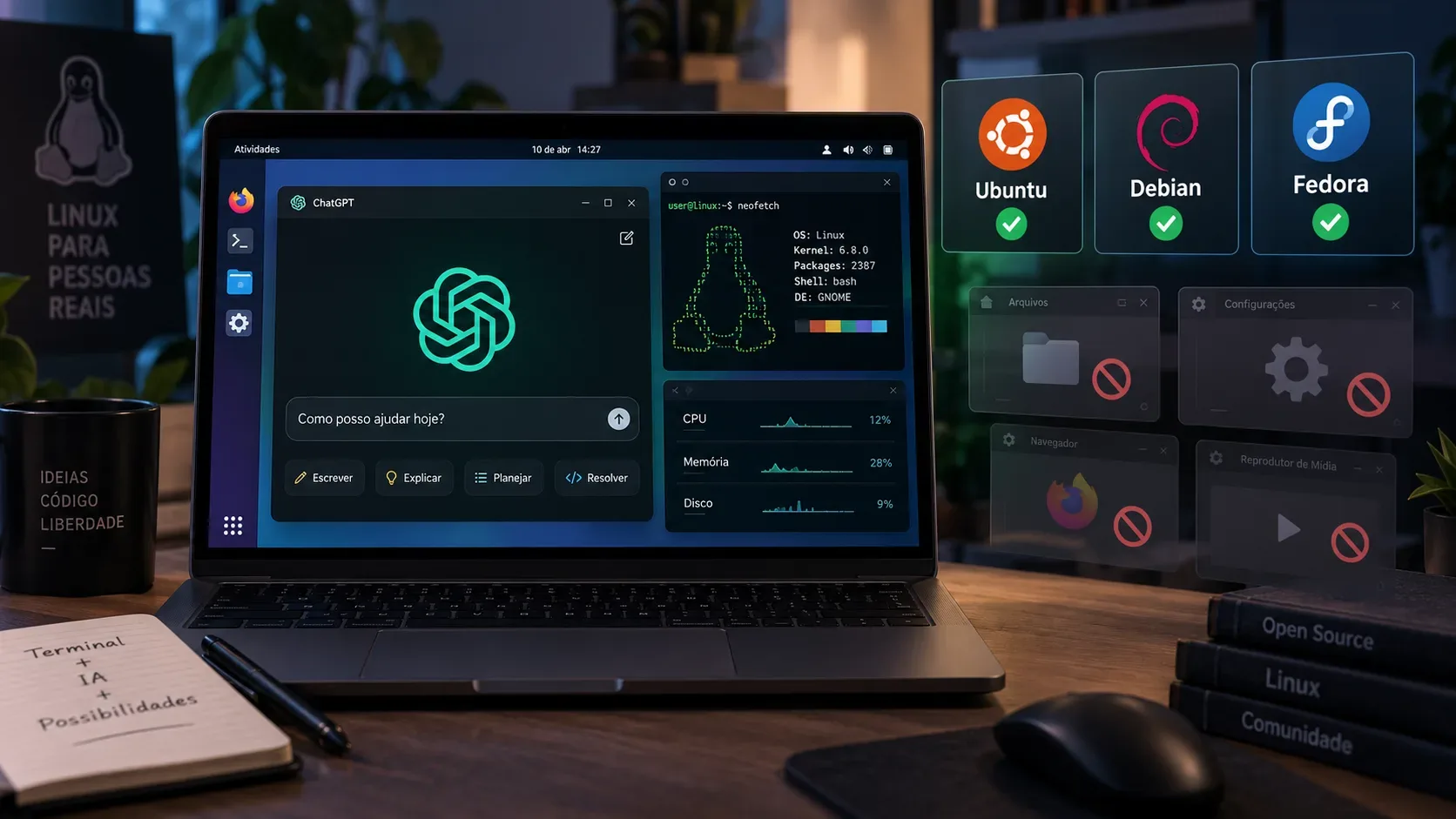
The official ChatGPT app for Linux is in public preview. Official support covers Ubuntu 24.04 LTS and 26.04 LTS, Debian 13, and Fedora 43 and 44, with packages for x64 and ARM64. For anyone evaluating automation, the key is to separate two capabilities: the app already supports actions on web pages through the built-in browser or Chrome, but it still cannot control other desktop applications on Linux.
That makes the preview useful for ChatGPT, projects, local files, Codex, and browser workflows, but it does not yet turn the app into an agent that can generically operate any Linux window or program.
Which distros and releases are officially supported
OpenAI lists exact releases, not just distribution families. A derivative distro may work, but that does not automatically place it in the formal support matrix.
| Distribution | Version | Status | Package | Architectures |
|---|---|---|---|---|
| Ubuntu | 24.04 LTS | Supported | .deb | x64 and ARM64 |
| Ubuntu | 26.04 LTS | Supported | .deb | x64 and ARM64 |
| Debian | 13 | Supported | .deb | x64 and ARM64 |
| Fedora | 43 | Supported | .rpm | x64 and ARM64 |
| Fedora | 44 | Supported | .rpm | x64 and ARM64 |
| Other distros | — | No formal support | — | May work, without an official guarantee |
The documentation says other Linux distributions may work but are not formally supported. Therefore, “Ubuntu-based” or “Debian-compatible” should not be treated as a synonym for official compatibility. On work machines, check the exact release before installing.
Sources: ChatGPT for Linux documentation and the ChatGPT release notes.
How to choose between x64 and ARM64
Every supported release has builds for x64 and ARM64. OpenAI recommends checking the processor architecture with uname -m: “x86_64” means x64, while “aarch64” or “arm64” means ARM64.
- Ubuntu and Debian use a .deb package.
- Fedora uses a .rpm package.
- Installation configures a signed OpenAI repository for later updates through the distribution's package manager.
In practice, that means updates follow the normal system workflow: apt on Ubuntu/Debian and dnf on Fedora.
What works in the built-in browser and Chrome
The release notes say the Linux app can work in the built-in browser or Chrome, and that browser actions are available. That matters because web automation and desktop control are different capabilities.
A task can move through pages and tabs inside a browser workflow even though ChatGPT still cannot freely click or type in any other installed program. The Linux documentation also points users to the Chrome extension for browser integration.
To decide whether the preview fits your needs, think of it this way: if the task happens on web pages, browser automation is available; if it depends on operating an arbitrary graphical system interface, the limitation applies.
What the app still cannot control
The official limitation is clear: control of other desktop applications is not yet supported in the Linux preview. The platform-specific documentation links this gap to Computer Use, which is available on macOS and Windows but not yet on Linux.
Users therefore should not expect the app to generically control an editor, email client, file manager, settings panel, or another Linux application simply because it is open. That operating-system-level visual automation layer has not yet reached the preview.
At the same time, the restriction does not remove the other capabilities: the app still serves as an environment for ChatGPT, projects, local files, Codex, and the available browser automation.
Browser automation is not Computer Use
The difference is easier to understand when the workflow is split into three layers:
- ChatGPT and Codex on the desktop: conversations, projects, local files, and development work in the Linux app.
- Browser actions: interaction with web pages through the built-in browser or Chrome within supported workflows.
- Computer Use: visual control of other applications and operating-system elements. This third layer is not yet available in the Linux preview.
So the fact that the app can act on a web page does not mean it can manipulate any GNOME, KDE, or other graphical-desktop window.
Wayland is still experimental
Native Wayland support is experimental. In Wayland sessions, the app uses XWayland when available. OpenAI also allows users to explicitly start native Wayland mode with “chatgpt --ozone-platform=wayland”, but warns that floating windows, positioning, focus, and keyboard shortcuts may not fully work while support matures.
That does not make Wayland incompatible, but it adds a variable for anyone who relies heavily on shortcuts, overlays, and predictable window behavior.
Is it worth installing now?
Yes, if you use one of the officially supported releases and want a desktop experience for ChatGPT, Codex, projects, local files, and web automation. Native packages for x64 and ARM64 and an update path through the distro's package manager also make maintenance easier.
If your main goal is for ChatGPT to control Linux programs outside the browser, however, the preview does not provide that yet. The most accurate description today is: the Linux app already works as a ChatGPT workspace with browser actions, but not yet as a general desktop-control agent.
Because the product is in preview, supported releases and limitations may change. Before installing on a critical machine, check the official Linux page and the release notes again.