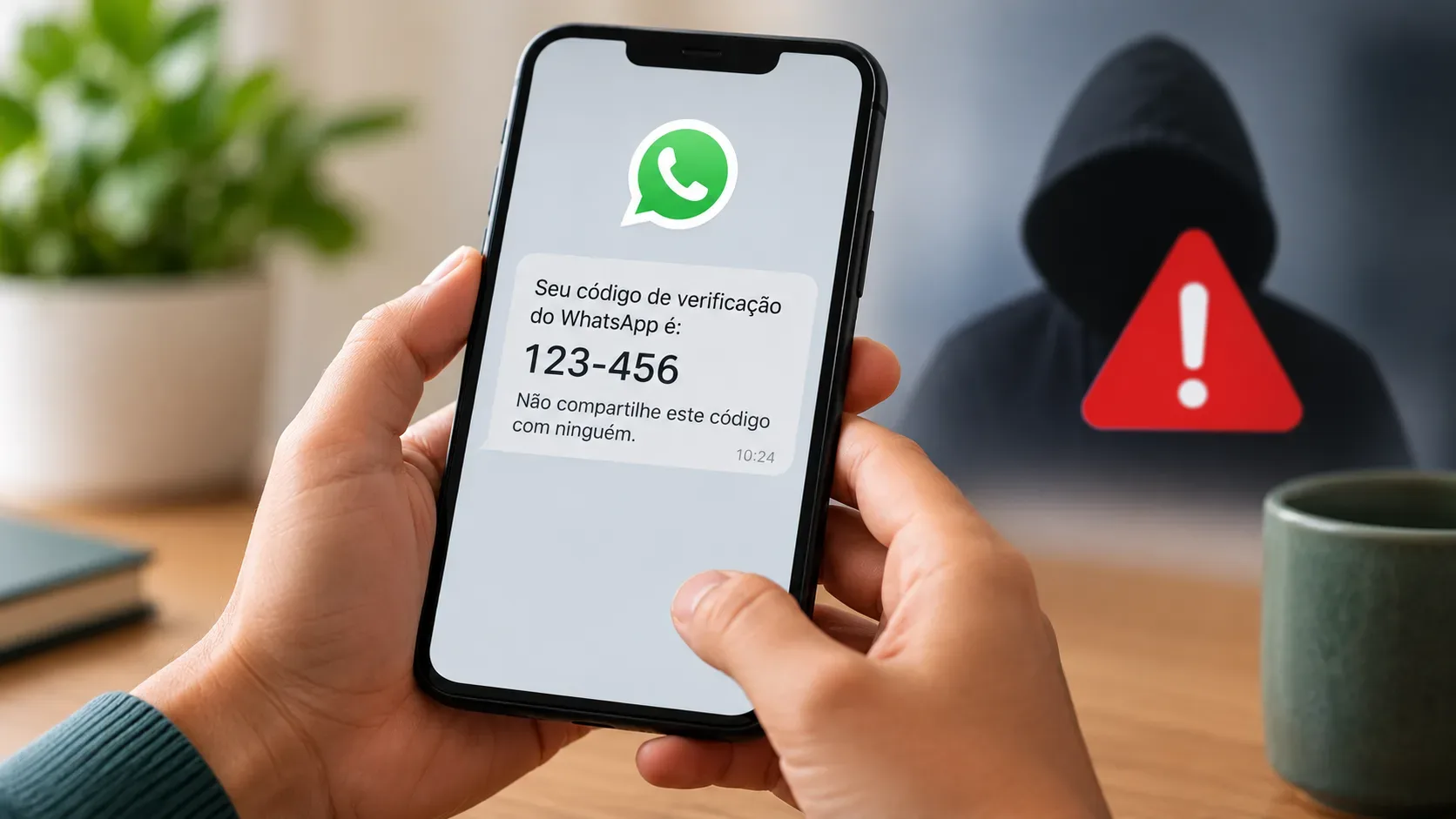
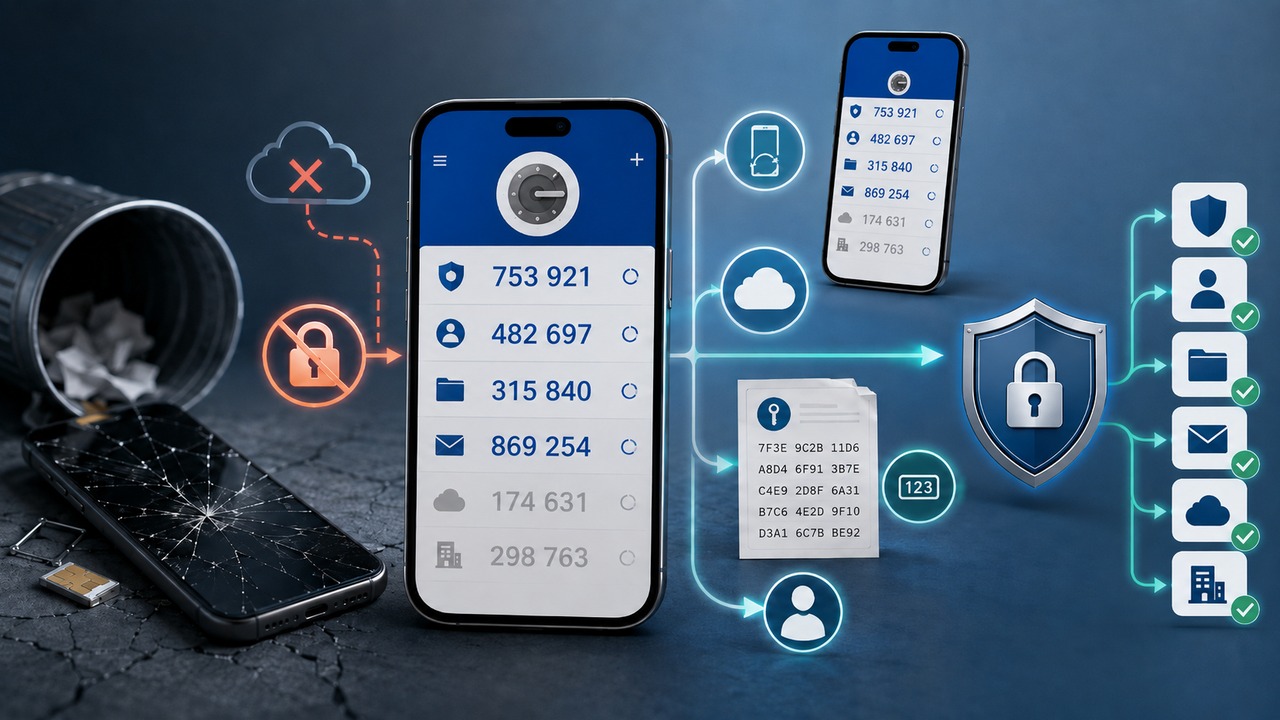
Losing, changing or formatting the cell phone that had the authenticator app does not always produce the same problem. In some cases, the codes reappear when entering the application on another device. In others, the authenticator no longer has the key necessary to generate the codes and the only way out is to recover each protected account and register a new verification method.
The most important distinction is this: recovering the Authenticator app and recovering the account protected by it are different tasks. Before trying anything, find out which scenario you are in.
The difference that changes recovery
TOTP codes, those temporary numbers that typically change every 30 seconds, are generated from a secret key shared between the service and the authenticator, combined with the time. The TOTP technical standard does not define a universal backup of this key. The possibility of recovering the codes depends on whether the application has synchronized or copied this secret, whether the old cell phone is still accessible or whether the service allows you to recover the account another way.
This explains why installing the same application again doesn't always solve the problem. If the secret key was only left on the device that was lost or deleted, the new application cannot simply guess the previous sequence. In this case, you need to prove your identity to the service, remove the old authenticator and register a new one.
It's also not the same thing as losing a passkey. Passkeys can have their own synchronization and recovery mechanisms in the system or credential manager. A TOTP code depends on the secret provisioned in the authenticator. Therefore, passkey recovery instructions should not be treated as an automatic solution for lost codes.
Scenario 1: the old cell phone is still available
If you can still unlock your old device, this is the most favorable scenario. Do not format or erase the device before completing the migration and testing important accesses on the new cell phone.
With Google Authenticator, anyone using the app without a Google Account can do the manual transfer. The official documentation advises you to export accounts on the old device, generate one or more QR codes and import them on the new device. The process requires access to the old phone and unlocking the device.
If Google Authenticator was already connected to a Google Account and the codes were synchronized, manual transfer may not even be necessary: when signing in to the same Google Account in the Authenticator on the new device, the synchronized codes should appear automatically.
In other TOTP apps, look for an export, transfer, or backup function before removing anything from your old phone. If the application does not offer this option, but you are still connected to protected services, another solution is to open the security configuration of each account, register a new authenticator and only then remove the old method.
Scenario 2: Google Authenticator was synced
Google Authenticator allows you to save codes to your Google Account. According to the official documentation, when you sign in to Authenticator on a new device with the same Google Account, the synchronized codes are automatically loaded.
There is a decisive difference between using Authenticator connected to your Google Account and choosing the option to use it without an account. In account-free mode, the codes are stored on the device and are not available on other devices. If the old phone disappeared and there was no sync, there is no cloud restore from Google Authenticator itself for those local records.
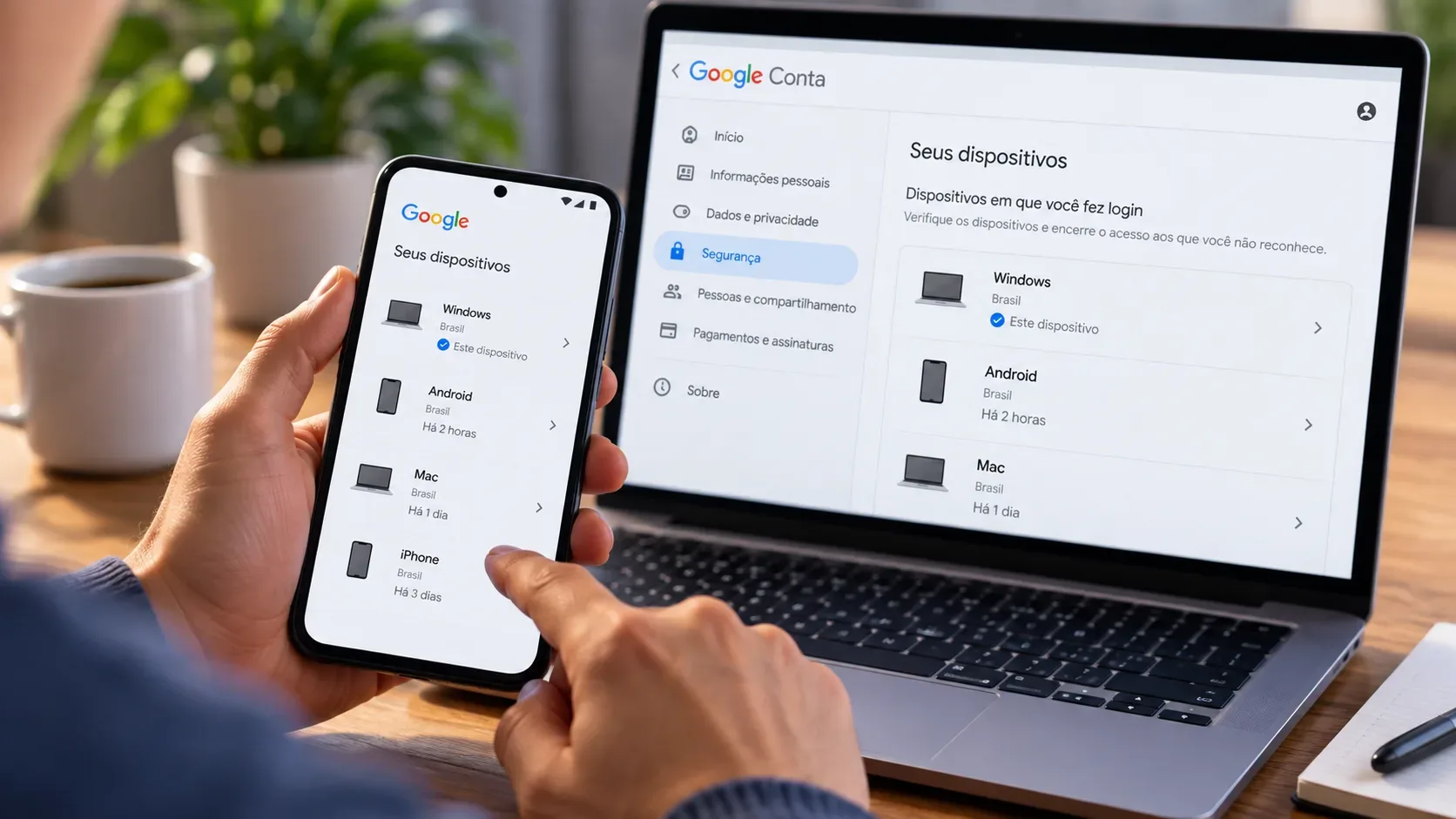
If the device was lost or stolen, Google's advice is to also protect the codes that were on it. Once the codes were synced, you can remove the device from your Google Account. When they were not synchronized, the documentation itself recommends accessing the sites where the Authenticator was configured, removing the old method and re-linking the new device.
Scenario 3: Microsoft Authenticator was backed up
Microsoft Authenticator can also restore previously saved information, but the result depends on the account type. Microsoft advises that backup and restore must occur on the same type of device: a backup made on iOS cannot be restored on Android, and vice versa.
On iPhone, the process uses iCloud resources. On Android, in the documentation effective August 2026, cloud backup is associated with a personal Microsoft account. The company already informs that this mechanism on Android will change from January 2027, when backup will start using Google One; Therefore, anyone who consults these guidelines after that date must confirm the option displayed in the application.
For third-party accounts that only use temporary codes, Microsoft Authenticator Backup can restore the codes. For work or school accounts, however, Microsoft says that only the account name is restored and you will need to sign in again. For personal Microsoft accounts with passwordless sign-in capabilities, additional authentication may also be required after restoration.
This detail avoids a common mistake: seeing the account reappear in the Authenticator list does not necessarily mean that the entire authentication method is working again. If the app shows a message like “sign in to restore” or “action required”, follow the official verification flow for that account.
Scenario 4: There is no backup and the old device cannot be used
Here, the focus changes. Instead of trying to “recover Authenticator,” you need to regain access to the accounts that depended on it.
Start with each service separately and look for an alternative way to prove your identity. This could be a previously saved recovery code, another device already connected, a passkey, a physical security key, a second authenticator, a recovery phone or email, or a trusted session still open. Options vary from service to service.
Once you are able to log in, open the security settings, remove the authenticator associated with the old cell phone and configure the new device. For many services, resetting the password alone is not a substitute for the TOTP method; treat the password and the second factor as different credentials and confirm that the old authenticator is indeed removed.
If no alternative factor is available, only use the official account recovery process. Do not provide a password, authenticator QR code, temporary code or recovery code to people or websites that promise to “unlock” the account outside the provider. This data may allow direct access to the service.
Scenario 5: You still have a recovery code or other factor
A recovery code may be exactly what prevents a complete lockout, but it belongs to the service that issued it. An alternative Google Account code, for example, is used to log into that Google Account; it does not automatically restore TOTP codes from other sites that were in the app.
The same goes for the Microsoft account recovery code. Microsoft offers a 25-digit recovery code to help recover your Microsoft account when normal verification methods are not available. This code is not a universal copy of TOTP secrets from third-party accounts.
If an alternative factor allows entry, take advantage of the recovered session to review all security methods. Register the new authenticator, test the login and generate new recovery codes. When the service allows you to invalidate the old set, do so if you are in doubt about where it was stored.
Scenario 6: The account is corporate, school, or managed
Work and school bills may depend on policies administered by the organization. Therefore, a flow that works in a personal account may not be available to the business user.
In the Google ecosystem, 2-Step Verification Help itself directs users with company, school, or other group accounts to use an alternative option or contact their administrator when they are unable to complete the second step.
In Microsoft Entra, authorized administrators can require a user to re-register for multi-factor authentication. Current documentation states that this action may remove Microsoft Authenticator apps, phone numbers, and software OATH tokens from enrollment, requiring the user to set up a new method on their next sign-in. Organizations can also have their own recovery flows, including temporary access and identity verification methods.
If the account is corporate, do not attempt to circumvent the policy by using personal accounts or unapproved methods. The correct path is to contact the responsible support or administrator and follow the identification process defined by the organization.
If your cell phone is lost or stolen, also treat it as a security incident
When the device was just formatted by you, the main problem is usually availability: the local data is gone. When the phone has been lost or stolen, there is also the possibility that someone else could try to access the codes, especially if the device did not have a strong lock.
If it is still possible, use system resources to locate, lock, or erase the device remotely. Remove your device from synced accounts when your provider offers this option. After recovering each service, replace the old authenticator with a new registration and review sessions and connected devices.
Google explicitly recommends preventing third parties from accessing Authenticator codes on a lost device and, depending on how you use it, removing the device from your Google Account or relinking Authenticator on protected sites.
After recovering, set up an emergency route
The best prevention is not to rely on a single application. Consciously enable authenticator sync or backup when it makes sense for your risk, maintain at least one alternative access method, and generate recovery codes on services that offer this option.
Save recovery codes in a separate location from the cell phone used to access accounts. Google's documentation recommends keeping them in a safe place, and Microsoft advises not to store the recovery code on the same device used to access the account.
For more important accounts, it is worth combining different factors. A second trusted device, a physical security key, or a passkey on another device can prevent the loss of a single phone from turning into a complete loss of access. In a corporate environment, confirm with the IT team which contingency methods are allowed.
The rule of thumb
If the authenticator had a valid sync or backup, the codes may reappear on the new device, although some accounts still require re-authentication. If there was no copy of the key and the old cell phone is not accessible, there is usually no button capable of recreating those codes within the application.
In this second case, what you recover is the protected account, not the old code. Log in using an alternative method or through the official recovery process, remove the lost authenticator and register a new one. This separation between “restore Authenticator” and “recover account” is what determines the correct path in almost all cases.