An unknown device alert on your Google Account deserves attention, but the access list should not be read as a simple inventory of physical devices. Google can show devices and sessions, and the same computer or phone can generate multiple sessions over time. Before assuming that someone broke into the account, review the details, compare them with your recent activity, and end any access you cannot confidently recognize.
A device and a session are not the same thing
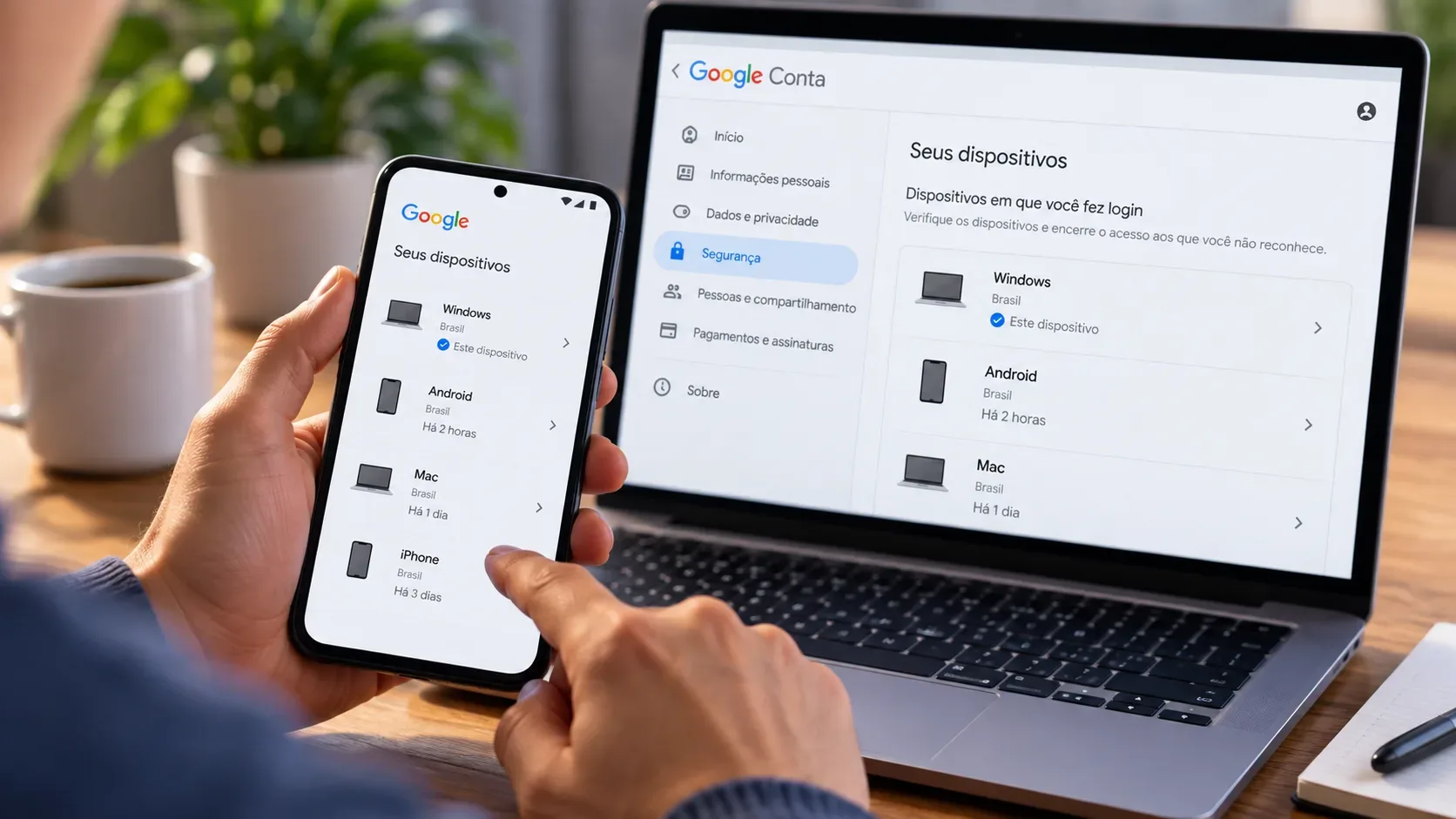
On the Your devices page, Google shows devices where the account is currently signed in or was signed in during recent weeks. In some cases, the list shows a session rather than representing one individual physical device.
A session is the period during which your Google Account remains signed in to a browser, app, or service on a device. That means several similar entries do not automatically mean several people accessed the account. Google explains that a separate session can be created when you:
- sign in on a new device;
- enter your password again to confirm your identity;
- sign in to a new browser, app, or service;
- authorize an app to access account data;
- sign in through an incognito or private browsing window.
If several sessions have the same device name and you cannot confirm that all of them are yours, Google recommends signing out of them.
How to review devices and sessions in a browser
- Open your Google Account.
- Go to Security and sign-in.
- Under Your devices, choose Manage all devices.
- Open each device or session to review the available details.
- Compare the device name, browser type, approximate location, and activity time with what you actually used.
You can also go directly to myaccount.google.com/device-activity. On a phone, the most universal route is to open your Google Account in a browser and use the security section. Menu names can vary across Android versions, manufacturers, and Google apps.
How to interpret the name, time, location, and browser
A single detail is rarely enough to classify a session as legitimate or suspicious. Combine the signals instead.
| Information | What it may mean | When it deserves more attention |
|---|---|---|
| Device name | It may identify a model, operating system, or generic device type. | When the device type does not match anything you use or used recently. |
| Several similar sessions | They may belong to the same device, different browsers, or repeated sign-ins. | When you cannot connect the sessions to any activity of your own. |
| Time | It reflects the latest communication from that location or session with Google's systems. | When the activity conflicts with your routine and other details also do not match. |
| Location | It may be approximate rather than the exact city where you were. | When the region has no reasonable connection to your travel, networks, or recent use. |
| Browser | It can differ if you used Chrome, Safari, another browser, an app, or private mode. | When neither the browser nor the device matches any access you recognize. |
Why the time can look wrong
The displayed time does not necessarily represent the moment you opened Gmail, searched the web, or touched the device. According to Google, it represents the latest communication between the session or device and Google's systems. That communication can happen because of something you did or because of automatic background synchronization. As a result, the record can be more recent than the last time you remember actively using the device.
Why the location may not be exact
Location also needs context. Google notes that you may see a nearby place instead of an exact location. Travel, a brief stop in another area, and the way an internet connection is identified can also make the location less intuitive. A different location is a signal to investigate, not standalone proof of account compromise.
When to end a session
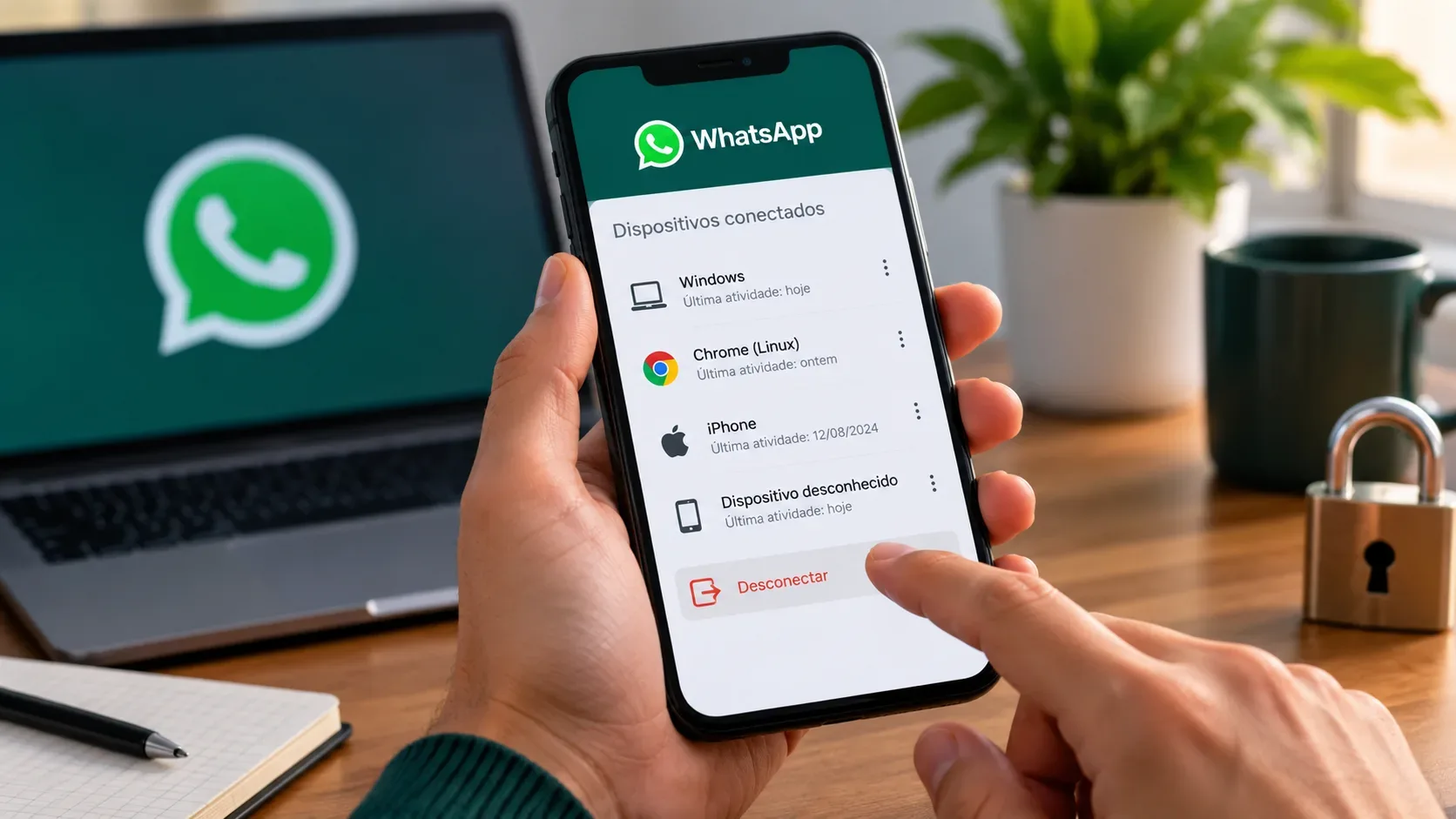
Use Sign out when the device is not yours, has been lost, is no longer under your control, or when you cannot confidently recognize the session. To do this:
- Open Manage all devices.
- Select the device or session.
- Choose Sign out.
- If several sessions have the same name and you are unsure about any of them, review and end all related entries.
A signed-out session can remain visible in the list with an indication that it is no longer connected. Its historical presence on the page does not by itself mean the access is still active.
Signing out is not the same as wiping the device
The Sign out action on the device page is used to end Google Account access for that device or session. It is not presented as a remote wipe command or a factory reset. If your goal is simply to stop that session from continuing to access the account, use device management.
There is an important distinction on Android: removing a Google Account through the device's own settings removes data associated with that account from the device, including items such as email, contacts, and synchronized settings. It does not delete the Google Account itself, but it is a different local action from signing a session out through the security page.
If the device was lost or stolen and you need to locate it, lock it, or erase device data, treat that as a separate task and use the platform's dedicated device protection tools. Do not confuse that decision with auditing Google Account sessions.
If you do not recognize the access, review security in this order
- End the unknown session. This reduces exposure while you check the rest of the account.
- Review recent security events. In your Google Account security area, look for activity you do not recognize. When Google provides the option, indicate that the activity was not yours and follow the on-screen steps.
- Change your password if there are signs of unauthorized use. Google recommends changing the password immediately when you believe someone else is signed in to the account. Avoid reusing the same password on other services.
- Check the recovery phone number and email. Make sure nobody changed them.
- Review apps and services with account access. Remove connections you do not recognize or no longer use.
- Enable or review 2-Step Verification. Confirm that the registered methods really belong to you.
- Check products that contain important data. In Gmail, for example, review forwarding, filters, and sent messages you did not create.
What if every device looks familiar but something still seems wrong?
Do not limit the review to the device list. A compromised account can show signs elsewhere, such as changes to the recovery phone number, recovery email, verification methods, connected apps, or Gmail settings. Google also recommends checking recent security events when compromise is suspected.
If you received a new-device notification but later recognized the device, still confirm that the time, session, and activity match what you did. If they do not, treat the case as suspicious access.
If you can no longer sign in to the Google Account
If the password, recovery phone number, or other information has already been changed and you have lost access, use the official Google Account recovery page. This is the recovery flow Google directs users to when they cannot sign in.
Common mistakes when reviewing an unknown device
- Assuming two sessions mean two devices. The same device can create multiple sessions.
- Trusting only the time. Automatic synchronization can update the record without active use at that moment.
- Trusting only the displayed city. The location can be approximate.
- Ignoring a session because the device name looks familiar. Check the other details and end access if you still have a real doubt.
- Confusing “Sign out” with “Remove account” or “Erase device”. They are different actions and can have different effects on access and local data.
- Stopping after sign-out. If there was unauthorized activity, also review the password, recovery information, 2-Step Verification, and connected apps.
Quick checklist for deciding what to do
- Do I recognize the device, or can I connect the session to one of my own sign-ins?
- Could the time be explained by background synchronization?
- Is the location plausible, even if it is approximate?
- Does the browser, app, or service match something I used?
- Were there recent changes to the password, recovery information, or 2-Step Verification?
- If I still have doubts, have I ended the session and reviewed recent security events?
The goal is not to guess based on one field. Cross-check the signals, end anything you cannot verify, and review account security whenever there is any indication of unauthorized use.