OpenAI announced ChatGPT Images 2.5 on September 8, 2026 as an update to both the image-generation model and the creation workflow inside ChatGPT. For people already using Images 2.0, the most noticeable change is not simply “better images”: version 2.5 adds guided ways to start from a template or a sketch, lets mobile users place comments directly on images, and makes it easier to share the prompt behind a creation. At the same time, OpenAI says it improved fidelity, made editing more precise, and reduced image-generation latency by up to 50% compared with Images 2.0.
There is an important distinction, however: Images 2.5 is rolling out broadly, but each interface feature has its own availability. Official release notes say Sketch and image comments are used on mobile, while Templates is not yet available in Work mode. So not seeing one of those controls immediately does not, by itself, mean your account has not received the 2.5 model.
What changes from ChatGPT Images 2.0 to 2.5
Images 2.0, launched on April 21, 2026, put the new image model on every ChatGPT plan and introduced “images with thinking” on paid plans. Images 2.5 keeps the generation-and-editing experience but expands it in two directions: it improves model behavior and adds new entry points in the interface.
| Area | Images 2.0 | Images 2.5 |
|---|---|---|
| Model quality | A new image-generation model plus images with thinking on paid plans. | Sharper details, more natural lighting and textures, better preservation of reference subjects, and stronger adherence to complex instructions. |
| Editing | Conversational generation and editing were already central to the experience. | OpenAI highlights more targeted edits and better consistency across multiple rounds. |
| Speed | The previous comparison baseline. | OpenAI says generation latency is up to 50% lower than with Images 2.0. |
| How you start | The 2.0 launch did not introduce Templates and Sketch as part of its announced package. | Templates provides starting formats; Sketch lets you draw a visual reference on mobile. |
| How you refine | Conversation-based editing. | In addition to conversation, mobile users can place comments directly on an image to guide changes. |
| How you share | Sharing the image was separate from the idea used to make it. | You can also share the prompt so someone else can create their own version. |
These points come from the official ChatGPT Images 2.5 announcement, the ChatGPT release notes, and the Images 2.0 launch.
How to use Templates in Images 2.5
Templates is the route for people who know what kind of asset they want to make but do not want to begin from a completely blank description. OpenAI mentions popular formats such as posters, flyers, product photos, and merch.
- Open Images in ChatGPT.
- Go to Templates.
- Choose a starting format.
- Customize the information, visual elements, and style you want.
- Answer refinement questions if ChatGPT asks for more detail.
In practice, treat the template as a starting structure, not a locked result. It is useful when format matters from the beginning—for example, a product photo or promotional asset—because it reduces the effort of describing the basic composition.
Availability note: on September 8, 2026, the release notes said Templates was not yet available in Work mode. A ChatGPT Work user may therefore have Images 2.5 while still not seeing the template gallery.
How to turn a Sketch into an image
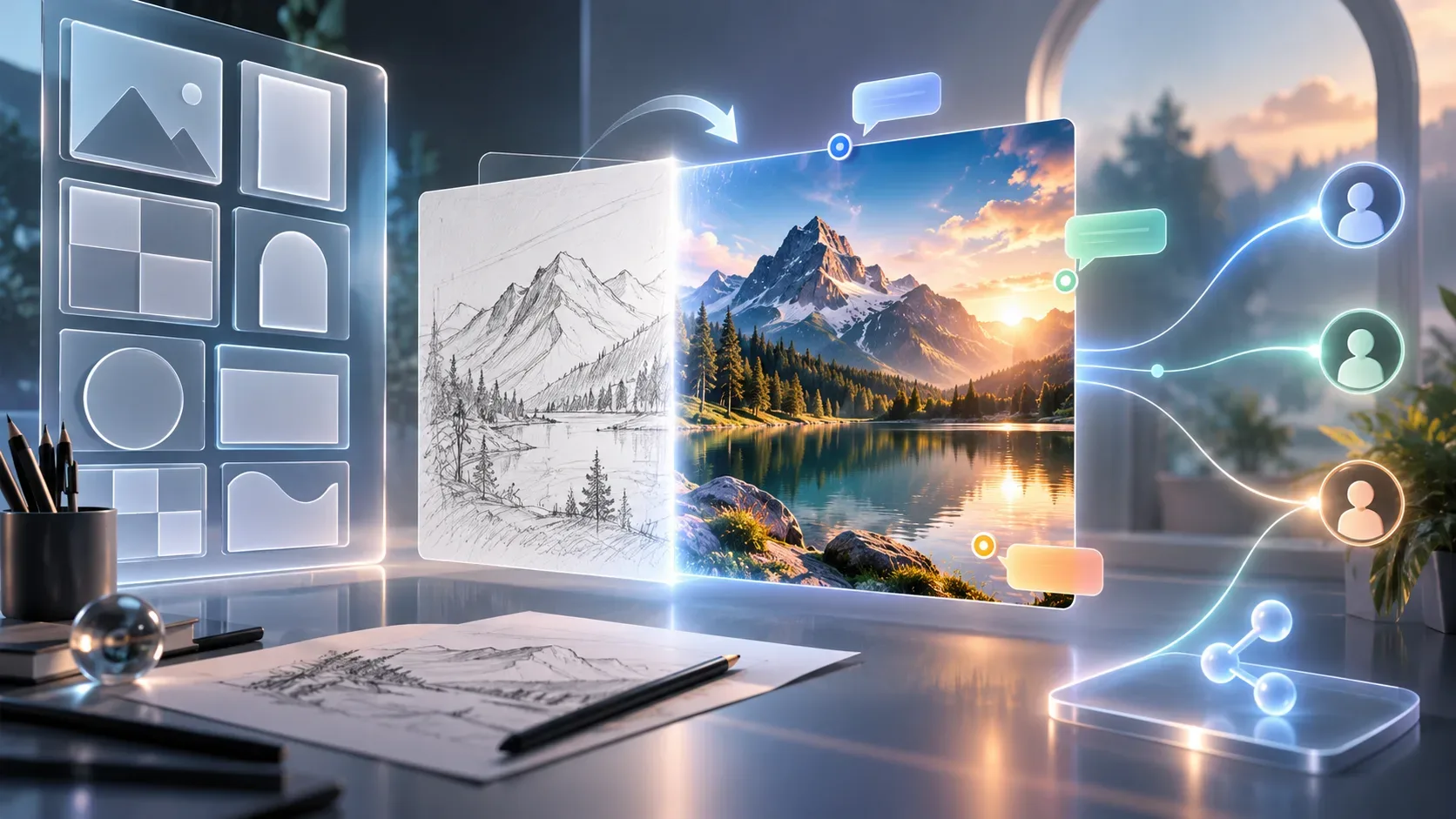
Sketch is designed for situations where drawing the composition is easier than explaining it in text. The drawing works as a visual guide for the final generation.
- In the mobile app, type @ in the message box.
- Select Sketch.
- Draw the idea: object placement, contours, framing, or overall layout.
- After the sketch, describe the style, finish, and details that were not clear in the drawing.
- Generate the image and refine it in later messages if needed.
The best use is not to make a perfect drawing. A rough sketch can already communicate spatial relationships that would be tedious to explain in a long prompt: where a window sits, how clothing should fall, what belongs in the foreground, or how elements are distributed across the scene.
At launch, the official instructions for Sketch are specifically mobile. Do not assume the same shortcut will be visible on desktop or web just because the 2.5 model is available on those platforms.
How to use edit comments without rebuilding the whole image
On mobile, a generated image can be opened full-screen for editing and comments. The idea is to point more precisely to what should change.
- Open the generated image full-screen in the mobile app.
- Use the option to edit or add a comment.
- Describe the requested change with a limited scope: the element, area, or property that should be modified.
- Check whether the rest of the composition was preserved and, if needed, make another adjustment.
This workflow matches one of the central Images 2.5 improvements: according to OpenAI, the model is better at changing only what you asked for while preserving the subject, composition, and other details. That is not a promise of pixel-perfect editing, but it reduces the need to explain the entire scene again for every correction.
A useful practice is to make one main change at a time. For example, first change a product color, then adjust the background, and only then revise text or lighting. That makes it easier to identify the round in which an unwanted change occurred.
How to share the prompt behind an image
Images 2.5 lets you share not only an image but also the prompt that led to it. The recipient can start from the same idea and add their own photos and details.
This turns sharing from a finished-result handoff into a reusable starting point. It is especially useful for creative teams, communities, and reference workflows because another person can try the same structure without rebuilding the request from scratch.
The goal is not to promise an identical copy of the original image. OpenAI itself describes the recipient as creating “their own version,” so a shared prompt is better understood as a reusable recipe than as a deterministic file.
What improved in the model beyond the new controls
Templates, Sketch, comments, and prompt sharing are visible product features, but the 2.5 update also changes how the generator behaves. OpenAI highlights four areas:
- Reference fidelity: subjects in reference photos are more likely to stay recognizable, with distinctive traits carried through more consistently.
- Precision editing: targeted requests are more likely to alter only the specified element.
- Multi-turn consistency: earlier changes are more likely to remain intact as new edits are added.
- Instructions and style: the model is better at interpreting complex visual briefs, handling transparent backgrounds, and maintaining aesthetic direction.
Speed is also part of the update: OpenAI says it reduced generation latency by up to 50% compared with Images 2.0. The phrase “up to” matters: this is a maximum performance claim from the vendor, not a promise that every image will take half as long.
Availability: what is confirmed and what depends on platform
| Feature | Status on Sep. 8, 2026 |
|---|---|
| ChatGPT Images 2.5 model | Rolling out to ChatGPT, ChatGPT Work, and Codex users across all tiers on desktop, mobile, and web. |
| Templates | Available in the Images flow as rollout reaches users; official notes say it is not yet available in Work mode. |
| Sketch | The official workflow is described for mobile, accessed by typing @ and selecting Sketch. |
| Edit comments | The official workflow is described for mobile when a generated image is opened full-screen. |
| Prompt sharing | Announced as a way to share an image prompt so others can create their own versions. |
| Image-generation limits | The release notes say existing image-generation limits are unchanged. |
This table addresses a common rollout confusion: model availability and the availability of each visual control are not the same thing. If Images 2.5 is active but a button is missing, check the platform, mode, and rollout status before assuming there is an account problem.
Guided test: four experiments to understand 2.5
1. Try a Template
Pick a simple format such as a poster or product photo and provide three pieces of information: the asset’s goal, required elements, and visual direction. Observe how much prompt-structuring work the template removes.
2. Try the same concept with Sketch
On mobile, draw a rough composition of the same project and add a text description of the style. Compare whether the sketch gives you better control over placement and proportion than text alone.
3. Edit one detail through a comment
Open the image full-screen and request one targeted change while explicitly preserving everything else. Then make a second change. The purpose is to test the promise of multi-turn consistency, not just the beauty of the first generation.
4. Share the prompt
Share the image prompt and ask someone else to reuse it with their own details. This makes the difference clear between sharing a final file and sharing a reusable creative structure.
Do not confuse ChatGPT Images 2.5 with the API models
In ChatGPT, Images 2.5 is the integrated product experience for image creation and editing. For developers, OpenAI launched two GPT-Image-2.5 family models in the API: Flare and Sunburst.
- GPT-Image-2.5 Flare: OpenAI presents it as the default choice for most applications, focused on quality and lower latency.
- GPT-Image-2.5 Sunburst: designed for premium workflows that need greater precision and can accept longer generation times.
Those names matter if you are integrating image generation into your own software. They should not be confused with Templates, Sketch, comments, or prompt sharing, which are product features inside ChatGPT.
What still matters even with 2.5
The update reduces friction but does not remove the need to review outputs. Visual references, rendered text, people’s identity, product details, and successive edits still deserve verification. OpenAI also says it continues to use C2PA metadata and invisible watermarking to help identify images created by its systems.
For someone coming from Images 2.0, the most useful way to think about 2.5 is this: the model is faster and more controllable, while the interface adds new ways to start, point to a correction, and pass an idea along. Templates reduces the blank-canvas problem; Sketch translates visual composition; comments make editing more localized; and prompt sharing turns a creation into a starting point for someone else. During rollout, however, availability should always be read feature by feature and platform by platform.