ChatGPT Images 2.5 was announced by OpenAI on September 8, 2026 with a combination of image-model improvements and new product features. The most important change for people who already edited images in ChatGPT is not simply faster generation: OpenAI says the new version better preserves people and objects from references, changes only what was requested more precisely, and keeps edits more consistent across multiple rounds. The company also reports up to 50% lower latency than Images 2.0. The official announcement details these changes.
What changed in ChatGPT Images 2.5
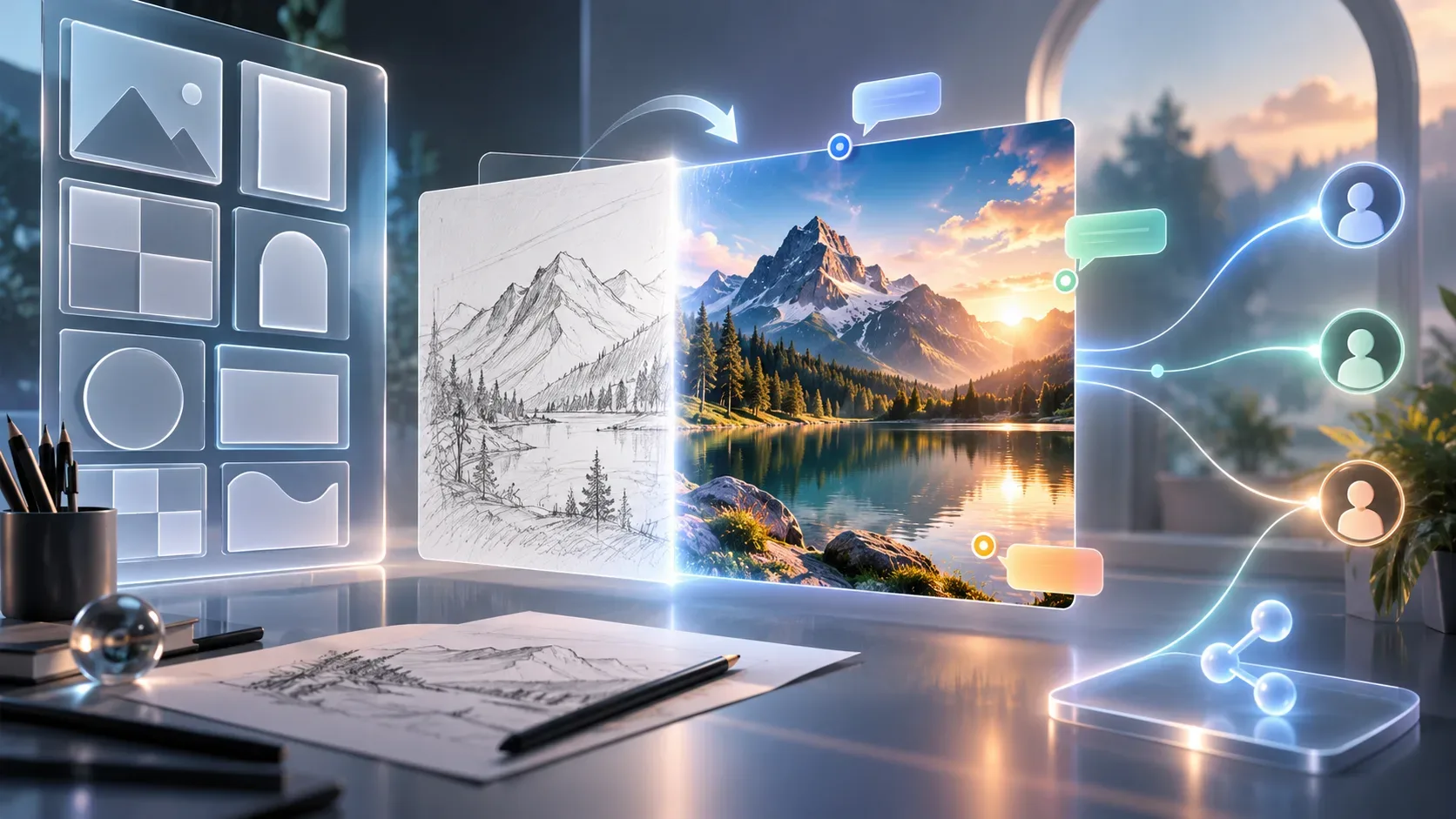
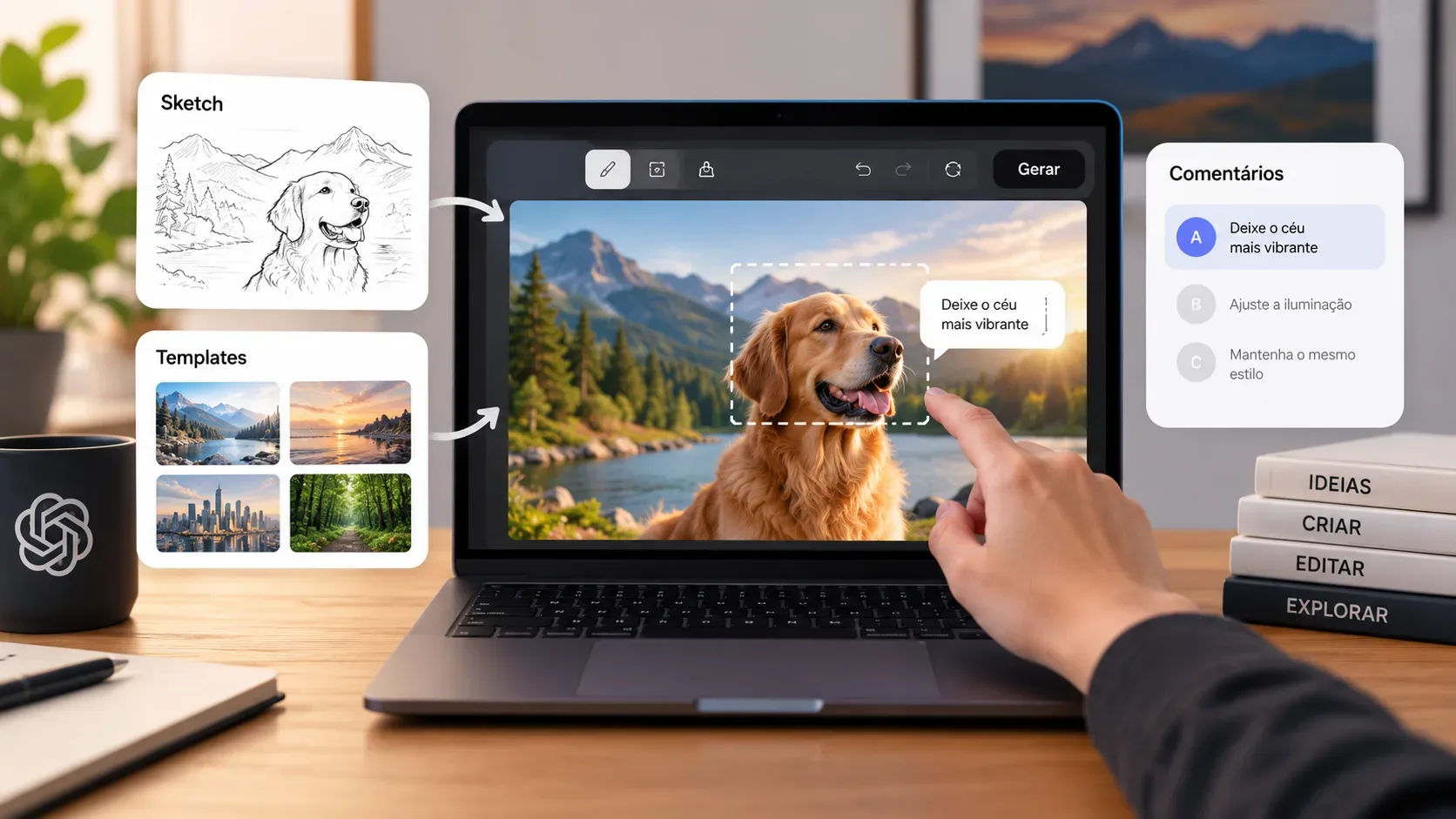
The release has two distinct layers. The first is the Images 2.5 model, which affects visual quality and editing behavior. The second is a set of ChatGPT interface features—Sketch, Templates, comments, and prompt sharing—that help users start or direct a creation.
- More localized editing: the model is designed to change the requested element while better preserving the surrounding subject, composition, and visual treatment.
- Better consistency across multiple edits: earlier changes are more likely to remain intact as you continue refining the same image in a conversation.
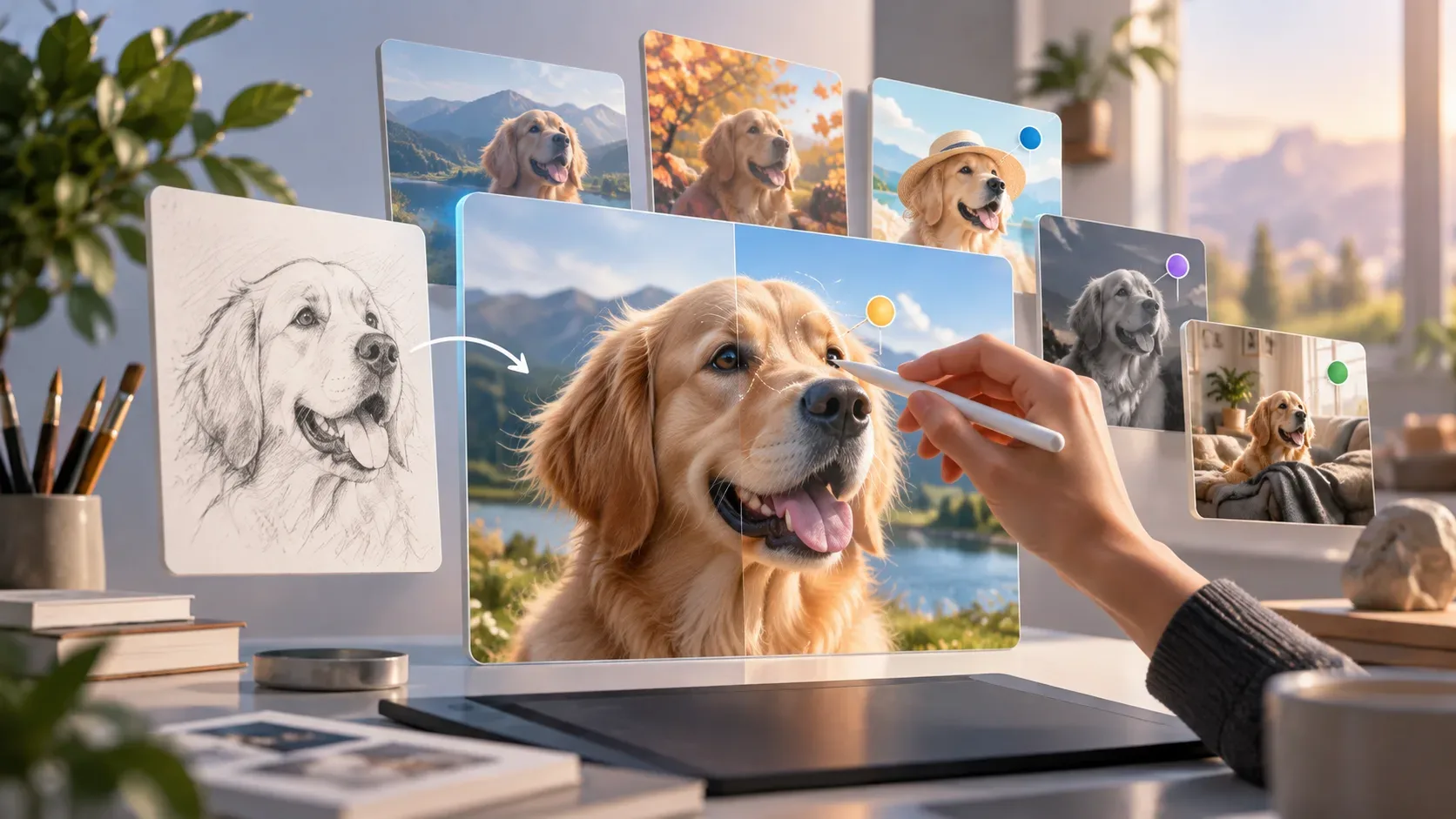
- Higher reference fidelity: subjects from reference photos should remain more recognizable, with more natural lighting and textures.
- Faster generation: OpenAI says latency is reduced by up to 50% compared with Images 2.0. “Up to” matters: it does not mean every generation will be exactly 50% faster.
How to edit a reference image
You can edit either an image generated in ChatGPT or an image you upload. The basic workflow documented by OpenAI is straightforward: open or upload the image, describe the change, and, when needed, identify the area that should be modified. The official Images in ChatGPT guide describes two ways to work.
- Select an area: use the selection tool to highlight part of the image, then describe the change you want.
- Give a direct instruction: skip selection and explain the edit in the conversation panel, naming the region in the text when the change is local.
The editor also lets you change the aspect ratio, undo or redo selections, and save the result. The documentation itself warns that selection is not a perfectly rigid mask: an edit may extend beyond the highlighted area. To protect important details, state explicitly what should not change—for example, “change only the jacket color; keep the face, pose, background, and lighting unchanged.” That wording makes use of one of Images 2.5’s announced strengths: more focused edits.
How to use Sketch
Sketch is for situations where drawing the idea is easier than describing it. At launch, OpenAI’s documented workflow is in the ChatGPT mobile app.
- In the message box, type @ and select Sketch.
- Draw your idea. You can choose a color, erase parts, and undo strokes.
- Confirm the sketch.
- Add written instructions covering the subject, colors, style, materials, lighting, or other details the drawing alone does not communicate.
- Send the message to turn the drawing into an image.
Sketch works best as a reference for composition and intent, not as a replacement for a brief. A rough drawing can show where objects belong; the text can specify whether the final result should look like editorial photography, watercolor, or a 3D render.
How to start with Templates
Templates are meant to remove the blank-canvas problem for common creative formats. In ChatGPT, open Images, enter Templates, choose a category, and select a template. Then customize the content, message, design elements, and style. ChatGPT may ask follow-up questions and, when available, let you add a reference image.
There is an important launch limitation: according to the updated official guide, Templates are not yet available in ChatGPT Work. That is a product-status note and may change during rollout, so if the option is missing, checking the current documentation is safer than assuming the feature was removed.
How to use comments for a specific change
OpenAI introduced comments as a way to point directly at the place in an image where you want a change. In the current usage guide, this workflow is described on mobile: open a generated image full-screen and use the controls to edit or add comments. This helps reduce ambiguity in requests such as “change this area” or “fix only this object.”
Comments do not replace a clear instruction. For a controlled edit, combine location and intent: mark the region and describe the exact transformation, including what should remain unchanged. If the area is critical, inspect the result because the documentation notes that selections and edits can extend beyond the highlighted region.
How to share a prompt
Images 2.5 also lets you share the idea behind an image. On mobile, the documented path is Share → Prompt template → Copy link. The recipient can reuse the prompt structure and adapt it with their own photos or details. This is different from simply sharing the finished image: the goal is to make the creative process reusable.
ChatGPT Images 2.5 vs. API: what is different
| Aspect | ChatGPT | API |
|---|---|---|
| Who it is for | Direct use in conversations, Images, web, and apps | Developers integrating generation and editing into their own products and workflows |
| Launch features | Sketch, Templates, comments, visual editor, and prompt sharing | Those interface features are not the API itself; developers build their own experience on top of the models |
| Main model | Images 2.5 powers the ChatGPT generation and editing experience | GPT-Image-2.5 Flare is the default choice for most applications, focused on speed and quality |
| Higher-precision option | Users work through the ChatGPT experience without needing to select an API model | GPT-Image-2.5 Sunburst targets workflows that need tighter control over detailed edits, with longer generation times |
| Speed | OpenAI announces up to 50% lower latency than Images 2.0 | Flare is described as 50% lower latency than GPT-Image-2; Sunburst prioritizes precision over speed |
Which feature to use for each task
- You already have an image and want to fix something: use conversational editing or area selection; on mobile, comments can help pinpoint the location.
- The idea is spatial and hard to explain: use Sketch in the mobile app and supplement the drawing with style and content instructions.
- You want to start from a familiar format: use Templates and customize the structure; remember that the feature is not yet available in Work according to the current documentation.
- You want someone else to recreate the idea: share the prompt, not only the final image.
- You are building a product: use the API; Flare is generally the starting point, while Sunburst makes more sense when editing precision matters more than generation time.
What the release does not guarantee
Images 2.5 improves precision and consistency, but it does not turn selection into an infallible mask or guarantee that every output will preserve every detail. The Help Center explicitly warns that highlights may be imprecise and edits can affect neighboring areas. Likewise, the latency improvement is stated as up to 50%, not as a fixed time for every prompt, resolution, or service load.
For changes in availability and interface behavior, the safest references are the Images 2.5 announcement and the Images in ChatGPT guide. For integrations, use the model pages for Flare and Sunburst.