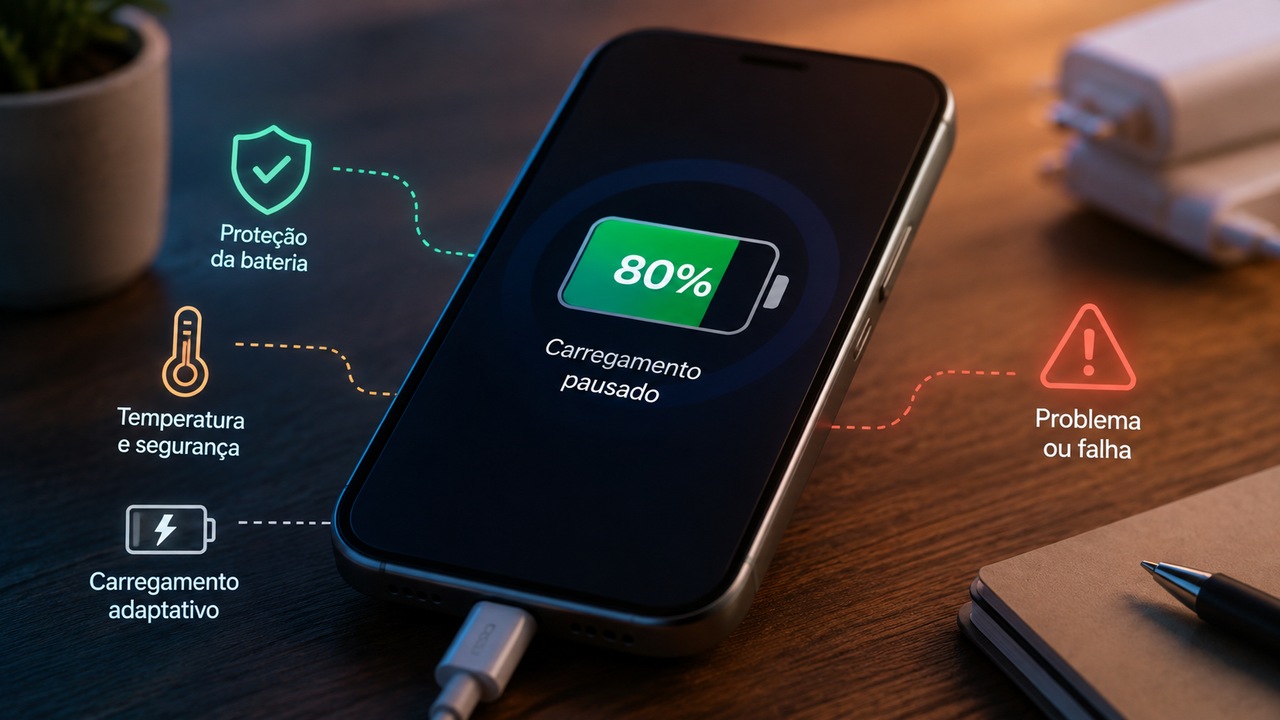
If a phone reaches 80% and seems to refuse to continue, that does not automatically mean the battery is defective. Current iPhones, Pixels, and Galaxy devices include features that intentionally limit, delay, or pause charging. The main point is to find out whether the behavior follows a predictable system rule or continues even after those protections are taken out of the equation.
It is also important to separate two different things. A battery that stops charging at 80% is showing its charge level at that moment. That is not the same as the battery's health or maximum capacity having fallen to 80%. The first situation may be a software choice; the second describes battery aging.
First diagnosis: check whether a charge limit is active
Before replacing the cable, charger, or battery, open the battery settings and look for features with names such as Charge Limit, Battery Protection, Charging Optimization, Optimized Battery Charging, or Adaptive Charging. The names and paths vary by brand, model, and system version. On iPhone 15 and later models, Apple lets you set a limit between 80% and 100% in 5% increments. When the selected limit is 80%, the device should stop charging near that value. Apple itself states that the iPhone may occasionally charge to 100% even with a lower limit, to keep the state-of-charge estimate accurate. Therefore, both stopping at 80% and going above that value on some occasions can be normal behavior.
On Pixel 6a and later models, Google offers the Limit to 80% option within charging optimization. Google also states that, even with this limit enabled, the Pixel needs to perform a full charge periodically to keep the capacity reading accurate. In the current documentation, this full charge occurs every ten cycles. So a Pixel configured for 80% that occasionally reaches 100% is not necessarily ignoring the setting.
On Galaxy devices, the logic depends on the software version. On devices with One UI 6.1, the Maximum Battery Protection mode stops charging at 80%. In newer versions, such as One UI 7, Samsung began allowing selectable limits of 80%, 85%, 90%, or 95% on compatible devices. Samsung also notes that a phone configured for 80% may show 79% or drop slightly before charging resumes, without this indicating an error.
Adaptive charging is not the same as a fixed limit
A fixed 80% limit instructs the device not to go beyond that ceiling during normal use. Adaptive or optimized charging, by contrast, may simply hold the battery around that range for a few hours and complete charging later. On the iPhone, Optimized Battery Charging learns the user's routine and can delay charging past 80% when it predicts that the device will remain connected for a long time. The goal is to reduce the amount of time the battery stays fully charged. When this feature is active, the system usually indicates when it intends to finish charging and, in compatible situations, offers the option to charge immediately.
On the Pixel, Adaptive Charging also learns habits and seeks to finish charging before the time when the device is usually unplugged. Google states that the feature needs a learning period and may stop acting when the routine changes, such as during travel.
On current Galaxy devices, Battery Protection may have a mode tied to sleep time. In that case, the device keeps the charge around 80% during part of the night and completes it to 100% near the estimated wake-up time. If the sleep pattern is irregular or the feature is still learning the routine, the behavior may vary.
The practical consequence is simple: if the phone stays at 80% during the night and then finishes charging on its own, that is much more consistent with an adaptive feature than with a physical fault.
Heat can also make the phone stop near 80%
Even without a user-selected limit, the system may reduce or pause charging when the temperature rises. This is a protection mechanism, not proof of a defect. Apple states that the software may limit charging above 80% when the battery exceeds the recommended temperature range. If the iPhone is hot, the guidance is to let it return to a normal temperature in a cooler environment. The company also uses charging-on-hold messages when the device is too hot or too cold to continue normally.
Google describes a similar automatic protection on Pixels. Under certain conditions, such as continuous charging for hours at an elevated temperature or remaining connected for several days, the device may temporarily limit charging to somewhere between 70% and 80%. When those conditions no longer apply, the protection is disabled and the phone can return to charging to 100%.
Samsung also states that unsuitable temperatures can reduce or stop charging. Heavy use while the device is connected, wireless charging, a hot environment, a case that retains heat, and unsuitable accessories can contribute to higher temperatures, although the specific cause varies from case to case.
If the phone is very hot, do not try to force charging or cool it in an extreme way. Move it out of direct sunlight or hot environments, stop demanding activities, and wait for the temperature to return to normal. A refrigerator, freezer, water, or thermal shock are not safe solutions.
A short test separates normal protection from a possible fault
Run the test with the device at a normal temperature and, preferably, with the battery below 70%. First, check whether any charge limit is active. If there is one, disable it temporarily only for diagnosis or select 100% when the system offers that option.
Next, check whether the system displays any message about optimized charging, battery protection, charging on hold, temperature, moisture, or an incompatible accessory. An explicit message is more useful than guessing from the number shown on the battery indicator.
Then connect the device to a stable wall outlet using a compatible cable and adapter in good condition. Avoid running the test while gaming, recording video, using demanding navigation, or performing another task that greatly increases power consumption and heat. Wait long enough to see whether the percentage goes past 80%.
If the phone goes above 80% after the limit is removed and the temperature returns to normal, the case was probably a protection feature or setting. If it remains stuck at exactly the same range, restart the device and repeat the test with another cable, another compatible adapter, and another outlet when possible.
When the problem may be in the cable, charger, or port
A charging fault does not have to be in the battery. Apple, Google, and Samsung recommend checking the cable, adapter, wall outlet, and charging port before concluding that the battery needs to be replaced. A damaged cable, loose connector, incompatible adapter, debris in the port, and moisture can reduce power, interrupt charging, or trigger warnings. On some devices, safety protection blocks charging while it detects moisture or foreign material in the connector.
If charging cuts in and out when the cable is moved, if the device charges only in a certain position, or if an incompatible-accessory warning appears, the investigation should start with the connection and accessories. Do not use a cable or charger that is visibly damaged.
With wireless charging, poor alignment, objects between the device and the pad, a thick case, or heating can also interfere. A wired charging test helps determine whether the behavior is limited to wireless charging.
When 80% starts to look like a symptom of a problem
Suspicion increases when the device continues to stop near 80% even with the charge limit disabled, no optimization message, normal temperature, and compatible accessories that work on another device. Even so, this set of signs does not by itself identify which component is defective. It also deserves investigation when charging remains persistently very slow, the battery level drops even with the phone connected and barely in use, charging stops randomly, it will not start at low battery levels, or recurring error messages appear. In these cases, the cable, adapter, USB port, software, battery, or charging circuitry may be involved.
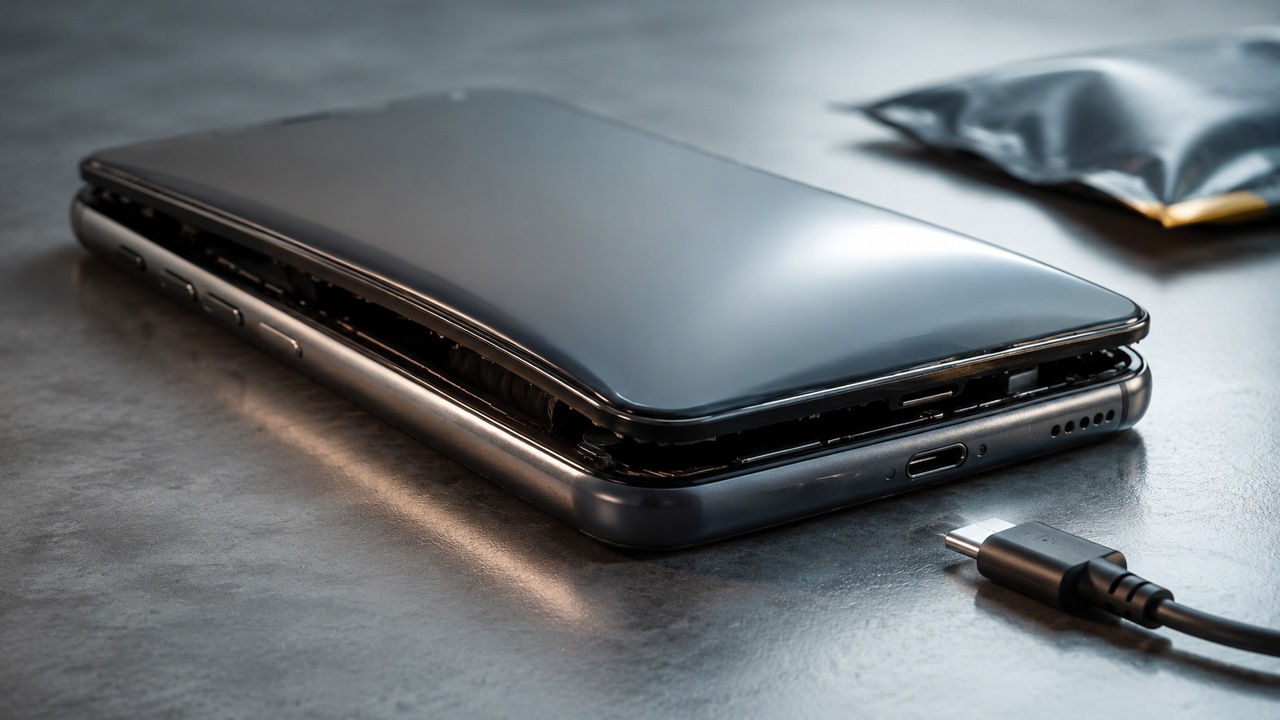
If there is recurring abnormal heating, deformation, or swelling of the device, the situation is no longer a simple settings diagnosis. Stop charging and seek qualified service. Do not keep pressing, puncturing, or using a battery that shows physical signs of damage.
What to do on iPhone, Pixel, and Galaxy
On iPhone 15 or later, open Settings, Battery, and Charging to check the configured limit. On earlier models, check Battery Health & Charging to see whether Optimized Battery Charging is active. If the device is hot, wait for it to cool down and see whether charging starts progressing again. On Pixel 6a or later, look for Battery, Battery health, and Charging optimization. Check whether Limit to 80% or Adaptive Charging is selected. On compatible Pixels, a battery-protection message may also explain a temporary limit between approximately 70% and 80%.
On Galaxy, look for Battery and Battery Protection. Depending on the device and One UI version, you may find Basic, Adaptive, Maximum modes, or different limit options. Because Samsung changes features and names between versions, the behavior shown on the device itself should take precedence over tutorials for another model.
If the phone goes past 80% from time to time, that can also be normal
Many people interpret occasionally going above a limit as a sign that protection has failed. Not always. Apple and Google document periodic full charges even with limiting features enabled, used to keep charge or capacity estimates more accurate. For that reason, the diagnosis should not be based on a single cycle. What matters more is the pattern. A device that normally respects the limit and occasionally goes to 100% may be operating exactly as designed. A phone that ignores the limit on every charge, or that never goes past 80% even after the limit is removed, deserves a more careful check.
Practical rule for deciding whether it is normal
If an 80% limit is enabled, the behavior is expected. If adaptive charging is active and the device completes charging before the usual time of use, the behavior is also expected. If the phone is hot and resumes charging after it cools down, the pause was probably thermal protection. If none of those conditions explains the case, test the cable, adapter, outlet, and port, restart the device, and repeat charging at a normal temperature. If charging continues to stop near 80% or signs appear such as intermittent charging, an accessory error, abnormal overheating, or battery deformation, the appropriate next step is technical diagnosis.
The number 80% by itself does not distinguish protection from a defect. The context is what resolves the question: an active setting, a system message, temperature, charging routine, and the result of a test with a known stable power source.