Choosing between 2.4, 5 or 6 GHz Wi-Fi is not simply a matter of picking the band with the biggest number. In a real home, distance, walls, floors, doors, furniture, neighboring networks and the client device itself all change the result. In general, 2.4 GHz reaches farther and tolerates obstacles better, while 5 and 6 GHz can deliver more capacity when a strong signal reaches the device.
The practical rule is straightforward: close to the router, prefer 5 or 6 GHz when both sides of the connection support them; with several walls, a concrete floor or a long distance, 2.4 GHz usually holds the link longer. That does not mean 2.4 GHz will always be faster far from the router, or that 6 GHz will always be best nearby. Congestion, channel width, noise and client capabilities also matter.
Short answer: which band should you try first in each situation?
| Scenario | Band to try first | Why | Caveat |
|---|---|---|---|
| Same room or a few meters from the router | 6 GHz if supported; otherwise 5 GHz | There is a better chance of using wide channels and high data rates with a strong signal. | 6 GHz requires compatible router and client hardware, plus local regulatory availability. |
| One or two typical obstacles between router and device | 5 GHz | It often provides a good balance of speed and range in homes. | Dense walls, metal and unfavorable angles can reduce the signal quickly. |
| Distant room, long hallway or several walls | 2.4 GHz | The lower frequency tends to preserve coverage over longer distances. | It may be more congested, especially in apartment buildings with many nearby networks. |
| Another floor separated by a concrete slab | 2.4 GHz or a closer access point | The slab is a difficult obstacle and 2.4 GHz tends to lose less link margin than higher bands. | If coverage is still poor, changing the network layout usually works better than insisting on one band. |
| Apartment with many nearby networks | 5 or 6 GHz near the router | Higher bands usually offer more spectrum space and less contention from legacy devices. | The best choice depends on the channel that is actually available and the signal level in the room. |
Why do walls affect 2.4, 5 and 6 GHz differently?
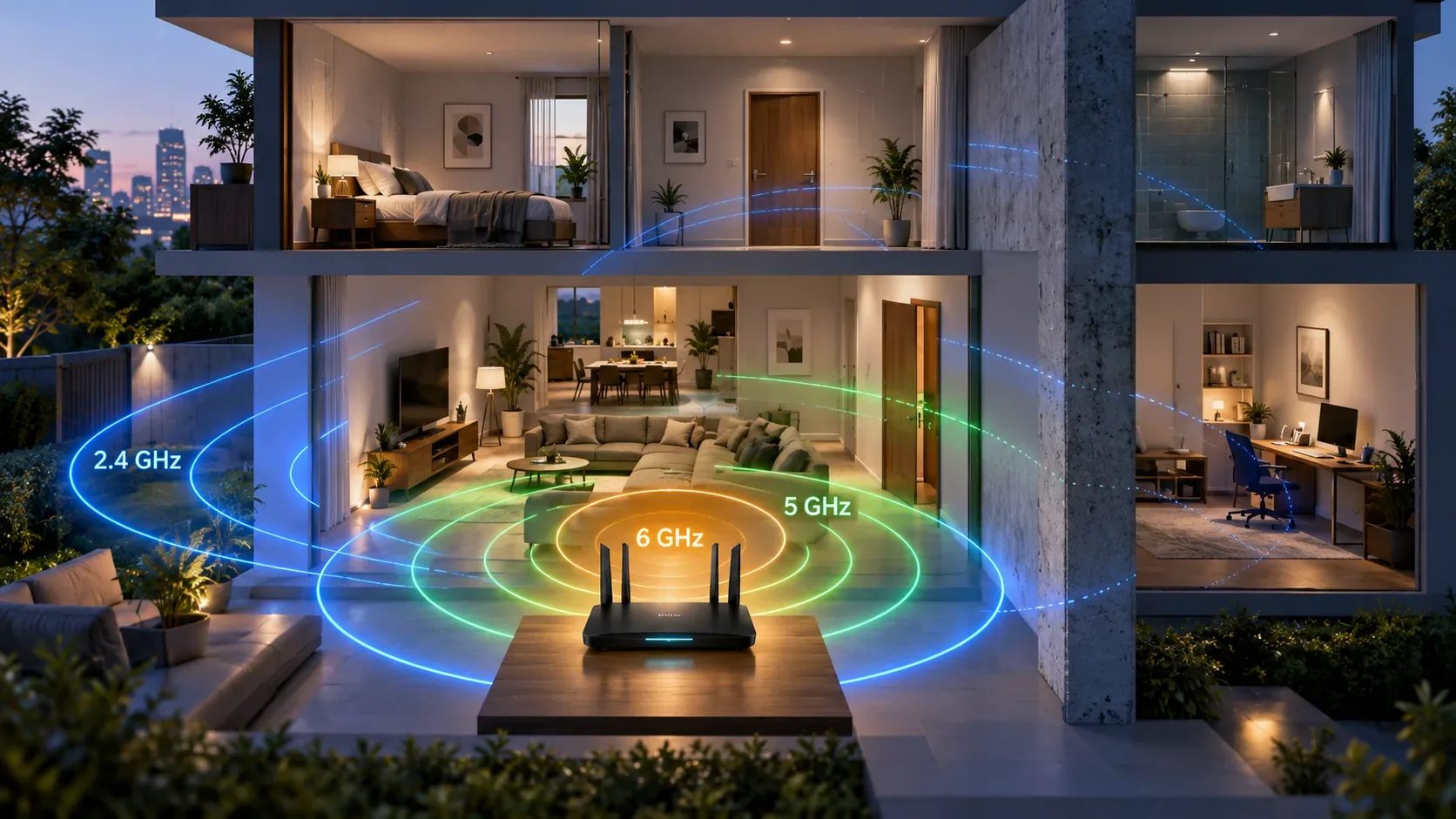
All three bands use radio waves, but at different frequencies. Lower frequencies have longer wavelengths and, under comparable conditions, tend to bend around and pass through obstacles with less loss than higher frequencies. Intel summarizes this relationship by noting that 2.4 GHz offers longer range, while 5 and 6 GHz favor higher data rates over shorter distances.
Inside a home, a wall does not act like a simple switch that either lets Wi-Fi through or blocks it completely. Some energy is absorbed, some is reflected, and some finds alternate paths through doors, hallways and other rooms. Material, thickness, moisture, metal structures and the angle at which the signal hits the barrier can all change the outcome. TP-Link lists walls, floors, partitions, concrete and metal among common obstacles that reduce coverage.
That is why two homes with the same floor plan can behave differently. A light drywall partition may cause moderate loss, while reinforced concrete, large mirrors, metal coverings and a concrete floor can reduce the signal much more.
Range, speed and stability are not the same thing
- Range is the distance at which a device can still maintain a usable connection.
- Speed depends on the negotiated link rate, channel width, modulation, router and client capabilities, congestion and the speed of the internet service itself.
- Stability depends on signal margin, noise, interference, retransmissions, user movement and the quality of the path between client and router.
You can therefore have three or four signal bars and still get a slow connection because the channel is crowded. You can also have a weaker-looking 5 GHz signal and still achieve better performance than on 2.4 GHz because there is less contention for airtime.
2.4 GHz: longer reach, but a higher chance of congestion
2.4 GHz is the most likely choice when the priority is reaching a distant room, crossing several walls or keeping low-demand devices connected, such as sensors, smart plugs, basic cameras and other IoT equipment. Its main advantage is reach.
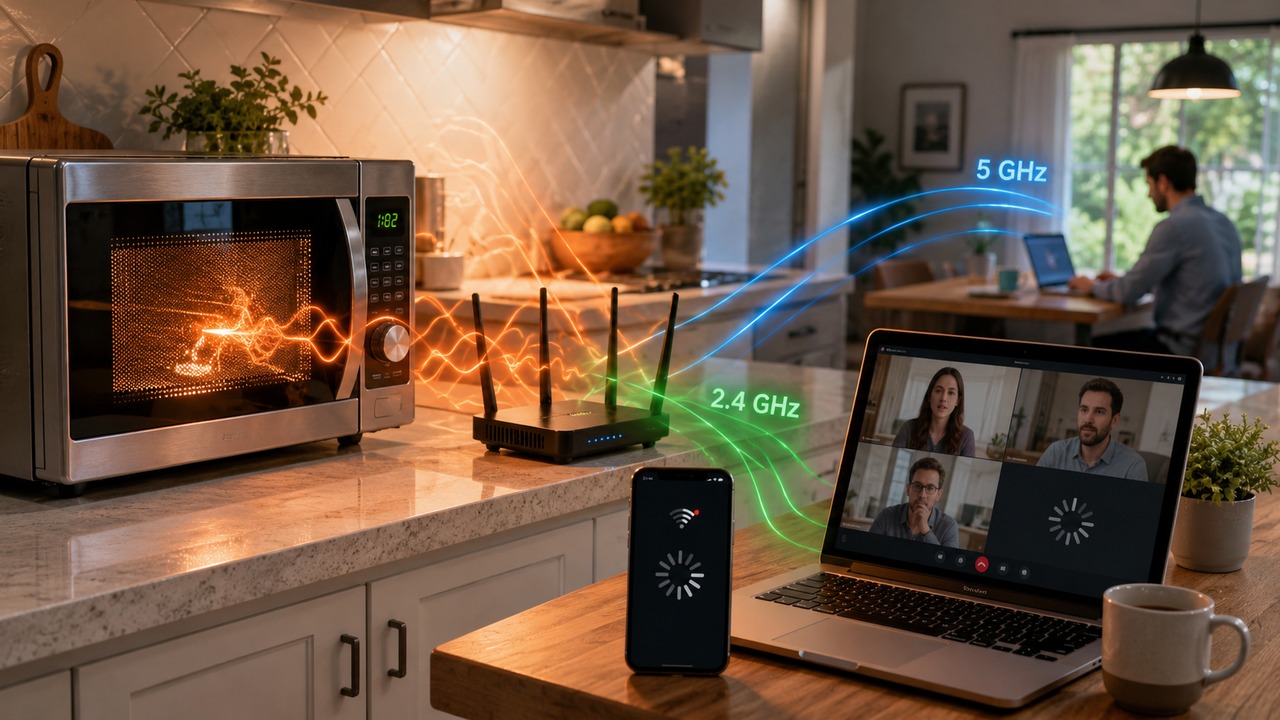
The tradeoff is that 2.4 GHz generally has less usable channel space and shares the band with many older devices and other interference sources. In dense apartment buildings, the network may show a strong signal and still suffer from latency, retransmissions and reduced throughput. For tasks such as high-resolution video, local backups or gaming, it is worth testing 5 GHz even if it shows one fewer bar.
5 GHz: the most common balance inside a home
For laptops, phones, TVs and consoles in nearby rooms or separated by a small number of obstacles, 5 GHz is often the practical middle ground. The band offers more capacity than 2.4 GHz and can use wider channels on compatible equipment.
The limitation appears as distance grows. TP-Link notes that 5 GHz usually has shorter range and is more sensitive to walls and ceilings than 2.4 GHz. When the link rate drops sharply after one or two dense barriers, switching to 2.4 GHz may produce a more consistent connection.
6 GHz: high capacity near the router, less margin through obstacles
6 GHz was introduced to expand the spectrum available to modern Wi-Fi. That creates room for more channels and wider channels on compatible equipment, while reducing contention with legacy devices. In practice, it is especially useful close to the access point for work laptops, desktops, streaming and gaming where the signal arrives strongly.
The other side is coverage. Because it operates at an even higher frequency, 6 GHz tends to lose more signal with distance and obstacles than 5 GHz under similar conditions. It is also not enough for the router to advertise 6 GHz: the client device, operating system and local regulations must support it too.
Why signal bars do not settle the question
The bars shown on a phone or laptop are a simplified indicator of signal strength or link quality. They do not directly measure available throughput. Microsoft documentation, for example, treats bars as a mapping of link quality, while Apple notes that real network capacity also depends on the connection rate, ISP bandwidth, the number of devices using the same channel, interference and distance.
That is why comparing only the icon can be misleading. A more useful test is to use the same device, in the same location, on the available bands and watch three things: real throughput, latency and stability over several minutes. Repeating the test at different times can reveal congestion from neighboring networks.
Congested channels can reverse the expected result
2.4 GHz may reach a distant room with a stronger signal, but that does not guarantee a better experience if many routers are competing on the same channels. 5 GHz can show fewer bars and still win on speed and latency when the band is less crowded. Because 6 GHz is used by newer equipment, it tends to face less legacy-device contention, although that advantage disappears if the signal is too weak.
The better question is therefore not only which band reaches farther, but which band delivers enough signal margin with less interference at the location where the device will actually be used.
Frequency band is not the same as Wi-Fi generation
The numbers 2.4, 5 and 6 GHz describe frequency bands. Names such as Wi-Fi 5, Wi-Fi 6, Wi-Fi 6E and Wi-Fi 7 describe generations and feature sets of the standard. The concepts are related, but they are not interchangeable.
A Wi-Fi 6 device can operate on 2.4 and 5 GHz. Wi-Fi 6E extended Wi-Fi 6 features into the 6 GHz band. Wi-Fi 7 products can support all three bands, depending on their design and local regulations. So seeing “Wi-Fi 6” on a product box does not automatically mean the device offers a 6 GHz network.
How to choose a band in practice
- Start near the router. If both router and client support 6 GHz, test it first. Otherwise, use 5 GHz.
- Move to the actual place of use. Repeat the test behind the walls that really sit between the device and the router.
- Compare stability, not only peak speed. A band with a lower peak but fewer swings may be better for calls and gaming.
- For distant or low-demand IoT devices, test 2.4 GHz. Reach often matters more than maximum data rate.
- If there is a concrete floor or many walls, think about topology. Repositioning the router, adding a wired access point or using a well-placed mesh system can be more effective than repeatedly changing bands.
- Do not force every device onto the same band. On modern routers, automatic selection can work well when band-steering logic is competent.
When the band is not the real problem
If every band performs poorly, look for other causes. A router hidden in a cabinet, installed at the edge of the home or placed behind a TV wastes useful coverage. Weak wireless backhaul in a mesh system, a faulty Ethernet cable, a limited internet plan, outdated firmware and older clients can also create bottlenecks.
For a multi-story home or a building with dense walls, the most robust fix is often to bring an access point closer to the user. The physics of walls still applies even with a newer router.