
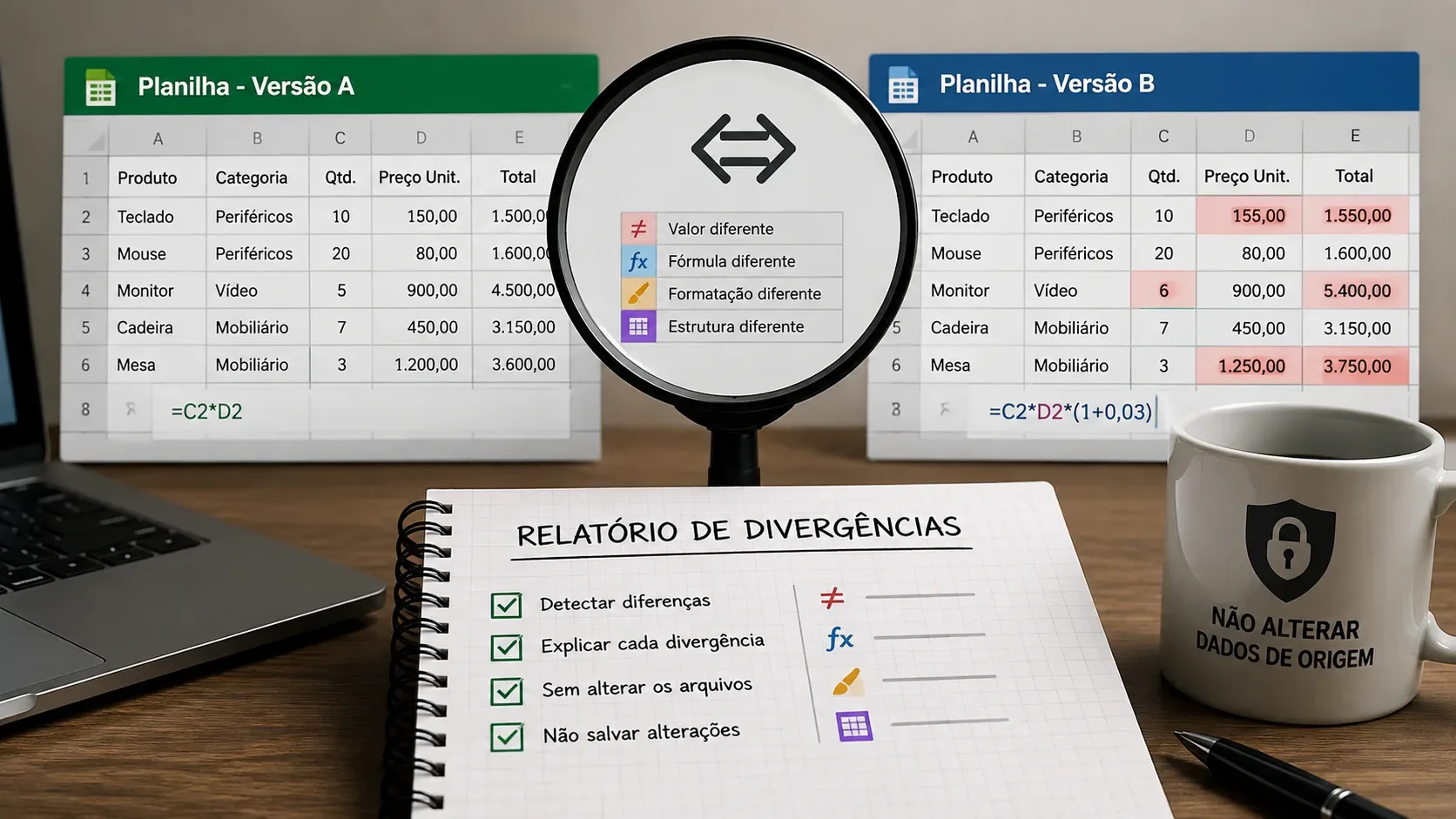
If you need to find out what changed between two versions of a spreadsheet, the critical step is not simply asking, “compare these files.” A good prompt must define which file is the reference, how rows should be matched, which types of differences should be inspected, and, above all, that no data may be changed or saved. The model below turns the task into an analysis contract: read, compare, explain, and report — without editing the originals.
What the prompt should require from the comparison
A useful comparison separates dimensions that can produce different results. Two cells may display the same number while containing different formulas; a formatting rule may change appearance without changing the value; and a hidden worksheet may still be used by references in the workbook. That is why the prompt should require each layer to be handled explicitly.
- Structure: worksheets added, removed, or renamed; columns and rows inserted or deleted; order changes; modified tables, ranges, and headers.
- Values: text, numbers, dates, blank cells, codes, and other content stored in cells.
- Formulas: compare the formula expression when it is available, not only the displayed result. Formulas can contain functions, references, operators, and constants, as described in Microsoft's Excel formula documentation.
- Formatting: number formats, fills, fonts, borders, and conditional-formatting rules when the tool can inspect them. Microsoft's conditional-formatting documentation shows that appearance can depend on rules applied to cells.
- Visibility and context: hidden worksheets should be checked because their data can still be referenced by other worksheets, according to the official documentation on hiding and unhiding worksheets.
Not every AI tool or spreadsheet-reading environment exposes all of these layers. The prompt should require any inaccessible item to be labeled “not verifiable in this environment” rather than treated as identical or nonexistent.
Ready-to-use prompt for comparing two spreadsheet versions
Task: compare two versions of a spreadsheet and produce a differences report without changing the source files.
Files:
File A = reference/earlier version.
File B = version to compare/later version.Safety rule:
Work in read-only mode. Do not edit cells, formulas, worksheet names, formats, properties, filters, tables, links, or any other element. Do not save, overwrite, export a modified version, or perform “automatic corrections.” If an operation would require writing to the original file, do not perform it.Procedure:
1. List the worksheets in both files and identify worksheets that were added, removed, or renamed.
2. For each matching worksheet, compare structure: headers, number and order of columns, inserted or deleted rows/columns, tables, and relevant ranges.
3. Determine how records should be matched. Prioritize a stable key that I provide, such as ID, code, email, SKU, or order number. If there is no reliable key, use row/cell position only as a fallback and state that limitation.
4. Compare values cell by cell or record by record according to the selected key.
5. When available, compare the literal formula separately from the calculated value. Do not treat different formulas as equal merely because they display the same result.
6. When available, compare relevant formatting: number format, fill, font, borders, and conditional formatting. If formatting cannot be read, write “not verifiable in this environment.”
7. Identify records present only in File A and only in File B.
8. Do not assume that a difference is an error. Describe what changed and, when an effect can reasonably be inferred, label it as “possible impact,” not as a confirmed cause.
9. For each difference, record: worksheet; record key or row; cell/range when applicable; difference type; value/formula in File A; value/formula in File B; objective explanation; possible impact; confidence level.
10. At the end, explicitly confirm that neither source file was changed or saved.Output format:
A. Executive summary with the number of differences by type.
B. Detailed differences table.
C. Structural changes by worksheet.
D. Items that could not be verified.
E. Integrity confirmation: “no changes were written to the source files.”Priority: traceability and data preservation are more important than speed. If record matching is ambiguous, flag the ambiguity before concluding that a difference exists.
How to prepare the files before using the prompt
1. Clearly define File A and File B
Avoid vague names such as “new spreadsheet” and “final spreadsheet.” State which file represents the earlier or reference version and which represents the version being tested. This prevents reports in which “before” and “after” are reversed.
2. Provide the key that identifies each record
When rows may have moved, comparing only “row 27 to row 27” is risky. If a stable identifier exists — for example, customer ID, SKU, student ID, order number, or internal code — include it in the request. If the key is composite, specify the columns that form the combination.
3. Limit the scope when the workbook is large
You can restrict the analysis to specific worksheets, columns, or periods. This reduces noise and allows more detailed explanations. If the goal is a full audit, explicitly state that all worksheets, including hidden ones when accessible, should be inventoried.
4. Preserve the originals
Working on copies is an additional safeguard, but the prompt should still prohibit writing changes. The “read-only” instruction matters because the goal is to diagnose differences, not reconcile or correct the files.
What the differences report should look like
A good report does not stop at saying “there are 42 differences.” Each item should be traceable to a record, cell, or structural element. A table like the following forces the analysis to explain the change rather than merely highlight it.
| Type | What to compare | How to report it |
|---|---|---|
| Value | Content stored in the cell | Show A, B, location, and the objective difference |
| Formula | Formula expression and, separately, result | Show both formulas and state whether the result also changed |
| Structure | Worksheets, columns, rows, headers, tables, and ranges | Describe addition, removal, renaming, or order change |
| Formatting | Number format, font, fill, borders, and rules | Describe only what the tool was actually able to inspect |
| Missing record | Keys present in only one version | State which file contains the record and which file does not |
What the AI should not infer on its own
Comparing is different from judging. To avoid false conclusions, the report should not automatically assume that:
- File B is correct simply because it is newer;
- a difference is an error;
- two rows in the same position represent the same record;
- two formulas are equivalent simply because they currently display the same result;
- a change in color or format was intentional;
- a missing record was deliberately deleted.
If there is enough evidence to suggest a consequence, ask the AI to use language such as “possible impact” or “hypothesis to verify”. A cause should be treated as confirmed only when the files themselves or the supplied context support that conclusion.
Important limits of the comparison
The scope of a comparison depends on what the tool can read. Some environments expose values but not formula text; others read formulas but omit styles, conditional rules, external links, objects, macros, or protected properties. The report should not hide these limitations.
- Same value, different formula: the displayed result may match now even though the logic changed. That is why formula and calculated value should be treated as separate fields when possible.
- Hidden worksheets: they may still participate in references. If the environment does not expose them, record the limitation.
- Conditional formatting: appearance may depend on a rule rather than a fixed style. If the rule is inaccessible, do not conclude that both versions have the same formatting.
- Macros, connections, and objects: if they cannot be inspected, list them under unverified items instead of assuming equivalence.
Short version of the prompt for simple comparisons
Compare File A with File B in read-only mode. Do not change or save either file. Use [KEY] to match records; if no reliable key exists, state the limitation. List differences in structure, values, formulas, and, when accessible, formatting. For each difference, provide worksheet, key/row, cell, value or formula in A, value or formula in B, difference type, and an objective explanation. Separate items that cannot be verified. Do not treat a difference as an error without evidence. End by confirming that no changes were written to the source files.
Checklist before accepting the result
- Does the report clearly identify which file is A and which is B?
- Does record matching use a reliable key?
- Were values and formulas compared separately when possible?
- Are structural changes separated from content changes?
- Was formatting described only when it could actually be inspected?
- Were records present in only one version listed?
- Are inaccessible items labeled “not verifiable” instead of omitted?
- Does the report avoid calling a difference an error without evidence?
- Is there a final confirmation that the files were not changed or overwritten?
The best spreadsheet-comparison prompt does not ask the AI to “fix” the workbook. It establishes an audit process: match records, locate changes, explain each difference, record limitations, and keep the source files intact.