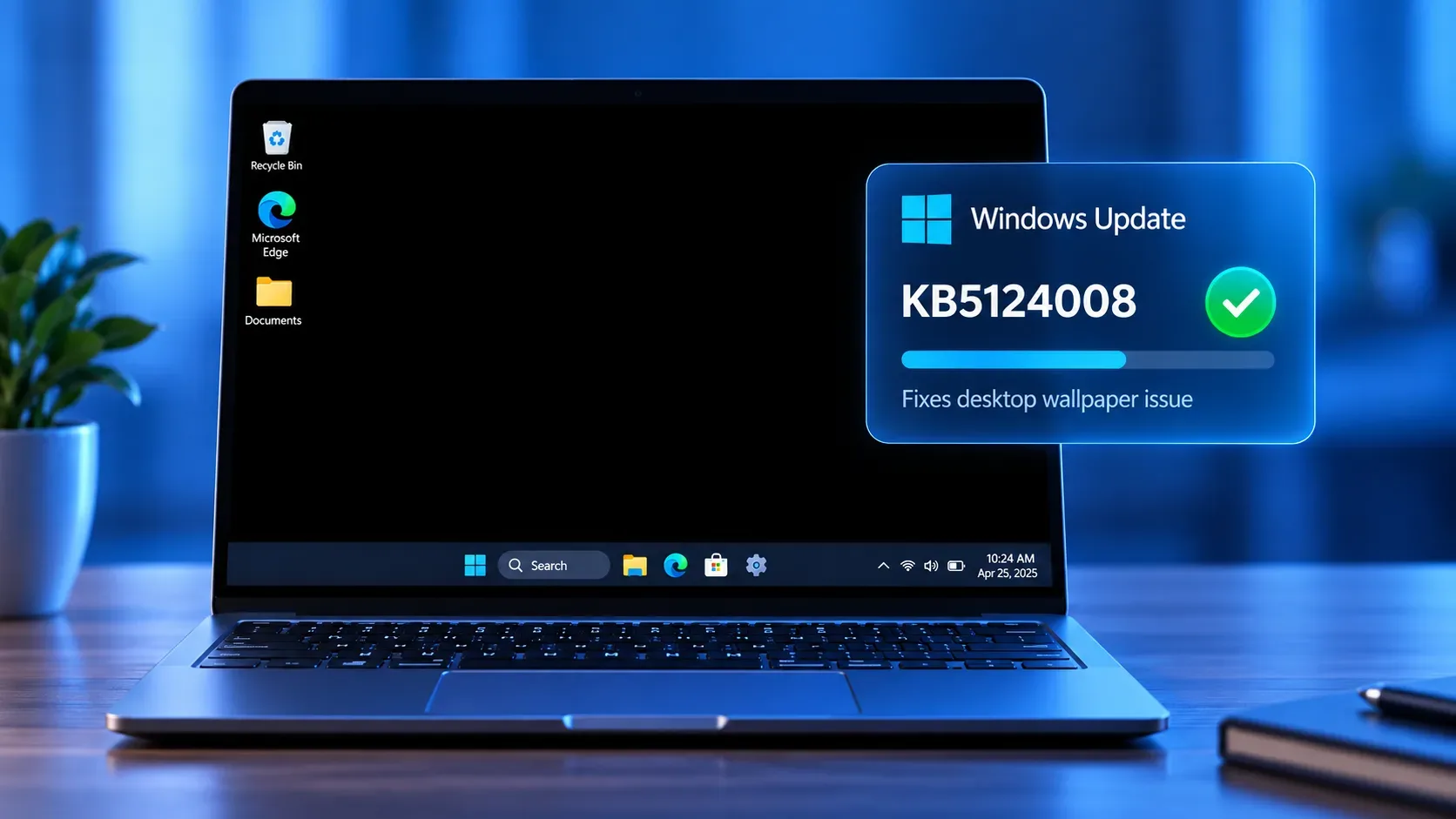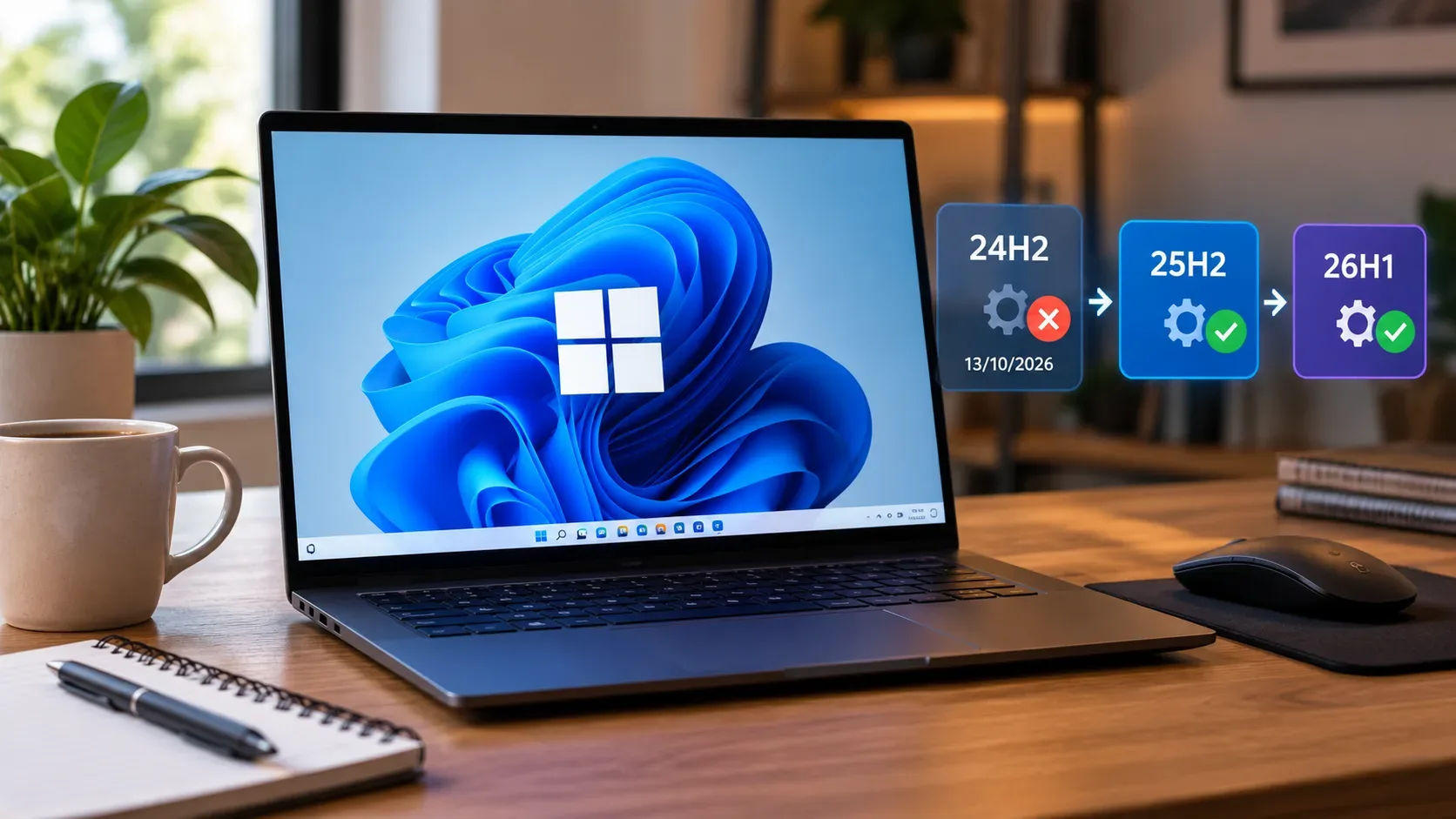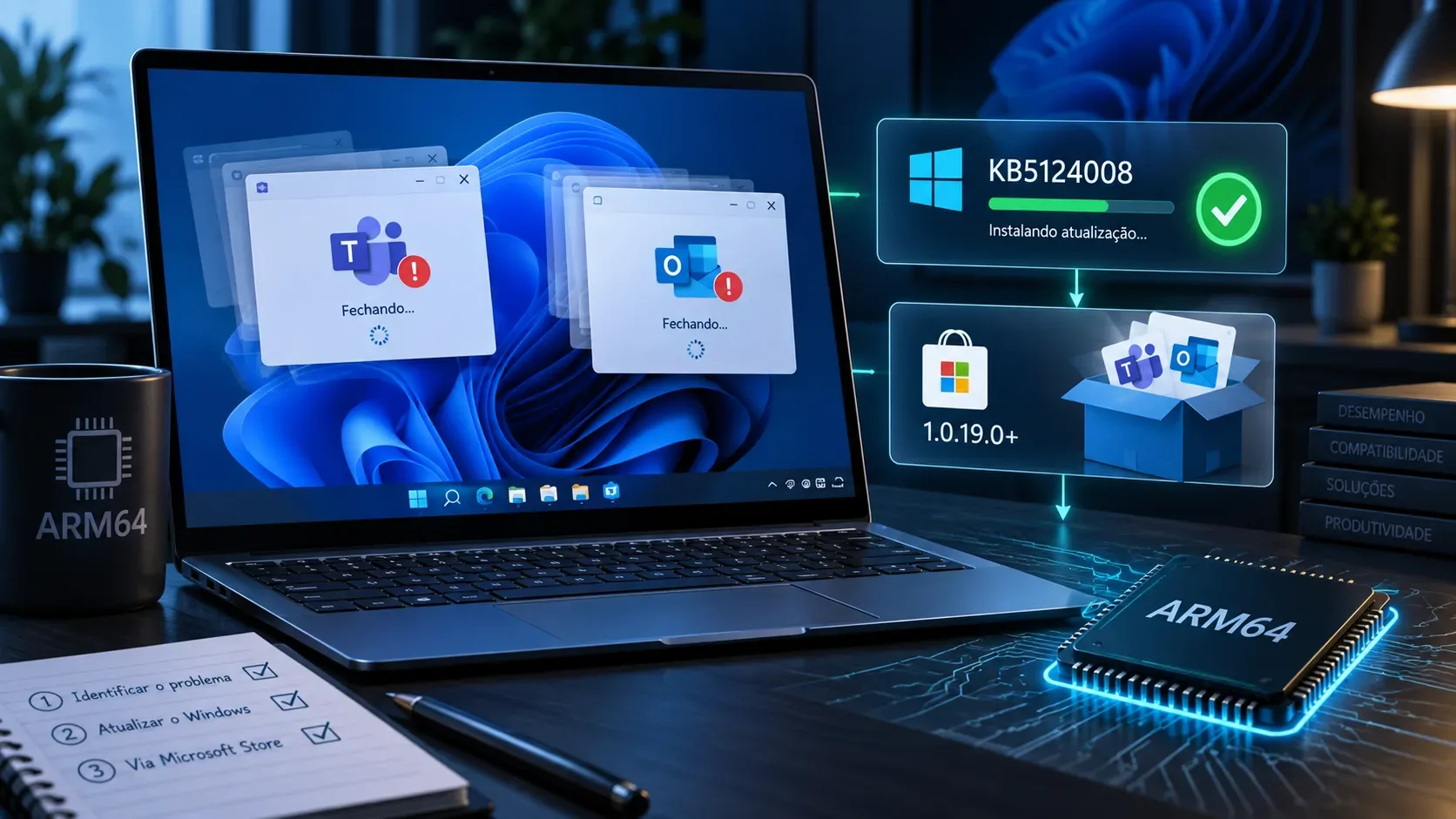
Quick answer: if Microsoft Teams or the new Outlook for Windows will not open or closes by itself on a Windows 11 Arm64 PC, the first thing to check is the Windows version and OS build. On Windows 11 24H2 and 25H2, Microsoft fixed the issue on September 8, 2026 with KB5124008, which brings the system to builds 26100.9445 and 26200.9445, respectively. On Windows 11 26H1, the equivalent fix is in KB5124012, build 28000.2954. The Auto Super Resolution Package version 1.0.19.0 or later remains a useful workaround when the machine is still on an earlier build and the Windows update has not been applied.
This distinction matters because instructions still found online reflect two different stages of the same incident: Microsoft first published a Microsoft Store workaround and later delivered the fix in Windows itself. On a machine already updated to the corrected build or later, the Store package is no longer the first response to this specific defect.
1. Confirm that this is the known Arm64 PC issue
The issue documented by Microsoft appeared after Windows security updates released on or after August 11, 2026. On Arm64 devices, Microsoft Teams and the new Outlook for Windows could fail to launch or close unexpectedly. Microsoft named Surface Pro 11 and Surface Laptop 7 as examples, but the defect was not limited to those models.
The scenario was more likely on new or freshly imaged PCs that had not yet received Microsoft Store updates. The documentation also stated that classic Outlook, Word, Excel, and other applications were not known to be affected. That helps distinguish this incident from a general Office failure or a problem on x64 machines. The issue history and workaround are recorded by Microsoft in the August update for Windows 11 24H2/25H2.
2. Step 1: check the Windows architecture, version, and build
Open Settings > System > About. Under Device specifications, check the system type; under Windows specifications, check the Windows version and OS build. Microsoft also allows you to check the build by typing winver in Search or the Run box. The official path for finding this information is in the Windows device information guide.
- If the device is not Arm64, this specific Teams/new Outlook incident does not by itself explain the symptom.
- If it is running Windows 11 24H2, compare the build with 26100.9445.
- If it is running Windows 11 25H2, compare the build with 26200.9445.
- If it is running Windows 11 26H1, compare the build with 28000.2954.
A build equal to or later than the one listed for your version is already on the update line that contains the September 8 fix. If the build is earlier, move to the Windows update before treating the Store package as the primary solution.
3. Step 2: install the correct fix for your Windows version
| Windows 11 version | Update containing the fix | Build published on Sep. 8, 2026 | What to do |
|---|---|---|---|
| 24H2 | KB5124008 | 26100.9445 | Install KB5124008 or a later cumulative update for this version. |
| 25H2 | KB5124008 | 26200.9445 | Install KB5124008 or a later cumulative update for this version. |
| 26H1 | KB5124012 | 28000.2954 | Install KB5124012 or a later cumulative update for this version. |
For 24H2 and 25H2, the KB5124008 release note explicitly states that the Teams and Outlook issue on Arm64 PCs was fixed. For 26H1, the same fix appears in KB5124012. Therefore, it is not correct to look for KB5124008 on a 26H1 installation.
The normal path is Settings > Windows Update > Check for updates. In managed environments, availability can also depend on the organization's deployment policies.
4. Step 3: when the Auto Super Resolution Package 1.0.19.0+ is still useful
Before the September fix, the official workaround was to update the Auto Super Resolution Package to version 1.0.19.0 or later through Microsoft Store. That workaround still makes sense when the affected PC remains on a build earlier than the fix—for example, because the September cumulative update has not yet been installed on that machine.
In that case, open Microsoft Store, go to Downloads, and select Check for updates. Microsoft's general guidance for keeping Store apps and components updated is available in Microsoft Store support. For this incident, confirm that the Auto Super Resolution Package has reached version 1.0.19.0 or later.
The key is the order of operations: if Windows can receive the update that already fixes the defect in the operating system, update Windows first. Use the Store package as a workaround for the older condition, not as a permanent substitute for the cumulative fix.
5. What if Teams or the new Outlook still closes on the corrected build?
If the PC is already on 26100.9445, 26200.9445, 28000.2954, or a later build of the same Windows version and the symptom continues, it is not safe to assume automatically that this is the same bug. First confirm in Update history that the corresponding update completed, and restart the PC if Windows shows a pending restart. Then run Microsoft Store update checks to rule out outdated components.
If the failure persists, treat it as a separate application, profile, installation, or device-management issue. Microsoft's general guidance for Store app problems is to confirm that Windows is up to date before moving to repair, reset, or reinstall steps when applicable. This avoids repeating a workaround that was created for an OS build that has already been superseded.
6. Why search results still show different instructions
The two sets of instructions are not necessarily contradictory. The Auto Super Resolution Package 1.0.19.0+ workaround was published while Microsoft was still preparing a Windows fix. On September 8, 2026, Microsoft marked the issue as resolved for 24H2/25H2 with KB5124008 and published the corresponding 26H1 fix in KB5124012. Pages, forums, and search results that repeat only the Store workaround may be describing the earlier stage of the incident.
3-step diagnostic checklist
- Check System > About: confirm that the PC is Arm64 and note the Windows 11 version and OS build.
- Update Windows: on 24H2/25H2, install KB5124008 or later; on 26H1, install KB5124012 or later.
- If the PC is still on an earlier build: open Microsoft Store, check for updates, and confirm Auto Super Resolution Package 1.0.19.0 or later.
This flow avoids two common mistakes: applying the wrong KB to a different Windows version and treating a temporary workaround as if it were still the primary fix after September 8.