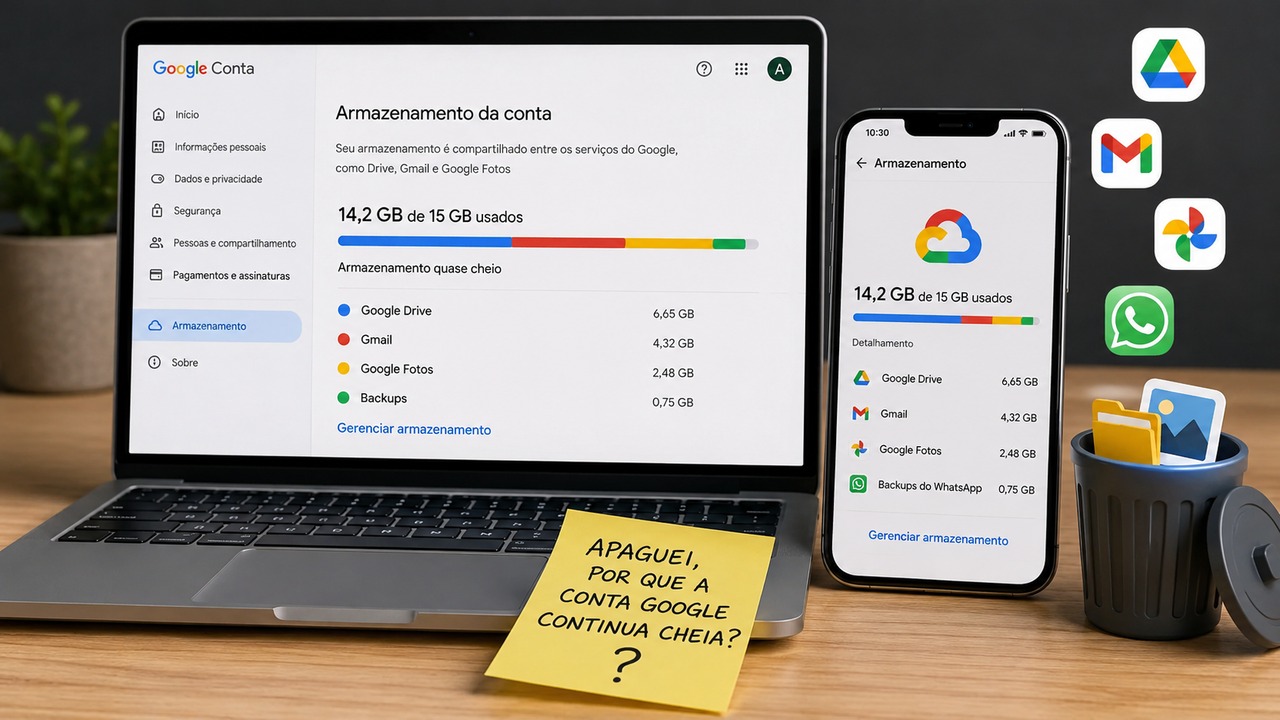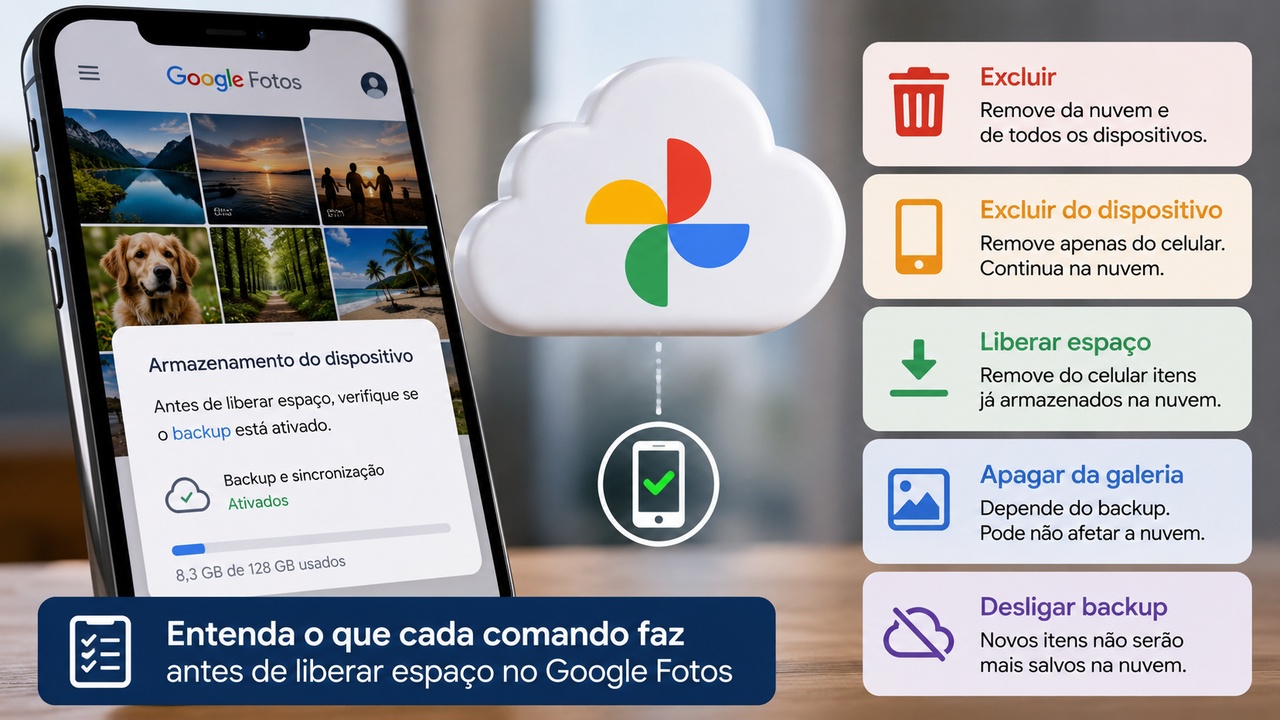
If a file appears on your phone but not on your computer, the first step is to determine where it is actually stored. It may exist only on the phone, in a different cloud service, under another account, or in the correct cloud while the computer sync client is not working. Before reinstalling apps or moving files, confirm three things: the file location on the phone, the account used on each device, and whether the file is present in the web version of the service.
1. Find out whether the file is on the phone or in the cloud
On the phone, open the file and check the location or folder where it appears. On iPhone and iPad, for example, the Files app separates locations such as “On My iPhone” and “iCloud Drive”; third-party services can also appear as separate locations. An item in local storage is not automatically sent to the computer. On Android and in other file apps, the same principle applies: a device folder, Downloads folder, or internal storage is not necessarily a synced folder.
If the file is in a folder belonging to the cloud service you want to use, continue to the next step. If it exists only on the device, copy or move it to the desired synced folder, or use the service's upload command. Before moving an important item, keep a backup copy until you confirm that the transfer has finished.
2. Check the exact account on both devices
It is common to have more than one personal, work, or school account in the same service. The file may be in the correct Google Drive, OneDrive, or iCloud service but tied to a different address or profile. Compare the email address, account name, and, when applicable, the account type on each device.
Microsoft specifically recommends checking other accounts when a missing OneDrive file is not found in the current account. For iCloud Drive, Apple states that devices need to be signed in with the same Apple Account to keep files available across them. Account verification should come before resets or reinstalls.
3. Use the web version as the reference point
The web version helps separate a phone problem from a computer problem. Sign in to the official website with the same account and search for the file by name and folder. If the file appears on the web, it has already reached the cloud; the problem is then likely on the computer, in the sync client, in the path being displayed, or in the local availability mode. If it does not appear on the web, the cause comes earlier: the file may still exist only on the phone, under another account, in another service, or in a folder that is not being synced.
Microsoft recommends using the OneDrive website as the starting point when looking for missing files because that is where devices converge on the cloud storage.
4. Check whether the sync application is running on the computer
If the file is on the web, confirm on the computer that the service app is open, signed in, and free of alerts. Google Drive for desktop troubleshooting recommends checking the internet connection, restarting Drive for desktop, restarting the computer and, if necessary, disconnecting and reconnecting the account. In OneDrive, check the cloud icon and sync state. With iCloud for Windows or on a Mac, confirm that iCloud Drive is enabled for the same account.
Also look for messages about paused sync, authentication errors, full storage, name or path limits, files locked by another program, or items waiting to sync. The exact wording varies by service and operating system.
5. Make sure you are looking at the correct folder on the computer
Even with the right account, the computer may be displaying a different folder from the one you expect. Cloud services can create separate folders for personal and business accounts, virtual drives, shortcuts, or custom sync locations selected during setup. Search for the file name across File Explorer in Windows or Finder in macOS, then compare the path with the folder shown on the web.
If you recently changed the app configuration, the location may have changed. Google Drive, for example, distinguishes streaming from mirroring. With streaming, files are stored mainly in the cloud and appear through a virtual drive; with mirroring, a full copy exists on both the computer and the cloud.
6. Do not confuse “visible on the computer” with “stored locally”
A file can be visible on the computer without permanently using local disk space. In OneDrive, Files On-Demand can show online-only items in File Explorer; they are downloaded when opened or when the user chooses to keep them on the device. In Google Drive, streaming also keeps files mainly in the cloud, while mirroring keeps a full local copy.
So there are two different questions: “Can the computer see the file?” and “Is the file downloaded for offline use?”. If the item appears in the service folder but cannot open without an internet connection, sync may be working correctly and only offline availability is missing.
7. If the file appears on the web but not on the computer
- Confirm that the sync client is running and signed in to the correct account.
- Check whether synchronization is paused or showing an error.
- Search the whole computer for the file name.
- Compare the web folder path with the folder or drive shown on the computer.
- Check whether the service uses online-only files, streaming, or a virtual drive.
- Restart the sync client and allow it to refresh.
- Only after these checks consider disconnecting and reconnecting the account or reinstalling the application.
Before disconnecting an account, confirm that there are no local files still waiting to be uploaded. In some sync modes, removing the account can remove cached-only items from the computer, while mirrored files may remain on disk.
8. If the file does not appear on the web either
Return to the phone and check the item's location again. Look in Downloads, internal storage, folders belonging to the app that created the file, iCloud Drive, Google Drive, OneDrive, and other added services. Confirm the active account in each app. If the file is local only, upload it manually to the intended folder and wait for completion before checking the computer.
Also check the recycle bin or recently deleted items if deletion is possible. Apple and Microsoft provide specific recovery and missing-file tools, each with its own rules and retention periods.
9. A simple test to identify where the failure is
Create a small test file in the same location where the original file should be. If the new file appears on the web and on the computer, general synchronization is working and the issue is probably specific to the original file, its path, or the place where it was saved. If the test appears on the phone but not on the web, the phone upload is failing or the location is not synced. If it appears on the web but not on the computer, focus on the desktop client, the account, and the displayed folder.
Diagnostic summary
| Situation | What it suggests | Next check |
|---|---|---|
| File appears only on the phone | It may be stored locally or under another account | File location and active account |
| File appears on the phone and on the web | The cloud has received the file | Sync client and computer folder |
| File appears on the web and computer but not offline | It may be an online-only item | Offline availability or local copy |
| File does not appear on the web | It probably has not reached that account's cloud storage | Upload, service used, and correct account |