If your intention is to free up cell phone storage without deleting the copy that is already in Google Photos, the safest rule is simple: first confirm that the item was actually saved in the correct account; then use Delete from device for few photos or Free up space to batch remove local copies that are already protected in the cloud. The Delete button has another effect: in Google Photos, it sends the item to the trash and can also remove it from the device and other devices with backup enabled.
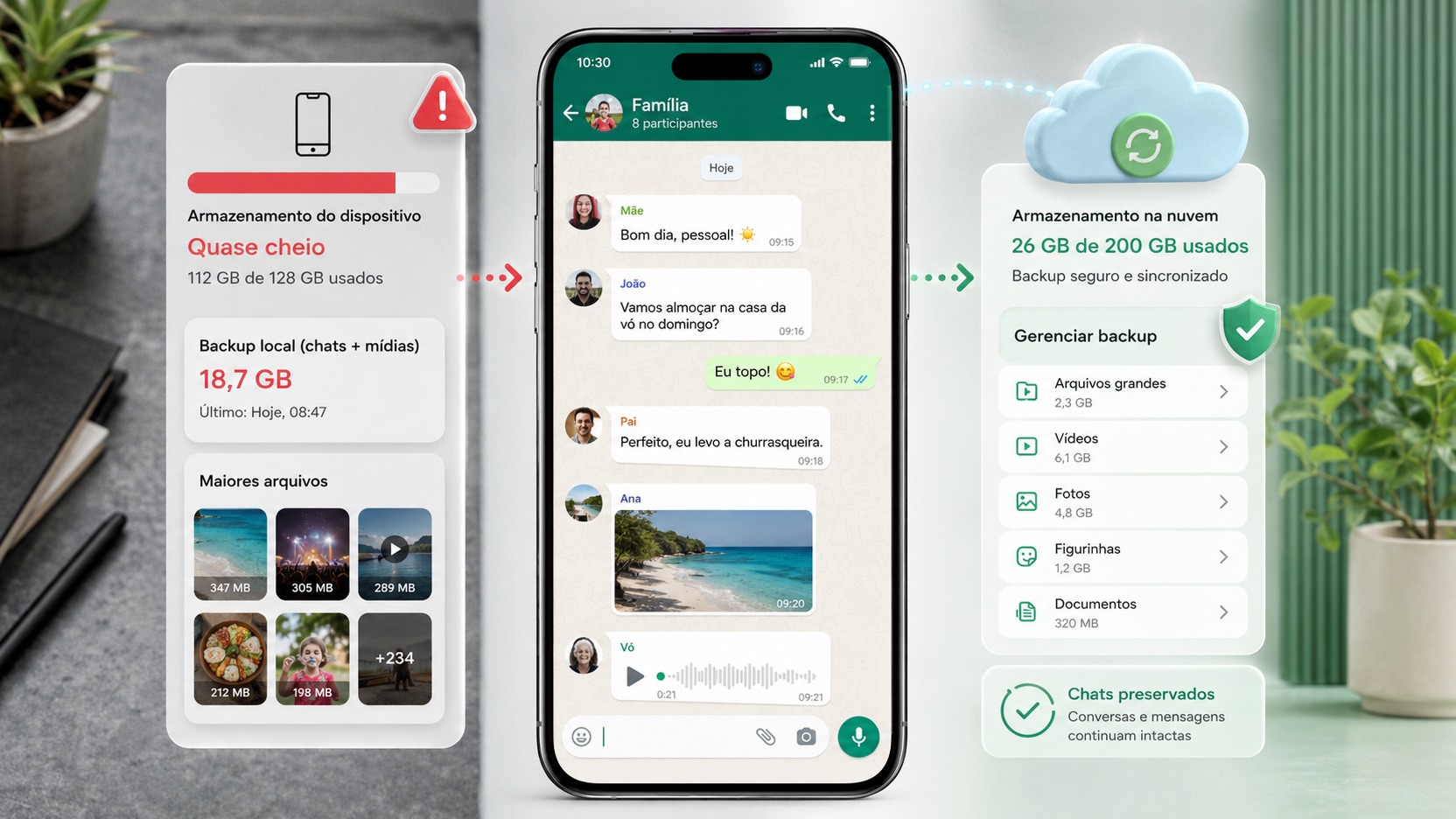
Confusion occurs because the same file can exist in two places at the same time: in the phone's physical storage and in the Google Photos library linked to your Google Account. After the local copy is removed, the photo may still appear in the Google Photos app because the app is showing the version that's in the cloud. This does not mean that it continues to take up the same space on the phone.
Before deleting anything, confirm the backup
It's not enough to open Google Photos and see the photo on the screen. Google itself explains that the application can display photos and videos stored directly on the device regardless of the account you are logged into; therefore, seeing the image in the app does not prove that it was uploaded to the cloud.
On Android, tap your profile photo and check your backup status. When the upload is complete, the status appears as Backup complete. For a specific file, open the photo or video, access More and check the details: there the application informs you whether that item has been backed up. Also check which Google Account is receiving the backup, especially if you use more than one account on the device.
This check is the point that separates safe cleaning from accidental deletion. If the photo is still only on your phone and you delete the local copy, there won't be a cloud version to recover later.
The consequence matrix: what happens with each command
Delete in Google Photos
Mobile: The item is removed from the device when deleted through the Google Photos app. Cloud: if it was backed up, it is also removed from the library and goes to the trash. Other devices: Google reports that the same content is deleted from devices where backup is enabled. Recovery: Items that were backed up remain in the Google Photos trash for 60 days before being permanently deleted; On Android 11 or higher, unbacked items may remain in the trash for 30 days.
In other words, Delete is not a command to just free up phone storage. It is a library deletion command. If the goal is to preserve the copy in the cloud, this should not be the first button chosen.
Delete from device
Mobile: removes the local copy of the file. Cloud: the copy already saved in Google Photos remains in the account. Preview: The photo may continue to appear normally in the Google Photos app because it is now uploaded from the cloud. Native gallery: as the local file has left the device, it tends to no longer appear in the gallery that shows files stored on the phone.
This command is the most direct when you want to remove one or a few photos from your phone's storage, but keep the backup. The condition remains the same: confirm first that the item is actually backed up.
Free up space
Mobile: The feature batch removes local copies of photos and videos that Google Photos considers to be backed up. Cloud: Items stay in your Google Photos library. Access: they remain visible in Google Photos and on the service's website, but are no longer available as local files on the device.
On Android, Google notes that photos and videos less than 30 days old can be kept on the device even after using Free up space. This explains situations in which the resource reports that it has completed cleaning, but some of the recent images continue to occupy local storage.
On the iPhone and iPad there is an additional step: after using Free up space in Google Photos, Google advises you to open the Apple Photos app and remove the same items from Recently Deleted so that the space is effectively recovered on the device.
Delete from phone gallery
Mobile: typically the action starts from the local file, but the effect on the cloud should not be assumed. Cloud: depends on the integration of the device's default gallery with Google Photos. Google maintains a standard gallery access feature for the Photos library on compatible devices, including models from manufacturers such as Xiaomi, Oppo, OnePlus and Realme with Android 11 or higher. When this integration is enabled, deleting from the default gallery may also delete the item from Google Photos, even if it has already been backed up.
Therefore, using the manufacturer gallery as a shortcut to free up space can be risky when you don't know if there is an active cloud integration. On supported devices, you can check this connection in Google Photos in Google Photos Settings, Apps and devices, Google Photos Access. To preserve the copy in the cloud, Delete from device or Free up space are more predictable paths within Google Photos itself.
Turn off backup
Mobile: nothing is deleted just because the backup was turned off. Cloud: photos that have already been sent remain in the Google Account; What changes is that new files are no longer sent automatically by that device. Space: turning off the backup, in itself, does not free up
cell phone or Google Account storage.
There is an important nuance if you are trying to keep photos on your device and remove copies from the cloud. Google advises that you turn off backup on devices where the local copy must remain before deleting items via the Google Photos website. If backup is enabled again, the local file can be uploaded to the cloud again. If there is another device connected to the same account with backup still enabled, it can also resend items.
What changes when the photo is only in the cloud
After using Delete from device or Free up space, the photo may still appear in Google Photos, but the access mode has changed. It is no longer physically stored on that cell phone. Google informs that photos removed from the device no longer appear in the native gallery and are not available when you are offline or when not signed in to the Google Photos app.
This matters in travel, places without signal, saving data and applications that expect to find the file in local storage. If you need to use a photo offline, edit in another app, or attach the file offline, you may need to re-download it to your device.
Don't confuse cell phone space with Google Account space
Free up space acts on device storage. It removes local copies that are already backed up and therefore serves to recover gigabytes on the phone.
Already deleting items from the Google Photos library or using Google Account storage management tools works in the cloud space. In this case, you are reducing the content stored on the account, not just removing copies from the device. This difference is essential when the storage full warning appears: first identify whether the phone or the Google Account is full.
A safe procedure to free up space without losing the wrong copy
Start by confirming the Google Account used in the backup. Then check if the general status is Backup complete and, for important photos, also validate the individual status in the file details. Only then choose the command according to the objective.
If you only want to remove a few files from your phone, use Delete from device. If you want to batch clean up already protected local copies, use Free up space. If you want to delete the photo from the library and don't intend to keep it in the cloud, use Delete and remember that this can spread to devices with backup enabled. If you want to delete from the manufacturer's gallery, check first if it is integrated with Google Photos.
For irreplaceable photos, a single cloud doesn't have to be the only copy. Before a major cleanup, keep another independent copy on a computer, external hard drive, or additional service. Google Photos makes backing up and syncing easy, but the delete commands themselves show why backup and local archive shouldn't be treated as if they were the same thing.
The short answer to every question
If the question is “I want to free up space on my phone without deleting from the cloud”, use Delete from device for specific items or Free up space for a batch cleanup, after confirming the backup.
If the question is “Does deleting on Google Photos only delete from your cell phone?”, the answer is no. Through the application, the deletion affects the Google Photos library and also the copy on the device; When the item is backed up, the change may be reflected on other backup-enabled devices.
If the question is “does turning off backup delete what is already in the cloud?”, the answer is no. It stops automatic new uploads on that device, but does not itself remove what has already been saved.
And if the question is “can I delete from the gallery without fear?”, the answer depends on the gallery’s integration with Google Photos. On compatible devices, deletion in the gallery can also reach the cloud. When the intention is to preserve the backup, prefer Google Photos' own commands created to remove only the local copy.