If your Google Account is still full after you delete files, the problem is not necessarily that the deletion "didn't work." In practice, there are four common explanations: the item is still in a trash folder or location that continues to count toward the quota, you freed space only on the device and not in the cloud, another service or backup is using the storage, or the meter has not finished updating yet.
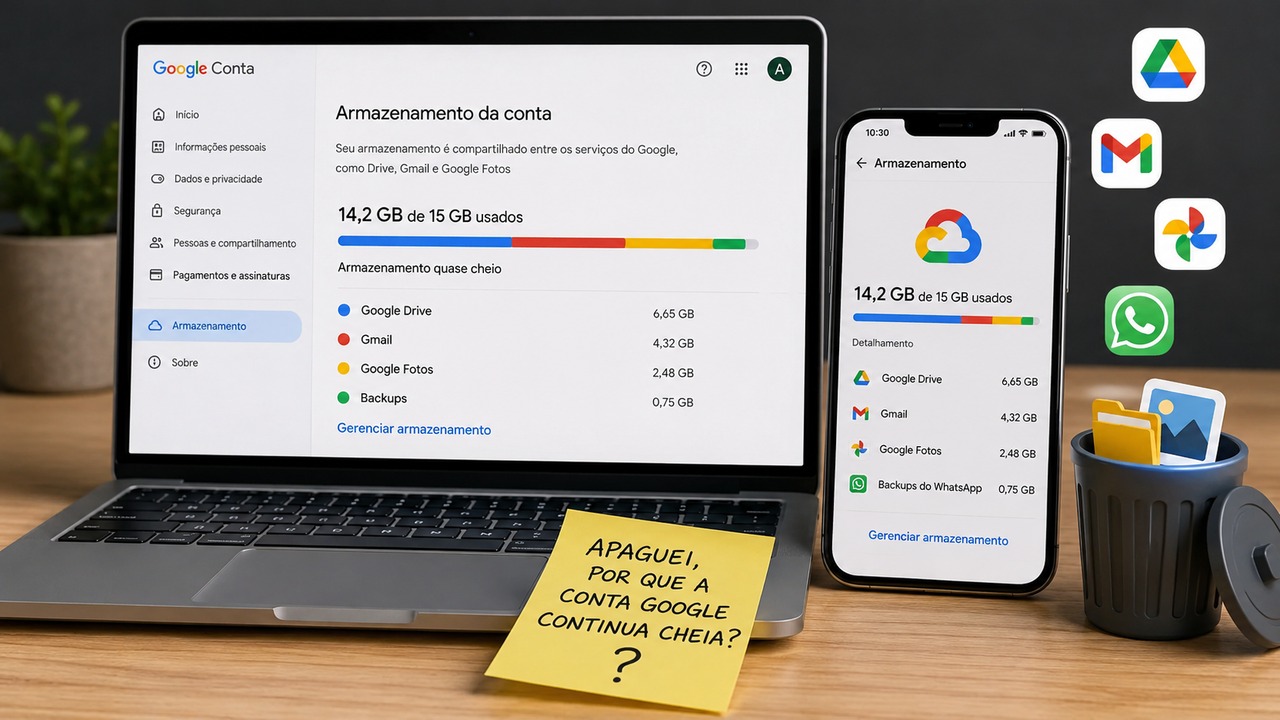
The most useful approach is not to keep deleting files blindly. First, find out which category is consuming the account's space. Google storage is shared across services such as Drive, Gmail, Google Photos and, on Android, WhatsApp backups and device backups. The Google One or Google Account storage management page shows this breakdown and turns the problem into a diagnosis: where is the number actually coming from?
Start with the account total, not the app where you deleted files
It is common to delete several items in Drive and assume Drive should have cleared the warning. But the quota is shared. If Gmail, Google Photos, or a backup is using most of the space, changing something in another service may produce little or no noticeable difference.
Open Google Account storage management and check the breakdown by service. Google's own support also separates an "other storage" category, which can include device backups and hidden data from apps connected to Drive. This matters because those items do not necessarily appear in the normal file list you usually browse.
If the dashboard shows that usage is still concentrated in the exact service where you deleted content, move on to that service's specific checks. If usage has shifted to another category or is in backups, the path is different.
In Google Drive, moving files to Trash does not free space yet
In Drive, files moved to Trash continue to use storage until they are permanently deleted. Google says items can remain in Trash for 30 days before automatic deletion; you can also empty it manually.
This explains one of the most common scenarios: you select gigabytes of files, tap delete, and the account bar barely moves. The first question should be whether those items are still in Trash. If they are, the quota may still count them.
There is another detail that can save time: files in "Shared with me" and third-party items do not use your quota as if they were yours. Storage is associated with the original owner. Removing a file owned by someone else may clean up your Drive view, but it does not reduce a quota that the file was never using in the first place.
It is also worth checking hidden app data in Drive. In Drive settings, the app management area can indicate when a connected app keeps hidden data and how much space it represents. If something large appears there and you are sure you no longer need that data, deletion has to be done in that area, not in a regular Drive folder.
In Gmail, Trash and Spam also count
Gmail messages and attachments use storage, including items that are still in Spam and Trash. That is why deleting email from the inbox does not necessarily finish the cleanup.
If the dashboard shows Gmail as one of the biggest consumers, first look for messages with large attachments and then confirm that Trash and Spam have been emptied. The gain is often greater when you remove a few genuinely large messages than when you delete hundreds of short conversations.
This diagnosis also avoids a common misunderstanding: clearing email in a third-party app or archiving messages does not automatically mean deleting the content from your Google Account. What matters is what remains stored in Gmail for the account shown on the storage meter.
In Google Photos, separate phone storage from cloud storage
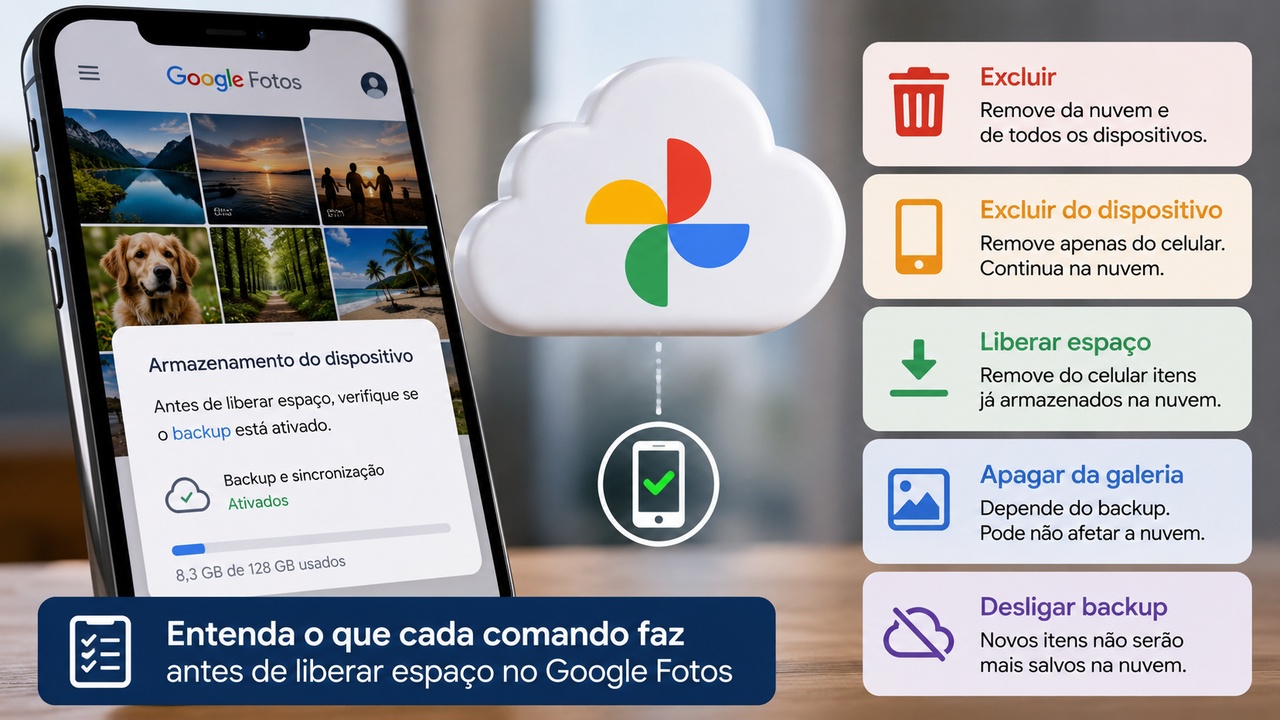
This is one of the easiest causes to confuse. The Google Photos command "Free up space on this device" removes photos and videos from the phone after they have already been backed up. It is designed to free physical storage on the device. The copies remain in Google Photos and therefore continue to be part of cloud storage when they are items that count toward the quota.
In other words, if you used "Free up space" expecting to reduce the gigabytes in your Google Account, you may see the phone become emptier while the account remains full. To reduce the cloud quota, you need to deal with the content stored in Google Photos, not only the local copies on the device.
Be careful when deleting directly in Google Photos. When backup is enabled, a deletion made in the service can affect synced devices. Google support explains that backed-up photos and videos sent to Trash can remain there for up to 60 days before permanent removal. If your goal is to keep a local copy and remove only the cloud version, follow the specific Google Photos flow to turn off backup and remove the copy saved in the account, rather than simply
deleting it from the gallery without checking sync status.
WhatsApp and Android backups can be the "invisible space"
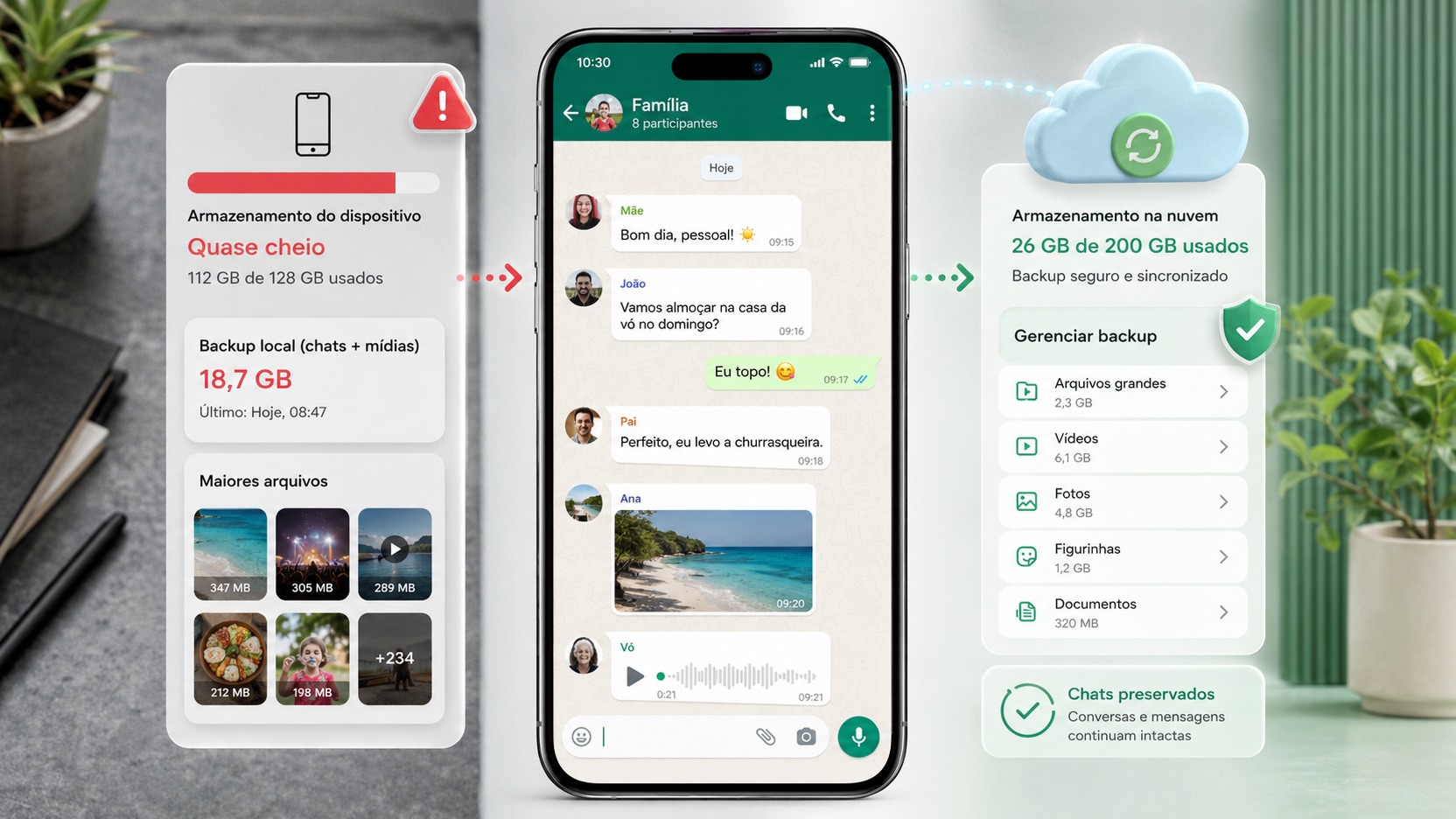
On Android devices, WhatsApp backups began counting toward Google Account storage. Depending on your media history, that backup can be one of the largest individual items in the account. Google One lets you review and delete the backup, but there are two important caveats.
The first is that deleting the WhatsApp backup is permanent. If you change phones or reinstall the app before creating a new backup, you may lose the ability to restore that history. The second is that deleting the Google backup without changing WhatsApp settings may only be temporary: a new backup can be created automatically at the next scheduled run.
So, if WhatsApp appears as a major consumer, first adjust what goes into the backup. Google's own support recommends considering excluding videos from future backups because they are often the largest files. Then, if it makes sense for you, remove the old backup and create a new one after reducing its size.
Android's own device backups also count toward account storage. They can include app data, device settings, and other information managed by the backup system. If you have old devices or backups you no longer use, it is worth reviewing that area before continuing to delete visible files in Drive.
How long does Google's quota take to update after deletion?
The update is not always instantaneous. Google One Help says that after deleting many files at once, the system can take 48 to 72 hours to accurately reflect the new amount of storage.
At the same time, Google advises that after deleting files and emptying trash folders, an initial update often appears fairly quickly; if the account is still full after about 30 minutes, it already makes sense to start a deeper cleanup instead of simply repeating the same deletion.
These two guidelines are not contradictory. Think of them as two different clocks. With a small cleanup, the decrease may appear quickly. With a large deletion or one spread across several services, final consolidation can take up to a few days. During that interval, it is better to avoid deleting important content just because the dashboard has not changed immediately.
An ordered diagnosis so you do not delete more than necessary
First: confirm that you are looking at the right account
If you use more than one Google Account on your phone or in your browser, confirm the address of the account showing the full-storage warning. It is possible to delete files from one account and keep seeing a full quota on another.
Second: see which service actually concentrates the usage
Use the Google Account or Google One storage dashboard and note mentally which category is largest: Drive, Gmail, Google Photos, WhatsApp, backups, or other storage. Do not assume that the last app you opened is responsible.
Third: confirm that the deletion was permanent
In Drive, check Trash. In Gmail, check Trash and Spam. In Google Photos, confirm whether you only freed space on the device or actually removed items from the cloud. In each service, read the warning before emptying a trash folder, because permanent deletion removes the normal option to restore the content.
Fourth: look for what does not appear in the main folder
Review WhatsApp and Android backups and, in Drive, hidden app data. This is the point that often explains cases where the visible file list looks small but the "other" or "backups" category remains large.
Fifth: wait for the update before repeating the cleanup
After removing the right content and emptying what needed to be emptied, wait. If you deleted many files, use the 48-to-72-hour window as a reference for the storage meter to fully consolidate. If the total still does not fall after that, return to the dashboard and check whether a backup was recreated or another service has become the largest consumer.
When the account is still full even after 72 hours
If 72 hours have passed, the relevant trash folders have been emptied, and the dashboard is still almost unchanged, treat that as a sign that real usage probably remains, not just a visual delay. Reopen the storage breakdown and compare the categories. A WhatsApp backup may have been recreated, hidden app data may still be present, or the cleanup may have affected items that did not count toward your quota.
It is also worth checking whether you removed files you actually owned. In Drive, deleting something shared by someone else does not free your account's storage. In Google Photos, using "Free up space on this device" does not reduce the copy already stored in the cloud. Both actions look like cleanup, but they solve different problems.
If the dashboard numbers still look clearly inconsistent with the content after these checks and the update window, the next step is to use Google One Help or the support available for the account, bringing the storage breakdown by service as the starting point. That is more useful than repeating a general deletion because it lets you focus on the specific category whose numbers do not add up.
The key point: find out what counts before deleting more
When your Google Account is still full after you delete files, the right question is not "what else can I delete?" but "which item is still being counted?" The answer may be in a trash folder, Gmail, photos that remain in the cloud, a WhatsApp backup, an old Android backup, or hidden app data.
Run the diagnosis from the storage dashboard, resolve the category that is actually taking up space, and only then wait for the update. For large deletions, Google says consolidation can take 48 to 72 hours. This method reduces the risk of deleting useful content unnecessarily and turns a generic "account full" warning into a problem you can locate and solve.