When a WhatsApp backup on Android gets stuck at 99% or reaches 100% without finishing, deleting or reinstalling the app should not be the first reaction. The main goal is to identify where the process stopped: local data preparation, network upload, Google Account authentication, access to photos and videos, lack of storage, or a problem with the backup file itself.
There is an important difference between “stuck at 99%” and “100% but not finished.” The WhatsApp Help Center says that when the progress bar reaches 100% but the notification remains, background processes may still be running, including media uploads or downloads. In that situation, the official guidance is to wait a few hours. So 100% by itself is not proof of failure or corruption.
Before any troubleshooting: preserve what is still on the phone
If your current chats exist only on this device, do not uninstall WhatsApp, clear the app's data, or delete the Google Account backup before confirming that you have a recent, usable copy. WhatsApp says it does not store your chat history on its servers and cannot restore it for you. Google also warns that deleting a WhatsApp backup is permanent.
Open WhatsApp > Settings > Chats > Chat backup and check the date and time of the last completed backup, the selected Google Account, and the approximate size. If the last valid backup is old, treat the content still on the phone as the most important copy until you successfully create another one.
99% and 100% can point to different bottlenecks
| Symptom | What may be happening | First safe test |
|---|---|---|
| It reaches 100%, but the notification does not disappear | Background processing or media still being uploaded/downloaded | Keep the phone charging, connected to a stable network, and wait a few hours |
| It stays at 99% for a long time with no apparent activity | Stalled transfer, very large backup, insufficient storage, or a network interruption | Check local and Google Account storage, then test a stable network |
| The Google Account is grayed out or a permission error appears | Account sync or WhatsApp authorization issue | Review permissions and sync the Google Account |
| It always fails at the same point even after network and storage checks | Possible problematic file or corrupted backup | Reduce the backup size and repeat the tests before considering reinstalling |
1. If it reached 100%, give background processing time to finish
When the bar shows 100% and only the notification remains active, avoid interrupting it immediately. According to WhatsApp, media uploads or downloads can continue in the background. Keep the device connected to power and a reliable network. If the notification disappears after a few hours and the backup screen shows an updated date and time, the process most likely completed normally.
If the last-backup time does not change and the status remains frozen for many hours, it makes sense to treat it as a real stall and continue with the next checks.
2. Check storage in two places: the phone and the Google Account
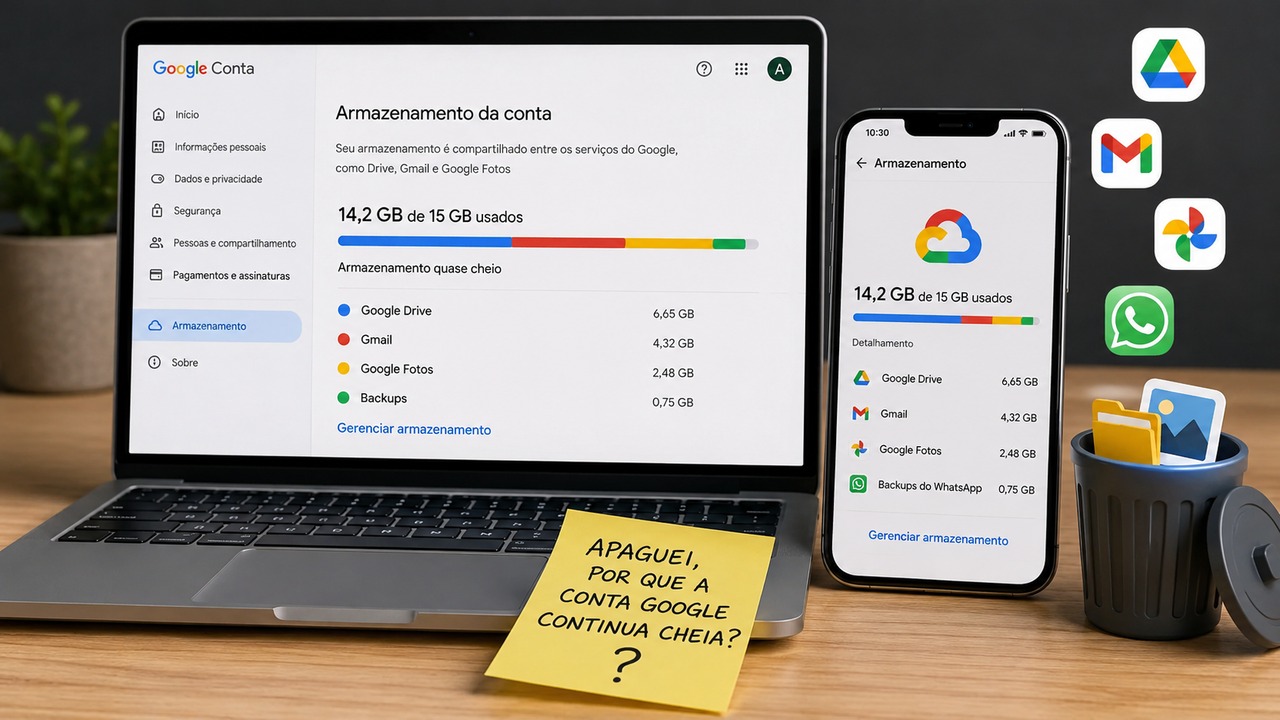
“I have enough space” may only mean that the phone has free internal storage. The backup also needs available capacity in the Google Account. WhatsApp backups on Android currently count toward Google Account storage, which is shared with Drive, Gmail, and Google Photos, according to Google's documentation.
- On the phone: keep a reasonable amount of free storage so WhatsApp can prepare temporary files and organize the backup.
- In the Google Account: check total storage usage. If the quota is full, free up space before trying again.
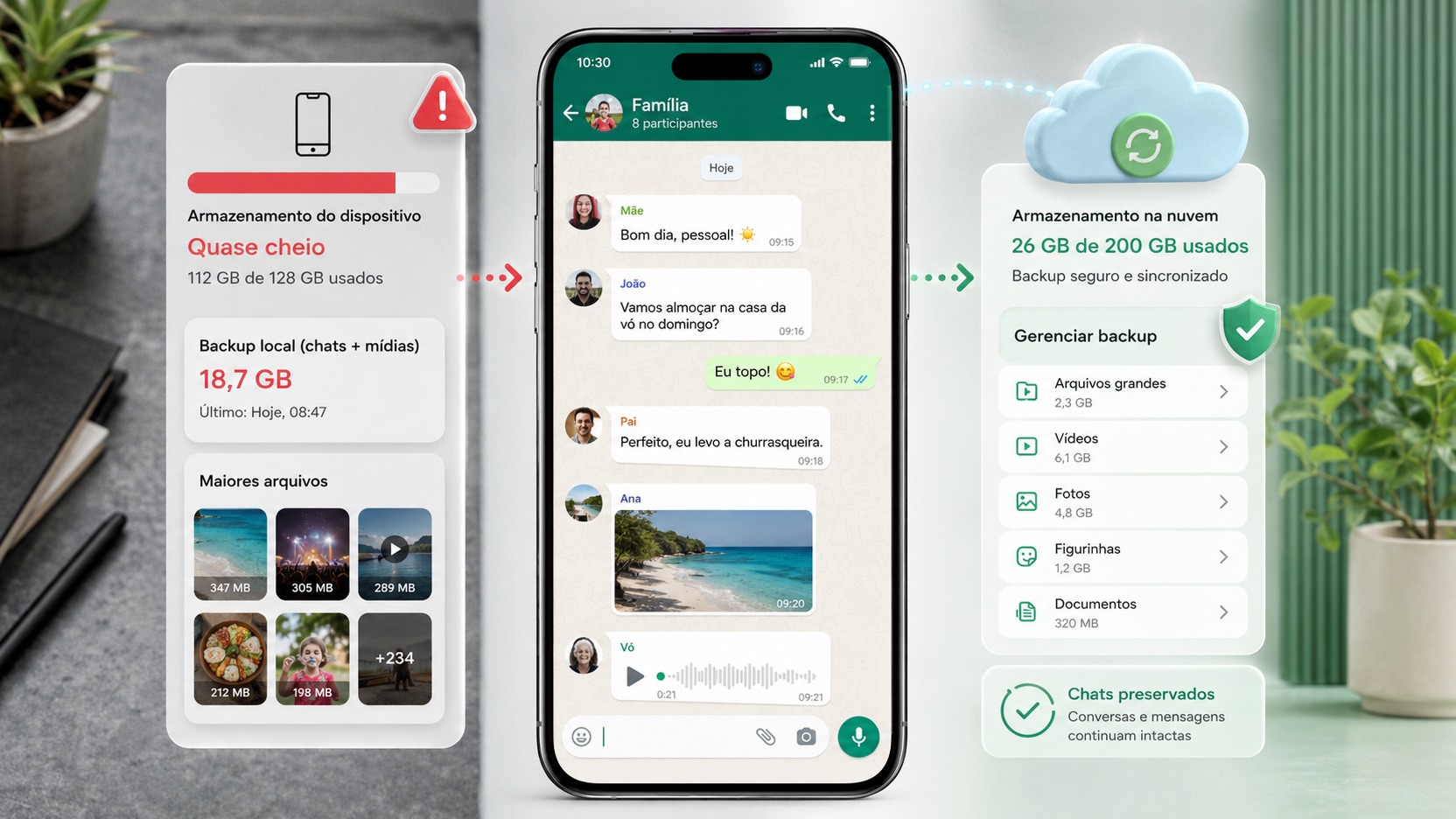
- Do not confuse the two measurements: having tens of gigabytes free on the device does not solve a full Google Account, and cloud space does not eliminate a local-storage problem.
WhatsApp itself says partial or incomplete backups can be caused by insufficient device storage. Google, in turn, confirms that WhatsApp backups count toward the account quota.
3. Reduce the backup size before repeatedly retrying
If the backup is very large, especially because of videos, reducing it can turn a repeatedly failing process into a successful one. Google recommends turning off Include videos under Settings > Chats > Chat backup and trying again. It is also useful to review large files under Settings > Storage and data > Manage storage.
This is especially useful when the backup always stops at a very high percentage: the issue may not be “99%” itself, but a final group of large media files that takes a long time to prepare and transfer.
4. Test the connection without constantly switching networks
WhatsApp recommends turning Wi‑Fi off and back on, trying another Wi‑Fi network, or using mobile data. However, its own documentation includes an important caveat: switching repeatedly between Wi‑Fi networks during the process can cause the backup to time out.
Run one test at a time. Choose a stable connection, keep the phone near the router when using Wi‑Fi, and avoid starting the backup on a connection that frequently drops. If the backup completes on another network, connectivity was probably the bottleneck rather than storage or the chats themselves.
5. Review the Google Account and WhatsApp permissions
Account and permission errors can block the upload even when storage and internet access are normal. WhatsApp instructs users to check that the Photos and videos permission is set to Allow. Then, in Android settings, open the accounts area, select the Google Account used by WhatsApp, and run a manual sync.
If WhatsApp shows messages such as “couldn't complete backup,” asks for permission to back up to Google storage, or displays the Google Account in gray, follow the official sync flow. For persistent cases, the Help Center instructs users to remove the Google Account from the device and add it again. Before doing that, make sure you know the password and can access the account's verification methods.
6. Update Google Play services
On Android, WhatsApp depends on Google Play services for Google Account integration. WhatsApp's own troubleshooting page recommends checking whether Google Play services needs an update. Go to Settings > Apps > Google Play services, open its app details in the Play Store, and update it if a newer version is available.
Then restart the phone and try again on a stable connection. Restarting the device is also one of WhatsApp's first recommended steps for a backup that has stopped.
7. Closing WhatsApp can help, but do not interrupt a backup that is still advancing
The official troubleshooting instructions include force stopping or closing WhatsApp when a backup is blocked. Use this only when the attempt is truly frozen and you have decided to abandon it. Do not repeatedly interrupt a backup while the bar is still moving: WhatsApp also lists interruptions and force-closing during backup creation among factors that can be associated with corrupted backups.
A cautious sequence is: confirm there has been no progress for a long time, close WhatsApp, restart the device, reopen the app, and start a new attempt after power, network, and storage have already been checked.
8. When to suspect corruption
Corruption is an end-of-diagnosis hypothesis, not the first explanation for any 99% stall. WhatsApp says backups can become corrupted because of interruptions during creation, force-closing the app, sending or receiving corrupted files, or other reasons. The company also says it cannot repair a corrupted backup or determine the exact cause of the damage.
Suspect this scenario more strongly when the backup fails repeatedly at the same point after you have already checked the connection, storage, account, permissions, Google Play services, and backup size. Before reinstalling, try creating a smaller backup, for example without videos.
9. Reinstalling is a last resort, not the first test
WhatsApp includes uninstalling and reinstalling the app among the final measures when the other steps do not work. But this is only safe if you are sure a restorable backup exists or you have another reliable way to preserve the chats. The restore option appears during the initial setup after installation; there is no regular “restore” button on the chat backup screen.
If the only up-to-date history is on the phone and the current backup will not finish, reinstalling can turn a backup problem into lost messages. Do not delete the app just to “see if it fixes it.” Exhaust the non-destructive tests first.
Recommended sequence to troubleshoot without risking your chats
- Check the date of the last completed backup and which Google Account is selected.
- If the bar reached 100%, keep the phone charging and wait a few hours.
- Check free space both on the phone and in the Google Account.
- Temporarily exclude videos and reduce large files.
- Test one stable connection without repeatedly switching networks.
- Review WhatsApp's Photos and videos permission.
- Manually sync the Google Account used for the backup.
- Update Google Play services and restart the phone.
- If the attempt is truly frozen, close WhatsApp and start a clean new attempt.
- Consider corruption or reinstalling only after eliminating the previous bottlenecks and confirming how your chats will be preserved.
What not to do while you still do not have a reliable backup
- Do not clear WhatsApp data in Android settings.
- Do not delete the Google Account backup hoping it will “reset” the process without understanding that deletion is permanent.
- Do not reinstall the app if the newest chat history exists only on the phone.
- Do not repeatedly force stop the app while a backup is still showing progress.
- Do not conclude that “stuck at 100%” means corruption before allowing time for background processing.
In practice, the safest diagnosis starts with steps that do not destroy data: background-processing time, power, network, local and cloud storage, backup size, permissions, Google Account sync, and Google Play services. Reinstalling only belongs on the list after those checks. That order reduces the chance of losing exactly the chats you are trying to protect.