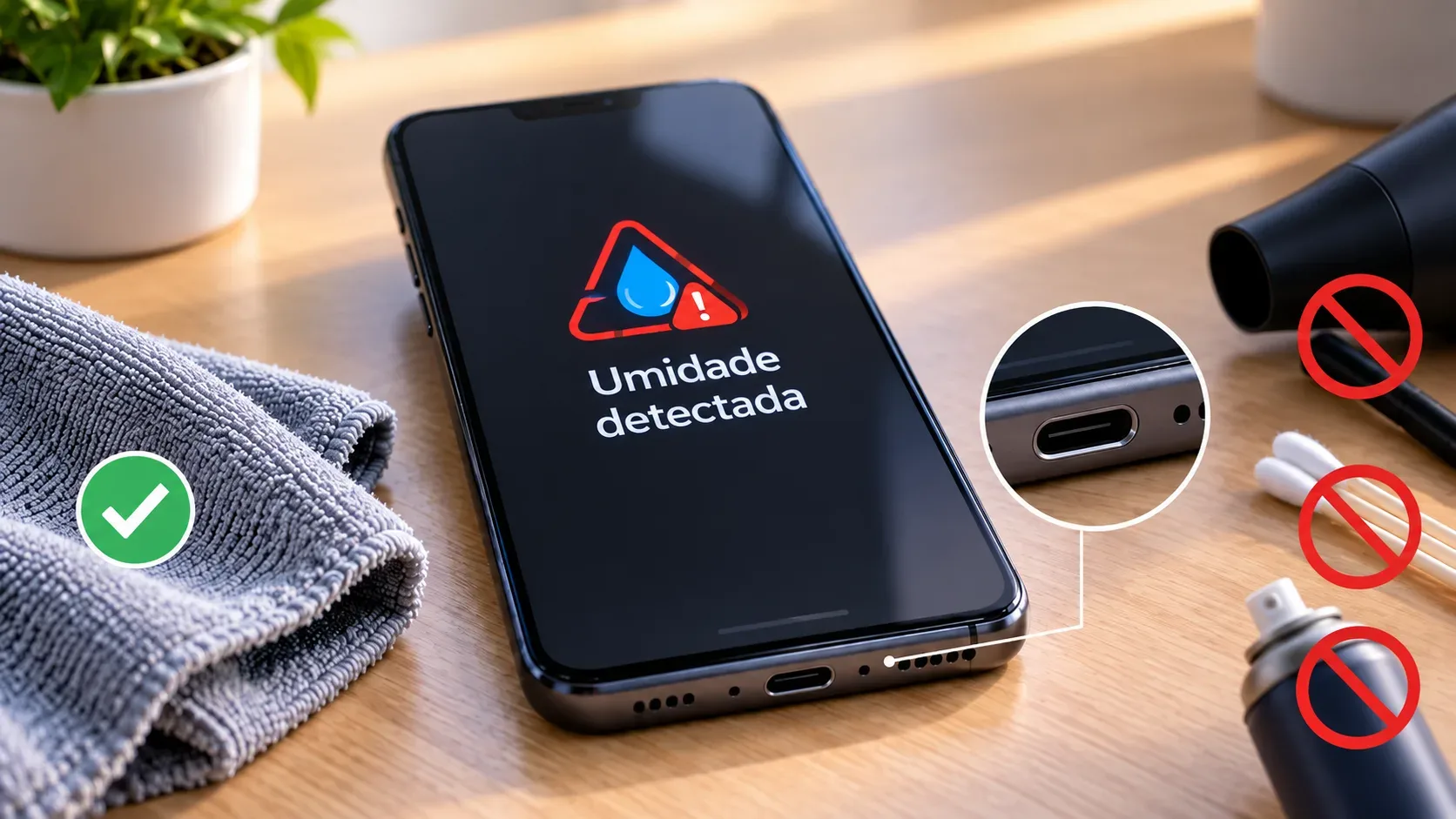
Short answer: a “moisture detected” warning does not prove that the phone was actually wet. On Galaxy devices, Samsung itself says that high ambient humidity can trigger the USB-port protection even without direct contact with water. While the alert is active, wired charging may be blocked to reduce the risk of corrosion and short circuits.
The safest approach is to treat the warning as real until the port is dry: disconnect the cable, stop using USB, dry only the outside, leave the device in a ventilated place, and test again only when the port is dry. If the warning persists even after everything is dry, then it makes sense to investigate software, cable, and a possible physical USB-port fault.
Why can the warning appear when the phone is not wet?
The system does not need to find a visible drop of water to stop charging. Samsung Brazil explains that very humid environments can trigger the alert. Dirt, residue, or problems with the cable and connector can also interfere with charging and should be ruled out during diagnosis.
In practice, the warning may be related to four groups of causes: actual moisture in the port or cable; condensation or very high humidity; dirt or foreign material in the connector; or a persistent software, cable, or port fault. The key is not to “prove” that it is dry by forcing another wired charge, because the block exists precisely to protect the contacts.
What to do first: the lowest-risk order
- Disconnect the charger and any USB accessory. Do not keep reconnecting the cable to see whether the warning disappears. If moisture is present, each attempt adds unnecessary risk.
- If possible, power the phone off while it dries. Samsung recommends stopping use of the USB port while the issue is being resolved.
- Dry the outside with a soft, dry cloth. Focus on the area around the port without pushing cloth, paper, or any object into the connector.
- Keep the port facing downward and use gentle movements. Official guidance allows gently shaking the device a few times to help release excess moisture or impurities. Do not use force: excessive shaking can damage the phone.
- Leave the device in a dry, well-ventilated area. Room air or cool ventilation helps evaporation. Drying time varies; the criterion should not be the clock, but that the port is dry and the warning is gone.
- Restart only after the port is dry. If the warning came from a temporary reading, a restart may clear the error state.
What not to do to “dry it faster”
- Do not use a hair dryer, hot-air blower, heater, or another heat source. Samsung support recommends avoiding external heat during drying.
- Do not insert cotton swabs, paper, toothpicks, needles, or metal objects into the port. The connector has small contacts that can bend, scratch, or trap fibers.
- Do not force wired charging while the warning is active. The block is designed to prevent corrosion and electrical damage.
- Do not apply alcohol, contact cleaner, sprays, or other liquids on your own. Cleaning a USB port is not the same as cleaning an external surface. If the device was exposed to a liquid other than fresh water, follow the model manual or the manufacturer's support instructions.
Samsung also advises that visible debris should be handled carefully; if the port is blocked or there is any doubt about the contacts, service is the safer option. In a moisture-specific guide, the company is explicit: do not insert objects into the charging port.
The warning remains with a dry port: try the software step
On Galaxy phones, Samsung provides an additional step when the port is completely dry but the icon remains: clear the USB service cache. The path can vary by model and software version, but the published sequence is to open Settings > Apps, enable the display of system apps, find USBSettings, open Storage, and tap Clear cache.
This is not the same as wiping the phone's data or performing a factory reset. It is a specific attempt to clear an error state in the USB service. Then restart the phone and check whether the warning disappears. If that menu does not exist on your model, do not randomly look for an “equivalent” app; use the support instructions for your manufacturer.
When to test the cable and charger — and when to suspect the USB port
Only after the warning is gone and the port is dry should you test again with a cable and charger in good condition. Samsung Brazil warns that a damaged cable, altered connector pin, corrosion, or foreign material can cause abnormal charging.
Some signs make a physical port fault more likely:
- the warning repeatedly returns after complete drying, restart, and cache clearing;
- the cable feels loose, needs to be moved to charge, or charging repeatedly starts and stops;
- there is visible darkening, oxidation, deformation, a bent pin, or compacted debris;
- the connector area becomes unusually hot;
- the phone does not recognize reliable cables that work normally on another device.
In these cases, improvised cleaning can turn a repairable issue into damaged contacts. The safer choice is to stop using the port and seek authorized or qualified technical service.
What if I need battery power before the issue is resolved?
If the phone supports wireless charging, it can be a temporary alternative because it does not use the USB port. However, the phone should be dry on the outside before it is placed on the pad, and wireless charging does not “fix” the cause of the warning. It only avoids using the port while drying or diagnosis is completed.
Practical summary
| Situation | Safest next step |
|---|---|
| Warning just appeared | Disconnect the cable and USB accessories. |
| Phone looks dry | Consider ambient humidity; leave it ventilated and wait. |
| There is visible moisture | Dry with a soft cloth, port facing down, using gentle movements. |
| Port is dry but warning persists | Restart; on compatible Galaxy devices, clear the USBSettings cache. |
| Warning is gone but charging still fails | Test a reliable cable/charger and inspect the port. |
| There is corrosion, looseness, heat, or a recurring warning | Stop insisting and seek service. |
The main point is simple: “moisture detected” is a protection block, not an invitation to bypass it. When the phone was not wet, high humidity and temporary faults can still explain the warning; when it does not disappear after drying and basic checks, the USB port deserves inspection.