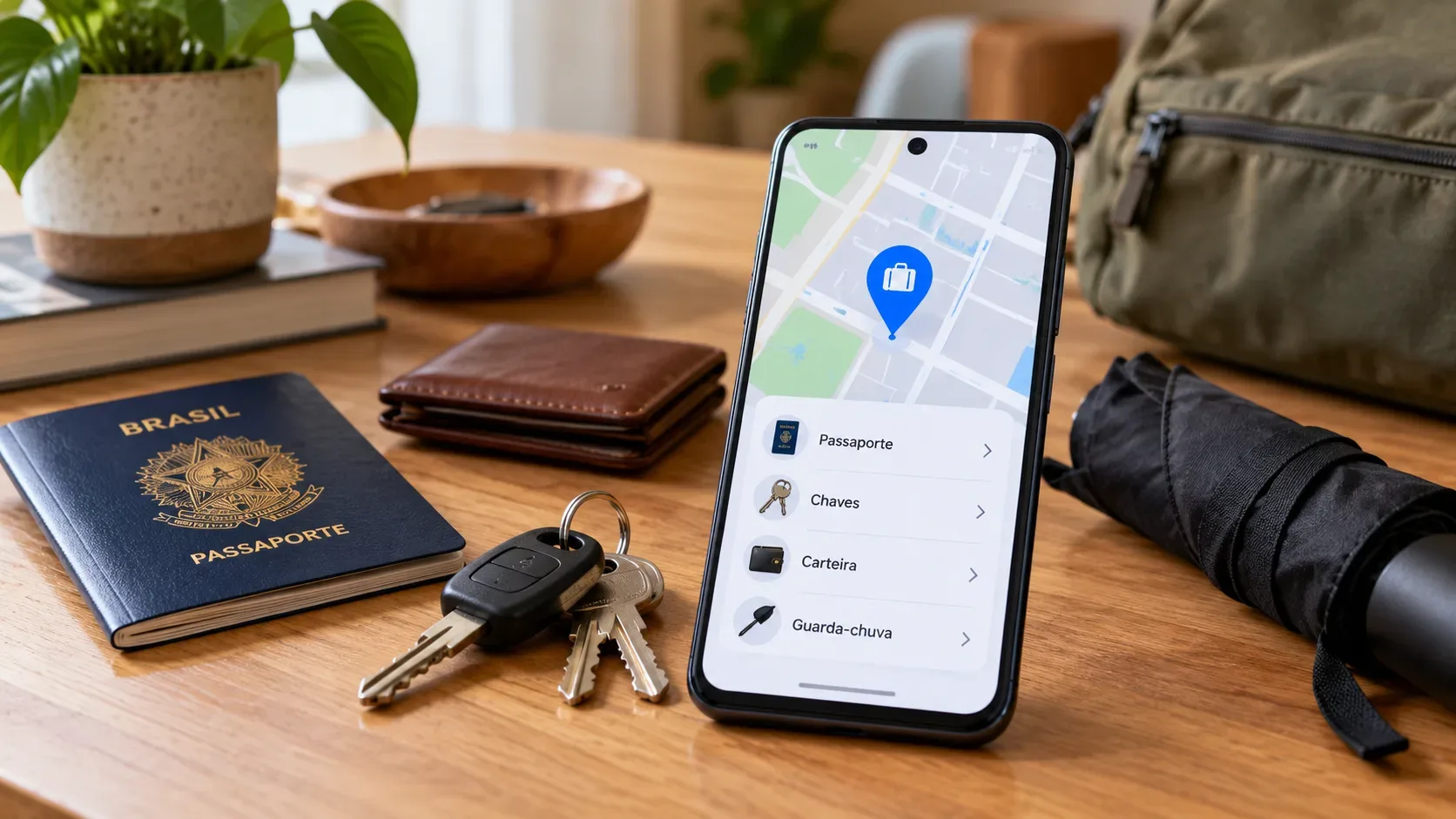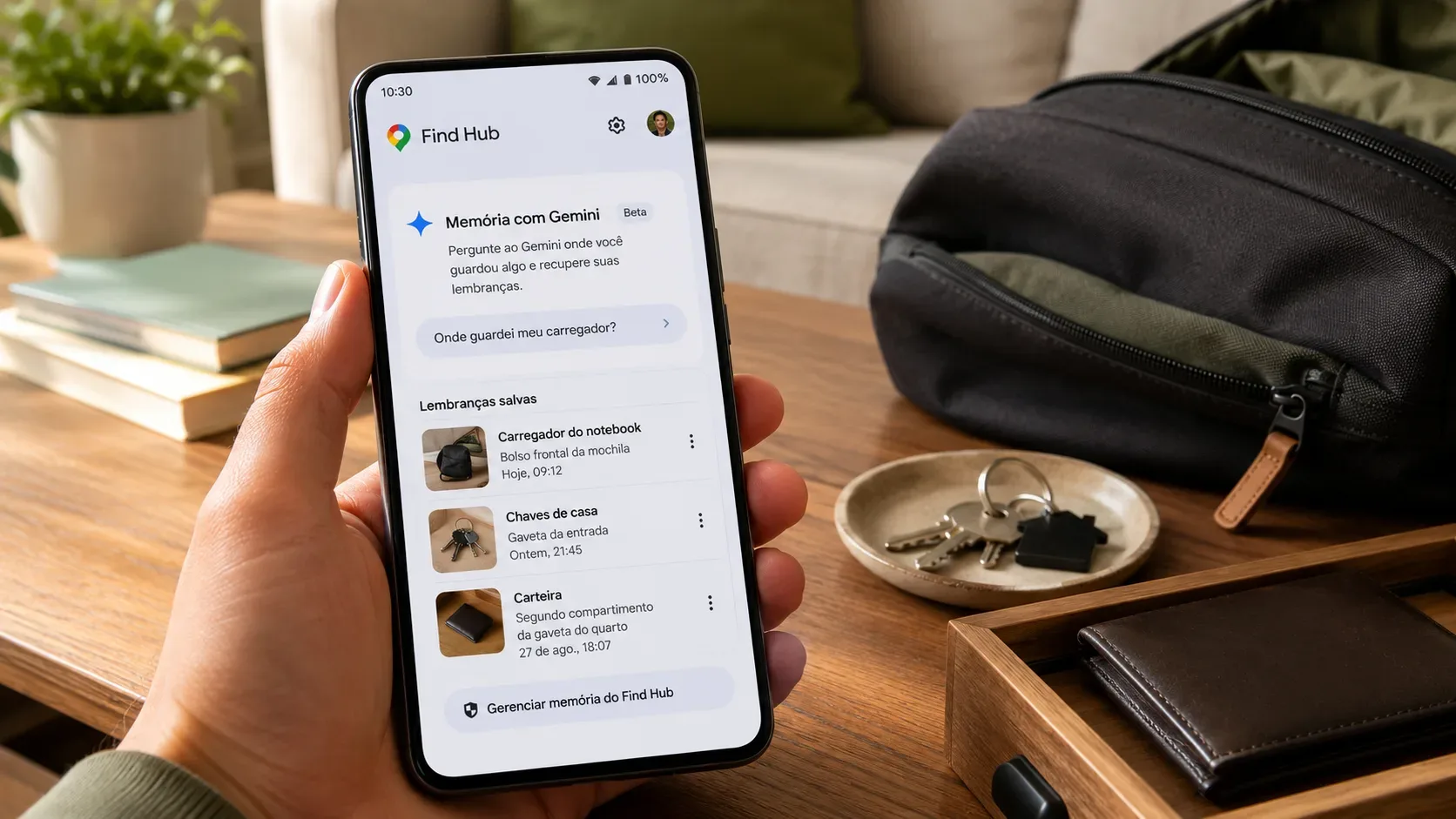
Find Hub's new remembered-items feature is designed for a very specific situation: you know where you are putting an object now, but you are worried you may forget later. Instead of trying to locate the object by radio or a Bluetooth tag, Android lets you tell Gemini where you stored something; that information is then kept in Find Hub for later reference. Google announced the feature in the September 2026 Android Drop and says it is coming to devices running Android 16 or later in places where Gemini and Find Hub are supported.
What Gemini in Find Hub does — and what it does not do
The idea is simple: turn information that would normally stay in your head into a searchable reminder. Google's official example is a passport stored in a bedroom drawer. You can tell Gemini something like “remember in Find Hub that I put my passport in the top bedroom drawer” and optionally add a photo. Later, you can ask Gemini where the item was stored or open the remembered-items tab in Find Hub.
The key distinction is between remembering and tracking. Google explicitly says the remembered-items tab does not track an item's real-time location and that accuracy depends on information provided by the user. If you record that a spare key is in a drawer and later move it without updating the record, Find Hub will still reflect the old information. That limitation appears in both the Android Community announcement and the official Android features page.
How to ask Android to remember where you put something
When the feature is available on your device, Google's announced flow starts with an instruction to Gemini. There are three practical requirements: Android 16 or later, being signed in to Find Hub, and being signed in to Gemini to use the Gemini integration. The feature is rolling out gradually, so it may not appear on every eligible device on the same day.
- Pick an item that does not need continuous tracking. A passport, spare key, document, seldom-used charger, or item kept in a cabinet are good examples.
- Tell Gemini the item and place clearly. A useful prompt is: “Remember in Find Hub that I put my laptop charger in the front pocket of my backpack.”
- Add a photo if it helps. Google's launch announcement says a photo is optional. It can be useful when several drawers, boxes, or bags look alike.
- Check the entry in Find Hub later. Google says records can be viewed in the remembered-items tab, which gives you a chance to confirm that the item name and location are understandable.
- To retrieve it, ask Gemini or open the list. You can ask where you put the item or check the remembered entry directly in Find Hub.
The official September 2026 Android Drop post describes exactly this “tell it now, retrieve it later” pattern. Google's Gemini availability page also confirms that the mobile app supports Portuguese and is available in Brazil, although the specific remembered-items integration still depends on rollout and Find Hub support on the device. Check the official Gemini availability page for current country, language, and device requirements.
What is saved in this memory
In the launch materials published on September 1, 2026, Google confirms three elements: the item you asked it to remember, the location you provided, and an optional photo. The record appears in Find Hub as a remembered item and can be retrieved through Gemini.
What Google does not spell out in those launch materials matters too. The company does not provide a specific retention period for each remembered item, does not describe a separate synchronization model for these records, and does not say that a remembered-item note uses exactly the same encryption treatment as device and tracker locations in the Find Hub network. Find Hub privacy documentation describes encryption and location handling for devices and accessories, but those claims should not automatically be extended to this new note-like record without a specific statement from Google. See Google's Find Hub data-protection documentation.
In practice, treat a remembered item as account-linked information: avoid including sensitive details that are not needed to find the object. “Document in the blue drawer” may be enough; there is no reason to include document numbers, passwords, or other information that does not help you locate it.
How to edit or delete remembered items: what is confirmed so far
As of September 1, 2026, Google's Android Drop announcement and public feature page do not provide a documented step-by-step process for editing or deleting remembered items. That means it is not safe to claim a specific menu path that applies to every version. The most reliable approach is to open the remembered-items tab in Find Hub once the feature reaches your phone and use the item actions that are actually offered by your installed version.
Do not confuse this feature with the Gemini Apps setting called “Memory” or “Personal Intelligence.” That separate feature uses information from past Gemini conversations to personalize responses and has its own controls. Google's Gemini Apps Help page explains how to manage that personalization, but it does not document deletion of a remembered item stored in Find Hub. Therefore, deleting a Gemini conversation should not be treated as equivalent to deleting a Find Hub remembered item unless the interface explicitly confirms it.
If you move an object, check the existing record first. If Find Hub offers edit, update, or delete controls, use the action shown on that item. If those controls are not visible yet, avoid creating several contradictory reminders and wait for the rollout to complete or for more specific official instructions.
When this memory is useful
- Static items: passports, spare keys, contracts, travel chargers, adapters, or tools that usually stay stored.
- Easy-to-forget storage spots: a specific box, a rarely used drawer, a suitcase pocket, or a storage shelf.
- Items that do not justify a tracker tag: important objects that spend most of their time sitting at home or at the office.
- Visual context: cases where a photo of the cabinet, box, or compartment will help you recognize the location later.
When a physical tracker is still the better choice
Remembered items do not replace a Bluetooth tag or other accessory compatible with the Find Hub network. A tracker can help locate something that has moved because it uses radio signals and the Android device network to obtain location information. A Gemini reminder only retrieves the last location you supplied.
| Situation | Find Hub remembered item | Compatible tracker/tag |
|---|---|---|
| Passport stored at home | Good fit | Usually unnecessary |
| Spare key that rarely leaves a drawer | Good fit | Optional |
| Backpack used every day | Can become outdated | Better fit |
| Suitcase during a trip | Useful as a note of the last place | More useful if the bag moves |
| Object lost away from the saved place | Does not track it | May help when the network can detect it |
Checklist before relying on the feature
- Your device runs Android 16 or later.
- You are signed in to Find Hub and Gemini.
- The remembered-items tab has actually appeared in your Find Hub app.
- The item name and storage place are specific enough to be useful later.
- You understand that the record does not follow the object in real time.
- If the item moves often, consider a physical tracker instead of relying only on the reminder.
The benefit of this feature is reducing everyday forgetfulness without attaching a tracker to every object. Use it as a structured memory of where you left something, not as proof of its current location. And until Google publicly documents editing and deletion controls for the new tab, rely on the actions shown inside Find Hub rather than assuming Gemini's general memory settings do the same job.