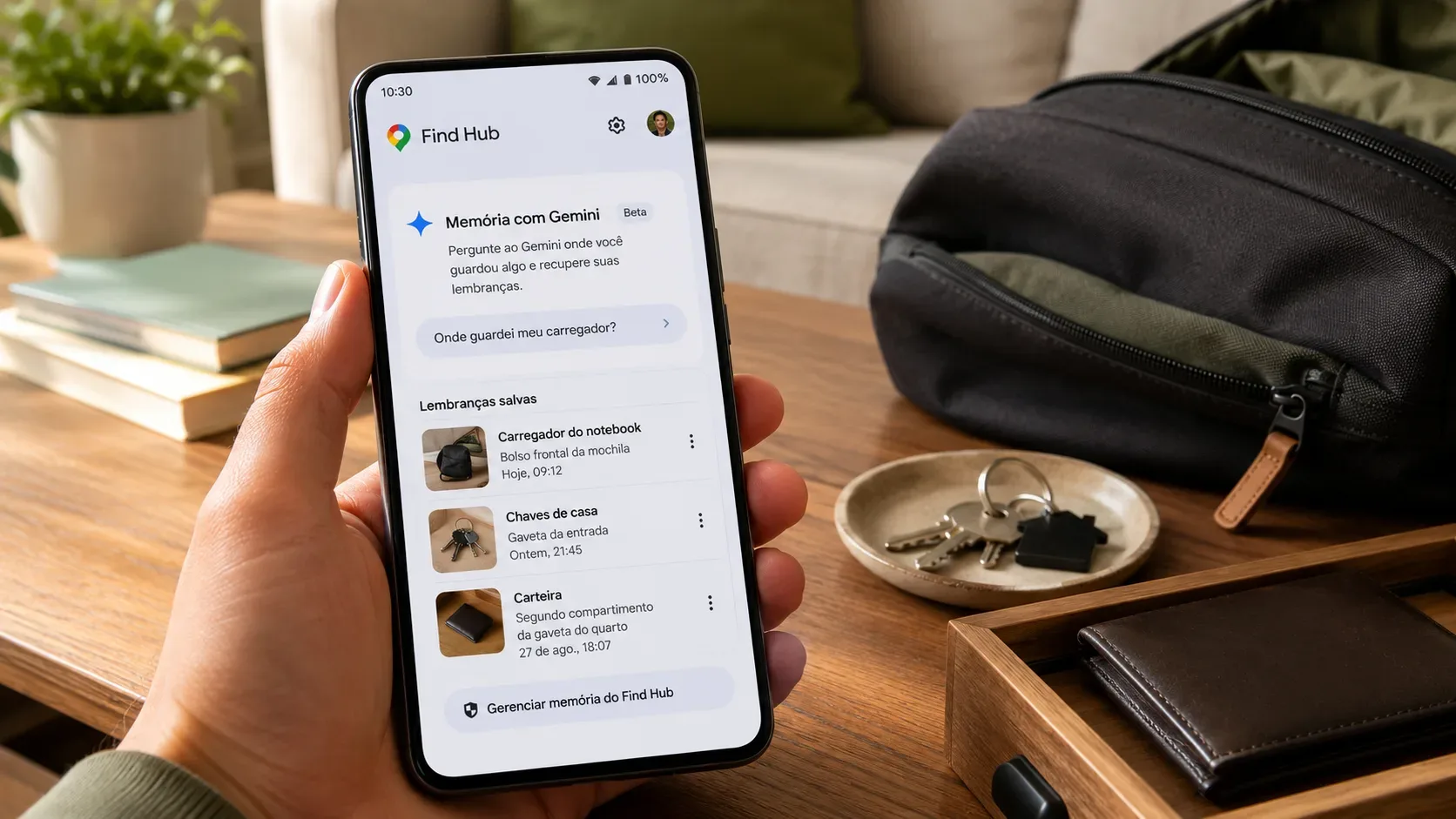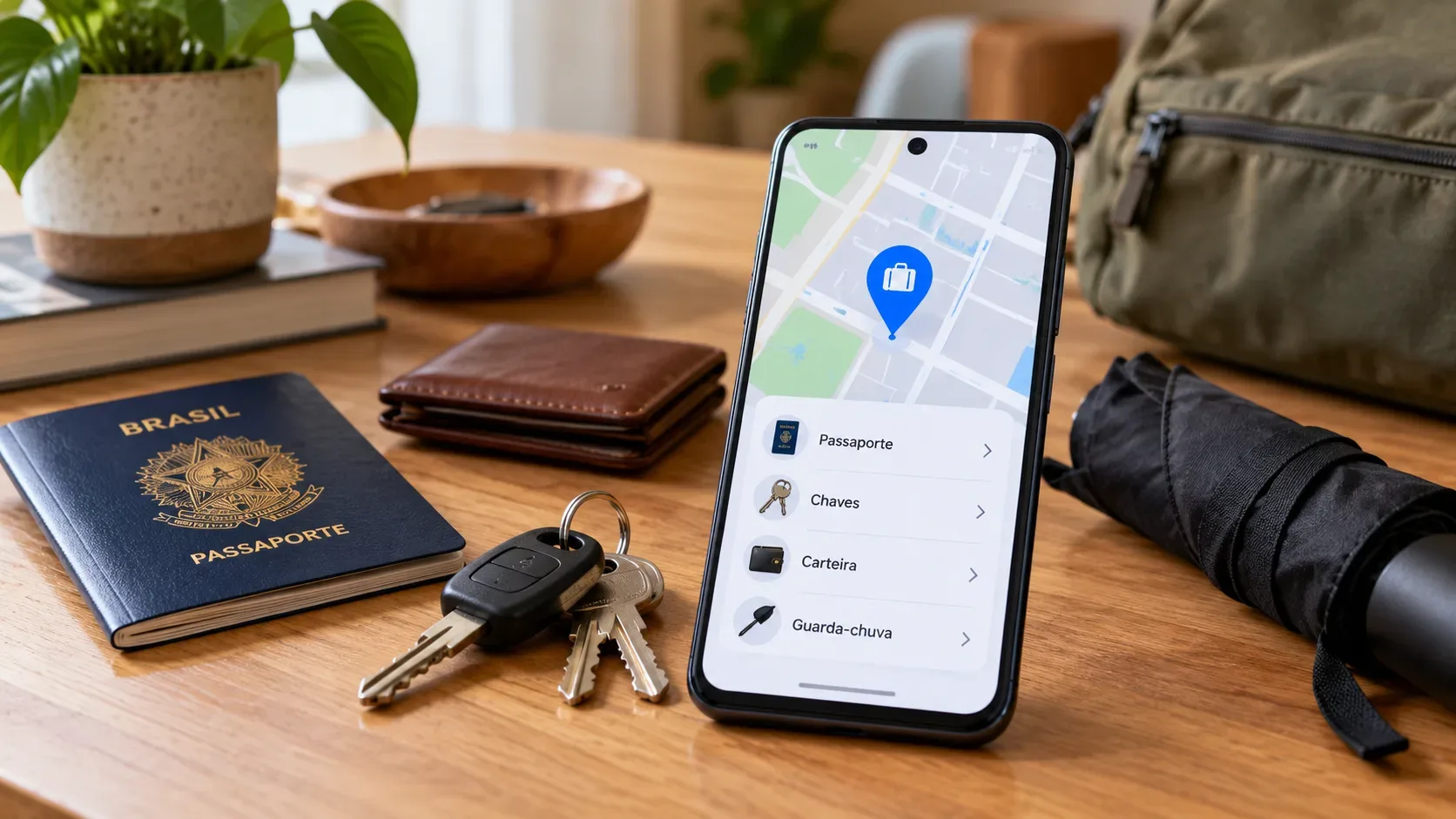
The key point: Find Hub’s “Remembered” items feature works like an organized memory of where you left a physical object. You save the item and its location — through Gemini or directly in the app — and retrieve that information later. That is different from attaching a Bluetooth tag: without a tracker, Find Hub does not receive a new position for your passport, keys or wallet if somebody moves them.
Google introduced the feature in the September 2026 Android Drop for belongings that people often do not tag, such as passports and spare keys. Official documentation also shows that a record can include a name, storage spot, place/address, notes and photos. The feature requires Android 16 or later, with Find Hub and Gemini set up under the same Google Account. See the Android Drop announcement and the official help page for remembered items.
What “Remembered” does — and what it does not do
Saving an item creates a record you can look up later. That record might say that your passport is in the home safe, a spare key is in a drawer, or a tool was lent to someone. The feature’s value comes from recalling the information you supplied, not from physically detecting the object.
That is why Remembered items are not real-time tracking. If the object is moved and the record is not updated, Find Hub will still show the last information you saved. Location based on signals and the Find Hub network requires a compatible device or accessory, such as a Bluetooth tracker tag. Google explains that compatible trackers can be detected by nearby Android devices and have their location securely relayed through the Find Hub network. Learn how the Find Hub network and trackers work.
Before you start: feature requirements
- An Android device running Android 16 or later.
- The Find Hub and Gemini apps installed on the device.
- The same Google Account signed in to both apps.
- Gemini set as the device’s default digital assistant.
- Gemini and Find Hub availability in your country, territory and language.
If the option is still missing, also check that Find Hub is enabled among Gemini’s connected apps. Android features can roll out gradually, so having Android 16 alone does not necessarily mean every user receives the feature at the same time.
How to save where you put an item
Option 1: ask Gemini
Activate Gemini and clearly state what should be remembered and where the item was placed. A useful phrasing is: “Remember in Find Hub that my passport is in the bedroom safe.” To reduce ambiguity, include both the item name and a specific storage spot.
The record can be used for important documents, glasses, remote controls, batteries, tools, lent belongings and even references such as where you parked a car or left a picnic blanket. Google’s help page notes, however, that the feature is for physical items; it is not intended to track digital files, abstract ideas or events.
Option 2: add it manually in Find Hub
- Open the Find Hub app.
- Go to the remembered-items area.
- Tap to add a new item.
- Enter the object’s name.
- Add a storage spot, such as “top bedroom drawer.”
- If useful, add a place or street address.
- Save the record.
If you grant Find Hub location permission, the app can fill in your current address when you create or update an item. Google says allowing location access all the time enables that detection even when the app is closed. This is optional: for many items stored at home, a label such as “Home” plus a detailed storage spot may be enough.
How to look up a remembered item
There are two paths. With Gemini, ask naturally where the object was stored. In Find Hub, open the remembered-items area and browse the list; the documentation also provides search to locate a record faster.
The answer is the information saved earlier. If you recorded “wallet on the bedside table,” that is what the system can retrieve. It does not verify that the wallet is still there.
How to update a record when the item moves
This step is essential if the feature is to remain useful. When you move an item, you can ask Gemini to update or move the record and provide the new location. Reusing the exact item name helps the system modify the existing record instead of creating a duplicate.
You can also edit the item inside Find Hub. The documentation allows changes to both the exact storage spot and the associated place/address. For items that move often, updating the record immediately prevents an old memory from looking current.
Photos and notes help when “drawer” is not enough
Find Hub lets you supplement a remembered item with notes and up to two photos. This can help in crowded cabinets, storage rooms, workshops or any situation where a visual cue matters. A short note such as “blue box on the top shelf” may be more useful than an address alone.
Remembered items versus a tracker: which should you use?
| Criterion | Remembered item | Compatible tag/tracker |
|---|---|---|
| Where the location comes from | Information you manually save or dictate to Gemini. | Accessory signals and, depending on settings, detections from the Find Hub network. |
| Follows movement automatically? | No. You must update the record. | It can receive new locations when the accessory is detected by the network; this is not a guarantee of continuous tracking. |
| Helps you find it nearby | Depends on the saved text, notes, photos and address. | Compatible tags may offer sound, nearby finding and, with supported hardware combinations, UWB guidance. |
| Requires hardware attached to the item | No. | Yes, when the object has no built-in finding capability. |
| Best fit | Passports, documents, spare keys, tools and objects stored in known places. | Key rings, backpacks, luggage and other belongings that may move or be lost away from the expected place. |
Privacy and practical limits
According to Google, remembered items are private to your individual Google Account: family members cannot access or edit those records. If you include addresses, photos or notes, treat them as personal account data and keep your Google Account protected.
Gemini needs an internet connection to process voice commands and save new items. After an item is already saved, Google’s help page says you can usually still view it in the Find Hub app during a temporary loss of connectivity.
If Gemini is not saving items to Find Hub
- Confirm that Gemini is the default digital assistant on Android.
- Open Gemini settings and make sure Find Hub is enabled among connected apps.
- Use an explicit request that mentions Find Hub and a clear storage spot.
- Check that both apps use the same Google Account.
- Verify the internet connection when creating or retrieving a record by voice.
When Remembered items are the right choice
Use the feature when the problem is forgetting where you personally stored something. It reduces the need to remember static storage details for objects that do not justify extra electronics. If the problem is finding where an object is now after it has moved, a compatible tag or device on the Find Hub network is the appropriate tool.
That distinction prevents the main misunderstanding about the feature: Remembered items turn Find Hub into a location notebook for physical belongings; they do not turn any passport, key or wallet into a trackable object.