The Gemini app for Windows launched on September 10, 2026 with a straightforward goal: make Google's assistant available from the desktop without requiring you to keep a browser tab open. To find out whether it will work on your computer, there are four practical checks: operating system, memory, free storage and account type.
Quick checklist: is my PC and account compatible?
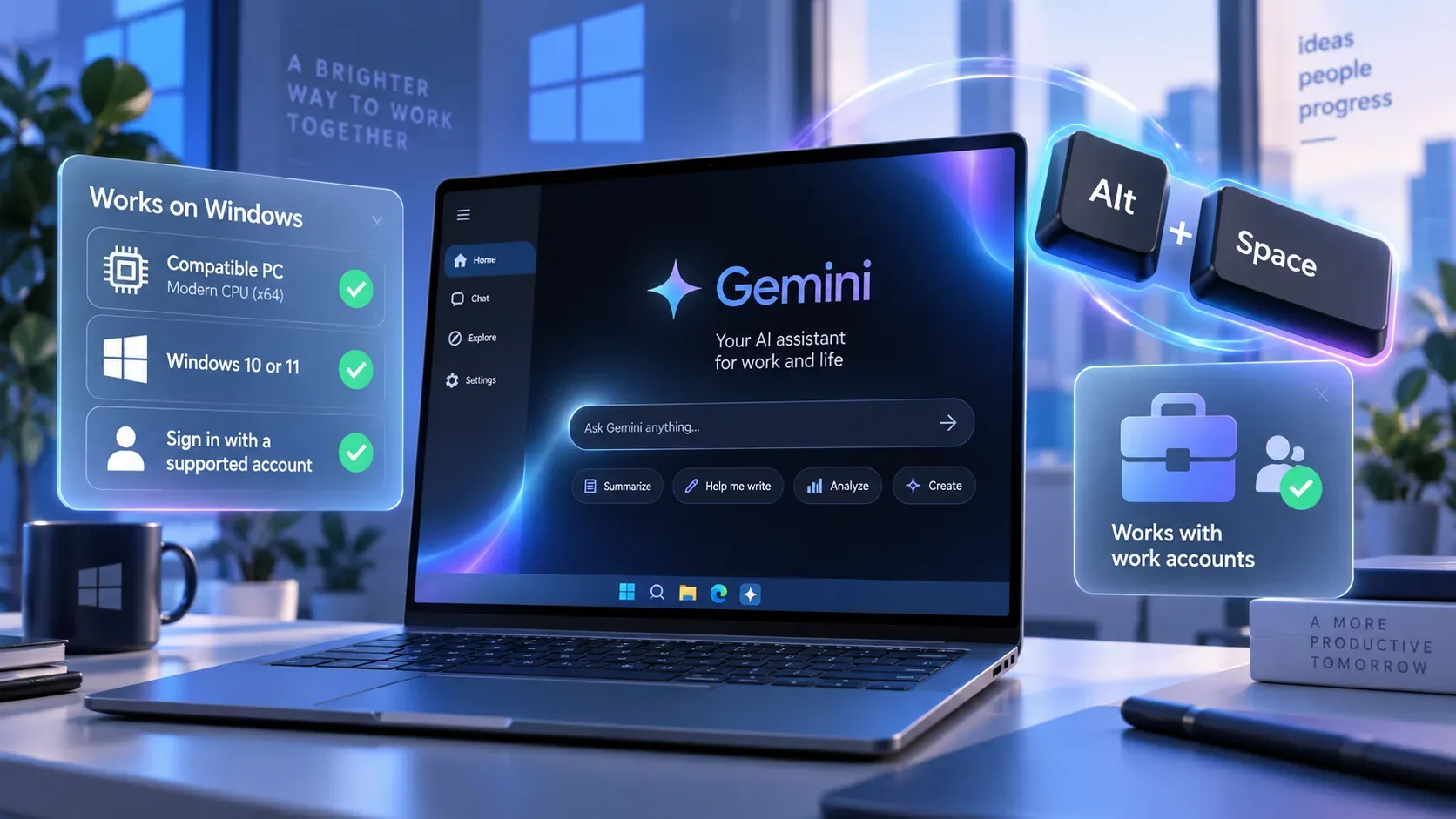
- Operating system: Windows 10 or later. In the launch announcement, Google specifically says the app is globally available for Windows 10 and Windows 11.
- Memory: at least 8 GB of RAM.
- Storage: at least 200 MB of free disk space for installation.
- Internet: a stable connection, because Gemini features rely on online services.
- Account: a personal Google Account or a work or school account with Gemini access enabled by the administrator.
These requirements are listed in the Gemini for Windows Help page. Google's launch post also confirms support for Windows 10 and 11 and points users to gemini.google/desktop for the download.
How to install Gemini on Windows
Google's official installation flow is short:
- Open gemini.google/desktop on a compatible PC.
- Download the GeminiSetup.exe installer.
- Open the file and follow the on-screen instructions.
- After installation, open Gemini from the Start menu.
- Sign in with the Google Account you want to use in the app.
Google also says that when an update is available, the app can show a notification prompting you to restart and install the new version.
Alt + Space: the shortcut that opens Gemini
With the app installed, Alt + Space is the official keyboard shortcut for opening Gemini quickly over what you are already doing. The idea is to reduce context switching when you need to ask a question, create a draft or get quick assistance.
Google's launch announcement describes it as a way to call up Gemini at any time and then return to your previous workflow. The current Help documentation confirms the same shortcut. The launch documentation does not claim that pressing it gives Gemini automatic control over every Windows feature or other application.
What the Windows app can do today
The Help Center lists capabilities that are already part of the app experience:
- get quick answers in real time;
- generate ideas, outlines and full text drafts;
- summarize articles, documents or web pages;
- brainstorm and explore solutions to problems;
- get coding help, including writing, debugging and explaining code;
- upload images for analysis and ask questions about their content.
In the launch post, Google also highlights tasks that can involve its own services such as Gmail and Drive, as well as creation features. The important distinction is between what the app can support and what is available to your account: models, limits, Connected Apps and advanced features can vary by plan, license, location, language and organization policy.
Do work accounts work? Yes, but the administrator and license matter
The Windows app accepts work and school accounts as long as the account has access to Gemini. That does not mean every corporate account receives exactly the same set of features.
| Situation | Personal account | Work or school account |
|---|---|---|
| Sign in to the Windows app | Supported with a personal Google Account. | Supported when the administrator enables Gemini access for the account. |
| Open with Alt + Space | Available when the app is installed. | Available when the app is installed and the account is allowed to use Gemini. |
| Answers, drafts, summaries, brainstorming, coding help and image analysis | Listed app capabilities; limits may vary by plan. | General access depends on the Workspace license and the organization's policies. |
| Connected Apps, including Workspace services | Availability follows the rules for the personal account and the specific feature. | May require a qualifying Workspace edition, Keep Activity turned on and administrator permission to connect apps. |
| Advanced models and features | Vary according to the personal Google plan. | Vary according to the Workspace edition/license and assigned access level. |
| Enterprise data protections | Follow the terms that apply to personal accounts. | Depend on the license; editions that provide Gemini as a core service may include specific enterprise protections. |
The work and school account documentation says feature availability and data handling depend on the Workspace license. Google also states that people using a work account must be at least 18 years old to use Gemini Apps.
Why can a work account sign in but still have different features?
In an organization, two layers shape the experience: licensing and administration. The license determines which models, limits and capabilities may be included; administrators can enable or restrict access to Gemini and integrations with other services.
For Connected Apps on work or school accounts, Google's documentation adds requirements such as a qualifying Workspace edition, Keep Activity being enabled and administrator permission. So the fact that the Windows app opens does not, by itself, guarantee that Gmail, Drive, Calendar or other services will be available inside Gemini.
How to check compatibility without wasting time
- Check Windows: if the PC runs Windows 10 or 11, it is within the range cited by Google; the Help page uses the broader wording “Windows 10 or later.”
- Check RAM: the documented minimum is 8 GB.
- Check free storage: keep at least 200 MB available for installation.
- Download only from the official page: use gemini.google/desktop.
- Test the correct account: for a corporate or school account, confirm with the administrator that Gemini is enabled and that your license includes the features you need.
- After installation, test Alt + Space: this is the documented shortcut for bringing up the app quickly.
What not to assume at launch
The Windows app should not be treated as if every Gemini capability is automatically unlocked for every account. Google distinguishes availability by plan and license and says that more native desktop capabilities will roll out over time.
It is also better not to turn the Alt + Space shortcut into a promise of full Windows automation. Its documented purpose is to open Gemini quickly; what the assistant can do after that depends on the features actually available in the app and account.
In summary
To use Gemini on Windows, the safest route is to check the official requirements — Windows 10 or later, 8 GB of RAM, 200 MB of free space and internet access — and install it from the official address. The Alt + Space shortcut is designed to open the assistant quickly.
Work and school accounts can work in the app, but access is not uniform: the Workspace administrator, license and Connected Apps settings can change what each user sees. If the app installs but a corporate feature is missing, the next check should be the account policy rather than just the PC.
Official sources
- Google Blog: The Gemini app is now available for Windows — September 10, 2026 launch announcement.
- Gemini Help: use the Gemini app for Windows — requirements, installation, shortcut and capabilities.
- Gemini Help: work or school accounts — licenses, access, limits and data protections.
- Gemini Help: Connected Apps with a work or school account — licensing and administrator requirements.