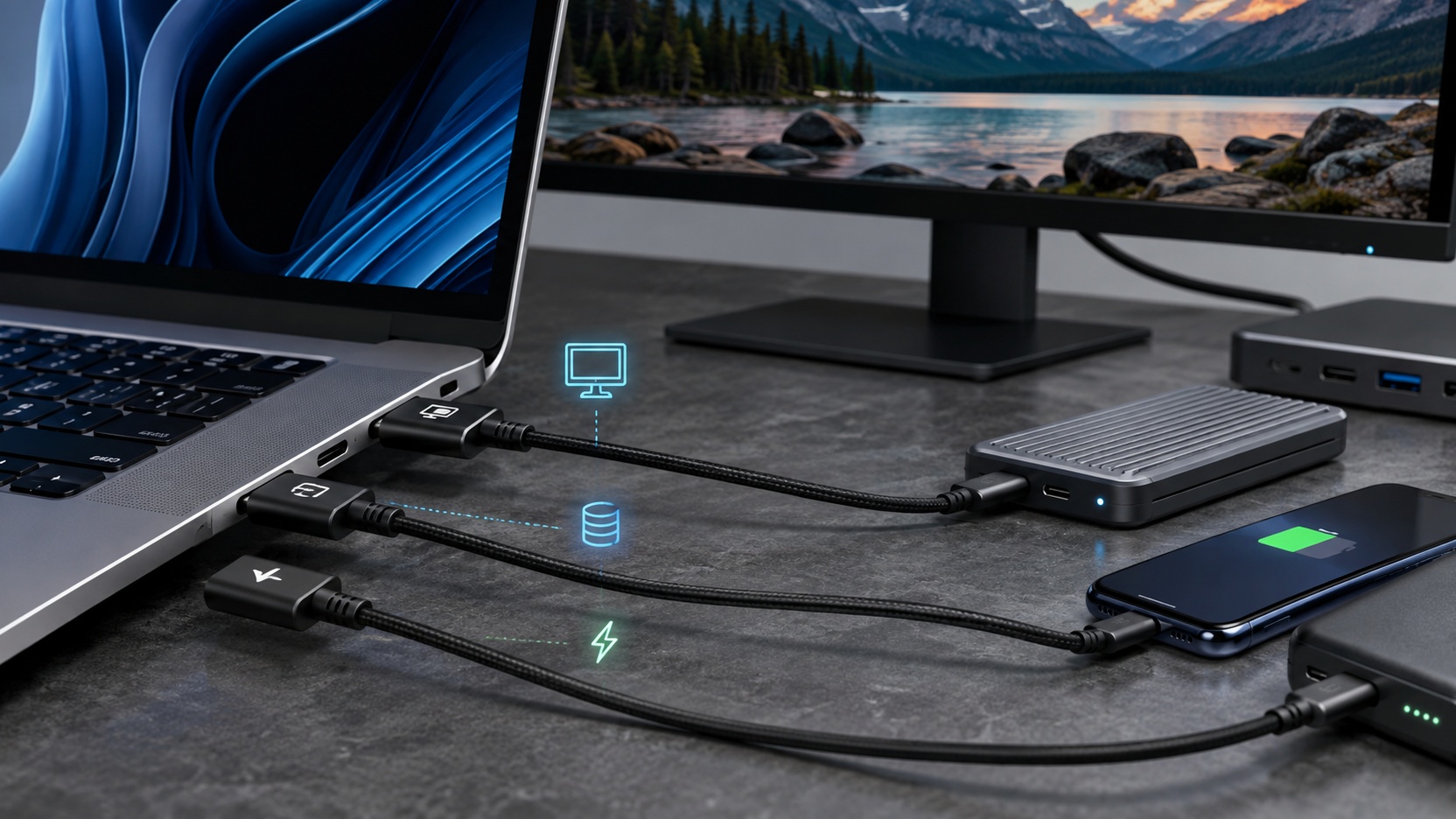
The most useful rule for purchasing or diagnosing USB-C is simple: the connector shape alone does not guarantee video, high data speed, or fast charging. To know if a connection will do what you expect, you need to check the entire set: the computer or cell phone port, the cable, any dock or adapter and the device on the other end. When charging, the power of the charger and the limit accepted by the device also come into play.
This explains situations that seem contradictory. A cable can charge the notebook and not send an image to the monitor. Another can stream video but limit the speed of an SSD. A third may work for data and video, but charge slowly because the available power is less than that required by the equipment. The external appearance may be practically the same.
Start with what you want to do, not the plug
Before searching for acronyms, define the result. If the goal is to use a monitor, look for video support on all relevant links. If the goal is to copy files quickly, look for the data rate of the port, cable, and peripheral. If your goal is to charge quickly, compare the power of the charger, cable and device.
This change of order avoids the classic mistake of buying a product described only as “USB-C” and finding out later that it solves only part of the problem.
I want to connect a monitor or TV
On many notebooks, tablets and cell phones, video output via USB-C uses DisplayPort Alt Mode. VESA defines this mode as a way to take DisplayPort via the USB-C connector, being able to share the same connector with USB data and power. The key is that the mode must exist on the source port and be compatible with the path to the screen.
Microsoft itself advises that, in the event of USB-C video failures, the computer, screen and cable must be checked separately. It is also recommended to check that the device has been connected to the correct USB-C port, as not all ports on the same device necessarily offer the same Alternate Mode.
There is a concrete example within Microsoft's own line. On the Microsoft Audio Dock, there are two USB-C ports described as USB 3.1 Gen 2. One of them supports DisplayPort Alt Mode and can be used with a monitor; the other is intended for peripherals, storage and charging, without video output. The connector is the same and the indicated data generation is the same, but the video function changes.
Therefore, for video, look in the port's data sheet for terms such as DisplayPort Alt Mode, DP Alt Mode, Thunderbolt or explicit specifications for external monitors. Then confirm that the cable and dock or adapter are also designed for this use. When a monitor
works on one USB-C port and not on another, this difference in capacity is one of the first hypotheses to check.
I want to transfer files quickly
For data, the effective connection tends to operate at the best common performance of the set. USB-IF maintains performance ratings expressed directly in rates such as 5Gbps, 10Gbps, 20Gbps, 40Gbps and 80Gbps for certified products. Current documentation also reinforces the use of performance markings on qualified ports and devices.
The important detail is that having USB-C at both ends does not inform the speed. One USB-C cable can switch back to USB 2.0 and reach 480Mbps, while another can support much higher rates. USB-IF informs that USB 2.0 Type-C cables can use the wattage marking without necessarily having the data rate in the same logo.
In practice, if you bought a fast external SSD, it's not enough to check the SSD. See the advertised rate for the computer port, the cable, and the case or drive itself. A single slower link reduces path performance. If an SSD works but falls short of expectations, switching ports and testing a cable with a known data specification is an objective way to isolate the bottleneck.
I want fast charging
Fast charging also depends on negotiation and compatibility. USB Power Delivery, or USB PD, can reach 240W in the current standard, but that doesn't mean that any USB-C port delivers that power. The actual value depends on what the source offers, what the cable supports, and what the device supports.
Under the USB-IF compliance program, certified USB-C to USB-C cables must indicate a power capacity of 60W or 240W. For cables certified above USB 2.0, the policy also requires marking the corresponding data rate. This makes combinations like performance plus power much easier to interpret when the official marking is present.
A cable marked as 240W, however, does not transform a lower power charger into a 240W charger. Likewise, a powerful charger does not force the notebook or cell phone to receive more energy than it was designed to accept. Cable marking is only part of the equation.
The decision tree to avoid making a purchase mistake
First: which function needs to work?
Mentally write the task in a specific way. “I want USB-C” is vague. “I want a single cable from the notebook to a 4K monitor that also powers the notebook” already reveals three requirements: video, sufficient bandwidth and power supply. “I want to connect an external SSD and enjoy the advertised speed” requires a focus on data. “I want to charge a notebook without using the original source” requires focus on USB PD and power.
Second: Does the source port offer this function?
The technical sheet of the notebook, motherboard, tablet or cell phone is the starting point. Look for the individual description of each port. If the documentation just says “USB-C” without stating video, data rate or Power Delivery, do not assume capabilities that are not stated.
For video, look for DP Alt Mode, DisplayPort over USB-C, Thunderbolt, or explicit indication of external display support. For data, look for the rate in Gbps or an equivalent technical specification. For charging, look for USB Power Delivery, input or output power, and, when applicable, which port accepts power.
Third: does the cable meet the requirement?
Look at the packaging, the manufacturer's official page or the engraving on the cable itself. For data, the most useful information is the supported rate. For energy, the most useful information is power. On cables certified by USB-IF, the 60W and 240W markings were created precisely to make this capacity more visible, and the higher performance categories can carry the combined indication of speed and power.
If the cable has no traceable specifications and was sold simply as a “USB-C cable”, treat this as insufficient information for a purchase that relies on video, fast SSD, or high power. It may work, but you don't have the technical basis to rely on that function before testing.
Fourth: check the intermediary and the destination
Docks, hubs, and adapters can introduce their own limits. A dock may accept video but have a resolution or frequency ceiling. An adapter may depend on DP Alt Mode on the source port. A USB-C monitor can receive video and also supply power to the notebook, but that power must be sufficient for the computer in question.
The logic is always the same: the resource needs to traverse the entire path. If the notebook port offers video, but the dock does not; if the dock offers it, but the cable is not suitable; or if the screen expects a different combination, the connection may lose some functionality.
Fifth: find the weakest link
When something partially works, don't change everything at the same time. Test one variable at a time. Use another port on the computer, then another cable with a known specification and, if available, temporarily eliminate the dock by connecting the device directly. This process turns “USB-C doesn’t work” into a verifiable question: which link doesn’t deliver the required function?
How to read the specifications without getting lost in the acronyms
USB-C
USB-C describes the connector and cable system, but is not a promise that all possible functions will be present. This is why two visually identical ports can have different capabilities.
Gbps
When a rate in Gbps appears, it refers to the data signaling capacity of that implementation or certified product. For a practical purchase, this information is often more useful than relying solely on generational names. USB-IF currently offers performance logos for 5Gbps, 10Gbps, 20Gbps, 40Gbps, and 80Gbps in applicable categories.
The perceived file speed will be lower than the raw link rate and may also be limited by the SSD, controller, system, and file type. Still, the USB rate is the basic ceiling you need to line up before expecting high performance.
DisplayPort Alt Mode
It is the sign that USB-C can be used as a DisplayPort video path when the devices involved offer this mode. VESA highlights that this solution can combine video, USB data and power in a single connector. For the user, the consequence is simple: “has USB-C” does not replace “has video output via USB-C”.
USB Power Delivery, 60W and 240W
USB Power Delivery is the power negotiation technology that allows higher power levels and can reach 240W. The 60W and 240W markings on certified USB-C cables indicate the power capacity of that cable. To know the actual charge, compare this limit with the charger and the device.
Thunderbolt and USB4
Thunderbolt and USB4 use the USB-C connector in modern implementations, but add their own requirements and features. USB4 was designed to share the link between multiple data and display protocols and can currently reach 80Gbps on cables certified for this rate. If a dock or peripheral specifically requires Thunderbolt or USB4, look for that compatibility explicitly rather than inferring it from the USB-C format alone.
What each symptom usually indicates
“Loads, but no video”
The first suspicion is a lack of video support on some link. Check that the source port offers DisplayPort Alt Mode or the technology required by the dock, that the cable is suitable for video, and that the monitor or adapter is connected to the correct input. The fact that there is power only confirms that the power supply is working.
“Provides video, but loads slowly”
The video path is working, but the available power may be below what the device requires. Check the power supplied by the monitor or dock, the source connected to the dock, the capacity of the cable and the power accepted by the notebook. A cable capable of more power does not compensate for a limited source.
“SSD connects but is slow”
Check the data rate of the port, cable and SSD or case. If any component is in a slower category, the transfer will be limited by it. It's also worth testing the direct connection to the computer to remove hubs and docks from the equation.
“Works on one port of the notebook, but not on another”
Do not assume defects. Some equipment assigns different functions to physically identical ports. The Microsoft Audio Dock documentation shows exactly this kind of difference: two USB-C ports with the same data generation description, but only one with video output.
“The dock works for keyboard and mouse, but not for monitor”
This usually indicates that the USB data portion is active, but the video path has not been established. Confirm the video mode required by the dock and that the source port supports it. Microsoft's guidance for USB-C problems follows precisely this logic of checking the correct computer, cable, device and port.
A practical compatibility matrix
For monitor or video dock
The source port must declare compatible video support, the cable must serve this path, and the monitor, dock, or adapter must accept the same signal type. If you also want to charge using the same cable, add the power supplied by the monitor or dock and the power required by the notebook to the check.
For external SSD and fast transfer
Compare the data rate of the port, cable and SSD. The set will work according to the available common capacity. If high performance is the goal, choose specifications that clearly express the rate in Gbps rather than a generic “USB-C” description.
For charging a notebook
Check if the notebook port accepts charging via USB-C, what power it requires, what power the charger delivers and if the cable supports this value. A 60W marking may be sufficient for many devices, but not all; 240W indicates a higher capacity of the cable, not a promise that the device will receive 240W.
For a single cable doing it all
This is the most demanding scenario because video, data and power need to coexist. The computer port, cable, and dock or monitor must have compatible specifications for all desired functions. If one of them fails, the set may continue to function partially, which gives the impression that USB-C is unpredictable when, in fact, each function is following a different requirement.
What to check before pressing “buy”
Instead of just searching for “USB-C cable,” compare the purchase to the task. For video, look for display capacity. For data, look for Gbps. For power, look for USB PD and watts. If there is a dock, also check resolution, frequency, port rate and power passed to the computer.
When the product page omits this information, look for the manufacturer's manual or technical sheet. Certified markings help, but their absence on the market does not prove that a cable is incapable; it just means that you shouldn't infer a specific capability without documentation or testing.
USB-C became popular precisely because a small connector can concentrate very different functions. The consequence is that the format is no longer sufficient to describe the connection. The right question is not “is this USB-C?” but rather “what features do this port, this cable, and this device have in common?” It is this intersection that determines whether the image, speed and power will be the way you expect.