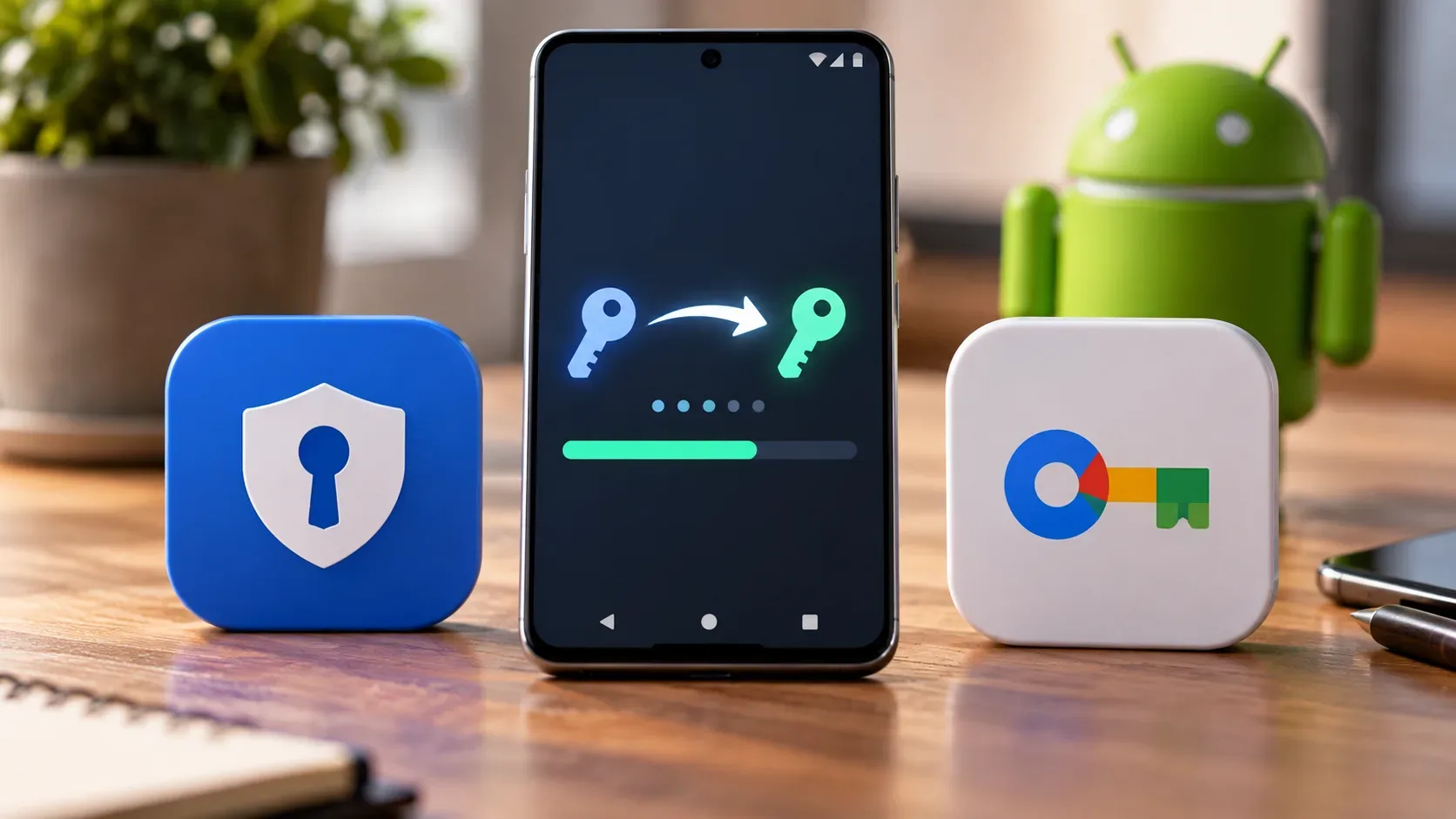
Since September 10, 2026, Android has offered a native path for transferring passwords and passkeys directly between compatible password managers, without downloading a CSV or another plaintext vault export. The flow starts in the destination password manager: it requests the import, Android finds compatible providers installed on the device, and the user authorizes the export in the source manager. The change removes one of the biggest frictions when switching services, but it does not mean that every pair of apps, on every Android version, can move every item type.
What changed in practice
Until now, password migration commonly relied on exporting a vault to a file, often CSV. That format is convenient, but it is usually readable plaintext and must be carefully deleted after the import. Passkeys were a bigger problem: in many situations they could not be moved with the rest of the vault, so users had to register them again, account by account.
Google's new flow uses Credential Manager transfer APIs and the FIDO Alliance standardized format to enable an exchange on the same device. According to Android documentation, the framework coordinates transfer between the source and destination providers without exposing raw credentials to the Android OS or to unauthenticated apps. The implementation uses a temporary content URI to carry larger payloads between the two providers.
In practice, this changes the migration recommendation: when both password managers participate in the flow, prefer direct transfer. It avoids creating a password file that you would otherwise need to protect and manually delete.
Before you start: five checks
- Update Android, Google Play services, and both password managers. Android's transfer mechanism works from Android 8 onward, but each app may require a newer version.
- Install and sign in to both apps on the same device. Google's Android API is described as a same-device transfer flow between credential providers.
- Enable a screen lock. Google Password Manager, for example, requires a PIN, pattern, password, or biometric authentication to authorize imports and exports.
- Keep recovery factors available. Depending on the password manager, you may need a master password, recovery key, or another method to unlock passkeys.
- Do not uninstall the old manager yet. Transfer first, verify the result, and test important logins. Only then decide when to remove the old app.
How to migrate passwords and passkeys without exporting a file
- Open the new password manager. Look for an option such as “Import from another app,” “Migrate data,” or “Import passwords and passkeys.”
- Start the import. The destination app hands the request to Android.
- Choose the source. Android shows installed managers that registered an export option compatible with the requested credential type.
- Review and authorize in the old manager. Android opens the source app. You authenticate and, depending on the provider, select the account or items to send.
- Wait for confirmation from the destination. The new manager receives the items and should display a completion message or import summary.
- Validate before cleaning anything up. Check the number of logins, look for known passkeys, and test real sign-ins.
Google describes the process in the same three stages: start in the new password manager, let Android coordinate the source, then review and authorize in the old app. Google Password Manager supports both direct import and direct export to another compatible manager.
Compatibility matrix: what public documentation says today
Google named Google Password Manager, 1Password, Bitwarden, and Dashlane as launch participants. That should not be read as a guarantee that every combination and direction behaves the same way. The vendors themselves publish different OS requirements and some pair-specific limitations.
| Password manager | Direct Android flow | Published requirement | Practical note |
|---|---|---|---|
| Google Password Manager | Imports and exports passwords and passkeys through direct transfer. | Google's Android experience is compatible with Android 8+. | The system picker only shows compatible sources available on that device. |
| 1Password | Imports and exports through the Credential Exchange standard. | 1Password documents Android 14+ for the direct flow. | The migration starts in the destination app; the source must appear as compatible. |
| Bitwarden | Imports through Credential Exchange and can participate as a source. | Its mobile import guide documents Android 10+. | The same guide currently says that importing Dashlane data through CXP into Bitwarden is not supported on Android. |
| Dashlane | Imports and exports through Credential Exchange. | Dashlane documents Android 10+ with up-to-date Google Play services. | Current Dashlane documentation names 1Password and Bitwarden as participating Android managers and lists some item types that may not be exported. |
Those differences are the main reason to trust what appears in Android's system picker and the current documentation for your specific pair of apps more than a generic list of “compatible apps.”
How to confirm that your passkeys really arrived
A migration should not be considered complete just because the app displays “import complete.” Run a short check before abandoning the old vault:
- Find 3 to 5 known passkeys in the new manager, choosing important services from different providers.
- Test a real passkey sign-in on at least two accounts. Do not delete the old passkey before this test.
- Check for missing or duplicate passwords. Some managers skip duplicates or reorganize fields during import.
- Review items beyond simple logins. Secure notes, TOTP secrets, cards, custom fields, and keys may have different support. Android defines multiple item types in the standard, but each importer declares what it accepts.
- Keep an alternate recovery method. For critical accounts, retain a password, recovery code, second device, or another valid factor until migration is complete.
This last step matters especially for passkeys: if an account depends only on a passkey and that credential never reaches the new vault, removing the old manager too early can turn a migration into an account-recovery problem.
What if the password manager does not appear?
First, treat its absence from the picker as a compatibility or version issue, not as evidence that your data is gone. Update both apps and Google Play services, restart the flow from the destination manager, and check the vendor's support page for the minimum Android version and supported migration direction.
If direct transfer is genuinely unavailable, separate passwords from passkeys:
- For passwords: use the export format recommended by both vendors. If they share a compatible encrypted option, prefer it. If CSV is the only path, keep the file for as little time as possible, do not email it or put it in cloud storage, and delete it from storage — and from trash, if applicable — as soon as you confirm the import.
- For passkeys: do not expect CSV to carry them. If there is no compatible direct route, keep the old manager working and register new passkeys in the new manager, service by service. Test the new passkey before removing the old one.
Google still supports CSV password import in Google Password Manager and explicitly warns that the file should be deleted afterward. That fallback remains useful, but it is exactly the risk the direct-transfer flow is designed to avoid when compatibility exists.
When it is safe to remove the old password manager
Consider the migration finished only after you have verified your most important logins, found the expected passkeys in the destination, tested real authentication, and checked any additional item types you use. Because vendors present the mechanism as an import/export flow, do not assume the source vault is automatically erased: treat cleanup as a separate decision.
- Set the new manager as Android's preferred provider for passwords, passkeys, and autofill.
- Use it for a few days across your most important sites and apps.
- Only then remove old duplicate passkeys, if that fits your recovery strategy.
- Before uninstalling the old app or deleting the old account, confirm that there are no unique credentials, unmigrated items, or workplace policies that prevented export.
Sources and documentation
- Google: Switching password managers is easy and safe on Android
- Android Developers: Credential transfer
- Google Password Manager: import or export passwords and passkeys
- 1Password: import data from other apps
- 1Password: export data on Android
- Bitwarden: import data and use Credential Exchange
- Dashlane: import with Credential Exchange
- Dashlane: export with Credential Exchange
- FIDO Alliance: Credential Exchange specifications