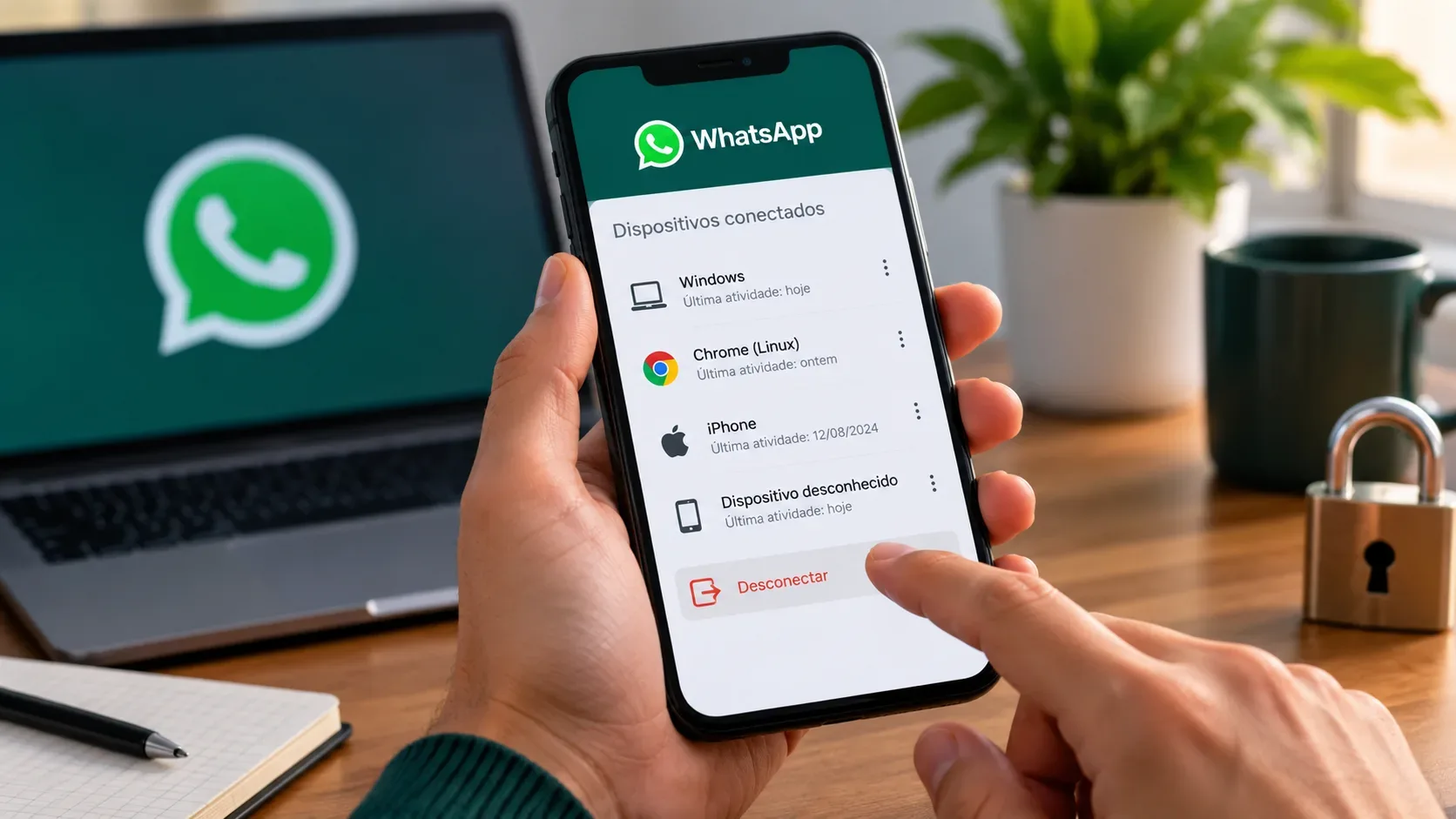
If a device you do not recognize appears in WhatsApp's linked devices list, the safest response is to review the session and, if you cannot confidently match it to one of your computers, browsers, tablets, or phones, log it out. An unfamiliar session alone does not prove an account takeover: it may be an old device, a browser you forgot to sign out from, or a device name you do not recognize. The risk becomes more serious when the session appears together with other signs, such as an unsolicited registration attempt, loss of account access, or activity you did not perform.
What to do first when you see an unknown device
- Open the linked devices list. On Android, tap the three-dot menu and then Linked devices. On iPhone, open Settings and select Linked devices.
- Review every item, not only the one that caught your attention. Try to match each session to a personal computer, work laptop, browser, tablet, or companion phone you have used.
- If you do not recognize a session, log it out. Tap the device and choose Log out. WhatsApp itself recommends checking linked devices regularly and removing devices you do not recognize.
- After removing it, look for other compromise signals. Check for verification-code requests you did not make, messages sent without you, or warnings that your number was registered on another device.
According to WhatsApp's Linked devices help page, an account can keep up to four additional devices linked to the primary phone. WhatsApp also says linked devices are automatically disconnected after 30 days of inactivity and will be logged out if the primary phone is not used for more than 14 days.
How to log out a session from your primary phone
The official procedure is straightforward: open Linked devices, tap the item you want to remove, and choose Log out. This applies to WhatsApp Web sessions, desktop apps, companion phones, and tablets. The steps are described in WhatsApp's official How to unlink a device article.
If you are unsure, there is little practical benefit in keeping a session you cannot identify. Logging it out simply means that a legitimate device will need to be linked again later if you discover it was yours.
Old device or intrusion? What actually separates the scenarios
The label shown in the list should not be treated as proof on its own. The distinction depends on context. An old device is more plausible when you remember using WhatsApp Web, the desktop app, a tablet, or a companion phone on that equipment. A session with no explanation, especially when combined with unexpected security events, should be treated as potential unauthorized access.
| Signal | Most likely interpretation | Recommended action |
|---|---|---|
| You recognize the computer, browser, or device and remember linking it | It may be a legitimate old session | Log it out if you no longer use the device |
| You do not recognize the device and do not remember linking it | There is a risk of an unauthorized session | Log it out immediately and review all other sessions |
| You received a verification code or registration warning you did not request | Someone may be trying to register your account | Do not share codes and strengthen account security |
| You lost access or were told that your number was registered on another device | The compromise is more serious | Start the account recovery process |
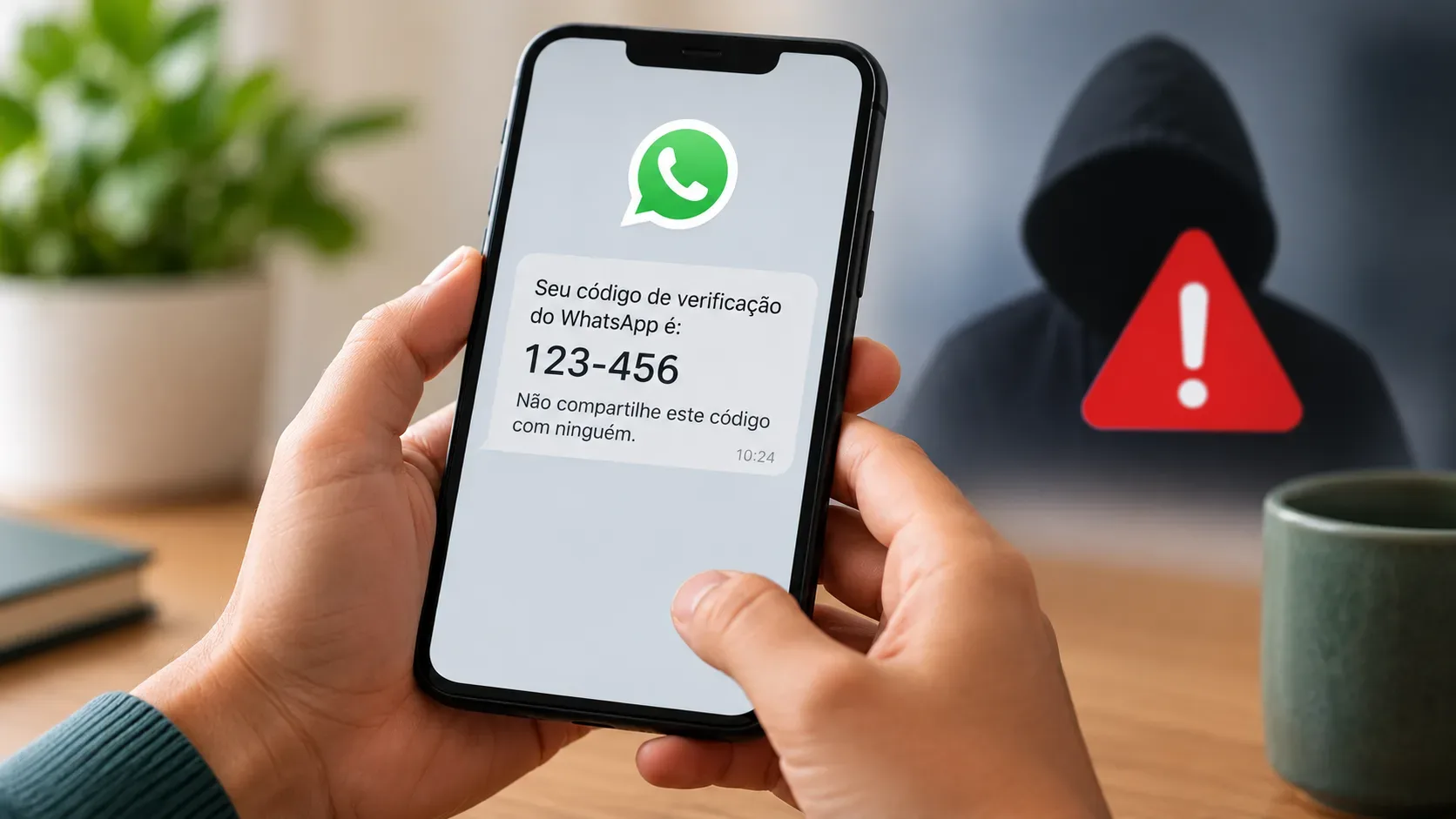
WhatsApp explains that an unsolicited verification code can happen because someone entered your number by mistake, but it can also mean someone is trying to steal the account. Therefore, the alert alone does not prove that access succeeded, but it is a clear reason not to share the code.
When logging out the device may be enough
If the only anomaly is a session you do not recognize, you still have normal access to the account, and there are no other signs of suspicious activity, logging the device out and reviewing your security settings is usually a proportionate response. It is also worth checking whether you, a relative, or a colleague used a shared computer in the past.
Keep WhatsApp notifications enabled on the primary phone. The Help Center says notifications can help you catch attempts to link devices and review an unrecognized device.
When to treat it as a possible account compromise
Escalate your response if you lose access, your number is registered on another phone, or there are clear signs that someone else is using the account. In those cases, follow WhatsApp's official compromised-account recovery process. WhatsApp says that re-registering your phone number with the six-digit code received by SMS or phone call automatically logs out all linked devices.
If WhatsApp asks for a two-step verification credential you do not recognize, that also deserves attention. WhatsApp notes that, in some compromised-account cases, another person may have enabled the protection.
How to harden the account after the incident
- Enable two-step verification and keep a recovery email up to date. WhatsApp is updating this protection in some account flows, so the interface may show a PIN or another security credential depending on the rollout.
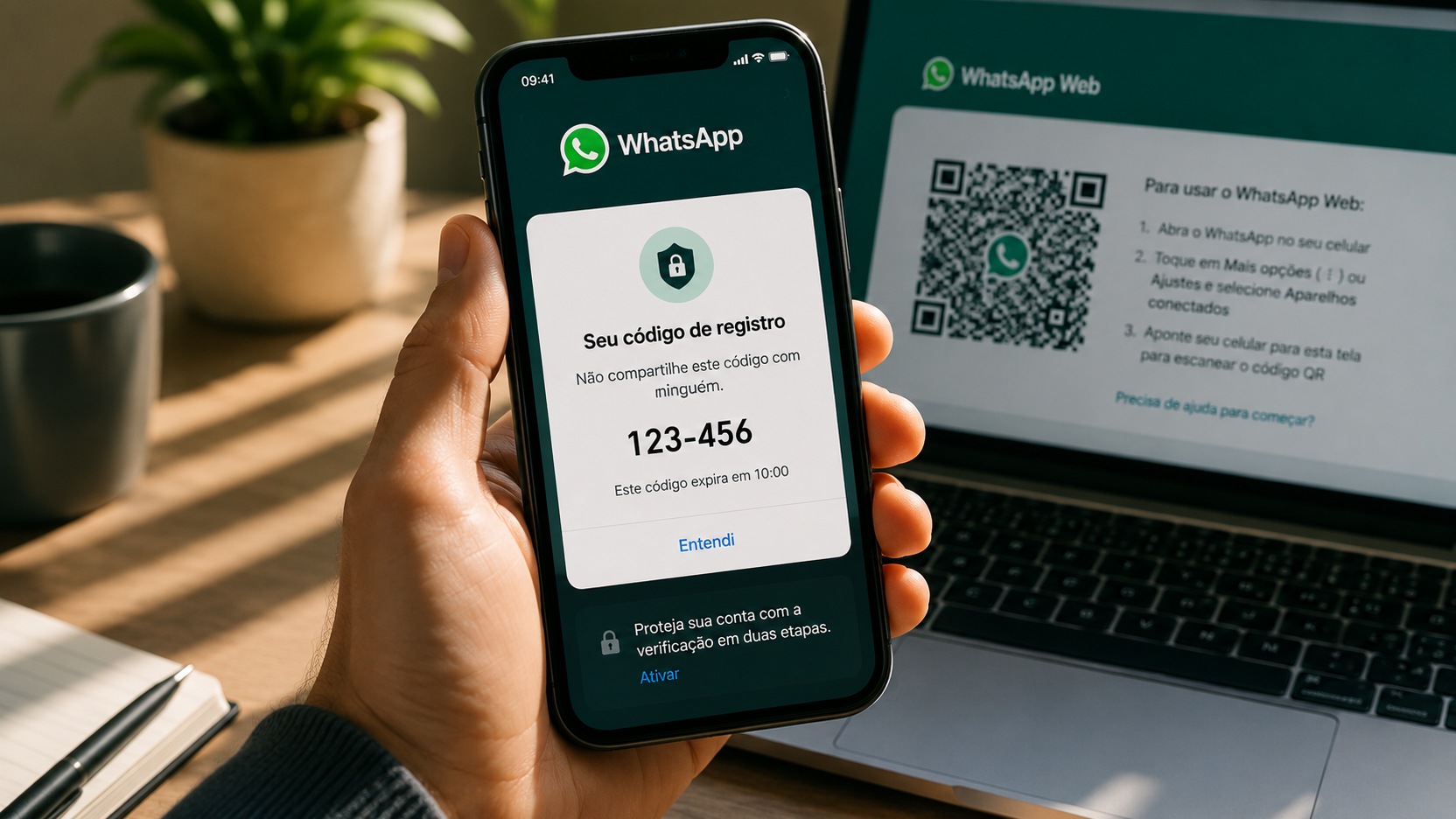
- Never share the registration code received by SMS, phone call, or WhatsApp alert.
- Use a device passcode and biometrics and limit other people's physical access to your phone.
- Review linked devices regularly, especially after using shared computers or changing devices.
- Avoid unofficial websites and apps. WhatsApp warns that linking your account through unsupported services can put security and privacy at risk.
More details about the additional security layer are available on WhatsApp's official two-step verification page.
Quick checklist for deciding what to do
- Recognize the device and remember linking it? If you no longer use it, log it out.
- Do not recognize it? Log it out without waiting for more evidence.
- Received an unsolicited code or registration attempt? Share nothing and review security.
- Lost access or your number was registered on another phone? Recover the account through the official process.
- After the incident, strengthen two-step verification, device locking, and periodic session reviews.
The practical rule is simple: an unknown session calls for action, but it does not automatically prove that the account was hacked. Removing the link reduces the immediate risk; the other account signals are what help distinguish a forgotten device from a real compromise.