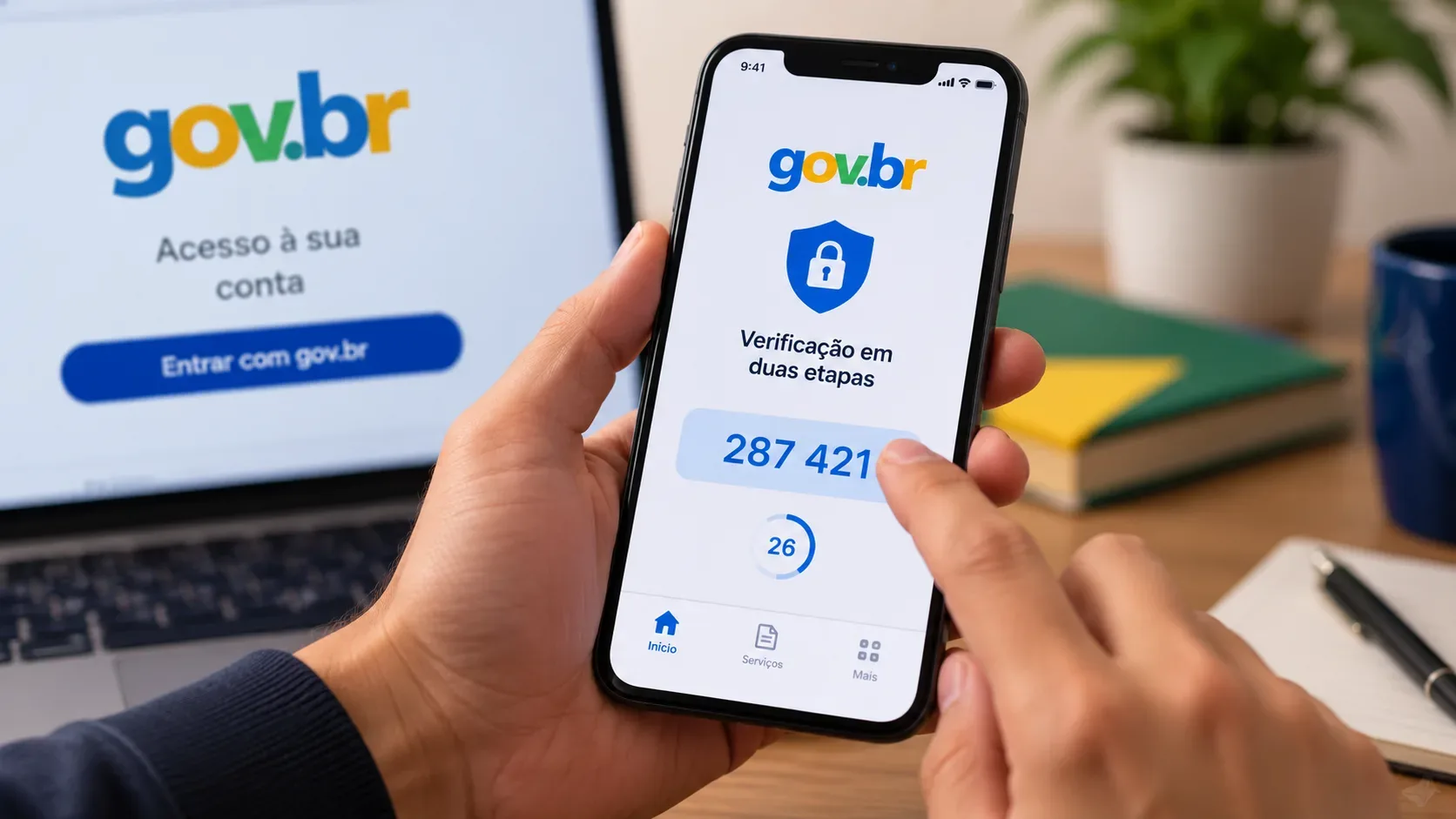
Quick answer: the regular code for gov.br two-step verification is generated inside the gov.br app itself. It is not sent by SMS, email, phone call, or push notification. Two-step verification is available for Silver (Prata) and Gold (Ouro) accounts and uses the official app, not Google Authenticator, Microsoft Authenticator, Authy, or other code generators.
The guidance below was checked on September 5, 2026, against official Brazilian Digital Government pages. The key distinction is between the 2FA login code, which is generated only in the gov.br app, and any confirmation codes used during account recovery, which may use a different channel depending on the recovery option offered.
Where the gov.br two-step verification code appears
After the feature is enabled, sign-in has two main steps: first your CPF and password, then the access code generated in the gov.br app. According to the official guidance, the code can be generated inside the app and, when you are accessing a service on the same phone, a blue option may also appear on the code request screen to generate it.
- Do not wait for an SMS: the regular 2FA code is not sent by text message.
- Do not wait for email, a phone call, or push: those channels do not deliver the regular access code either.
- Do not use another authenticator: apps such as Google Authenticator, Microsoft Authenticator, Authy, and similar tools do not generate the gov.br account code.
- Keep date and time automatic: gov.br instructs users to synchronize the device’s date and time with the internet so the code is generated correctly.
Official source: Account security — gov.br.
How to enable 2FA in the gov.br app
Activation is done only in the gov.br app. To use the feature, the account must be Silver (Prata) or Gold (Ouro), and the app must be installed with the account signed in.
- Open the gov.br app and sign in.
- Go to Segurança da conta (Account security).
- Open Verificação em duas etapas (Two-step verification).
- Enable two-step verification.
- Right afterward, register a dedicated recovery email for this feature.
When the first link is created, the mobile device becomes associated with the account. The official guidance states that only one mobile device can be linked at a time for code generation. That is why replacing or formatting the phone, or removing the app without preparing recovery, can interrupt access.
Official source: Enable two-step verification — gov.br.
How to sign in after two-step verification is enabled
- In the service that uses your gov.br account, enter your CPF and password as usual.
- When the screen asks for the access code, open the gov.br app on the linked device.
- Use Gerar código de acesso (Generate access code) and copy the displayed code.
- Return to the service, enter the code, and complete sign-in.
The code is a temporary credential. Do not share it with anyone. gov.br documentation also reinforces that the access code is not requested by email, SMS, phone, or WhatsApp.
How to authorize a browser so it does not ask for a code every time
On a personal computer or phone, the sign-in screen may offer “Não solicitar verificação em duas etapas novamente neste navegador” (“Do not request two-step verification again in this browser”). If you select it, that browser becomes authorized and the code is no longer requested on subsequent sign-ins in that environment.
| Situation | What to do |
|---|---|
| Personal, protected computer | You may authorize the browser if you want fewer code requests. |
| Your own phone | It can also be authorized as long as the device remains under your control. |
| Public, shared, or someone else’s computer | Do not select the trust option. Use the code and sign out when finished. |
| A device you do not recognize | Review authorized devices and access history in the app. |
Authorized devices can be reviewed under Segurança da conta > Verificação em duas etapas > Dispositivos autorizados. In the official guidance checked on September 5, 2026, removal is performed by deleting all authorized devices at once. Disabling 2FA or unlinking the account from the app also clears that list.
Why the code is not sent by SMS
Because the gov.br flow is designed so that the second factor is generated in the official app linked to the account, rather than delivered through a messaging channel. This keeps the temporary login factor tied to the associated device and avoids mixing it up with external messages.
There is one important caveat: some recovery steps may send a confirmation code by email or, in certain flows, by SMS. That recovery code is not the same as the regular 2FA code. Receiving an SMS during a specific recovery procedure therefore does not mean gov.br sends the standard login code by SMS.
Official source about recovery with the National Identity Card (CIN): Recover two-step verification with the CIN — gov.br.
I changed phones or uninstalled the app: how to recover access
If two-step verification was active and the linked phone was replaced, formatted, or lost the app, the device link may be lost. On the screen where gov.br requests the code, look for “Estou com dificuldade para gerar o código” (“I’m having trouble generating the code”), then “Iniciar recuperação” (“Start recovery”). The system shows the recovery alternatives available for that account.
Option 1: recover with a recovery email
This option appears only if you previously registered a specific two-step verification recovery email in the gov.br app. It should not automatically be confused with the general contact email on the account.
The official flow requires an updated app, facial recognition, and confirmation of the code sent to the recovery email. If recovery succeeds, the account link is migrated to the new device used in the process, and you can generate codes from the app again.
Official sources: Register a recovery email in the gov.br app and Recover two-step verification with email.
Option 2: recover with the National Identity Card (CIN)
If the option is available and you have the physical CIN, gov.br may offer recovery using the National Identity Card. The procedure involves app-guided validation and facial recognition. At the final stage, the official page says you may need to confirm a code sent to the email registered on the account; if you cannot access that email, the flow may use SMS to the registered phone number.
That message is part of recovery, not the regular code required at each login. Official source: Recover two-step verification with the CIN — gov.br.
Option 3: request support
If the recovery alternatives do not work or are not available, the flow may display Solicitar atendimento (Request support). Official guidance treats disabling 2FA through the form and support as a later option because it removes a security layer from the account.
Official source: Disable two-step verification — gov.br.
How to reduce the risk of losing access
- Register the recovery email before you need it. It is configured in the app and can simplify moving access to a new phone.
- Do not casually uninstall the app or replace the phone while 2FA is active. Prepare access to the new device and know the recovery options first.
- Keep the app updated and keep the phone’s date and time automatically synchronized.
- Authorize only personal browsers. On shared devices, keep using the code on every sign-in.
- Never share the code. Its purpose is to prove that you have access to the linked device.
Quick checklist for common problems
| Problem | Most likely diagnosis | Next step |
|---|---|---|
| “I did not receive the 2FA SMS” | Nothing is missing: the regular code is not sent by SMS. | Open the gov.br app and generate the code. |
| “Google Authenticator does not show gov.br” | gov.br does not use those authenticators for this code. | Use the official gov.br app. |
| “The code is rejected” | The phone’s date and time may be out of sync. | Enable automatic date and time and generate a new code. |
| “I changed phones and cannot generate the code” | The device link may have been lost. | Use “Estou com dificuldade para gerar o código” and start recovery. |
| “I want my computer to stop asking for a code” | The browser is not yet authorized. | If it is a personal device, select the option not to request verification again in that browser. |