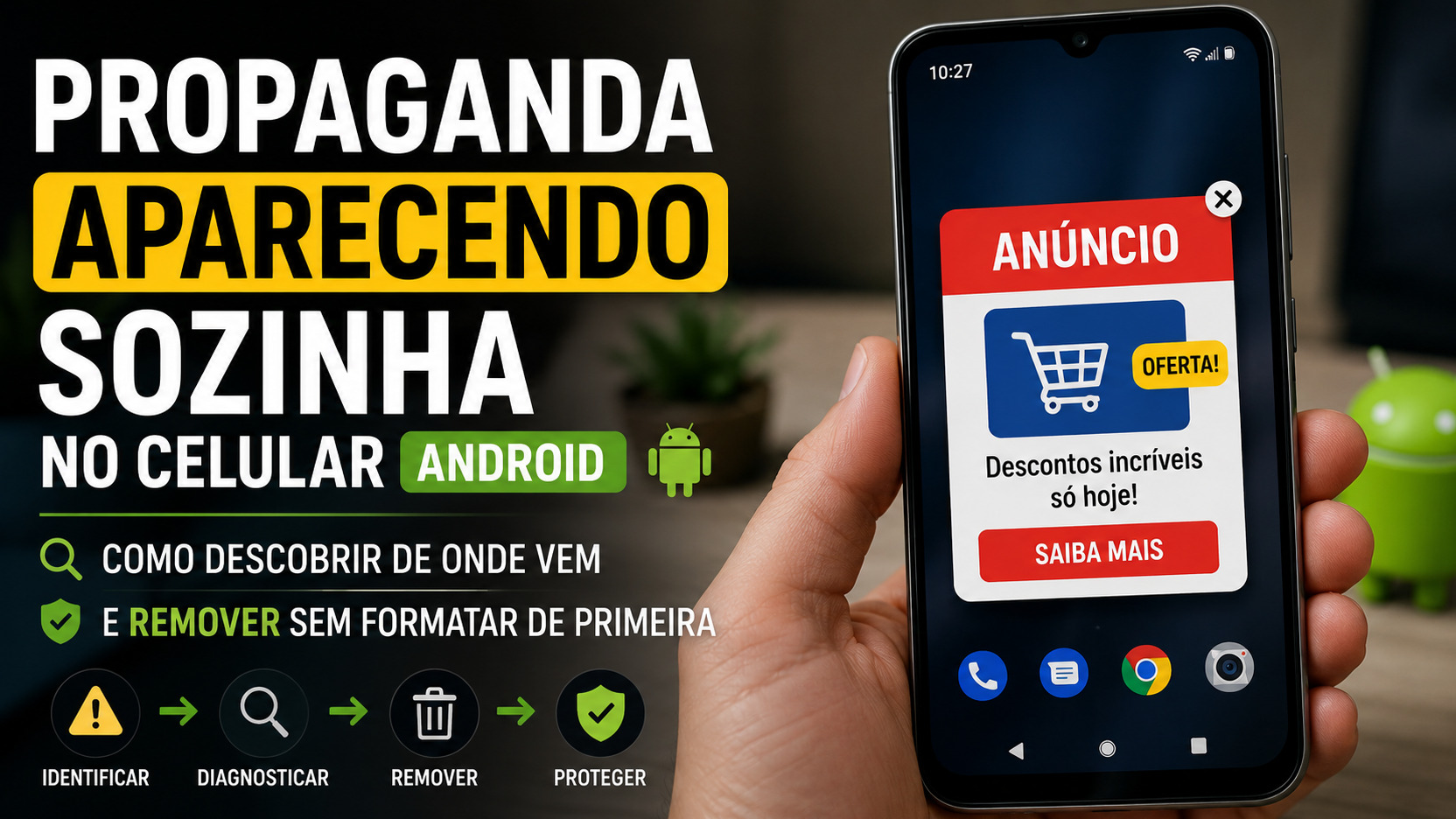
When the advertisement appears out of the expected place - on the home screen, on top of another application, in a tab that opens alone or as an insistent notification - the best first question is not “which antivirus to install?”, but “where is this advertisement coming from?”. This difference avoids deleting data willy-nilly and helps you get to the root cause with much less trial and error.
On Android, ads can have very different origins. A free game can only display advertising while it is open, which is part of the app itself. A website may have received permission to send notifications. Chrome may be dealing with pop-ups or redirects. And an installed app may be triggering ads at times when you're not even using that app. The diagnosis changes depending on the symptom.
First identify in which situation the ad appears
Watch the next ad before closing it. The context in which it appears usually gives a better clue than the appearance of the advertisement.
If the advertisement only appears within an app
If ads start when you open a free game, editor, utility, or other app and disappear when you exit it, this may simply be that app's advertising model. In this case, there is not enough signal to conclude that the Android has “a virus”.
What matters is the border. If the app only shows ads within the interface itself, the decision is to use the free version, look for an ad-free paid option, or uninstall the app. If the ad continues after you return to the home screen, appears on top of other apps, or opens pages without you touching anything, proceed to diagnose the problematic app.
If Chrome opens ads or pages alone
When the problem is concentrated in the browser, start with the browser. Google recommends checking pop-ups, redirects and website notification permissions before taking more drastic measures.
A useful detail is to understand whether the advertisement is a page that opened within Chrome or a notification that took you to Chrome. These are similar problems in appearance, but addressed in different places in the settings.
If the announcement arrives as a notification
A notification has a sender. On current versions of Android, tapping and holding a notification opens controls for that app, and the notifications screen can also show which apps have sent alerts recently. This turns a “mysterious announcement” into a concrete clue.
If the sender is Chrome, the origin may be a website authorized to send notifications. If it's an app you didn't expect to see there, review that app before installing any additional tools.
If the advertisement appears on top of other apps
This is the symptom that most suggests investigating an installed application. Some legitimate apps have overlay features such as bubbles, screen filters, and floating controls. Android also has specific permission to draw windows on top of other apps. Therefore, the “Appear over other apps” or “Display over other apps” screen, when present on your device, may offer clues.
But this permission should not be treated as sole proof. Not every app authorized to use the overlay is malicious, and not all intrusive advertising depends on it.. The strongest criterion remains the relationship between the onset of the problem and recently installed apps, combined with safe mode testing.
Case 1: the advertisement is in the browser
In Chrome for Android, pop-ups and redirects can be blocked in website settings. The path indicated by Google goes through Chrome, Settings, Site Settings and Pop-ups and Redirects. The names may change slightly depending on the version, but the idea is to confirm that the permission is not released indiscriminately.
If pop-ups are already blocked and ads continue to appear, check website notifications. A page may have received your authorization at some point - sometimes after a hasty tap on “Allow” - and continue sending promotional calls even when you are not browsing that site.
In Chrome, you can open the website, enter the page information and review its permissions. If the source is a notification from that site, disable notifications permission. It's also worth reviewing Chrome's security area, which can remove permissions from rarely used sites and show these changes for viewing.
Do not touch banners that say your cell phone is infected and offer an immediate “antivirus”, “cleaner” or “update”. Google itself recommends being suspicious of virus warnings that appear on pages and, when a download or update seems necessary, searching for the software through an official channel instead of following the pop-up button.
Case 2: the ad is arriving as a notification
When the advertisement appears in the notification tray, use the notification itself to identify who sent it. Tap and hold the alert and open settings. Android allows you to turn off all notifications from that app or just specific categories, when the app offers this division.
If you closed the notification too quickly, look in Settings, Notifications and notification history if your device offers this feature. Google says this area can show recently dismissed notifications and the day's history. On other devices, the “App notifications” screen shows the apps that sent alerts most recently.
Here there is an important gain: blocking the notification resolves the inconvenience, but identifying the sender resolves the diagnosis. If an unknown app started advertising after being installed, it makes more sense to remove it than just muting it. If the sender is Chrome, go back to website permissions instead of randomly deleting other apps.
Case 3: the ad appears on top of other apps
Start by reconstructing the moment the problem appeared. Think about the apps installed in the last few days, mainly utilities, launchers, keyboards, themes, QR readers, cleaners, file managers, games or APKs downloaded outside of the Play Store. The app category doesn't prove anything; what matters is the coincidence of time and the observed behavior.
Open Settings and see the list of installed applications. Review the most recent ones and the ones you don't recognize. If your device has a special access area, check which apps can “appear on top of other apps”. Treat this screen as a clue to narrow down candidates, not as a malware detector.
If you suspect a specific app, you don't need to start by formatting your phone. Uninstall the candidate, restart the device and use it normally for some time. If the ads stop, you've found a strong relationship. If they continue, restore the hypothesis and test the next candidate in a controlled manner.
Use safe mode to test installed apps
Safe mode is the most important separation point of this diagnostic because it starts Android without normally running the apps you downloaded. If the advertisement that appeared out of context disappears in safe mode, suspicion about an installed app becomes much stronger.
The exact procedure may vary between manufacturers, but Google's guidance for many devices is to press and hold the power button and, on the screen, tap and hold the power off option until the safe mode restart appears. In some models, the manufacturer uses another combination; If the option does not appear, consult the device-specific help.
Google recommends removing recently downloaded apps one by one. After each removal, restart your phone in normal mode and check if the problem is gone. This detail is important: if you delete ten apps at once, you may eliminate the advertisement, but you won't find out which one was the cause.
If ads continue even in safe mode, do not automatically conclude that there is “unremovable” malware. Some pre-installed applications and system components continue to be available in this mode, and a website, browser, or notification issue may still be present. Return to the symptom: is the ad coming from Chrome, an identifiable notification, or another component?
Play Protect is verification, not diagnosis
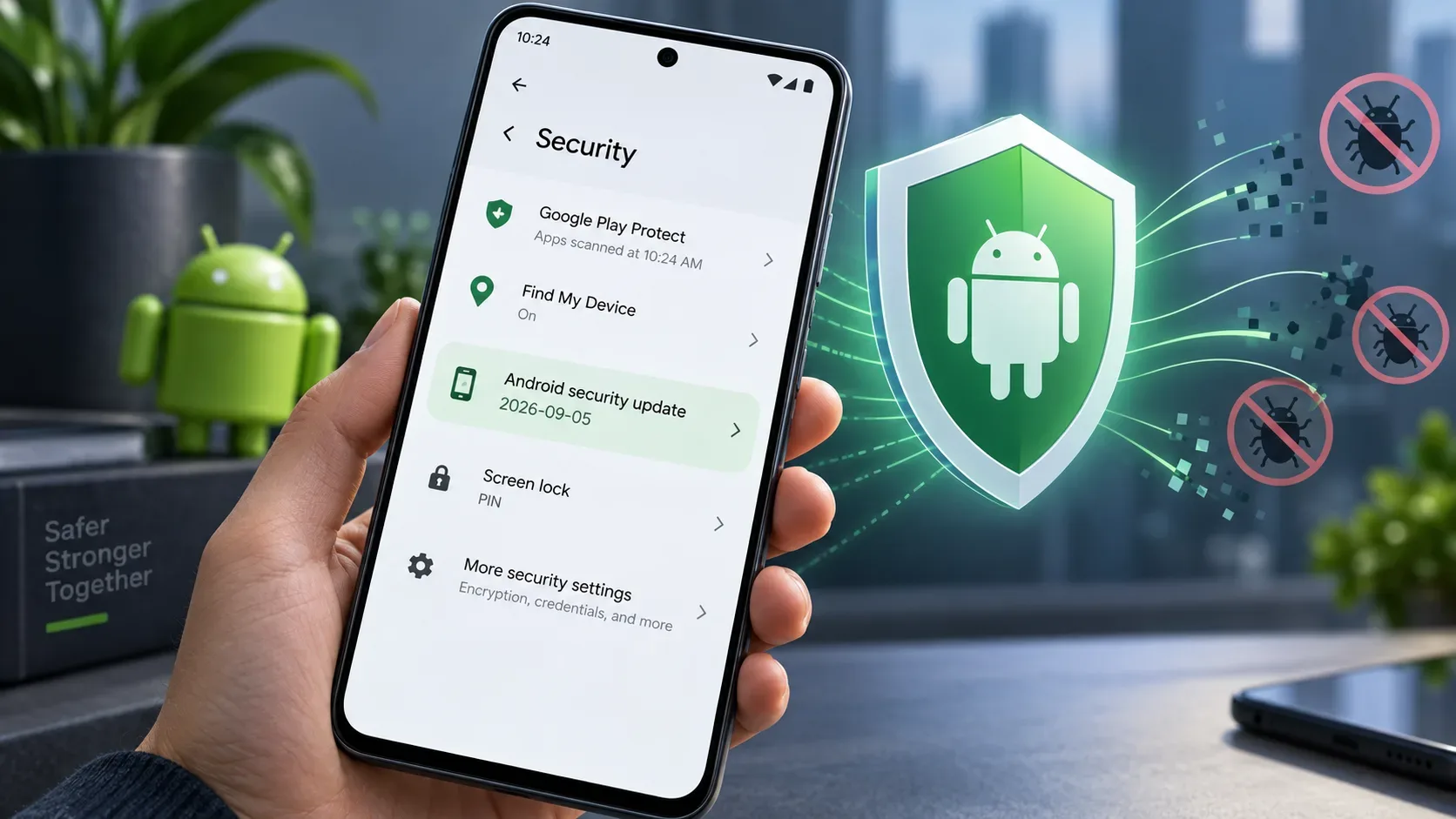
Google recommends keeping Play Protect activated. The configuration is in the Play Store, within the Play Protect area, and the option to check apps must remain on. This adds a layer of checks against applications considered harmful or unsafe.
Use Play Protect after reviewing candidates and also when you have questions about an app. But don't turn a “no harmful apps found” result into an absolute guarantee that any strange behavior is explained. Play Protect is a security check; The context clue remains essential to separate normal advertising, website permission, notification and app that acts out of turn.
It is also not necessary to install a series of “antiviruses”, “boosters” and “cleaners” to see if one works. In addition to complicating the diagnosis, this type of installation can
add new notifications, announcements and permissions. Start with Android, Chrome, and Play Store resources, and only add another tool when there is a clear reason and a trusted source.
How to confirm that you removed the origin
Consider the problem resolved when the symptom that motivated the diagnosis no longer occurs after a specific change. If you blocked a website permission and notifications from that domain stopped, there is a direct relationship. If you removed an app and the ads that appeared on the home screen disappeared, the evidence is also strong.
Avoid ending the test five seconds after the change. Use the device in conditions similar to those that made the advertisement appear: open the same applications, spend some time on the home screen and browse normally. The goal is to confirm that the cause is gone, not just that the ad took a while to return.
Then review what was removed. If you uninstalled several apps while in safe mode, only reinstall the ones you really need from trusted sources. If the problem reappears immediately after reinstalling one of them, repeating it helps confirm the source.
When to consider formatting
A factory reset erases local data and requires rebuilding the device, so it's not a good first test for an advertisement that could be caused by a single permission or a single app. Before that, it is worth having gone through the diagnosis of the browser, notifications, recent applications, safe mode and Play Protect.
Formatting becomes an escalation option when the behavior persists, you are unable to isolate the source, the device shows other relevant signs of compromise, or removal attempts consistently fail. At this point, back up what's important and check the manufacturer's procedure for your specific model.
If there are signs other than advertising - for example, installations you did not authorize, unexpected login screens, changes to accounts, or attempts to obtain passwords - treat the case as a broader security incident. Avoid entering credentials on suspicious screens and secure your accounts with a trusted device before continuing to touch your phone.
What to avoid when cleaning
The most common mistake is reacting to the ad itself. A pop-up says it found “virus,” offers a clean button, and pushes another app; the user installs, grants permissions and adds a new variable to the problem. Instead, close the advertisement and identify yourself using your system or browser settings.
Another mistake is to delete everything without observing the symptom. Formatting may even eliminate the problem, but it also erases the evidence that would allow understanding the origin and can cost hours of restoration. Likewise, uninstalling dozens of applications at once prevents you from knowing which one was involved.
The most efficient way is to narrow the search. Advertising only within an app points first to that app. Pop-up inside Chrome points to website settings, redirects and notifications. Alert in tray points to the sender of the notification. Ad above other apps points to recent apps and, if necessary, testing in safe mode.
Symptom first, solution later
When ads start appearing by themselves on Android, there is no single cause and therefore there is no single “remove advertisement” button. Diagnosis is much faster when you separate the browser, notification and installed application before choosing the action.
If the problem is with Chrome, cut the site's permission or block pop-ups. If the advertisement comes as a notification, identify the sender. If it appears out of context, investigate recent apps and use Safe Mode to test your hypothesis. Keep Play Protect active during the process. Only after exhausting these steps does it make sense to think about a complete restoration of the device.