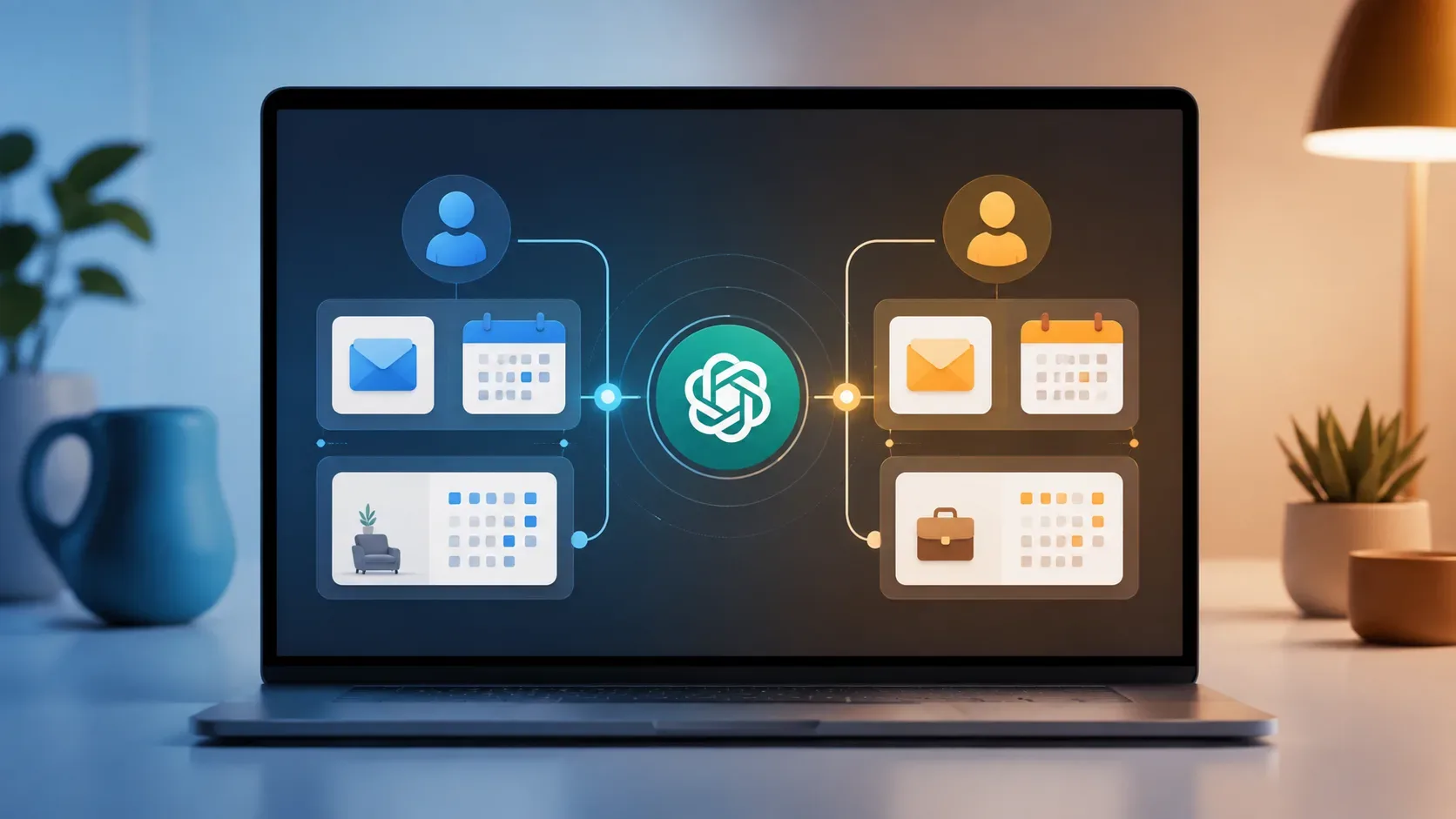
Since August 28, 2026, ChatGPT has allowed more than one Google account to be connected to the Gmail, Google Calendar, and Google Contacts plugins. In practice, that means you can keep a personal account and a work account authorized at the same time and, when useful, query both in the same conversation. The feature was announced as generally available on supported Plus, Pro, Business, and Enterprise plans across web, desktop, iOS, and Android. The official reference is in OpenAI’s release notes.
The key point is that “having two connected accounts” does not merge the two Google accounts. Each connection remains limited to what that account can already access. To avoid mixing personal and work context, treat the intended account as an explicit part of your request to ChatGPT.
What changed with multiple Google account support
Previously, people who moved between personal and corporate Gmail often had to work around a single connection per service or change the authorization ChatGPT was using. With the support announced in August 2026, Gmail, Google Calendar, and Google Contacts can have more than one connected account when the app and ChatGPT account offer that option.
OpenAI gives two direct examples: checking calendars together when planning the day and finding emails across connected inboxes. That makes it possible either to combine sources or keep a query limited to one of them—as long as the request makes the desired scope clear.
How to connect your personal and work accounts
- Open Apps or Plugins, depending on the label shown in your version of ChatGPT.
- Choose the Google app or plugin that includes Gmail, Google Calendar, or Google Contacts and select the connection option.
- Sign in to the first Google account and review the requested services and permissions before completing authorization.
- Then open Settings > Apps or Settings > Plugins, select the relevant app, and look for Connected accounts. When available, choose the option to connect another account.
- Sign in to the second Google account and complete its authorization separately.
This flow follows OpenAI’s documentation for connecting and managing app accounts in ChatGPT. In managed environments, availability can also depend on the ChatGPT workspace administrator and Google Workspace policies.
How to keep personal and work Gmail separate in practice
The simplest way to avoid ambiguity is to state which account should be used and what should be searched. OpenAI’s documentation specifically says that, when supported, you can specify the account you want to use in your request if the app is using the wrong one.
To search only the personal account
- “Search my personal Google account for the hotel reservation email and summarize the dates.”
- “Check only my personal calendar and tell me which evenings this week are free.”
To search only the work account
- “Use only my work Gmail to find the latest message about the supplier contract.”
- “Check only my work Google Calendar and list tomorrow’s meetings.”
To intentionally combine both accounts
- “Compare my personal and work calendars and find a two-hour opening on Thursday.”
- “Search both inboxes for messages about the trip to Recife, but separate the results by account.”
When the interface shows distinct names, addresses, or identifiers for the connections, using them in the request can reduce ambiguity further. If a result appears to have come from the wrong account, review the connected accounts before repeating the query.
Connecting two Google accounts is not the same as switching ChatGPT accounts
These are separate features. Multiple Google account support adds more than one Gmail, Calendar, or Contacts connection inside the same ChatGPT account. The ChatGPT account switcher, by contrast, lets you stay signed in to two ChatGPT accounts in the same web session and switch between them.
With account switching, chats, memory, history, billing, and workspaces remain separate; one ChatGPT account is not merged with the other. That is useful when you need complete administrative separation between personal and work use. Multiple Google connections are useful when you want to consult personal and work sources from one ChatGPT experience.
Which plans and surfaces support the feature
| Item | Availability announced on Aug. 28, 2026 |
|---|---|
| Plans | Supported Plus, Pro, Business, and Enterprise plans |
| Region | Global availability |
| Surfaces | Web, desktop, iOS, and Android |
| Named services | Gmail, Google Calendar, and Google Contacts |
Actual app availability can still vary by plan, region, workspace, role, model, and interface. OpenAI’s connected apps documentation also notes that administrators can restrict access in managed workspaces.
Permissions, privacy, and memory: what remains separate
Connecting a personal account does not automatically provide access to content that exists only in the work account, and vice versa. According to OpenAI, an individual Google connection can access only content available to the account you authorized, subject to existing permissions.
The Google app data controls FAQ also states that OpenAI does not train its generalized models directly on data accessed from connected Google apps or derivations of that data, except in the cases described by the policy—for example, when a conversation is submitted as feedback, when data is manually copied, pasted, or uploaded into a conversation, or when it is included in ChatGPT’s response.
If Memory is enabled, eligible information accessed through connected Google apps may help personalize ChatGPT, subject to applicable settings and restrictions. Disconnecting an account stops future access through that connection, but it does not automatically delete existing conversations or saved memories.
Why a work account may fail to connect
- App disabled by an administrator: the ChatGPT workspace may prevent use of the app or plugin.
- Domain or authorization blocked: a Google Workspace administrator may need to approve the OpenAI app or the required OAuth scopes.
- Wrong account selected: review Settings > Apps/Plugins > Connected accounts and confirm which account is authorized.
- Reconnection required: newly requested permissions or enabled actions may require that specific account to be authorized again.
If you want to remove only one account, open the connected account’s menu and use the disconnect option. Other connected accounts can remain active.
The practical rule for avoiding mixed context
Use multiple connections to increase reach, not to leave scope implicit. For personal requests, say “personal account”; for work requests, say “work account”; and ask for a cross-account search only when you actually want both. For activity that must remain under an organization’s governance—including ChatGPT history, memory, and account policies—the relevant separation is the ChatGPT account or workspace, not just which Gmail or Calendar connection is being used.