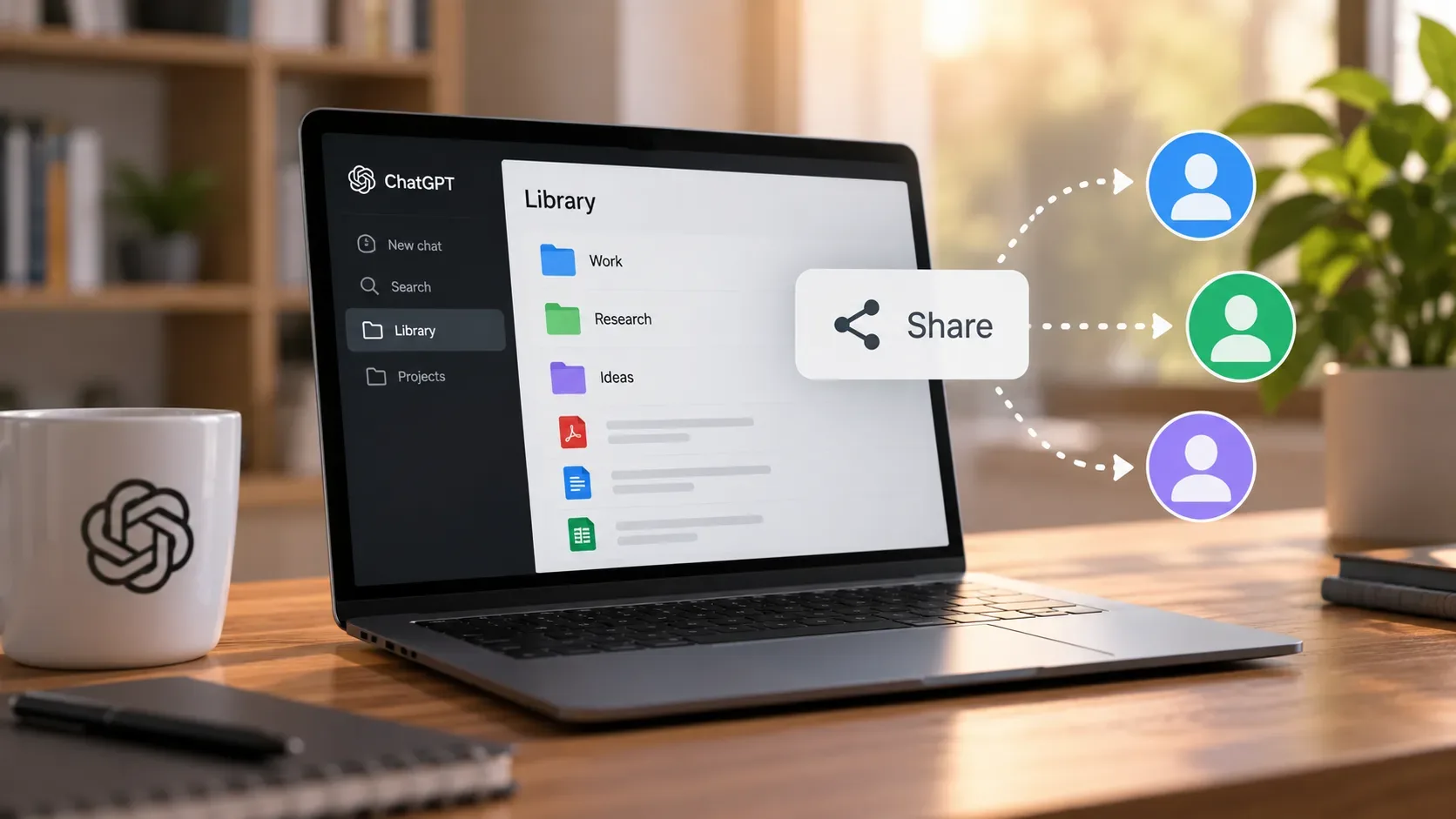
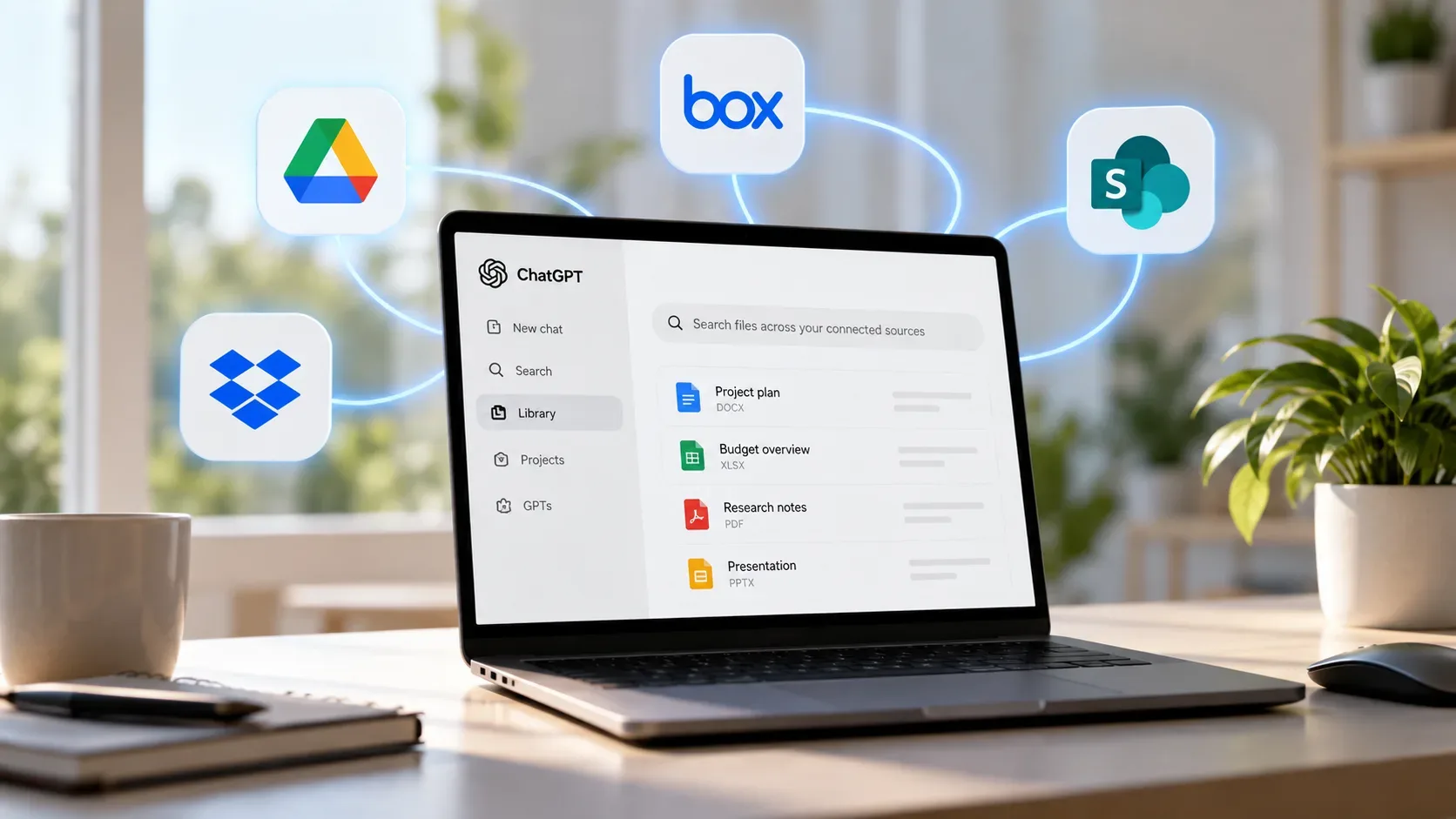
Yes. Since the update announced on September 10, 2026, files from Box, Dropbox, and SharePoint can appear in ChatGPT Library alongside Google Drive. After you connect a supported provider, you can browse folders, search for files, and add them to a conversation through Add from Library or @ mentions without downloading and manually re-uploading them. OpenAI also says those items remain connected to their original source and that existing permissions in the source service and the workspace still apply.
What changed in Library on September 10
The change turns Library into an access point for external repositories as well. The experience already brought together files uploaded to or created in ChatGPT and included Google Drive integration. The September 10, 2026 ChatGPT release notes say Box, Dropbox, and SharePoint now join Google Drive in Library.
In practice, the official documentation describes four main actions for these connected sources:
- browse files and folders available to the connected account;
- search for items without uploading them again;
- add the file you need to a chat from Library or through @mentions;
- keep supported files open next to the conversation while asking for summaries, comparisons, analysis, or new content.
You can also select a folder and ask ChatGPT to work across the files it contains when that experience is available for your account and provider.
Manual upload, a file already saved in Library, and a connected source are not the same thing
| How you use the file | Where it comes from | When it makes the most sense |
|---|---|---|
| Manual upload | You select a file from your device and send it to ChatGPT. Uploaded files are saved in Library according to the storage documentation. | When the file exists only on your computer, is a one-off, or you do not want to connect an external service. |
| File already saved in Library | A file previously uploaded to or created in ChatGPT can be found and reused without repeating the upload. | When the material is already part of your ChatGPT file collection. |
| File from a connected source | The item remains linked to Box, Dropbox, SharePoint, or Google Drive and can be found through Library after the account is connected. | When the material lives in an external repository and you want to find it without downloading and re-uploading it. |
The file storage and Library documentation explains that uploads and files created in ChatGPT are saved in a dedicated location. The September 10 update says connected-provider files stay associated with their external source. That distinction matters: connecting a source does not mean granting unrestricted access to the repository.
How to connect a source before searching Library
The exact flow can vary by plan, region, interface, and workspace configuration, but the current documentation for apps in ChatGPT and connected accounts follows this pattern:
- Open the Apps or Plugins area shown in your account and find the provider.
- Install the plugin if that step is shown, then choose the option to connect the account.
- Sign in to the provider account that already has access to the files you need.
- Review the requested services and permissions and complete authorization.
- Return to Library and look for the connected file or folder.
In managed environments, being able to sign in to Box, Dropbox, or Microsoft 365 does not guarantee that the app is enabled in ChatGPT. A workspace administrator can control availability, roles, and allowed actions.
Practical workflow for Box
The official Box in ChatGPT page says the app can search and use files that the connected Box account can already access. The recommended flow is to connect the correct account, return to ChatGPT, and search for documents by project name, title, folder, or topic.
One useful detail is that the current Box documentation says you do not need to configure individual sync for each file. If a file does not appear, the first test should be to open the same item directly in Box with the connected account. If that Box account cannot see it, connecting Box to ChatGPT does not create a new access right.
Practical workflow for Dropbox
For Dropbox, the confirmed change in the release notes is the provider's presence in Library: once connected, available files and folders can be browsed and searched, and the items you need can be added to the chat without another upload.
The launch note does not document a Dropbox-specific list of permissions or file formats. The safe assumption is therefore to treat the connected account and workspace controls as the access boundary: if an item is unavailable to that connection or experience, do not assume Library will bypass the restriction.
Practical workflow for SharePoint
With SharePoint, in addition to connecting a Microsoft account, organizations may require administrative approval in Microsoft Entra and in the ChatGPT workspace itself. The SharePoint app documentation makes clear that ChatGPT retrieves only content the relevant Microsoft account or authorized workspace member is already allowed to access.
The documentation also lists supported file types for this experience, including .txt, .pdf, .docx, .pptx, .xlsx, and .csv. That does not mean every file found can necessarily be used for every task: capabilities may depend on format, the app, permissions, and the ChatGPT surface you are using.
How to find a file without getting stuck at “I couldn't find it”
Search works better when your request includes clues that exist in the repository itself. Instead of asking only to “find the report,” combine two or three elements such as project name, folder, quarter, client, document type, or part of the title.
- By name: search for the full title or a distinctive part of it.
- By folder: open the project folder and refine the search within it when the interface allows.
- By provider: if you use more than one source, explicitly say Box, Dropbox, or SharePoint in the request.
- By context: ask for “the latest Aurora project brief in Box” instead of “my brief.”
- After you find it: add the item to the conversation from Library or use the available mention, then ask for a summary, comparison, or analysis.
What happens to permissions and shared files
Connecting a source does not expand the user's permissions. The release notes say existing file permissions and workspace controls continue to apply. The general apps documentation reinforces that an app cannot grant access beyond what the connected account, the provider, and the workspace authorize.
This also explains a common situation: a colleague sends a SharePoint or Box link, but the file does not appear in Library. The link can exist without the account connected to ChatGPT having effective permission for that item. In that case, the fix belongs in the provider or workspace administration, not in a different prompt.
If the file appears but ChatGPT cannot use its contents
Finding a filename and being able to analyze its contents are separate steps. The apps troubleshooting page notes that an app may find an item without being able to retrieve or analyze its contents for a specific task. Check the file type, app capability, connected account, provider authorization, and administrative restrictions.
If you need to upload the file manually as a fallback, upload rules for that separate experience apply. That should not be confused with the connected-source integration.
Who gets the feature and where it works
According to the September 10, 2026 release notes, Box, Dropbox, and SharePoint in Library are rolling out to Go, Plus, Pro, Business, Edu, Healthcare, and Enterprise users on the web, in both Chat and Work. OpenAI said mobile support will follow. Because this is a gradual rollout, the option may not appear at the same time for every eligible account.
The best workflow for avoiding repeated uploads
- Connect the provider that actually holds your working files.
- Confirm the connected account can open the file in the source service.
- Use Library to browse or search for the item.
- Add the file to the conversation through Add from Library or a mention.
- Ask for the task you need: summarize, compare, analyze, or create something new from the material.
- If the item does not appear, check the account, permissions, app, and workspace controls before falling back to a new upload.
The main benefit of the change is reducing the routine of downloading a document from a repository and uploading it to ChatGPT again every time. Library becomes a discovery bridge for connected files, while still respecting the access rules of Box, Dropbox, and SharePoint.