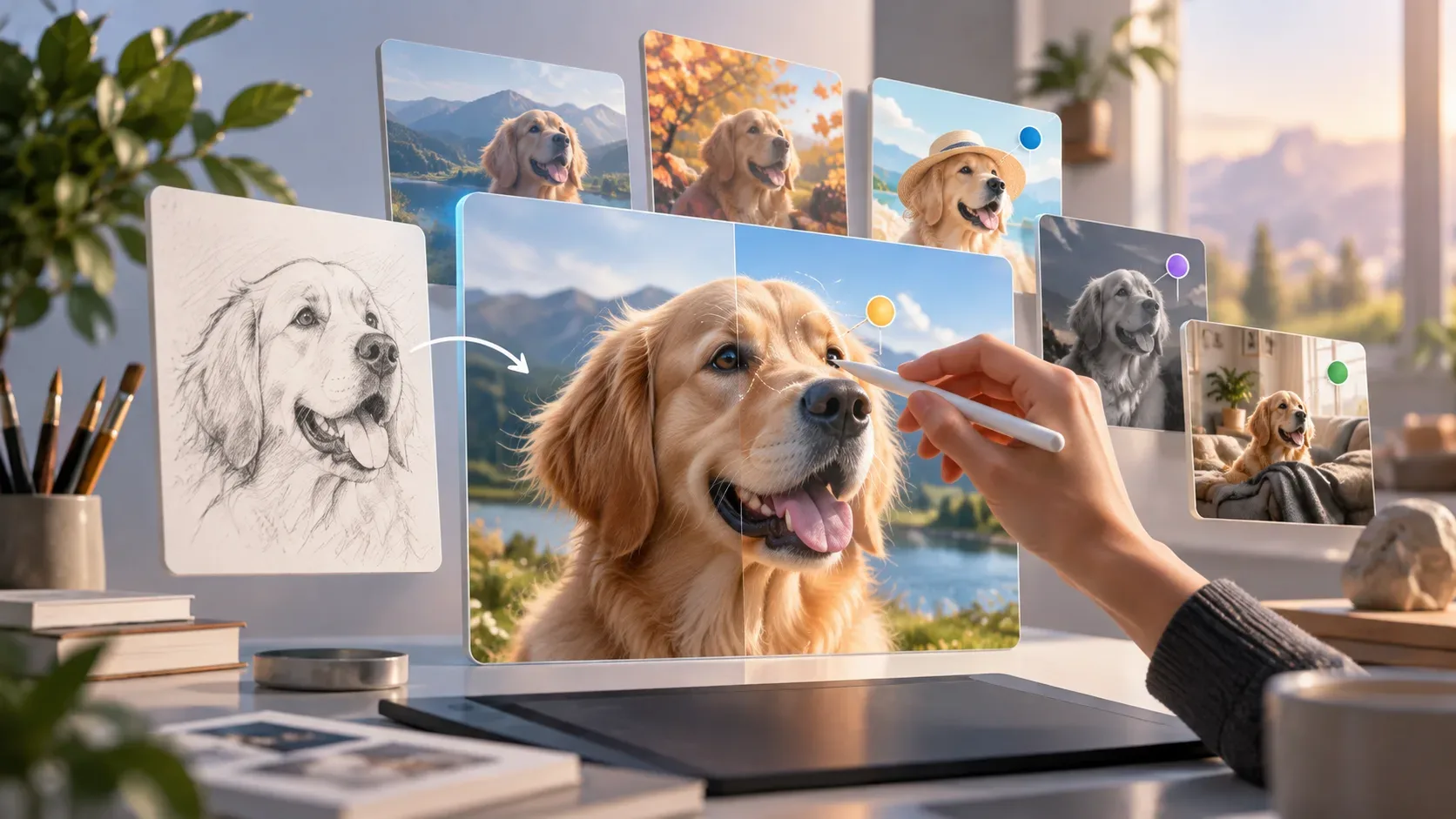
ChatGPT Images 2.5 launched on September 8, 2026 with an important change for people who create images through trial and refinement: OpenAI says the model is more precise at editing only what was requested and more consistent at preserving earlier changes across multiple turns. In practice, that reduces the need to abandon a good image and start from scratch every time you want to fix one detail.
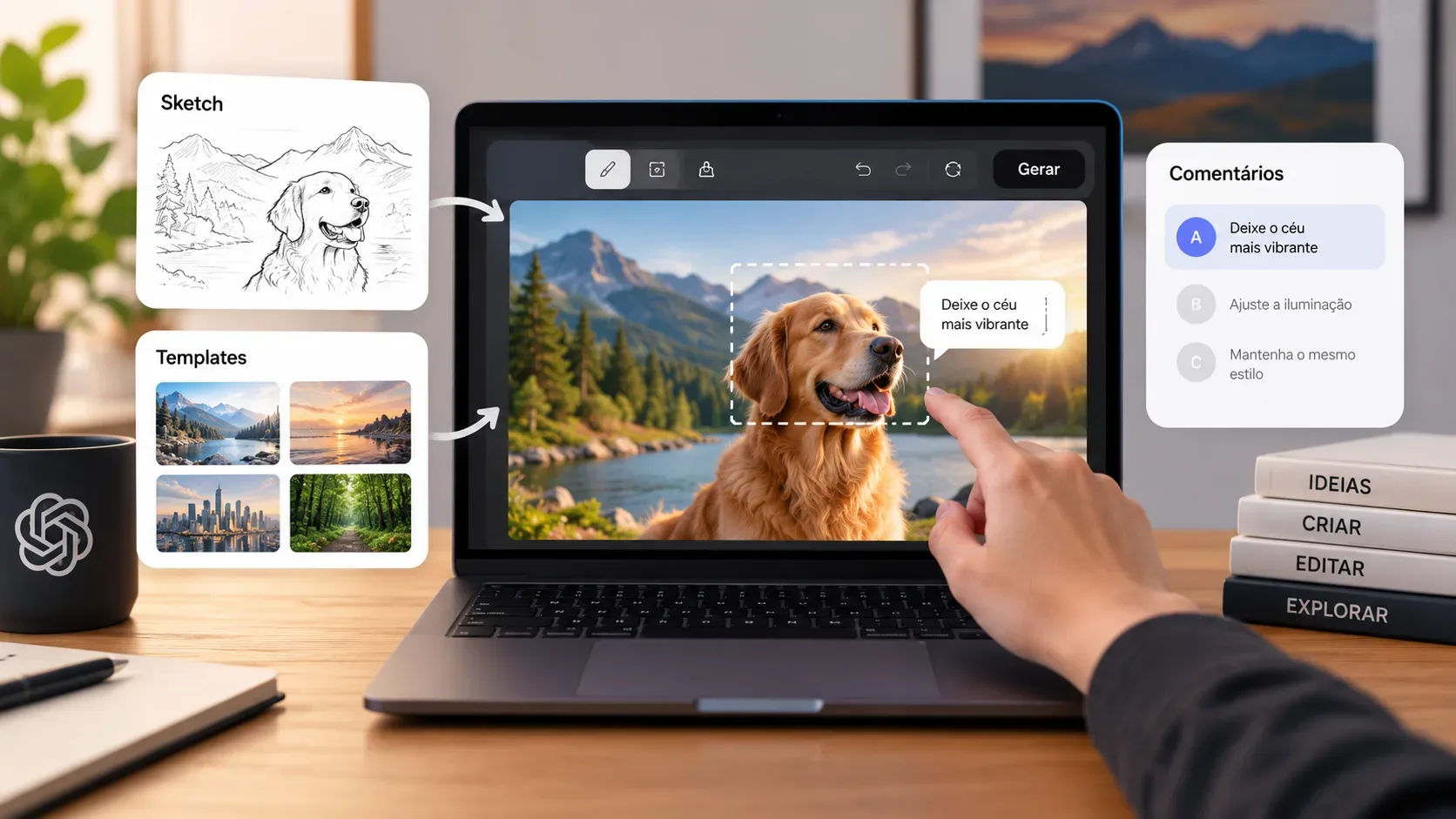
The three most useful features for this workflow are Sketch, Templates, and comments/localized edits. They solve different problems: Sketch helps when drawing the idea is easier than describing it; Templates provide a structured starting point; and comments or selections help indicate exactly where a change should happen.
What changed in the ChatGPT Images 2.5 editing workflow
According to the official ChatGPT Images 2.5 announcement, the model produces sharper details, handles lighting and textures more naturally, preserves elements from reference images more effectively, and follows editing instructions more consistently across multiple interactions. OpenAI also says generation latency has been reduced by up to 50% compared with Images 2.0.
For editing, the most important point is not only speed. OpenAI highlights two improvements: precision editing, which aims to change one element while keeping the rest more stable, and multi-turn editing consistency, so a new correction builds on work already done instead of reconstructing the whole image.
1. Use Sketch when composition is hard to explain in words
In the ChatGPT mobile app, the Help Center instructs users to type @ in the message box and choose Sketch. You then draw the idea, adjust the sketch if needed, confirm it, and add written instructions about the subject, colors, style, and finish.
- Type @ and select Sketch.
- Draw the approximate position of the main elements.
- Confirm the sketch.
- Explain in text what the drawing represents and what visual result you want.
- Generate the image and keep refining it in the same conversation.
The drawing does not need to look polished. It works as a spatial reference. If you want, for example, a person on the left, a product in the center, and a window in the background, a simple sketch can communicate that hierarchy better than a paragraph trying to define every position.
A useful practice is to use Sketch to communicate composition and let the written prompt handle style, materials, lighting, and context. This reduces ambiguity between “where things go” and “how the scene should look.”
2. Use Templates when you know the format but have not defined the layout
Templates are starting points for recurring creative formats. OpenAI mentions examples such as posters and merchandise; the Images in ChatGPT Help Center article instructs users to open Images, enter Templates, choose a category, and customize the template with the details of what they want to create.
- Open Images from the sidebar.
- Enter Templates.
- Choose a category and a template.
- Add the subject, desired text, visual elements, and style.
- Answer any refinement questions ChatGPT asks.
- After generation, keep editing the image instead of returning to the original template.
The value of a Template is that it saves structural decisions at the beginning. Instead of starting from a blank canvas, you start from an established visual intent and focus your request on the content that needs to be personalized.
There is an availability caveat: the Help Center says Templates are not yet available in Work mode. So you should not assume the feature appears identically in every environment, even though Images 2.5 is being broadly rolled out in ChatGPT.
3. Use comments and selection to request a localized change
The Images 2.5 announcement says you can now place comments directly on images for more focused editing. On mobile, the Help Center also says that when you open a generated image full-screen, you can edit it or add comments.
For a localized correction, write the request in two parts: what should change and what should stay the same. For example: “Make only the sky more dramatic; preserve the person, clothing, framing, and lighting on the face.”
When the interface offers area selection, mark the region you want to edit and describe the change. This makes the request clearer, but it is not a perfect mask: OpenAI explicitly notes that highlights may not be precise and edits can extend beyond the selected area.
4. To avoid remaking the image, stay in the same conversation and change one thing at a time
The best way to use Images 2.5 is to treat the image as a work in progress. Once you reach a version that gets the composition, character, product, or style right, keep that result as the base and make new requests on top of it.
- Explicitly preserve what is already right: name the elements that should not change.
- Make one main change per turn: color, background, object, text, or lighting instead of changing everything at once.
- Use localization when needed: a comment, selection, or precise description of the area.
- Avoid rewriting the entire original prompt: the new instruction should be an edit to the current version, not a disguised new generation.
- Review the result before the next change: if something important drifted, fix that before stacking more edits on top.
This approach matches OpenAI’s announced improvement in multi-turn consistency: previous changes are more likely to remain stable while the next edit is applied. That does not mean every pixel will remain unchanged, but it makes iterative workflows better suited to polishing a visual asset without rebuilding it after every request.
A practical workflow: from rough idea to final refinement
Imagine you want to create a campaign image with a sneaker on a pedestal, side lighting, and an urban background.
- Sketch: quickly draw the pedestal in the center, the sneaker on top, and the direction of the light.
- First instruction: describe the materials, photographic style, time of day, palette, and framing.
- First edit: if the sneaker is correct, tell ChatGPT to preserve it and change only the background.
- Localized edit: select or comment on the sky area and ask for stronger late-afternoon light.
- Final adjustment: request a small contrast or texture correction without changing composition, product, or perspective.
If you would rather start from a ready-made structure, replace Sketch with a suitable Template and follow the same principle after the first image is generated: refine the existing version in stages.
What Images 2.5 improves, but does not guarantee
The model was introduced as more reliable for targeted edits and longer refinement sequences, but that does not turn the editor into a pixel-perfect selection tool. Marked areas may not exactly match what gets changed, and a localized edit can still affect nearby details.
There are also interface and availability differences by platform. Sketch is documented for the mobile app; comments also appear in the mobile editing documentation; and Templates are not yet available in Work mode. If a control mentioned here does not appear in your account or environment, that may reflect the platform or the stage of the rollout.
In short: choose the tool for the stage of the job
- Sketch: when you need to explain composition and visual placement.
- Templates: when the creative format is already known and you want a starting point.
- Comments or selection: when the image is already good and only one area needs to change.
- Multi-turn editing: when you want to keep refining without losing what already worked.
The practical gain from ChatGPT Images 2.5 is turning image generation into less of a “prompt and restart” process and more of a “create, review, and correct” workflow. To take advantage of that, explicitly preserve the parts that work, localize the changes, and make progressive refinements in the same conversation.