When FamilySearch's traditional search does not find a person, that does not mean the document does not exist. Part of the historical collection is digitized as images but has not yet been indexed name by name. Full-Text Search is designed for this situation: it uses AI-generated transcriptions to search document text and locate names, places, dates, and other terms that may not appear in the standard search.
The most useful workflow is to treat the tool as a second research stage: standard search failed → Full-Text Search → filters → Fact View → original image. FamilySearch says the tool searches unindexed records and that AI reading accuracy can vary with handwriting and image quality. The transcription should help you find the document, not replace checking the source.
When Full-Text Search is worth using
Traditional search works mainly with data transcribed and indexed into structured fields. In many projects, that represents only part of each page. Full-Text Search, by contrast, looks for words in a transcription of the entire document. A person can therefore appear as a witness, heir, neighbor, godparent, spouse, owner, or in another passage that never entered conventional indexing.
The official tool page says Full-Text Search reaches nearly 2 billion historical records that are not yet indexed, although not every FamilySearch image collection is covered. New collections continue to be added. See the official Full-Text Search page.
Practical workflow: from standard search to the original image
- Run the standard search first if you do not yet know which collection or region to investigate.
- Open Full-Text Search when the expected record does not appear, especially if you suspect a digitized image exists without complete indexing.
- Start with only a few terms. A name, surname, or keyword is usually better than filling every field at once.
- Add a place and year range when the results are too broad.
- Use DGS if you already know the image group number and want to concentrate the search on that set.
- Refine the results with Collection, Year, Place, and Record Type filters.
- Turn on Fact View to help triage results.
- Open the original image before recording names, dates, relationships, or other details as evidence.
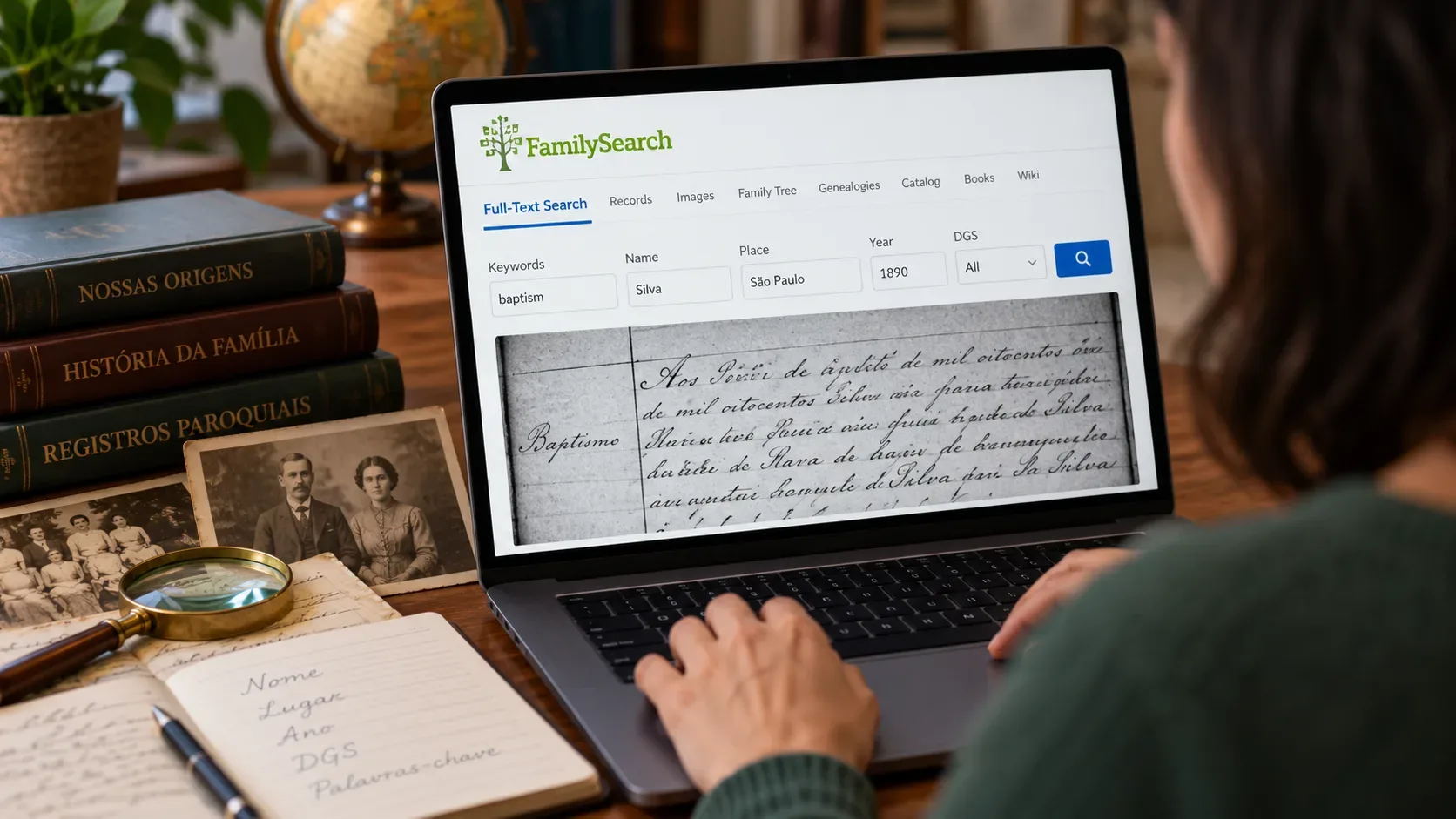
The Keywords, Name, Place, Year (Range), and Image Group Number (DGS) fields, as well as result filters and Fact View, are confirmed in the official FamilySearch help article updated August 19, 2026.
What to enter in Keywords, Name, Place, Year, and DGS
| Field | What it does | When it is most useful |
|---|---|---|
| Keywords | Searches for terms that may appear anywhere in the transcription. | Surnames, occupations, institutions, events, streets, properties, record types, or words associated with the person. |
| Name | Directs the search toward a person's name. | When you have a likely spelling of a given name or surname and want to reduce results outside that context. |
| Place | Restricts the search by locality. | When the name is common or when you know the city, state, province, or country related to the event. |
| Year (Range) | Limits results to a range of years. | When you know an approximate time window and need to reduce a very large result set. |
| Image Group Number (DGS) | Lets you search by image group number. | When the Catalog or another record has already given you the DGS and you want to search within that group instead of browsing image by image. |
If the name is rare, start with it. If the surname is common, combine name and place. If the Catalog has already led you to a set of images, DGS may be the most efficient filter.
Using operators for spelling variation and imperfect transcription
Full-Text Search collection pages show advanced tips for controlling a query more precisely. An official collection example displays these operators:
- Quotation marks for an exact word or phrase, such as “Maria da Silva.”
- Multiple space-separated terms to search for several words or phrases.
- + to require a specific term.
- - to exclude an unwanted term.
- ? to replace a single character and accommodate spelling variation.
- * to search for different forms that begin with the same root.
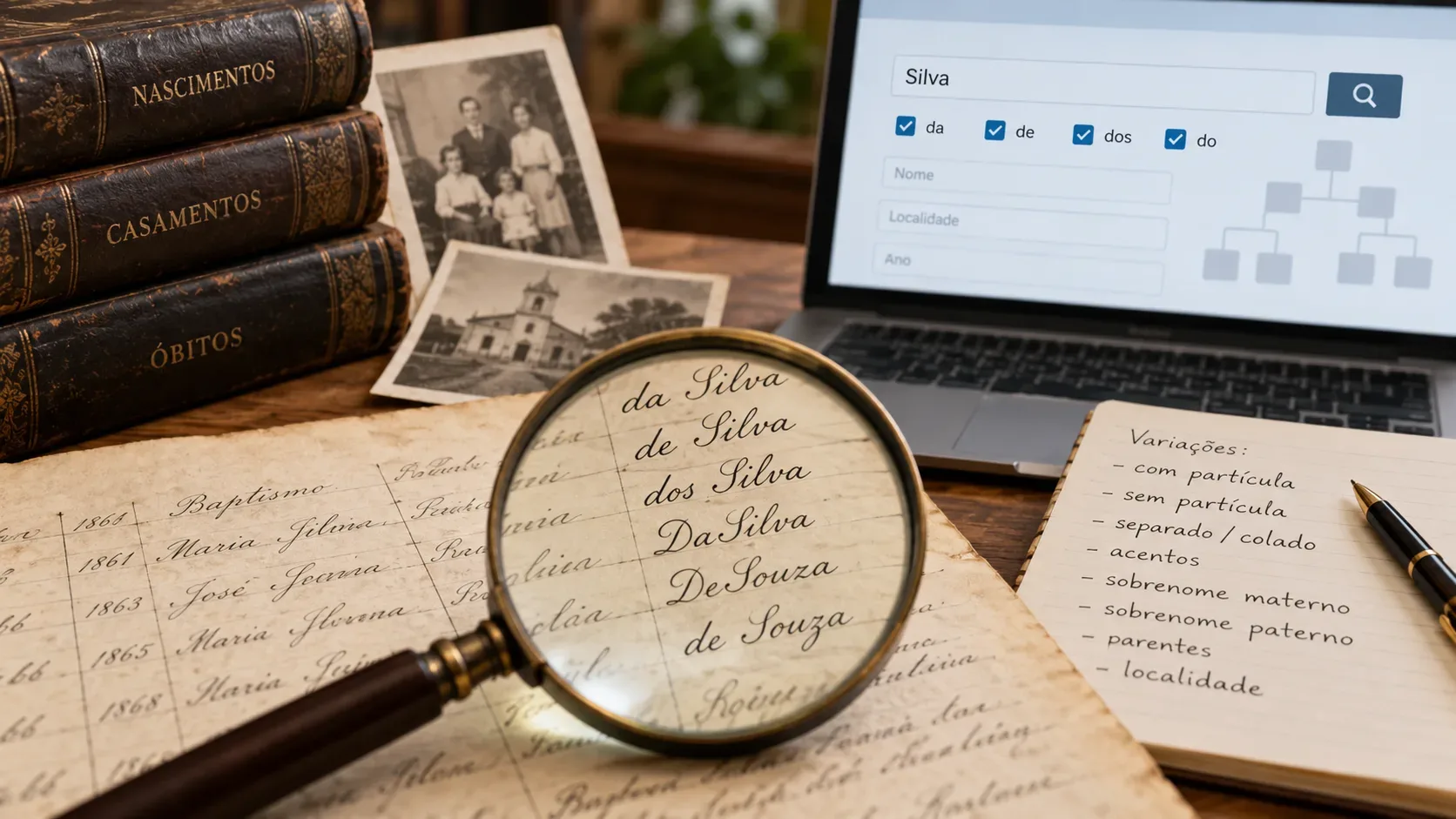
Because transcription is automatic, an overly rigid query can hide a useful result. If an exact phrase fails, try a shorter version, the surname alone, or a wildcard.
Combinations that reduce the workload
Name + Place
A good option for frequent surnames. Instead of searching only for “Silva,” combine the name or surname with the known locality. If nothing appears, broaden the place gradually.
Name + Year
Useful when you know the likely decade. Prefer a reasonable range instead of a single year if the date is approximate.
Keywords + Place
Works when the name is not the best entry point. An occupation, parish, institution, street, property, or document type may lead to a record where the ancestor is only mentioned in passing.
DGS + Name or Keywords
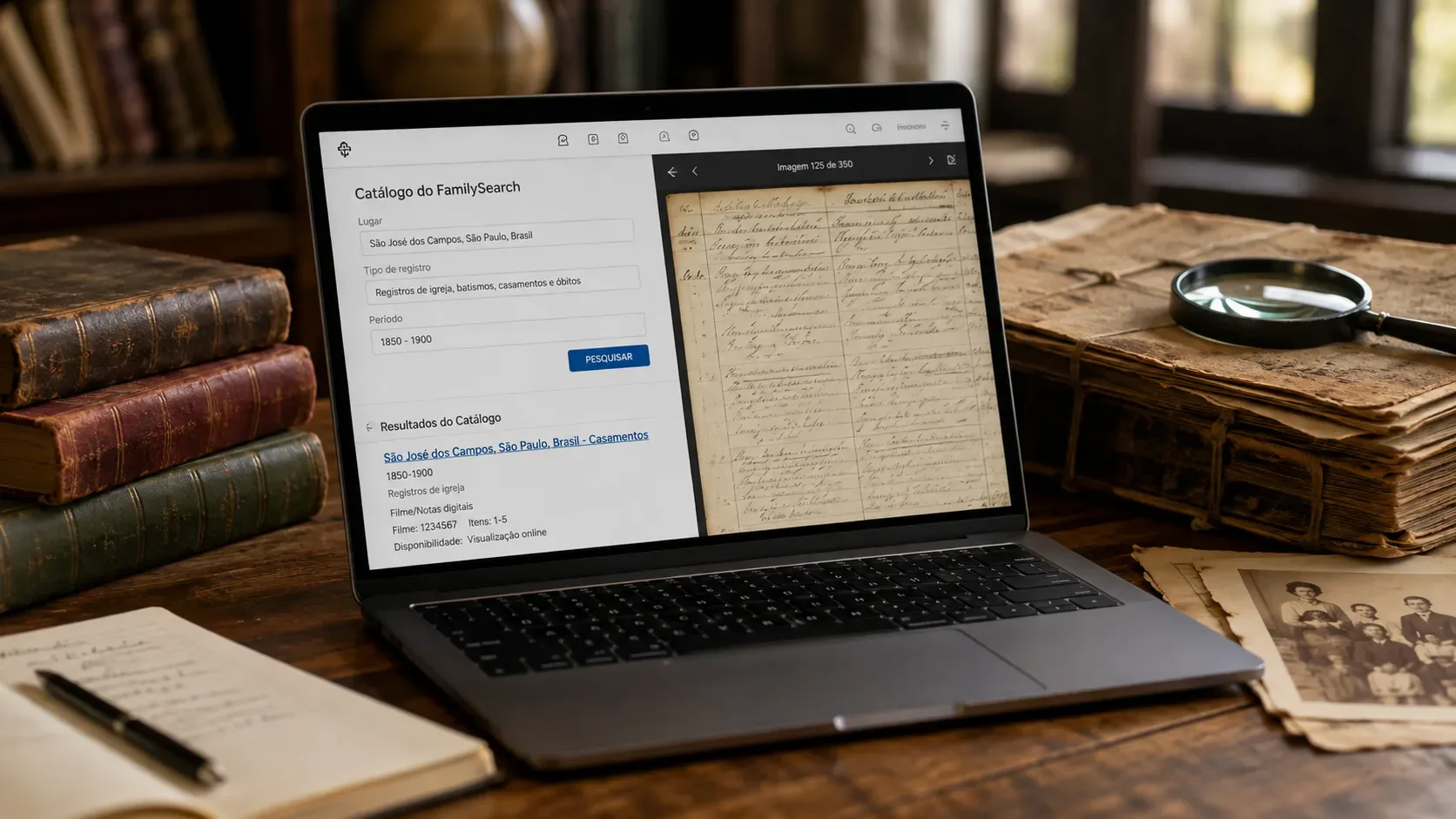
This is the most targeted strategy when you have already found an image group in the Catalog. Instead of browsing hundreds of pages, use DGS as a restriction and search the relevant terms, as long as that group is covered by Full-Text Search.
Fact View and AI transcription: find first, verify second
In the result list, the official help confirms that Fact View can be turned on or off. It helps with triage, but it does not turn the transcription into a definitive source.
The official tool page warns that AI accuracy tends to be better in more recent records and may vary in older documents depending on handwriting style and image quality. When you open a result, compare the name, date, place, and family relationships directly with the image. If a letter is uncertain, record that uncertainty.
If no result appears, do not conclude that the record does not exist
A search with no match can have several causes: the collection may not yet be included in Full-Text Search; the page may have limited access; a word may have been recognized incorrectly; the year or place may differ from what you expected; or you may have applied too many filters.
- Remove one filter at a time and try again.
- Search only the surname or part of the name.
- Broaden the year range.
- Try a larger locality such as a state or country.
- Use ? and * to accommodate transcription variation.
- Search for a word connected to the document context, not only the name.
- If you know the collection, search within it or browse its images as an alternative.
No result is a signal to change strategy, not proof that the document is absent.
Why DGS changes the research strategy
DGS, or Image Group Number, identifies a group of digitized images. For researchers who already use the Catalog, it creates a practical bridge: first locate the documentary set, then use Full-Text Search to look for words within that group.
This workflow is especially useful when you already know which book, collection, or image group contains the correct period but do not know which page mentions the person. If the group is available in Full-Text Search, combining DGS + name or DGS + keyword can save a long manual browse.
What changes in 2026
FamilySearch has said it plans to expand full-text search technology in 2026 to read old handwriting in more languages and make more newly digitized documents searchable. This does not mean the entire collection is already text-searchable, but it does mean coverage is dynamic and expected to grow. The announced direction appears in What to Expect from FamilySearch in 2026.
The tool is already part of FamilySearch's standard research options and can be reached from Search, broad search, and the Catalog, as described in the official announcement.
Quick checklist
- Did the standard search fail to return the expected record?
- Open Full-Text Search and start with only a few terms.
- Use Name or Keywords before filling every filter.
- Add Place and Year to reduce results.
- If you know the image group, test DGS.
- Use Collection, Year, Place, and Record Type filters.
- Turn on Fact View for triage.
- Try operators and variants if the transcription seems to have misread the spelling.
- Open the original image and verify every important detail.
- If nothing appears, broaden the search or return to the Catalog and image browsing.