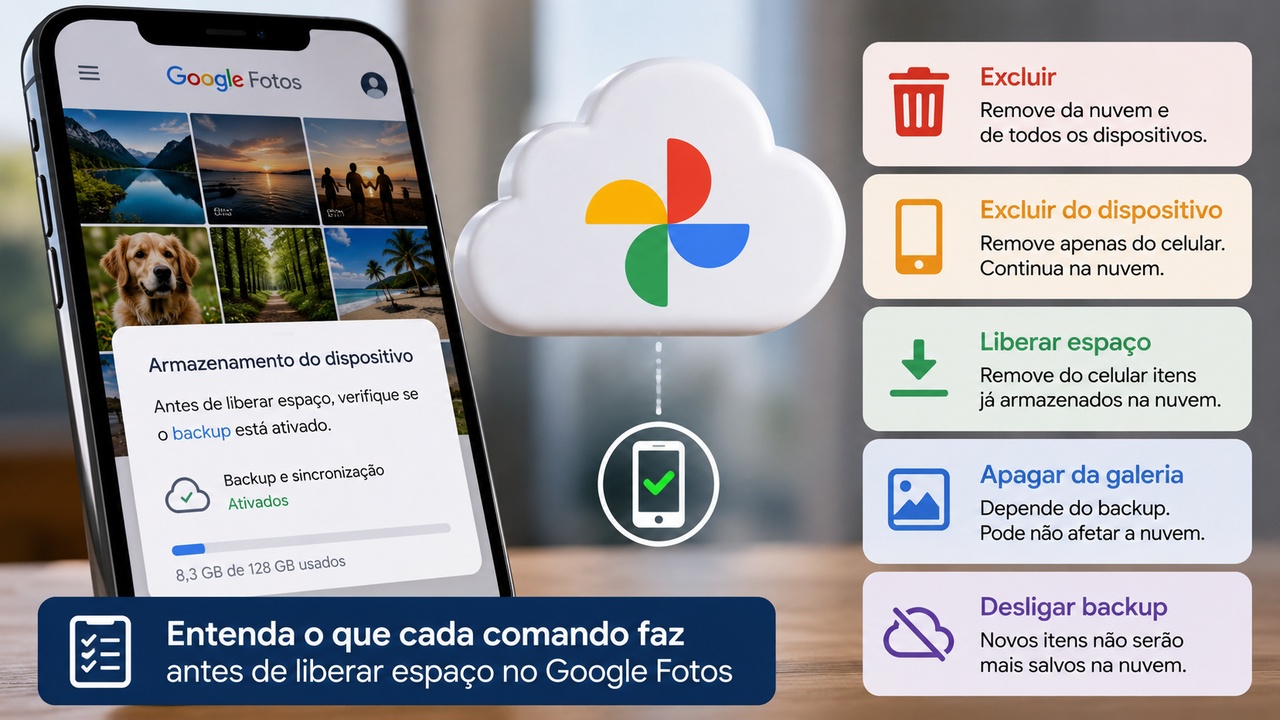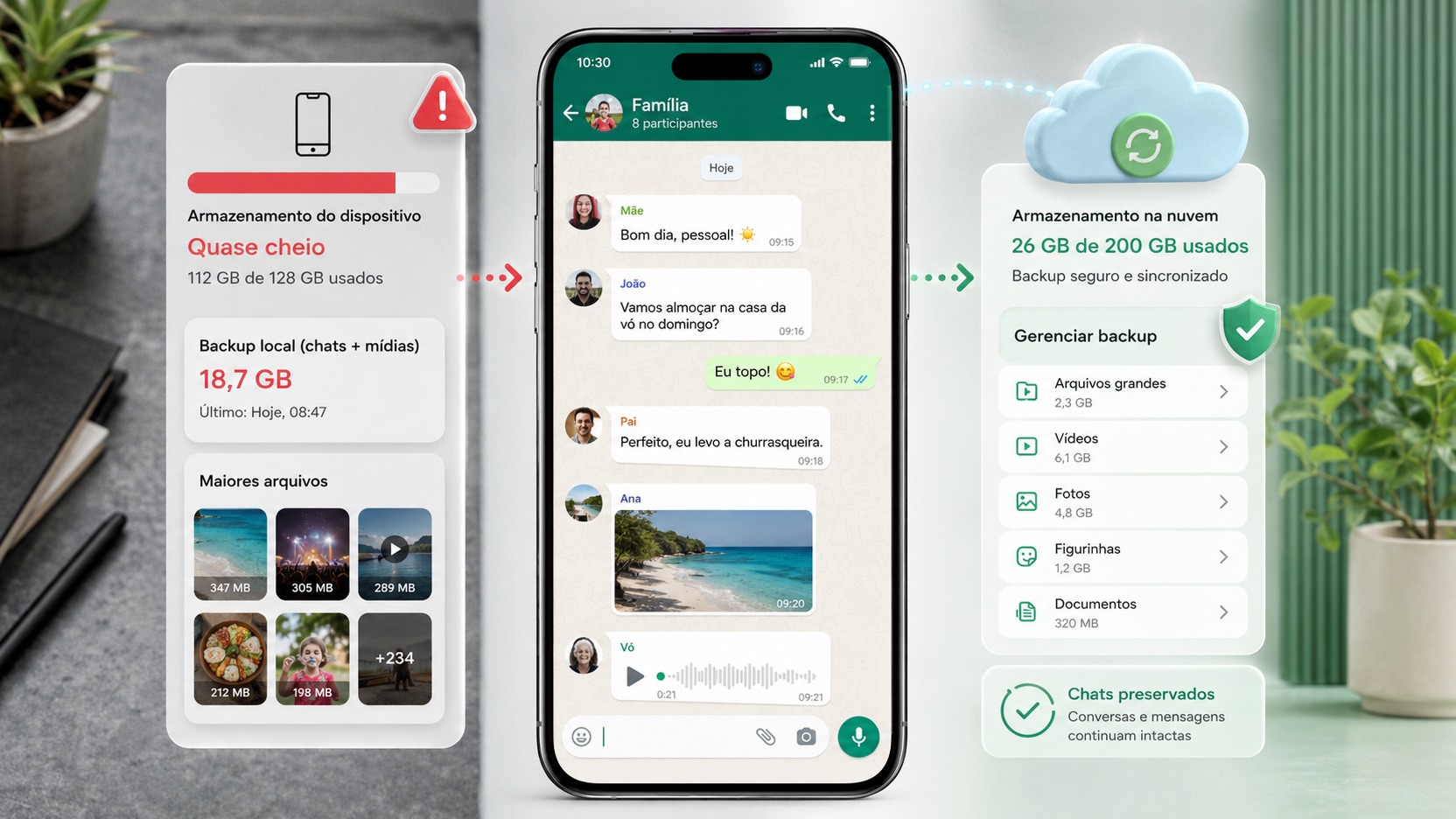
A WhatsApp backup with many gigabytes does not mean, in itself, that the application is taking up exactly the same space on the cell phone. It also does not mean that deleting the copy in the cloud will free up space on the device. Before deleting anything, the safest decision is to separate four objects: what is in conversations now, the media stored on the phone, what will be included in the next backup and the copy that is already saved in the cloud.
This difference is important because each action affects a different part. On Android, WhatsApp backups count towards your Google Account storage limit. On iPhone, conversation backup uses iCloud, which also has a separate quota from the device's physical storage. In both systems, reducing cloud backup without losing what you want to keep requires deciding what should remain available on the phone and what needs to remain recoverable after a reinstall or device change.
First: find out which space is running out
There are two space shortages that usually appear at the same time, but require different solutions. The first is the storage of the cell phone itself. When it's full, photos, videos, audio, documents, cache and application data compete for the same gigabytes. The second is storing the account in the cloud. On Android, this means your Google Account shared quota; on iPhone, iCloud quota.
The Manage WhatsApp Storage screen helps you locate conversations and large files within the app, but the number displayed there may not exactly match the number shown by your phone system. WhatsApp itself warns that measurements may differ. So don't use a single number as if it describes everything.
It is also worth separating the size of the current backup from the size of the next backup. If you change what goes into the copy, for example by disabling the inclusion of videos, the next backup may be
smaller even though the videos remain on the device.
The four objects you need to distinguish
Active conversations
These are the chats that you can now open on WhatsApp. Text, message history and media references are part of this current experience. Deleting an entire conversation is a different action than just removing certain large files.
Media on the device
Photos, videos, audios, stickers and documents can take up a large part of local storage. WhatsApp offers the Manage Storage area to locate heavy content and delete selected items without requiring the entire conversation to be deleted.
A photo or video can also exist outside of WhatsApp, for example in the Photos app, in the gallery or in another synchronization service. This external copy is another object. Before deleting something important, confirm where the version you want to preserve is located.
The next backup
The next backup is defined by the current state of conversations and copy options. The most important control for those who want to reduce size without changing conversations is Include videos. WhatsApp allows you to turn this option on or off on both Android and iPhone.
Off Including videos does not delete videos already on the phone. Change affects backup. The consequence appears later: if you need to restore from that backup, the videos deleted from the copy will not be recovered by this process.
The recoverable copy in the cloud
This is the version used to restore history when WhatsApp is reinstalled or configured on another compatible device. To restore, WhatsApp requires the same phone number and account used to create the backup, be it the Google Account on Android or the iCloud account on the iPhone.
Deleting this copy is not equivalent to immediately deleting the conversations that continue on the cell phone. The risk appears when you lose access to your current device, reinstall the app, or change your phone before creating a new, valid copy.
The matrix of consequences, action by action
Delete media from conversation
What decreases: the local storage used by the removed files and, after a new backup, the volume of media available to be included in the copy also tends to decrease. What remains: the conversation can continue to exist, with the messages that have not been deleted. What is no longer recoverable: media removed from WhatsApp is no longer available there and should not be treated as preserved just because the text of the conversation remains.
This action makes sense when the main problem is cell phone space and you have already decided which files you don't need to keep within WhatsApp. For important photos or videos, first confirm that there is an independent copy in Photos, in the gallery, on your computer, or elsewhere.
Delete videos from backup without deleting videos from your phone
What decreases: the size of the next backup can decrease significantly when videos represent a relevant portion of the copy. What remains: the videos remain available on the device as long as you do not delete them. What is no longer recoverable: these videos will not return through that backup if you reinstall WhatsApp or restore the history on another device.
For many people, this is the first measure to try because it changes future recovery, but does not destroy the media still on the phone. On Android, the path indicated by Google and WhatsApp goes through WhatsApp Settings, Conversations, Conversation backup and the Include videos option. On the iPhone, the option is also in the Chat Backup settings.
Delete cloud backup
What decreases: the space occupied by the existing copy in the cloud. What remains: the conversations that remain intact on the current device. What is no longer recoverable: that restore point is lost.
On Android, Google is explicit: deleting your WhatsApp backup is permanent. If you change your phone or reinstall the app before creating a new copy, you won't have that backup to recover your history. Google also recommends changing your WhatsApp settings first, because if the settings remain the same, a new backup may reappear the next time it runs automatically.
Therefore, deleting the cloud copy should not be the first attempt to reduce size. It is safer to decide in advance what will be left out of the next backup, generate a new copy when possible and only then assess whether there is still reason to remove the previous one.
Use Manage Storage
What decreases: the space taken up on your phone by the items you choose to delete. What remains: conversations and other files that were not selected. What is no longer recoverable: Items removed from WhatsApp, unless there is an independent copy elsewhere.
This tool is useful when the problem is few videos, audios or very large documents. It avoids the approach of deleting entire conversations just to reclaim space. Instead, you can go into a specific conversation and select the content you don't really need to keep.
After cleaning, the effect on the cloud depends on the next backup. Deleting files from your phone doesn't necessarily make your cloud quota change instantly. The backup copy must be updated with the new state.
Exchange or reinstall the cell phone
What diminishes: nothing by itself. What remains: only what's on your old device, in a compatible direct transfer, or in a backup that can be restored. What is no longer recoverable: everything that is not present in the source chosen for migration.
Before uninstalling WhatsApp, restoring your device or migrating to another phone, open Chat Backup and check the date and size of the last copy. Also confirm the linked account and phone number. If you have turned off Include videos, remember that these videos may remain on
old device, but will not necessarily be in the history restored by the cloud.
On Android there is another relevant limitation: the Google Account maintains a backup per WhatsApp number, and a new backup replaces the previous one. Therefore, creating a smaller copy is a decision about what you want to be able to restore going forward, not a way to maintain multiple historical versions in the cloud.
Android: how to reduce the backup that takes up your Google Account
On Android, the priority is to separate cleaning your phone from cleaning your Google Account. WhatsApp backups count towards your account quota, so a large backup may compete for space with Drive, Gmail and Google Photos.
If your goal is to reduce the cloud without deleting conversations, start by making sure Include videos is turned on. Disable the option if you accept that the videos will only remain on the device or in another copy you have made. Then make a new backup for the configuration to be applied.
If it's still large, use Manage Storage in WhatsApp to review large media. This step affects the local content and, after a new backup, may also reduce the future copy.
Deleting the backup directly from the Google Account storage area should be treated as a risky action, not as routine cleaning. Google informs that the deletion is permanent and that a new backup will be created again if WhatsApp continues to be configured to make copies. If you need to remove the current copy to free up space, avoid uninstalling the app or changing devices until you've completed and verified a new backup.
iPhone: don't confuse iPhone storage, iCloud and chat backup
On iPhone, there are storage controls in different places. The device's physical space appears in iPhone Settings. iCloud quota is managed separately. And WhatsApp conversation backup is configured within the application itself.
WhatsApp informs that, to create a backup on the iPhone, there must be space available in both iCloud and on the device and that this space must be at least 2.05 times the size of the copy. This helps explain why a very large backup can fail even when a person believes they have a few gigabytes free.
The least destructive way to reduce the next copy is, again, to review Include Videos. If the videos remain on your iPhone, you still have local access to them, but you must accept that they will not be recovered by that backup.
There is also the device's own iCloud Backup, which is an iOS mechanism and should not be confused with the WhatsApp Chat Backup screen. WhatsApp's documentation addresses these controls separately. Before turning off or deleting any item in iCloud, make sure you are using your device's backup or the data used by WhatsApp.
Which action to choose depending on the objective
If your phone is out of space, the most direct action is to use Manage Storage and remove large media that you have already decided not to keep within WhatsApp. Deleting the cloud copy does not free up physical storage on your phone.
If your Google Account or iCloud is out of space, but you want to keep your conversations and media on your device, deleting videos from your next backup is usually the change with the least immediate impact. The price of this savings is losing the restoration of these videos via the cloud.
If you want to keep everything recoverable exactly as it is, there is no magic cleanup. Content that takes up space needs to live somewhere. The options include keeping the full backup, increasing the cloud quota or saving certain files elsewhere and accepting that they will no longer be part of the WhatsApp restoration.
If you plan to change your phone soon, the priority changes: don't delete the only recoverable backup just to save space. First confirm the migration strategy, correct account, number and last completed copy.
A safe roadmap to downsizing
1. Check out what's full
See the device's storage and, separately, the Google Account or iCloud quota. This defines whether the first action should target the phone or the cloud.
2. See the date and size of the backup
Open WhatsApp Chat Backup. Mentally record the date of the last copy and check if it is recent before taking any irreversible action.
3. Decide if videos need to be backed up
If you agree to keep the videos only on the device or in another copy, turn off Include videos. This choice preserves conversations, but reduces the pool that can be restored.
4. Review large media
Use Manage Storage to only remove what you really don't want inside WhatsApp. Avoid deleting entire conversations when the problem is some large files.
5. Make a new backup and check the result
After the changes, generate a new copy when there is enough space and check if it is complete. Only consider the consolidated reduction after the backup date is updated.
6. Only then consider deleting the old copy
If the cloud is still full and you decide to remove an existing backup, treat the interval until the new copy as a period without a safety net. Do not reinstall the application or change devices in between.
What to avoid when the goal is to preserve conversations
Don't confuse cleaning WhatsApp with deleting the backup. An action can only affect the phone; the other can delete the cloud restore point.
Don't assume that a file saved in Photos, Gallery, or another service is automatically the same file used by your WhatsApp backup. Check which copy actually exists before deleting.
Do not uninstall the application to try to free up space before checking the backup. WhatsApp itself recommends creating a copy before uninstalling or migrating when you want to recover history.
And don't use the number displayed on a single screen as proof that the cleaning didn't work. WhatsApp, the phone system and the cloud service can measure different categories and update usage at different times.
The simplest decision
To reduce a large backup without deleting conversations, start with what goes into the next copy, not by deleting the only existing backup. Disabling videos from backup preserves chats and files on the device, but forgoes restoring these videos. Removing media through Manage Storage frees up your cell phone and can reduce future backups, but the chosen files no longer exist within WhatsApp. Deleting the cloud copy frees the quota but eliminates the restore point until a new copy is created.
The correct choice therefore depends on one question: what do you need to continue watching today and what do you need to be able to recover if that cell phone disappears tomorrow? When these two needs are separated, it becomes much easier to reduce the size without deleting more than intended.