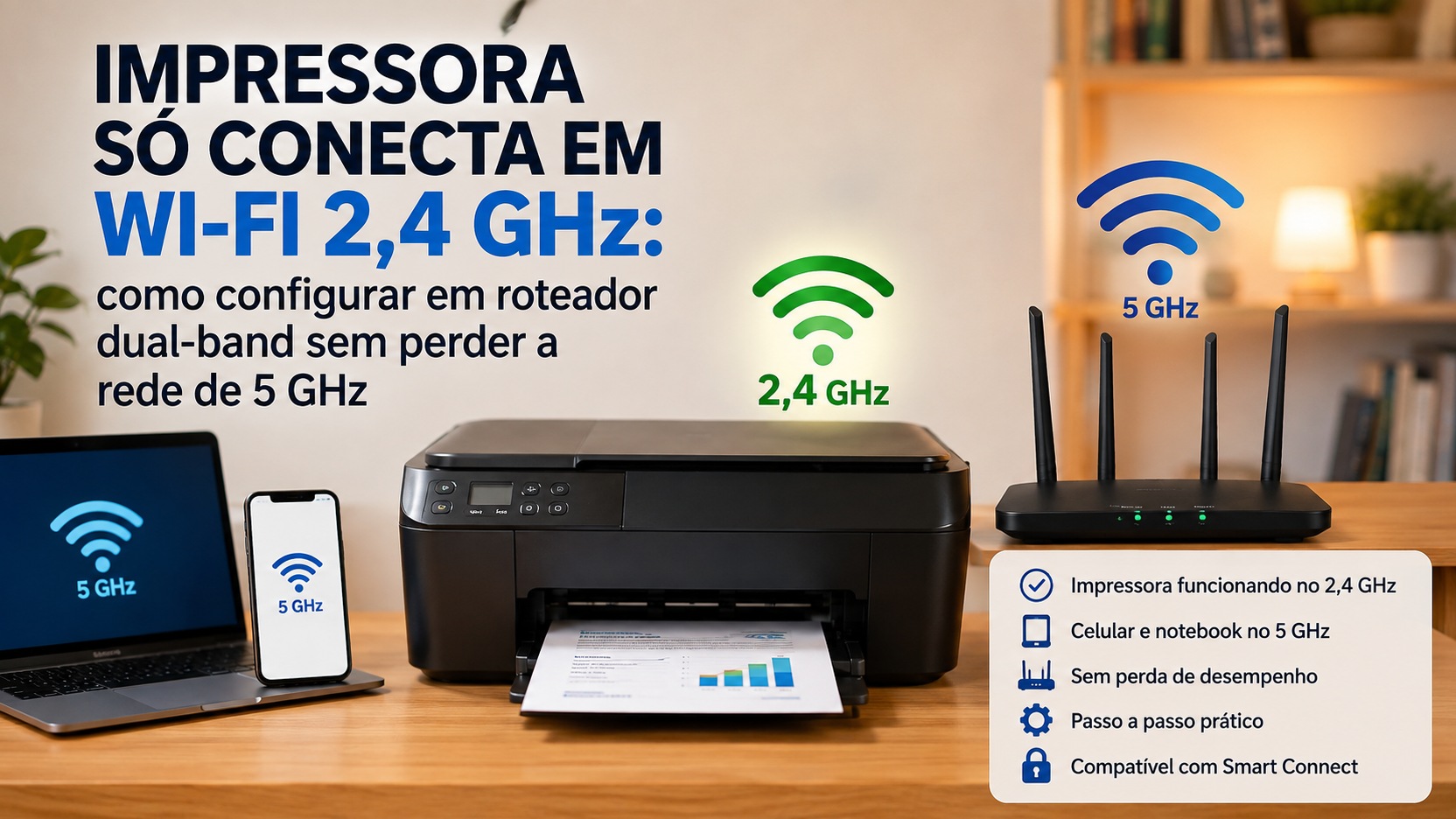
If your printer only supports 2.4 GHz Wi-Fi, that does not mean the entire router has to be locked to that band. On a properly configured dual-band home network, the printer can stay on 2.4 GHz while your phone, laptop, TV and other devices continue using 5 GHz normally. The key is to make sure the 2.4 GHz band is enabled and that the devices can see one another on the same local network.
HP documentation confirms that many routers operate on 2.4 GHz and 5 GHz at the same time and that not every printer supports both bands. When the router provides separate network names, the guidance is to connect the printer to the 2.4 GHz SSID. Google, TP-Link and ASUS also document how single-name networks work, with the router managing more than one band at the same time.
The short answer: keep 2.4 GHz and 5 GHz enabled
The simplest setup is to leave both bands on. The printer joins 2.4 GHz because that is the frequency it supports, while devices that support 5 GHz can continue using that band. There is no technical need to permanently turn off 5 GHz just to accommodate the printer.
On systems that use a single network name, the router can present 2.4 GHz and 5 GHz under the same SSID. Google explains this behavior for Nest Wifi and Google Wifi: all bands remain active at the same time, one network name is used, and devices that support only 2.4 GHz automatically connect to the band they can use. TP-Link and ASUS describe similar logic in their Smart Connect features, which share the network name and password across bands and steer each client according to compatibility and router rules.
This also explains why a laptop can appear connected on 5 GHz and the printer on 2.4 GHz without any conflict. On a typical home network, the bands are simply different radio paths into the same local network. Problems begin when client isolation, a guest network, a separate VLAN or another setting prevents devices from discovering one another.
First check: find out how your router organizes the bands
Before changing any settings, open the router interface or app and verify that the 2.4 GHz band is enabled. Then check whether the whole network uses one name or whether two SSIDs appear, such as Home and Home-5G. Also look for terms such as Smart Connect, Band Steering, Intelligent Connection, Intelligent Network or band unification.
If there are two different names, the solution is usually straightforward: configure the printer on the 2.4 GHz SSID. The 5 GHz network can remain active under another name for phones, laptops and other devices.
If there is only one name and the router uses Smart Connect or an equivalent feature, first try the printer's normal setup process. A printer that is truly limited to 2.4 GHz does not start using 5 GHz just because the network name is shared. It only negotiates the band its hardware supports. If setup fails, then it can be useful to separate the bands temporarily to remove ambiguity during pairing.
Scenario 1: Smart Connect is on and the printer will not join the network
Start by confirming that 2.4 GHz is enabled and broadcasting. HP specifically recommends this check when the printer requires 2.4 GHz. Place the printer near the router during the initial setup and, if it has already tried to connect before, restore the network settings or Wi-Fi setup mode according to the model manual.
Try adding the printer through the manufacturer's app, control panel or setup assistant. If it cannot find the network or the app does not complete the process, temporarily disable Smart Connect and give the bands different names. A practical strategy is to keep the current name and password on 2.4 GHz and rename only 5 GHz during setup. That gives the printer an unambiguous 2.4 GHz network and reduces the chance that the phone stays on another band during pairing.
Temporarily connect the phone used for setup to the 2.4 GHz SSID, finish configuring the printer and confirm that it has a network connection. Then reconnect the phone to 5 GHz and test a print job. If everything works, you can keep the SSIDs separated permanently. That does not mean losing 5 GHz; on the contrary, it lets you explicitly choose the band used by each device.
If you want to go back to Smart Connect, re-enable the feature and test again. On many routers this works without any problem as long as the SSID, password and 2.4 GHz band remain compatible with the printer. If the printer starts dropping the connection again, keep the bands separate. The priority here is stability, not forcing every device to use a single network name.
Scenario 2: the router already shows two different networks
When the router already offers something like Home-2G and Home-5G, connect the printer to the 2.4 GHz network and leave the other devices on 5 GHz if you prefer. HP documentation gives exactly this guidance when the SSIDs are separate.
After setup, run an important test: with the phone or laptop connected to 5 GHz, try to find and print to the printer that is on 2.4 GHz. If it works, the network is bridging the bands correctly and you do not need to change anything else.
If the printer is connected but disappears when the phone returns to 5 GHz, the problem is probably not the frequency itself. Check whether one of the bands is configured as a guest network, whether client isolation, AP Isolation, Client Isolation, a separate VLAN or a similar feature is enabled. HP warns that guest networks can prevent one device from finding the
printer. For local printing, the printer and the devices you use should ideally be on the same local network or on networks that are allowed to communicate with one another.
Scenario 3: the printer cannot even find the 2.4 GHz network
If other networks appear on the printer panel but yours does not, return to the router and verify three points in order: the 2.4 GHz band must be enabled, the SSID must be broadcasting, and the selected security mode must be compatible with the printer.
Newer routers may use WPA3 or more recent security combinations. ASUS documents that some older wireless devices cannot connect with WPA3 and recommends checking client compatibility; in incompatible scenarios, WPA2-Personal or a mixed WPA2/WPA3 mode may be necessary. This does not mean downgrading security to older standards such as WEP. Any change should remain within the options safely supported by both the printer manual and the router.
It is also worth restoring the printer's Wi-Fi setup mode. On HP models, for example, setup mode allows the app to accept a new connection for a limited period. Other manufacturers have similar procedures, usually through the network menu or a button combination. Because the commands vary significantly by model, use the specific manual to avoid unnecessarily resetting other settings.
When WPS can solve the problem faster
If the printer and router provide push-button WPS, this method can bypass app-related problems and pair the devices directly. HP provides specific instructions for connecting printers by WPS: put the printer into WPS mode and, within the indicated time window, press the corresponding button on the router.
There is an important caveat with modern routers. ASUS documents that WPS does not work with pure WPA3-Personal. If the network is configured only for WPA3 and you depend on WPS, you will need to check compatible router options such as WPA2-Personal or mixed WPA2/WPA3 mode, while always respecting what the printer supports.
What to do when the printer connects but does not appear on the phone or laptop
A lit Wi-Fi indicator on the printer proves only that it joined some network; it does not guarantee that your phone or computer can discover it. First check that the device used for printing and the printer are on the same local network. If one of them is on an isolated guest network, discovery can fail even though both devices have Internet access.
Next, temporarily disable the VPN on the phone or computer during the test. HP itself cites VPN use as a factor that can interfere with setup in some scenarios. It is also worth restarting the printer, router and controlling device after changing the SSID, password or security settings, because they may retain old associations for a while.
If the router shows the printer in the connected-client list and it has received an IP address, but the app still cannot find it, look for isolation settings, client-to-client blocking or restrictions on local communication. HP notes that a router can restrict two-way communication with the printer's IP address, preventing discovery even when the Wi-Fi connection appears to be working.
If it only works when 5 GHz is turned off
This symptom usually points to difficulty in the setup process, not to a permanent requirement of the printer. When 5 GHz is turned off, the phone is forced to stay on 2.4 GHz
and the app no longer has to deal with any band difference during pairing. That is why setup may succeed.
After the printer is registered on 2.4 GHz, turn 5 GHz back on and test again. If the phone on 5 GHz can still print normally, the setup is complete. If it stops finding the printer, investigate network segmentation rather than the mere presence of 5 GHz.
A more controlled alternative is to separate the SSIDs instead of turning off a band. This keeps 5 GHz available at all times while still letting you explicitly select 2.4 GHz during installation.
Should Smart Connect stay on or off?
There is no single answer. If the printer connects and remains stable with Smart Connect enabled, there is no reason to disable it. TP-Link and ASUS designed the feature precisely so that different bands can share the same name and password while the router steers clients.
If your printer or its setup app does not work well with that process, turning off Smart Connect and keeping separate SSIDs is a perfectly valid solution. You still have 2.4 GHz and 5 GHz active at the same time; the router simply no longer hides that separation behind one network name.
Homes with many older or automation devices may also have a dedicated IoT network. It can be useful when the router offers specific compatibility settings, but it is important to verify whether that network allows access between the phone, computer and printer. An isolated IoT network can connect the printer to the Internet and still prevent local printing.
Recommended setup for performance and stability
For most homes, the best setup is simple: keep 2.4 GHz and 5 GHz enabled; keep the printer on 2.4 GHz; use 5 GHz on devices that benefit from higher speed; and make sure they all remain on the same local network without unnecessary isolation.
If Smart Connect works, keep it. If it interferes with printer setup or stability, separate the SSIDs and use clear names. The 5 GHz network remains fully available, and the printer does not need it to work.
The 2.4 GHz band also usually offers greater range, which can help printers located farther from the router, although it is more susceptible to interference. Even so, during initial setup, keep the printer near the router to eliminate weak signal as a variable. After it connects, move it to its final location and check stability.
A final diagnosis by symptom
The printer sees other networks but not yours
Confirm that 2.4 GHz is enabled and the SSID is visible. If the router uses pure WPA3-Personal and the printer is old, check the manual to see whether it supports WPA3. If it does not, use a compatible security mode supported by both the router and printer, preferably WPA2-Personal or a mixed mode when appropriate.
The printer connects, but the app cannot find it
Confirm that the phone or laptop and the printer are on the same local network. Avoid a guest network during testing, temporarily turn off the VPN and look for client isolation or local-communication blocking on the router.
Setup only works when the phone is on 2.4 GHz
Finish pairing that way and then move the phone back to 5 GHz. If printing continues to work, there is no problem: the phone and printer are on different bands but the same network. If it stops working, the router is segmenting or isolating clients and that configuration needs to be reviewed.
The printer drops offline after a few days
In addition to reviewing Smart Connect, check signal strength, distance, interference and firmware on both the router and printer. In cases of recurring incompatibility, separate SSIDs are usually more predictable than insisting on automatic band steering.
What you do not need to do You do not need to sacrifice your 5 GHz network to keep a 2.4 GHz printer working. You also do not need to put every device in the house on 2.4 GHz. The correct approach is to let the router offer both bands and make sure the printer uses the compatible band without being isolated from the other devices.
In practice, the most reliable path is to start with the simplest scenario. If Smart Connect works, keep it. If it does not, temporarily or permanently separate the SSIDs, connect the printer to 2.4 GHz and preserve 5 GHz for phones, laptops and other equipment. The network remains dual-band; each device simply uses the frequency that makes sense for it.