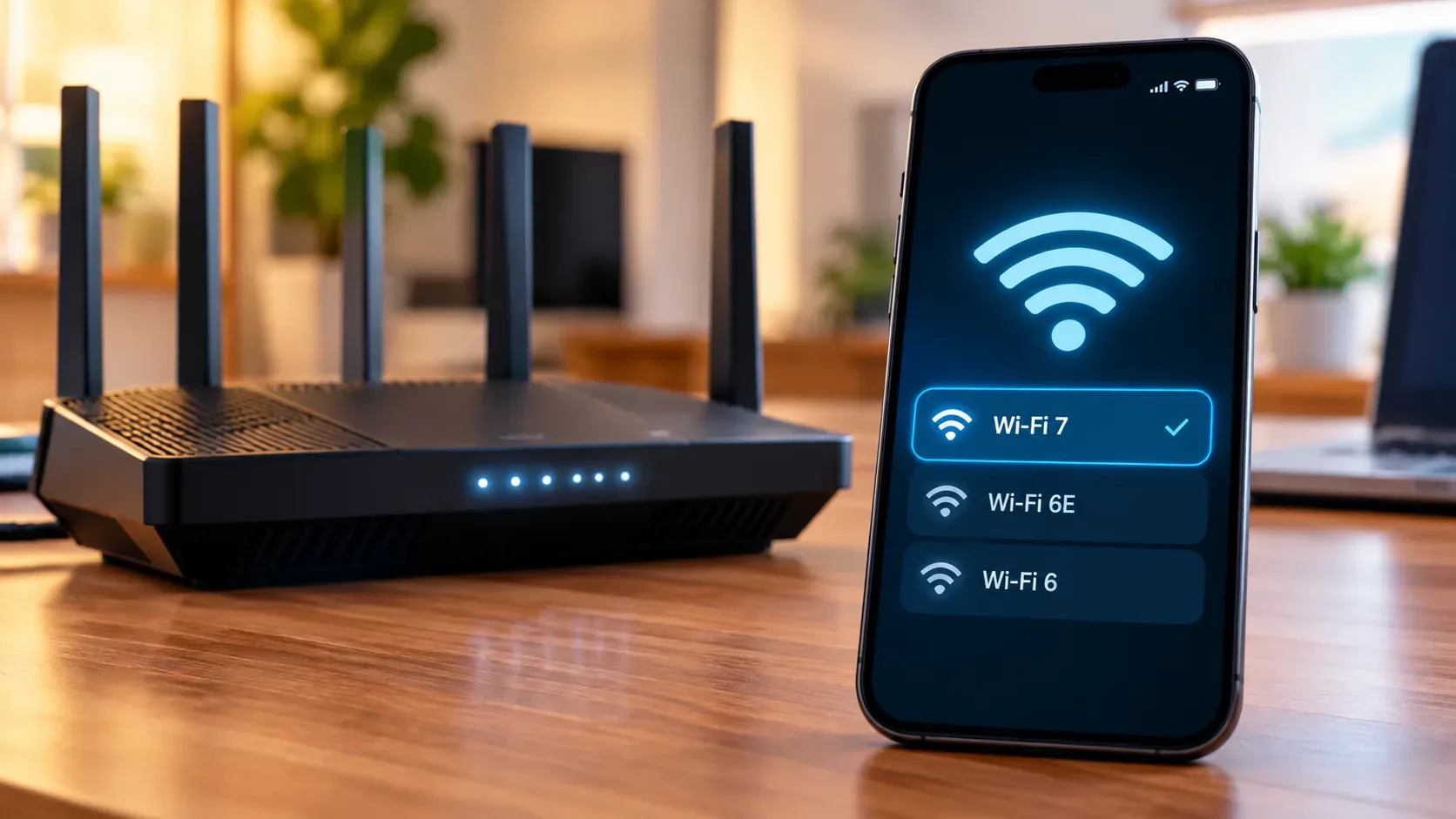
To find out whether a router and phone are actually using Wi-Fi 6, Wi-Fi 6E, or Wi-Fi 7, checking the name printed on the box is not enough. You need to confirm four points for the same connection: the standard supported by both devices, the band currently in use, the router's security and channel configuration, and the mode actually negotiated by the phone. If one of these elements does not match, the network can operate in an older mode even when both products advertise a newer generation.
Wi-Fi 6, 6E, and 7 do not mean exactly the same thing
| Commercial name | Technical basis | Relevant bands | What to confirm |
|---|---|---|---|
| Wi-Fi 6 | IEEE 802.11ax | 2.4 GHz and 5 GHz | Whether the router and phone support 802.11ax on the band being used. |
| Wi-Fi 6E | IEEE 802.11ax with access to the 6 GHz band | 6 GHz, in addition to traditional bands on the device | Whether both ends support 6 GHz and whether that band is enabled and available. |
| Wi-Fi 7 | IEEE 802.11be | 2.4 GHz, 5 GHz, and, where permitted, 6 GHz | Whether both ends support 802.11be and which Wi-Fi 7 features each one actually implements. |
Apple's technical documentation identifies Wi-Fi 6 and Wi-Fi 6E as 802.11ax and Wi-Fi 7 as 802.11be. It also makes clear that available bands depend on the technology and device. In other words, Wi-Fi 6E is especially relevant because it extends 802.11ax operation into 6 GHz, while Wi-Fi 7 is a new generation of the standard and can also operate on 2.4 GHz or 5 GHz. Apple details these standard and frequency combinations in its Wi-Fi specifications.
1. Start with the specifications of both devices
Look up the exact router and phone models on the manufacturer's website. The question is not only “does it have Wi-Fi 7?”, but which bands and features are available on that model. A Wi-Fi 7 router does not turn a Wi-Fi 6 phone into Wi-Fi 7, and a Wi-Fi 6E phone will not use 6 GHz if the router only offers Wi-Fi 6 on 2.4 and 5 GHz.
With Wi-Fi 7, the label also does not guarantee that every device has the same channel width or implementation. Intel's own Wi-Fi 7 adapter line includes products with different channel-width and modulation limits, illustrating why the device data sheet still matters even when the generation name is the same. Intel lists these differences among Wi-Fi 7 products.
2. Confirm the band being used right now
The band is one of the most useful checks. If the goal is to verify Wi-Fi 6E, the connection must be on 6 GHz. Being connected on 5 GHz to a Wi-Fi 6E router can still provide an excellent connection, but it is not using the 6 GHz extension that defines 6E.
Wi-Fi 7 is different. A Wi-Fi 7 device can operate on 2.4 GHz, 5 GHz, or 6 GHz. Therefore, seeing 5 GHz does not prove that the connection has fallen back to Wi-Fi 6. To confirm the generation, you also need to check the protocol or connection mode reported by the phone or router. Apple states that devices compatible with Wi-Fi 6E or Wi-Fi 7 can use 6 GHz, but can also operate only on 2.4 or 5 GHz. Apple Support explains this behavior.
6 GHz availability also depends on regional rules. In Brazil, Anatel approved technical requirements for Wi-Fi 6E equipment in the 5,925 MHz to 7,125 MHz range in 2021. Rules and operating conditions can vary by installation type and evolve with regulation, so firmware and the region configured on the device also matter. Anatel's decision on Wi-Fi 6E requirements is available on the agency's website.
3. Review security, SSID, and channel settings
Even with compatible hardware, configuration can prevent the expected mode from being used. Check whether 6 GHz is enabled, whether the router firmware is current, and whether the security mode is compatible with the devices. Older security configurations should be avoided. Apple recommends WPA3 Personal when possible or WPA2/WPA3 Transitional for compatibility, and recommends using the same network name across supported bands to improve band selection on its devices. See Apple's recommended router settings.
Channel width is also worth checking. Wi-Fi 7 can work with channels up to 320 MHz in compatible implementations, but that does not mean every Wi-Fi 7 connection uses 320 MHz. Android treats Wi-Fi 7 support and 320 MHz support as capabilities that the hardware may or may not provide. Android documentation describes these Wi-Fi 7 capabilities.
4. Check what the phone reports about the connection
On Android phones, the network details screen varies by manufacturer and software version. When available, look for fields such as Wi-Fi standard, frequency or band, channel, channel width, and link speed. Android includes mechanisms for detecting 802.11be support on the device, but the user-facing interface is not identical across phones.
On iPhone and iPad, visible information also depends on the model and network. On compatible devices, the “Wi-Fi 6E Mode” option appears only when the device is connected to a compatible Wi-Fi 6E or Wi-Fi 7 network. This helps confirm 6 GHz availability, but it does not replace the router dashboard when you need to know the exact radio, channel, or mode that was negotiated.
5. Use the router dashboard to confirm the other end
Open the router's app or administration page and find the connected-client list. Depending on the manufacturer, it may show the band, radio, channel, protocol, link rate, number of spatial streams, and, on Wi-Fi 7 equipment, MLO information. The labels vary, but the goal is the same: find the phone and check how that session is connected, not only what the router can theoretically do.
With Wi-Fi 7, MLO allows operation with multiple links, but an implementation may use all or only some compatible links. Android documentation notes that a device can associate with all or a subset of the links offered by the access point. Therefore, seeing “MLO available” on the router does not automatically mean every radio is being used simultaneously in that session.
End-to-end checklist
- Confirm the exact router model and whether it supports Wi-Fi 6, 6E, or 7.
- Confirm the exact phone model and the maximum Wi-Fi standard it supports.
- Compare the bands shared by both devices: 2.4 GHz, 5 GHz, and, when applicable, 6 GHz.
- If the goal is Wi-Fi 6E, confirm that 6 GHz is enabled and that the phone is connected on that band.
- If the goal is Wi-Fi 7, confirm 802.11be on the client or router dashboard, not just the band.
- Review security, SSID, firmware, channel width, and automatic band-selection settings.
- Run the check near the router, because a weak signal can cause the device to choose a different band or link condition.
- Compare link rate with internet speed without treating them as the same metric.
When speed does not prove the standard
A speed test measures the entire path to the test server. It can be limited by the internet plan, the router's Ethernet port, mesh backhaul, the remote server, interference, distance, or the device itself. Therefore, low speed does not prove that Wi-Fi fell back to an older generation, and high speed alone does not prove that 6 GHz, 320 MHz, or MLO is active.
The most reliable confirmation combines the specifications of both devices with data from the current connection. For Wi-Fi 6E, look especially for actual 6 GHz use. For Wi-Fi 7, look for 802.11be and, if the goal is to test advanced features, verify channel width, 6 GHz, and MLO separately. This prevents the names “Wi-Fi 6”, “6E”, or “7” from being treated as a performance guarantee when real performance depends on the entire chain.