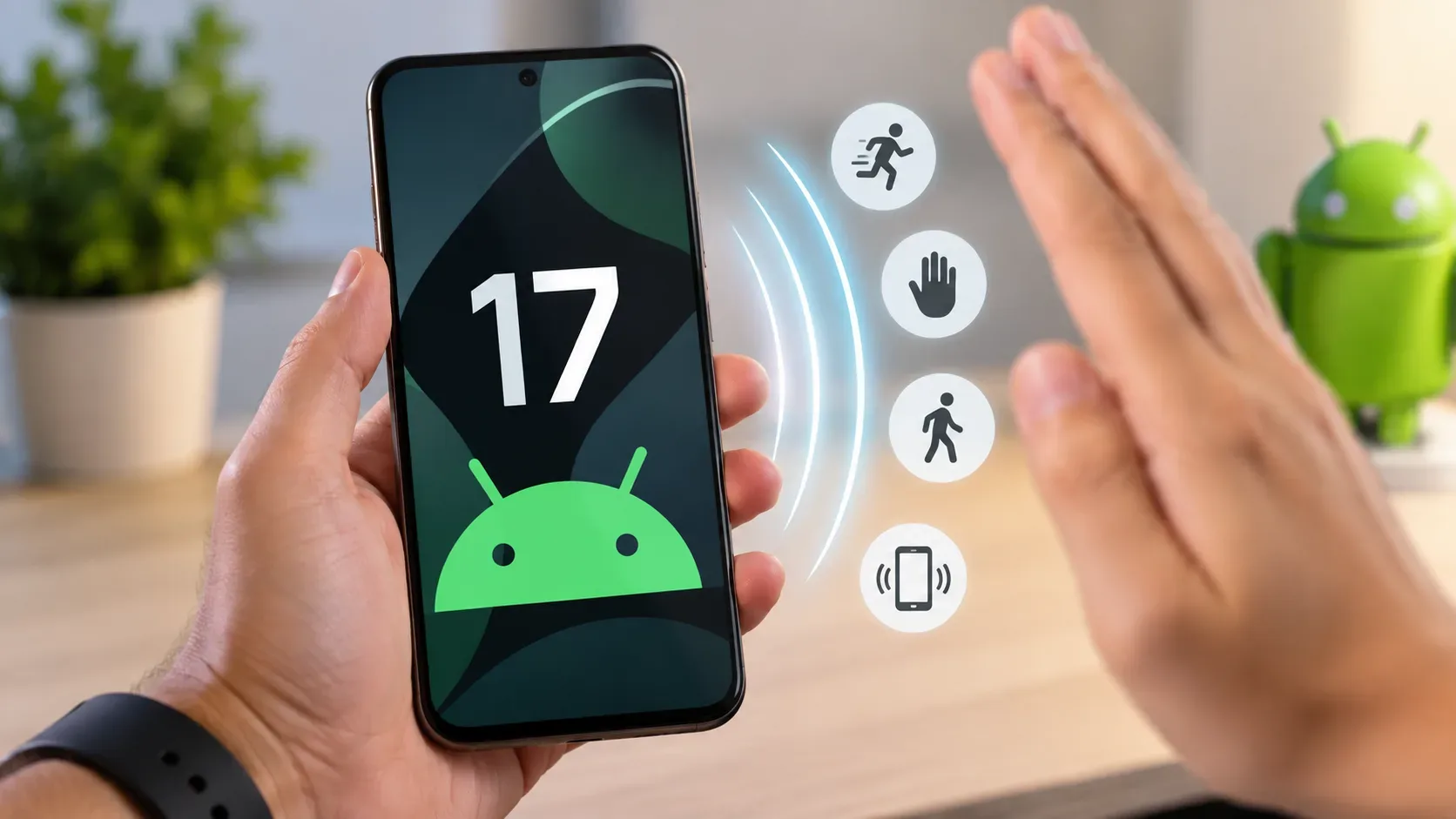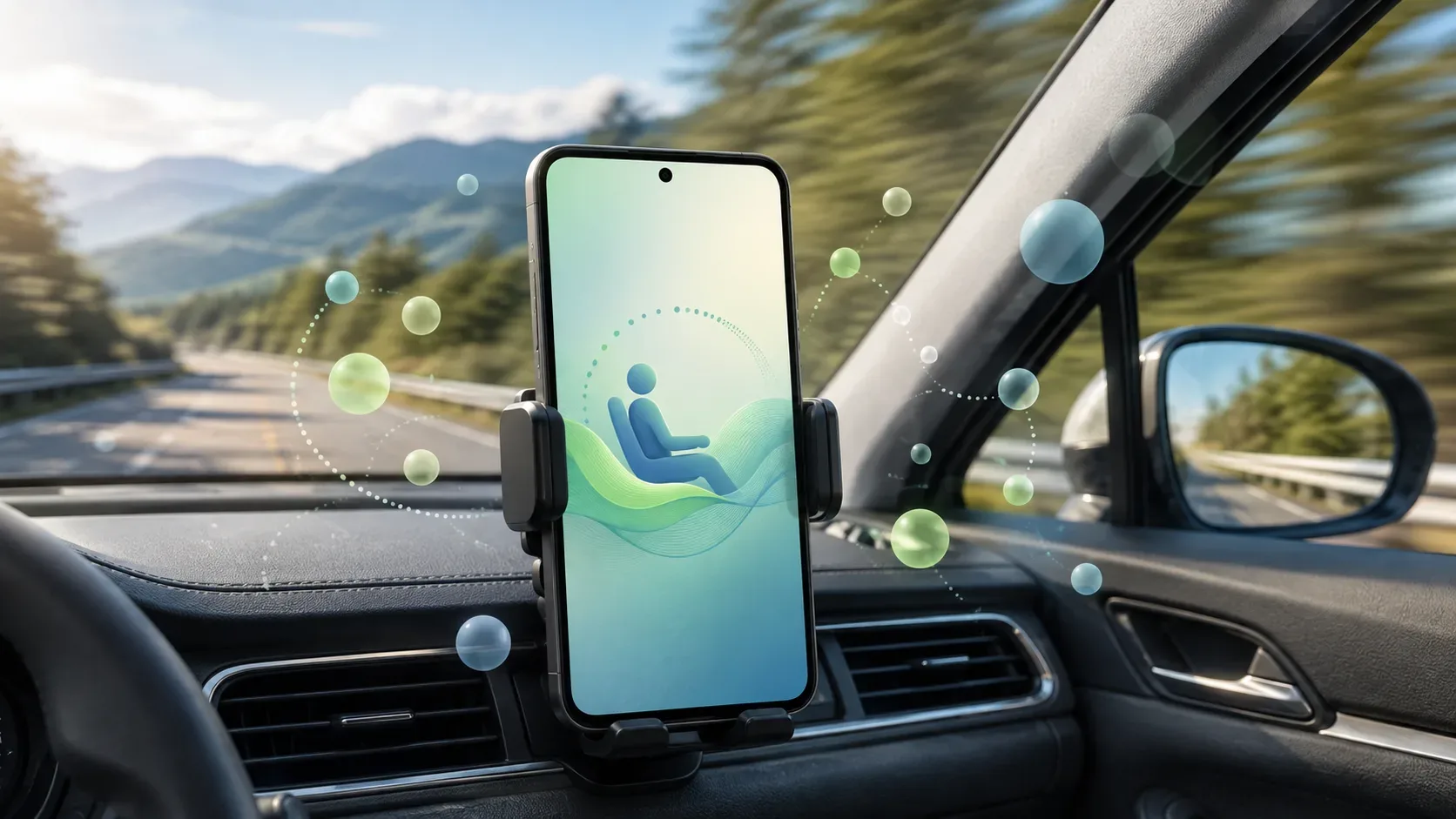
Motion Assist is an Android 17 feature designed for people who feel discomfort when reading, browsing, or watching video on a phone while riding as a passenger in a moving vehicle. Instead of changing app content, it places subtle visual cues around the edges of the display and moves those bubbles with the vehicle. According to Google, the goal is to reduce the mismatch between what your eyes see on the screen and the motion you feel during the ride.
The key to setting it up is separating three things: Android 17 compatibility, gradual rollout to the device, and how the feature is enabled. Android 17 is required, but the option may not appear on every eligible phone on the same day.
What Motion Assist is and what it actually does
In the September 2026 Android Drop, Google introduced Motion Assist as a subtle bubble overlay that moves with the vehicle. The company says it is designed to help bridge the gap between visual information on the screen and the physical movement of the ride while the passenger keeps using the phone.
In practice, Motion Assist does not pause apps, turn the display into a special reading mode, or depend on a particular app being open. The bubbles sit over content as peripheral visual references. Google also lets users adjust their shape, color, and opacity so the cues can be made more or less noticeable.
Which phones get it
The official availability requirement is straightforward: Motion Assist requires Android 17. Google’s Android community announcement also lists the feature as global and available in all languages. That does not mean every Android 17 phone will show the setting immediately.
Android’s own material explains that Android Drop features can roll out gradually and may take a few days to appear. Android 17 itself also depends on manufacturer, carrier, and model eligibility. That creates two separate questions:
- Has your phone received Android 17? If not, it does not meet Google’s stated requirement for Motion Assist.
- Has your Android 17 phone received the feature yet? If not, the missing menu may simply be part of the staged rollout.
Early in the rollout, Motion Assist was first spotted on some Pixel phones running Android 17. Reports showed uneven availability even between updated devices, reinforcing that “Android 17 installed” does not necessarily mean “Motion Assist already enabled for this device.”
How to turn on Motion Assist in Android 17
On phones where the feature has already appeared, the rollout path has been observed inside Google services. Wording can vary slightly by manufacturer:
- Open Settings.
- Open your Google profile/account area and tap All services.
- Look for the Personal & device safety section.
- Tap Motion Assist.
- Enable the option that starts Motion Assist automatically when the phone detects that you are in a moving vehicle.
This path was documented by publications tracking the initial Android 17 rollout. Because the feature is being delivered gradually through Google services, the menu can still be missing even when the operating system is already up to date.
How to add Motion Assist to Quick Settings
Google also supports adding Motion Assist to Quick Settings. This is useful if you prefer to switch it on and off manually before a trip rather than relying on automatic detection.
Typically, swipe down twice from the top of the screen, open the tile editor, and look for the Motion Assist tile. Adding, removing, and rearranging tiles follows the standard Android Quick Settings workflow. If the tile is not available yet, the feature may not have reached your device.
When automatic mode turns on
Motion Assist can be set to start automatically when the phone detects that it is inside a moving vehicle. The idea is to remove the need to enable the feature on every ride. Users who do not want automatic behavior can use the Quick Settings tile for manual control.
Google does not promise that automatic detection will trigger instantly in every situation. If you are already moving and the bubbles have not appeared, check whether Motion Assist is enabled and, when available, try turning it on manually from Quick Settings.
How the on-screen bubbles work
The bubbles act as peripheral motion cues. They move in sync with the vehicle while the main content remains at the center of the screen. The idea is to provide the eyes with a visual reference that tracks physical movement, reducing the conflict between looking at a relatively stable screen and feeling acceleration, turning, and braking.
Google describes the feature as a way to help bridge what your eyes see with the motion of the ride. It should be treated as an interface aid, not as a guarantee that motion sickness will disappear. The official Android feature page says results vary and that a small percentage of users may experience worsened symptoms.
What you can customize
Google confirms three main bubble controls:
- Shape: changes the appearance of the visual cues near the screen edges.
- Color: lets you choose a look that is easier to see or less distracting.
- Opacity: controls how transparent the bubbles are over app content.
The best configuration is the one that keeps the cues visible without interfering with reading or video. Because people respond differently, Google does not specify one shape, color, or opacity combination as universally best.
If Motion Assist does not appear
Before looking for alternatives or assuming your phone is unsupported, check this sequence:
- Confirm that the device is actually running Android 17.
- Install any pending system and Google component updates.
- Check All services in Google settings again, and also edit Quick Settings to look for the tile.
- Remember that the rollout is gradual and may take a few days.
- If your manufacturer has not released Android 17 for the model, follow the brand’s official update schedule.
Google’s announcement does not describe a separate Motion Assist app that can be installed manually. Availability is part of the Android 17 experience and the Google services delivered to the device.
Limits and safety: this is not a medical guarantee
Google makes explicit cautions. Motion Assist may not work for everyone, results vary, and a small percentage of users may feel worse. If you feel discomfort, stop using the feature.
There is also an important safety restriction: Motion Assist should not be used while operating a moving vehicle or in other situations that require full attention to safety. Google presents the feature for passengers.
Quick setup checklist
- Confirm Android 17 on the phone.
- Look for Motion Assist under Google’s All services section.
- Enable automatic start if you want it to activate during rides.
- Add the Quick Settings tile for manual control.
- Adjust bubble shape, color, and opacity.
- If the menu is missing, consider the staged rollout before assuming the model is incompatible.
- If symptoms worsen or the feature causes discomfort, turn it off.
The most useful official references are the September 1, 2026 Android Drop announcement, the Android feature page, and the Android community availability announcement.