Starting September 8, 2026, WhatsApp will support only phones running Android 6 or newer. The app's own Help Center lists the change. If you still use Android 5, the priority is not trying to “force” the app to keep working: it is checking the installed version, seeing whether a system update is available, and, if the phone cannot reach Android 6, preserving your chats before you migrate.
The end of support should not be read as a promise that every Android 5 phone will stop opening WhatsApp at the exact same minute. WhatsApp says unsupported operating systems stop being supported and users receive notices to upgrade. In practice, after the cutoff, you should not rely on continued operation, fixes, or the ability to complete a migration later. If WhatsApp still opens on the old phone, act before you lose that access.
What changes on September 8, 2026
Before the announced change, WhatsApp's documentation lists Android 5.0 or newer as supported and adds a note: on September 8, 2026, the minimum becomes Android 6. You can verify this on the official pages for supported devices and supported operating systems.
| Phone situation | What to do |
|---|---|
| Android 6 or newer | The system meets the announced requirement. Keep Android and WhatsApp updated. |
| Android 5, but an Android 6+ update is available | Back up your chats, install the system update, and confirm the Android version afterward. |
| Android 5 with no update available | Preserve your chats while WhatsApp still works and move to a supported phone. |
| You do not know which Android version is installed | Check the version before deciding whether you need an update or a new device. |
1. Find out which Android version is on your phone
The path can vary slightly by manufacturer, but Android's guidance is to open Settings > About phone (or About tablet) > Android version. Google's official page explains how to check and update your Android version.
Look specifically for the “Android version” field. Do not confuse it with the manufacturer's interface version, build number, or security update. If it shows Android 6, 7, 8, or anything newer, the phone is above WhatsApp's newly announced minimum. If it shows Android 5.x, continue to the next check.
See whether the manufacturer offers a system update
On Android, you can usually look for updates under Settings > System > Software update, although names differ across manufacturers. Older phones cannot always run newer Android versions. If there is no official update to Android 6 or later, reinstalling WhatsApp or clearing the app's data does not solve an operating-system compatibility problem.
2. Preserve your chats before changing anything on the old phone
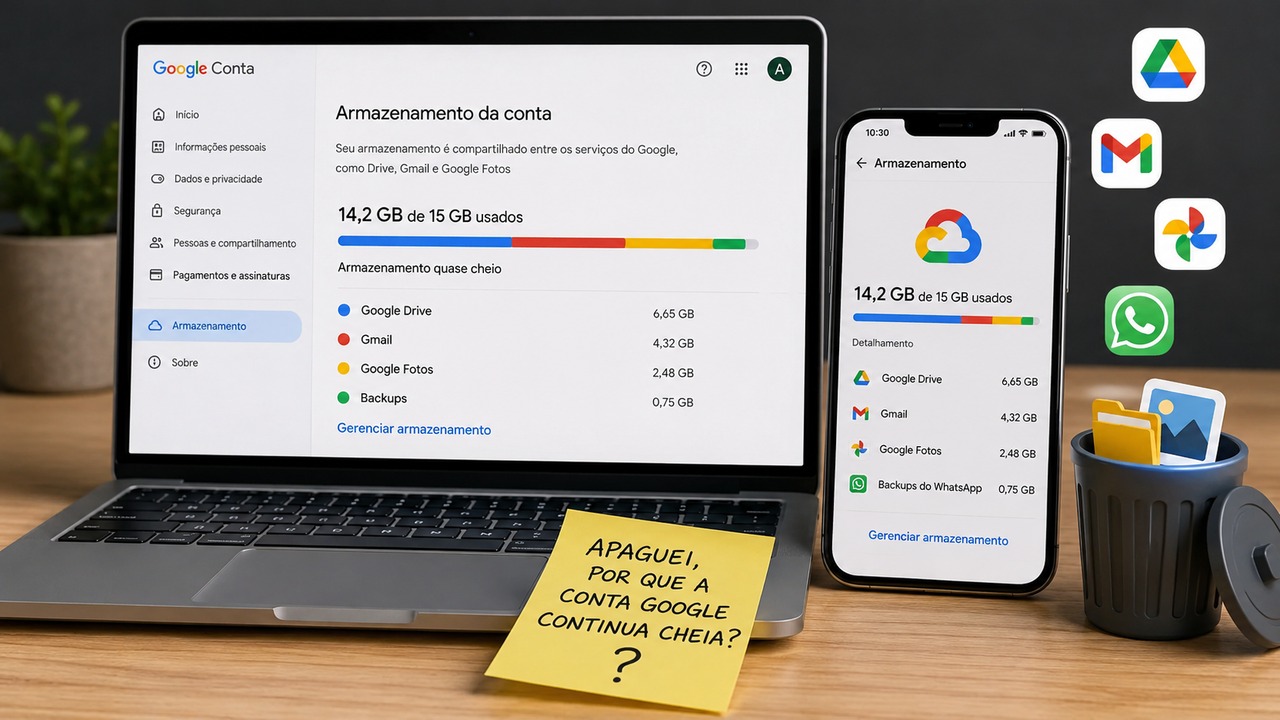
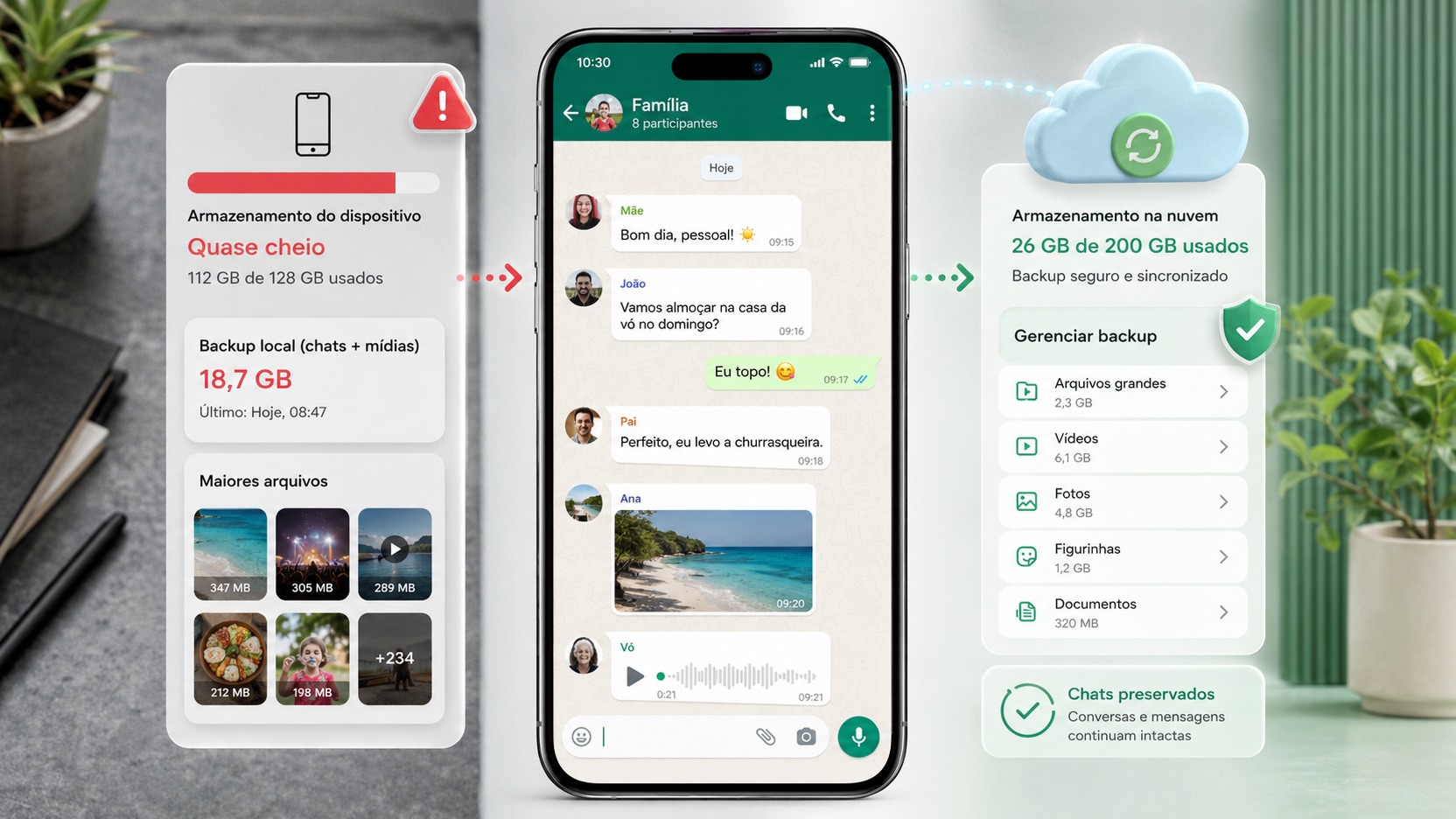
If WhatsApp still opens on Android 5, prioritize copying your chats before uninstalling the app, resetting the phone, or starting a device change. On Android, WhatsApp can back up chat history using a Google Account. Its documentation calls for an active Google Account, Google Play services, enough free space on the phone and account, and a stable connection. See WhatsApp's guide to backing up chat history.
In general, the path in the app is WhatsApp > Settings > Chats > Chat backup. Check which Google Account is associated with the backup and run a manual backup. If you use end-to-end encrypted backups, keep the password, key, or access method needed to restore them.
Do not treat “Export chat” as a backup
Exporting a chat creates a file for viewing outside WhatsApp. It can be useful for keeping the text of a specific conversation, but it is not a restorable WhatsApp backup. To move to another phone while keeping chat history inside the app, use a compatible backup or the official transfer feature.
3. Choose a migration method based on the old phone's condition
Scenario A: both phones run Android 6 or newer
WhatsApp offers a direct chat-history transfer between Android phones. The official page says that both devices must run Android 6 or newer, use the same phone number, stay close to each other, have Wi-Fi enabled, and remain powered during the process. On the old phone, the stated path is Settings > Chats > Transfer chats > Start; on the new phone, migration begins during setup and uses a QR code.
This option is useful because it directly moves messages and media. Even so, do not erase, reset, or uninstall WhatsApp from the old phone until you confirm that the chat history arrived correctly on the new one.
Scenario B: the old phone is stuck on Android 5
There is an important limitation here: WhatsApp itself requires Android 6 or newer on both devices for direct chat transfer. Someone whose old phone remains on Android 5 should therefore not depend on that feature as a last-minute plan.
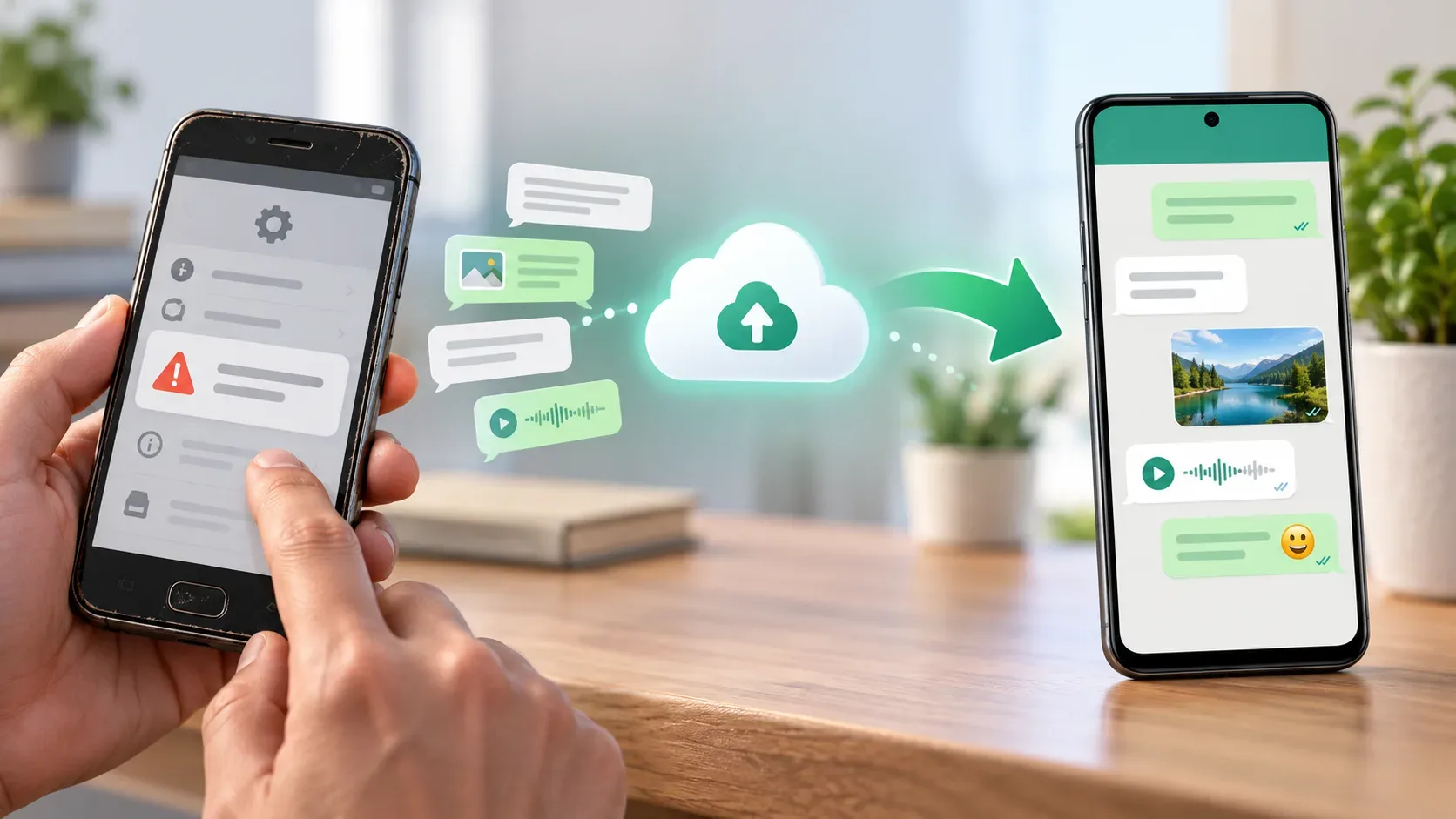
If WhatsApp still works, create a Google Account backup as soon as possible. On a compatible new Android phone, restoring the backup requires the same phone number and the same Google Account used to create it. WhatsApp explains how to restore chat history. If there is no usable backup and the old phone can no longer run the WhatsApp features needed for migration, the official documentation does not guarantee another way to recover the full history.
Scenario C: you are also changing your phone number
Changing the phone and the number at the same time requires extra care. To keep the chat history, WhatsApp says you should change the number on the old phone before transferring the account. Its page about changing phones warns that registering a new number directly on the new phone can prevent the previous history from following the move.
How to verify that migration finished without losing access
- Open several older chats: check messages from different dates, not only the latest ones.
- Test important media: open photos, videos, voice messages, and documents you need to keep.
- Confirm the account number: make sure WhatsApp is registered with the correct number on the new phone.
- Review the backup: once everything is normal, set up a backup routine on the new device.
- Only then wipe the old phone: do not reset, donate, or erase it until you are certain the history you need is accessible.
What if WhatsApp has already stopped working on Android 5?
First, confirm that the phone really is on Android 5 and check whether an official Android 6-or-newer update exists. If one is available, updating the system may bring the phone back into the supported range. If not, the practical solution is to use a supported phone.
To recover chats, look for an existing backup in the same Google Account and use the same phone number on the new device. If WhatsApp still opens on the old phone, create the backup before trying anything else. If the app no longer opens and no backup exists, avoid uninstalling it, clearing its data, or resetting the phone in the hope of “unlocking” the situation: those actions can erase what remains locally without creating a recoverable copy.
Checklist for leaving Android 5 with less risk
- Open Settings and confirm the Android version.
- Check whether an official update to Android 6 or newer is available.
- If WhatsApp still opens, create a manual chat backup.
- Confirm which Google Account and phone number are tied to the backup.
- If the old phone can reach Android 6+, update it before using direct transfer.
- If it remains on Android 5, prepare to restore the backup on a compatible device.
- After migration, verify chats and media before deleting anything from the old phone.
The key is not to postpone chat preservation until after support ends. On September 8, 2026, the announced requirement moves to Android 6 or newer. For anyone still on Android 5, checking the version, creating a verifiable backup, and only then migrating reduces the risk of losing access to the app without a clear way to recover chat history.