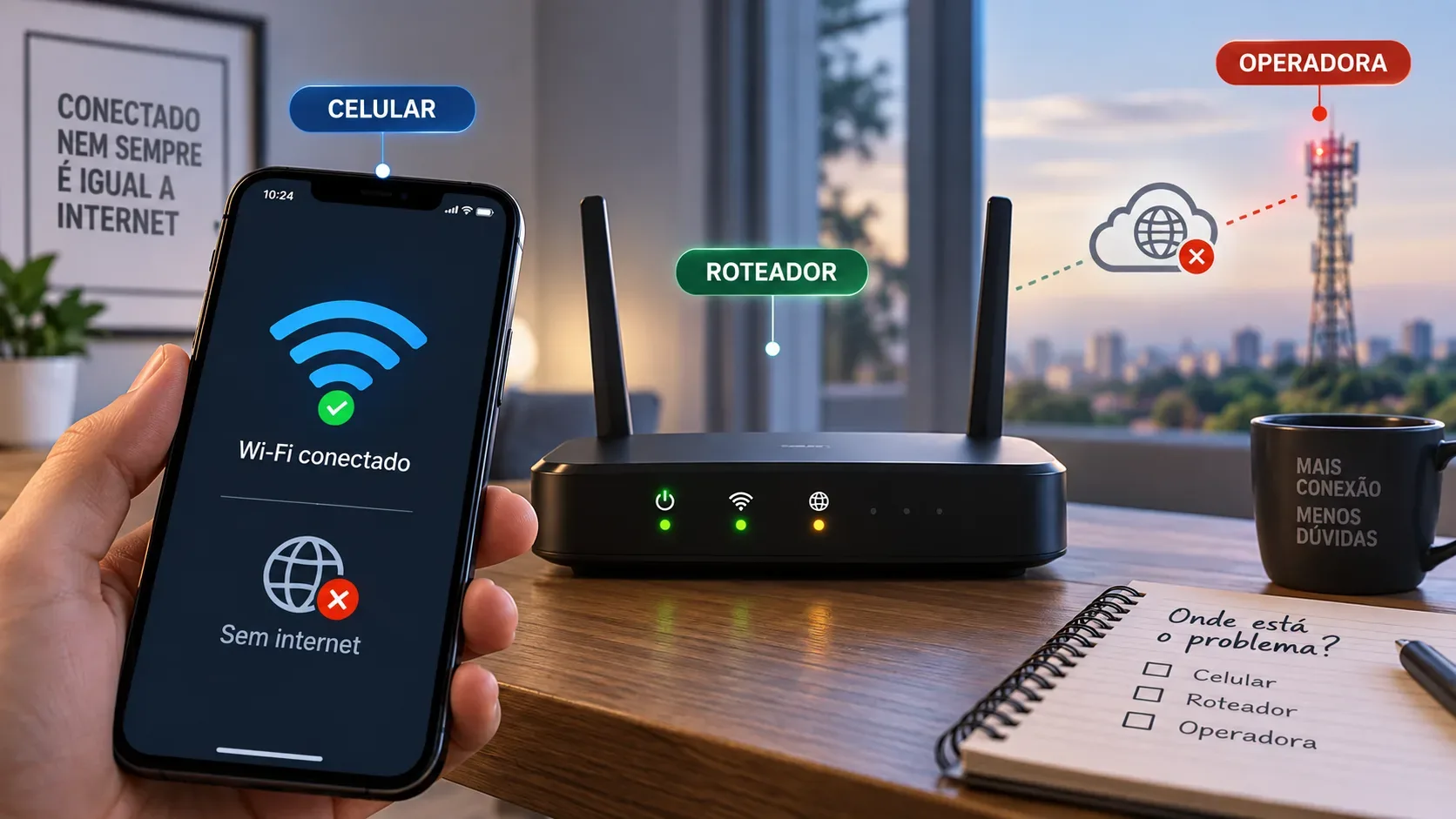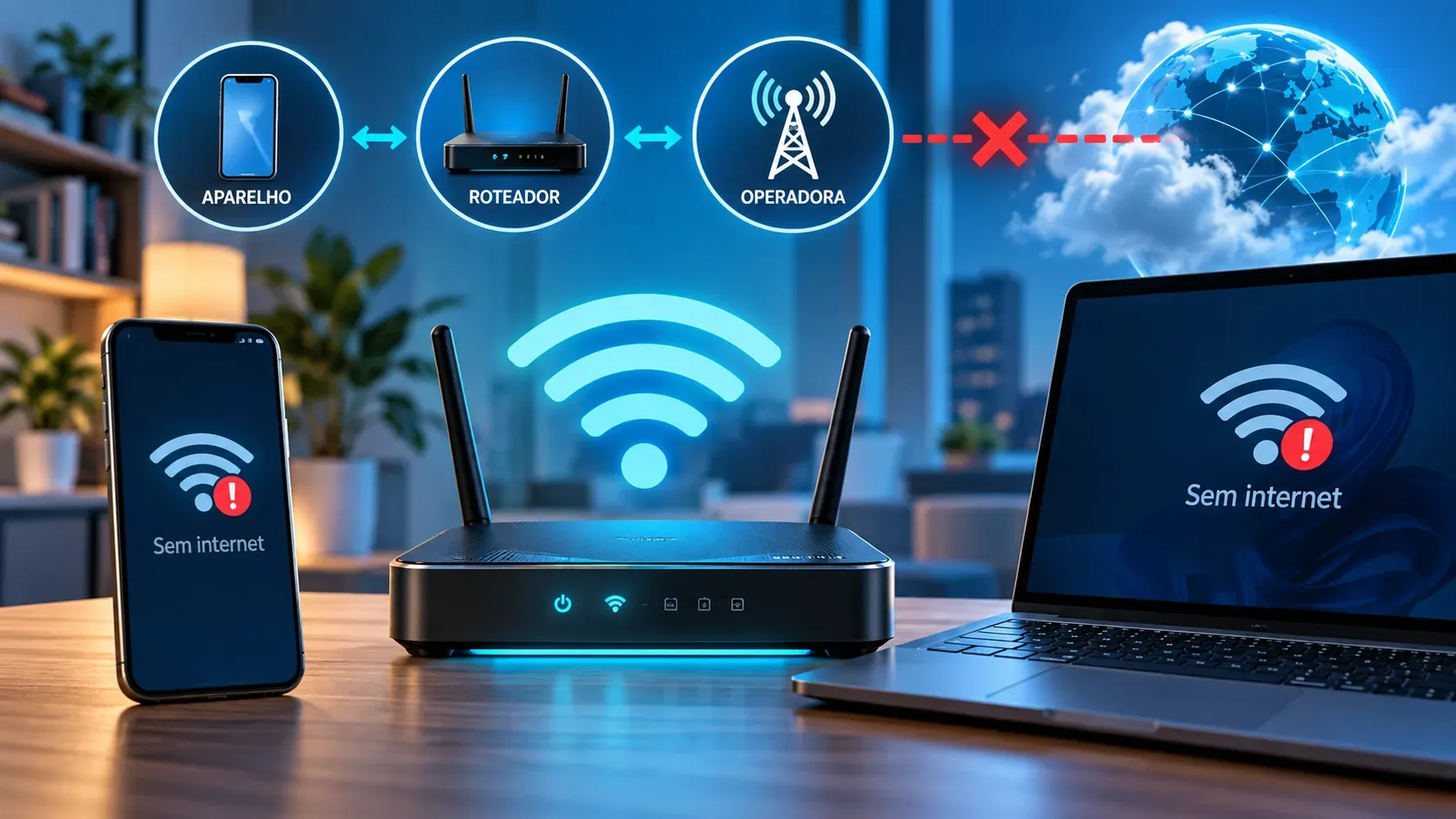
When a phone or computer shows that it is connected to Wi-Fi but says “no internet,” two different connections need to be separated: the link between the device and the router, and the link between the router and the internet. The Wi-Fi symbol can remain active even when the router has lost external access. That is why the most efficient troubleshooting process starts by comparing devices and connection paths instead of changing settings blindly.
The practical rule is simple: if only one device fails while others browse normally on the same network, investigate the device first. If several devices lose internet access at the same time, shift the focus to the router, modem or ONT, and the ISP. Documentation from Microsoft, Android, and Apple recommends this kind of comparison before moving to more disruptive resets.
Start with four tests that locate the fault
| Test | Result | What it suggests | Next step |
|---|---|---|---|
| Open two or three different websites or apps | Only one service fails | The problem may be with that specific website, app, or service | Do not change the router yet; test another service and try again later |
| Test another device on the same Wi-Fi | The other device browses normally | The fault is likely on the first device | Restart the device, reconnect to Wi-Fi, and check VPN, proxy, and network settings |
| Test two or more devices on the same Wi-Fi | All of them have no internet | The fault is likely in the router, modem, ONT, or ISP | Check cables, status lights, and WAN connection status |
| Test with Ethernet on the same router when possible | Ethernet works, Wi-Fi does not | External access exists, but there is a problem in the wireless segment | Investigate Wi-Fi, band, interference, saved profile, or radio configuration |
1. Confirm that the problem is really internet access
First, try more than one destination. If only one website, app, or service does not open, internet access may still be working and the fault may be limited to that service. Microsoft itself notes that a computer can be connected and still face a block involving a specific app, website, or firewall.
Next, turn the device's Wi-Fi off and on and reconnect to the known network. On phones, quickly compare Wi-Fi with mobile data. If the app works over mobile data but not over Wi-Fi, you have already narrowed the fault to the local network path or fixed ISP connection, rather than the service itself.
2. Test another device before changing any settings
This is the most important cross-check. Use another phone, laptop, tablet, or TV connected to the same network name. Apple advises testing the same Wi-Fi network on other devices when Wi-Fi is connected without internet access, and Android support also recommends switching between Wi-Fi and mobile data to compare behavior.
- Only one device fails: focus troubleshooting on that device.
- Several devices fail: focus on the home network infrastructure and the ISP connection.
- A device works near the router but fails farther away: the issue may be coverage or interference, not necessarily an ISP outage.
3. If only one device has no internet
Start with the lowest-impact actions. Restart the device. Then turn Wi-Fi off and on. If needed, forget the network and reconnect with the correct password. Also check whether a VPN, proxy, private DNS setting, security filter, or firewall app is changing the traffic.
On Windows, an IPv4 address in the 169.254.x.x range can indicate that the computer did not receive a valid address from the router through DHCP. Microsoft documentation uses this as a clue for investigating IP assignment. It does not mean every “no internet” case is a DHCP issue, but it is useful when only one computer is affected.
Avoid starting with a full network reset or factory reset. Those options erase settings and can create extra work. Apple, for example, treats resetting network settings as a later step because it removes saved Wi-Fi networks and other connectivity settings.
4. If every device has no internet
Now the priority is to determine whether the router still has a valid connection to the modem, ONT, or ISP network. Look at power, internet, WAN, PON, LOS, or equivalent status lights according to the equipment. An alarm light, loss of synchronization, or missing link on the internet cable is a more useful clue than the Wi-Fi icon on the phone.
Check the cables as well. The cable coming from the modem or ONT should be firmly connected to the router's WAN or Internet port when the devices are separate. If there is a single ISP device that already works as both modem and router, there is no intermediate cable to test.
Then perform a controlled restart. Turn off the modem or ONT and the router, wait a few seconds, and turn them back on according to the manufacturer's or ISP's guidance. With separate devices, it is usually useful to wait for the modem or ONT to stabilize before evaluating the router. Microsoft and Apple recommend restarting network equipment as part of troubleshooting lost access.
5. Use a wired test to separate Wi-Fi from external access
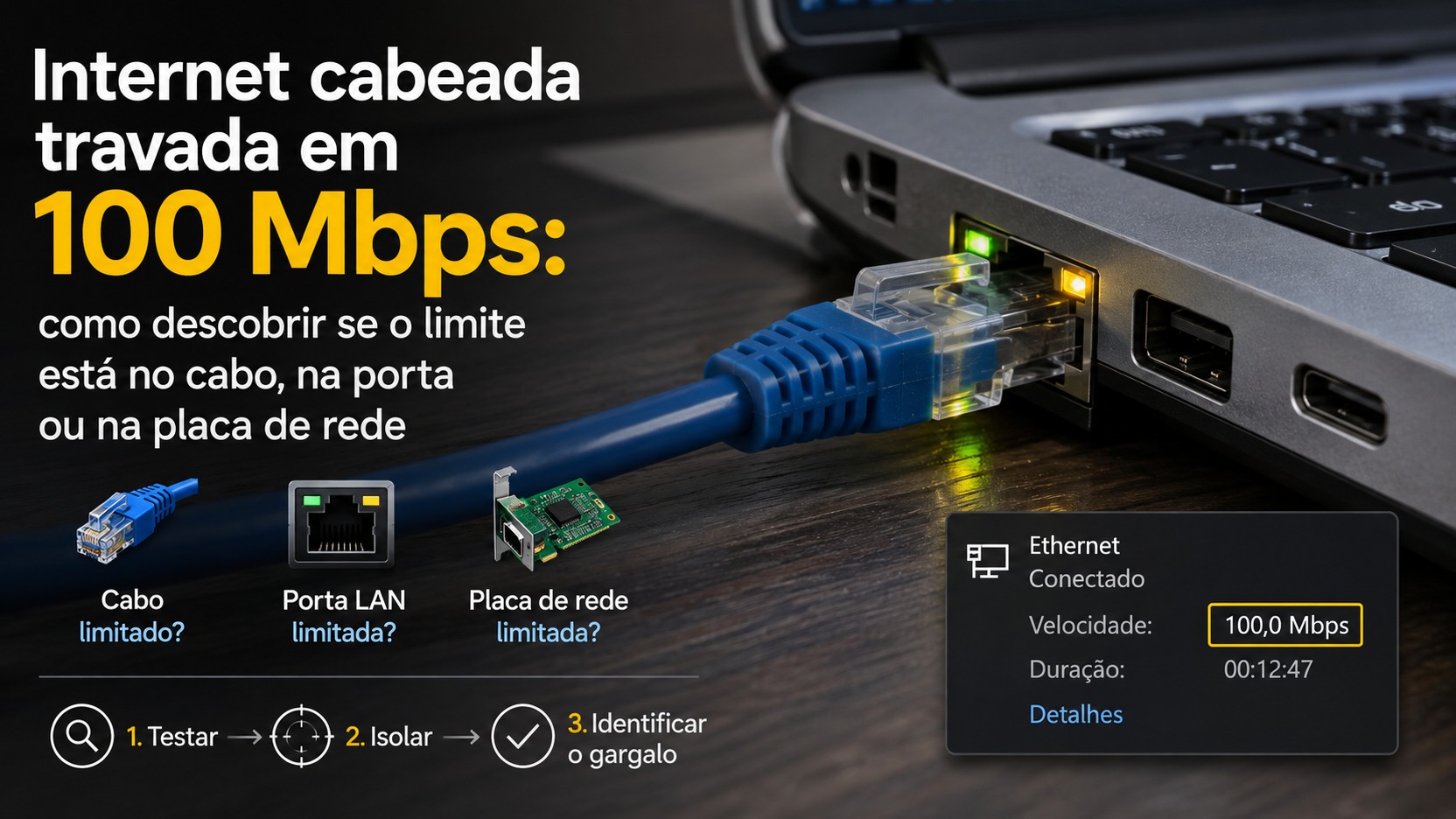
If a computer with an Ethernet port is available, connect it to a LAN port on the router. If the internet works over the cable but not over Wi-Fi, the ISP is probably delivering service and the problem is in the wireless segment or router configuration. In that scenario, changing ISP DNS settings or opening an outage ticket can distract from the actual fault.
If neither Wi-Fi nor Ethernet works on several devices, check the router's status page. Many models show whether the WAN port received an IP address and whether the internet connection is active. TP-Link, for example, uses WAN IP status and a direct modem test as part of isolating router problems from external connection problems. Screen names vary by brand.
6. When to suspect DNS
DNS translates names such as example.com into network addresses. A DNS failure can create the impression that “the internet is down” even when IP connectivity exists. But it is not a good first hypothesis if every device suddenly loses access and the modem shows a synchronization failure.
On a computer, tests such as looking up a name with nslookup and comparing it with a connectivity test to an IP address can help. If IP addresses respond while names do not resolve, DNS becomes a strong hypothesis. This result is indicative, not absolute proof, because firewalls and networks can block some tests.
Avoid changing DNS servers at random before confirming the pattern. A DNS change can hide the real cause or add another variable during troubleshooting.
7. How to tell the router from the ISP
| Observed sign | Most likely hypothesis |
|---|---|
| Other devices browse on the same Wi-Fi | Problem on the device that fails |
| Ethernet works through the router, but Wi-Fi does not | Problem with Wi-Fi or the router's wireless configuration |
| All devices fail and the router does not receive a WAN IP | Problem between router, modem, ONT, authentication, or ISP |
| ONT or modem shows an alarm or loss of synchronization | A physical link or ISP service problem is likely |
| The ISP's official app or status page confirms an outage | ISP failure confirmed for the reported area or service |
| After restarting and checking cables, several devices still fail, including over Ethernet | It is reasonable to contact the ISP with the tests already completed |
8. When to call the ISP
Contact the ISP when the problem affects several devices, persists after checking cables and restarting the equipment, also appears on a wired connection, or comes with an alarm light on the modem or ONT. It also makes sense to contact support if the router cannot obtain a WAN connection after a normal restart and no intentional configuration change was made.
Before contacting support, note the start time, which devices were tested, whether Ethernet also fails, which lights are on, and whether the router status page shows a WAN address. This reduces repeated steps during support and helps separate a local fault from an external network outage.
What to avoid during troubleshooting
- Do not factory reset the router as the first action.
- Do not change channel, DNS, DHCP, MTU, and IP address at the same time.
- Do not conclude that the ISP is down just because the icon says “no internet.”
- Do not conclude that the router is defective without testing another device and, when possible, Ethernet.
- Do not update firmware during an unstable situation without following the manufacturer's documentation.
Quick flow to decide where the fault is
- Test more than one website or app.
- Test another device on the same Wi-Fi.
- If only one device fails, restart it and review that device's settings.
- If all devices fail, check cables, lights, and WAN status.
- If possible, test Ethernet on the same router.
- Restart the modem or ONT and router without restoring settings.
- If the problem continues on several devices and also over Ethernet, contact the ISP and report the tests already completed.
This method reduces random trial and error because each test changes only one variable. The goal is not to “fix anything” immediately, but to locate the point where traffic stops: the device, local Wi-Fi, router, modem or ONT, or the ISP network.