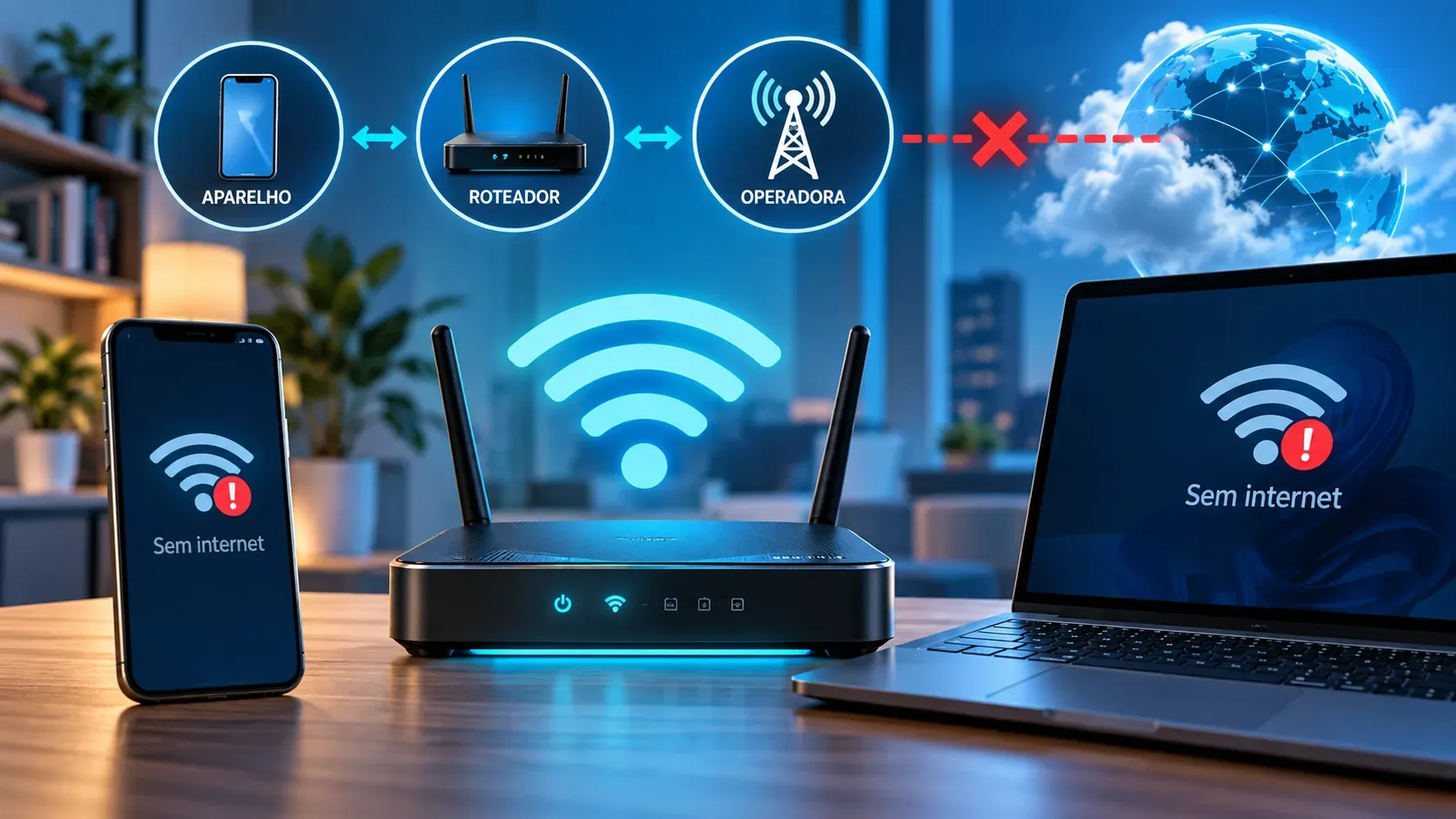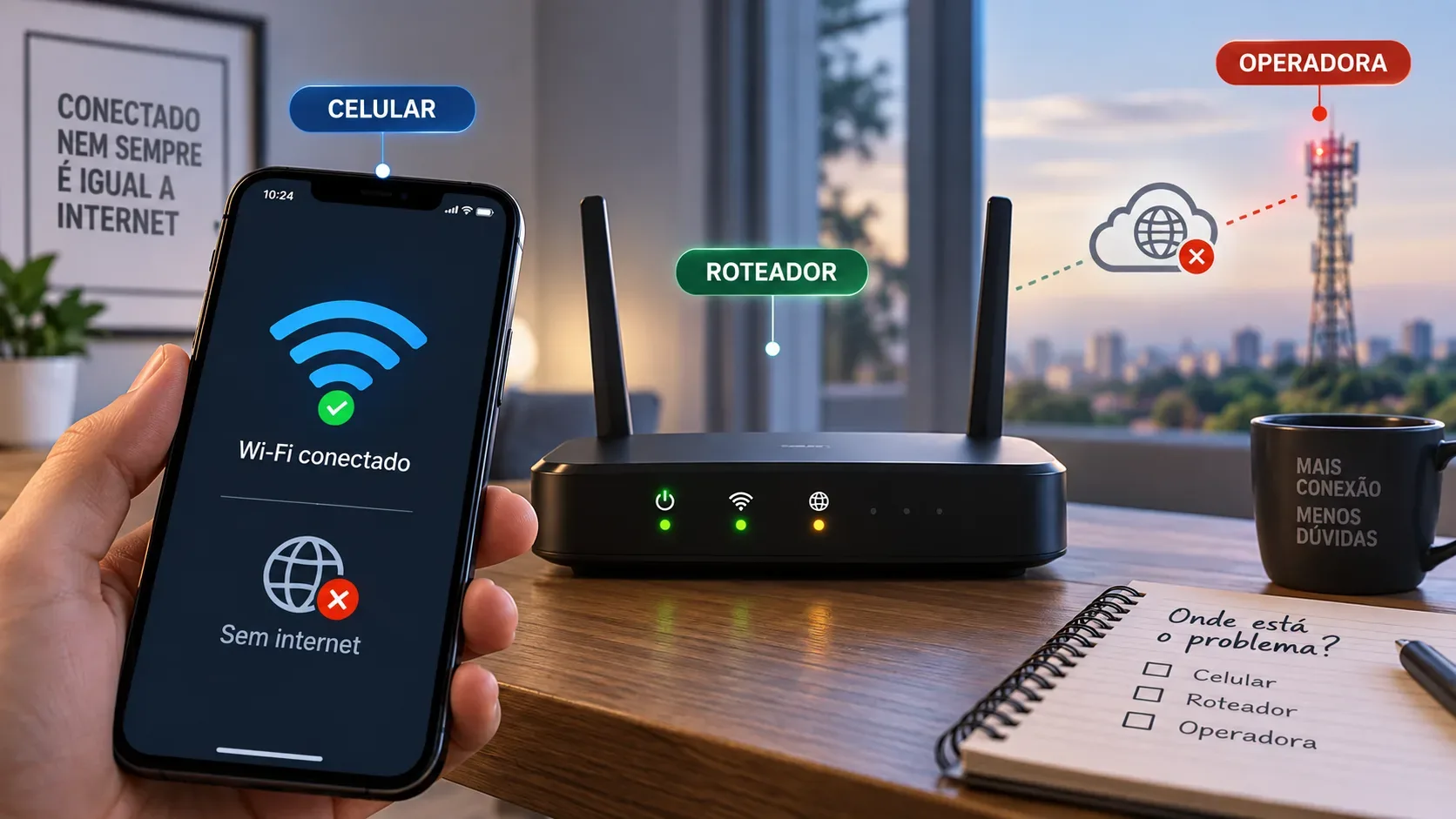
Seeing a phone or computer marked as connected to Wi‑Fi does not, by itself, mean the internet is working. That status first confirms that the device managed to join the wireless network. The path to the internet still depends on the router, the modem or carrier equipment, and the external service.
The fastest way to avoid random fixes is to identify which layer is failing. In a few minutes, by comparing another device, another connection, and the router’s response, you can usually separate a device-specific problem from a home-network issue or an ISP outage.
What “Wi‑Fi connected, no internet” actually means
The message means the device joined the Wi‑Fi network but could not confirm internet access. Microsoft describes this state as a situation in which a computer can be connected to the local network and still be unable to browse, use email, or reach other external services.
That is why the Wi‑Fi icon can show a strong signal even when no website opens. The signal reflects the wireless link to the router; it does not prove that the router is receiving internet service from the ISP.
A 5–10 minute test: follow this order
- Test another device on the same Wi‑Fi network. If another phone or laptop works normally, the router and ISP are probably working, so the focus shifts to the first device.
- On the problem device, test another connection. On a phone, turn Wi‑Fi off and see whether mobile data works. On a laptop, try a hotspot or another known network. Google specifically recommends switching between Wi‑Fi and mobile data to help isolate the source of the problem.
- If you are in a hotel, airport, café, or other public network, check for the login portal. The network may accept the Wi‑Fi connection before granting internet access.
- If no device can get online, restart the modem and router. Do a basic power restart before changing settings.
- Check whether the local network responds. In Windows, testing the default gateway helps show whether the computer can still reach the router.
- Only then investigate DNS, VPN, proxy, or advanced settings. Changing these too early can obscure the diagnosis.
How to read the test results
| What happens | Most likely source | Next action |
|---|---|---|
| Only one device has no internet; the others work | Device settings or software | Restart the device, reconnect to the network, and review VPN, proxy, or network settings |
| All devices have no internet | Router, modem, or ISP | Restart the equipment and check service status using mobile data |
| A public network connects but does not allow browsing | Captive portal not completed | Open network details and complete the sign-in, terms acceptance, or authentication |
| The gateway replies, but the internet does not work | Router/modem uplink or ISP service | Check the modem, ISP status, and support if needed |
| Sites by name fail after the local network is known to be working | DNS may be involved | Test the configured DNS before replacing the server |
If only one phone or computer fails
When another device uses the same network normally, the evidence points to a local problem. Start with the basics: turn Wi‑Fi off and back on, restart the device, and reconnect to the network. If needed, use the option to forget the network and enter the password again.
Also check whether a VPN, proxy, security filter, or private DNS is active. These features can block access even while Wi‑Fi remains connected. On managed or corporate devices, do not remove network profiles without guidance from the organization.
On iPhone and iPad, Apple recommends testing the same network with other devices and, to determine whether the issue is limited to the device, trying another Wi‑Fi network. On Android, Google recommends restarting the device and comparing Wi‑Fi with mobile data.
If no device can browse
If phones, computers, and other devices lose internet access at the same time, it makes little sense to start by changing DNS on a single device. The problem is more likely to be in the router, modem, or ISP service.
For a basic restart, Microsoft and Google recommend removing power from the equipment and waiting about 30 seconds. If the modem and router are separate, power the modem first, wait for it to stabilize, and then power the router. With a combined unit, restart the single device according to the manufacturer’s instructions.
After the restart, test again on more than one device. If all of them still have no internet, use mobile data to check the ISP’s app, website, or service-status channel. An external outage will not be fixed by resetting a phone or changing the Wi‑Fi password.
Public Wi‑Fi: connected can mean “waiting for sign-in”
Hotels, airports, cafés, and other venues often use captive networks. With them, the device joins Wi‑Fi first and receives normal internet access only after the user opens the authentication screen, accepts terms, or provides the requested information.
Apple documents that a sign-in screen can appear when joining a captive network before internet access is released. So, if the problem happens only on a public network, look for the sign-in or join option in the Wi‑Fi details before restarting everything or changing DNS.
The gateway helps separate the local network from the ISP
On a Windows computer, the default gateway is normally the router address used to leave the local network. Microsoft suggests locating that address with ipconfig and then using ping to check whether the computer can reach the router.
If the gateway replies, the link between the computer and router is working at that moment. If there is still no internet, the investigation moves to the modem, ISP link, or external services. If the gateway does not reply, the problem is more likely to be earlier in the path: local Wi‑Fi, IP configuration, a stalled router, or interference.
This test is especially useful because it avoids blaming the ISP when the device cannot even talk to its own router — and avoids changing local Wi‑Fi settings when communication with the router is normal.
When it makes sense to change DNS
DNS translates names such as example.com into IP addresses. A DNS problem can therefore make it look as though “the internet is down,” but DNS should not be the first suspect when every device has lost access or when the router itself does not respond.
Microsoft recommends first checking whether a DNS server is configured and whether it responds. If the device has a valid IP address, can reach the local network, and the remaining problem is concentrated on name resolution, then testing a different DNS server becomes a reasonable step.
Changing DNS at the beginning can produce a coincidental improvement or create a second variable without clarifying whether the original fault was in the device, router, or ISP.
What not to do first
- Do not factory-reset the router as the first test. It can erase the network name, password, and parameters required by the ISP.
- Do not change several settings at once. Make one change at a time so you know what actually affected the result.
- Do not assume a strong signal means the internet is working. Wi‑Fi bars show the quality of the link to the access point.
- Do not change DNS on every device before confirming that the local network and ISP connection are up.
- Do not ignore the sign-in portal on public networks.
When to contact the ISP or technical support
Contacting the ISP makes sense when several devices still have no internet after the restart, when the local network responds but external access does not return, or when the provider’s own status channel reports an outage in the area. If only one device fails on several different networks, support from the device or operating-system manufacturer is usually more appropriate.
Troubleshooting is faster when you tell support what you have already tested: “other devices also fail,” “mobile data works,” “I restarted the modem and router,” “the gateway replies,” or “the problem happens only on this device.” These observations reduce repeated steps and help route the case correctly.