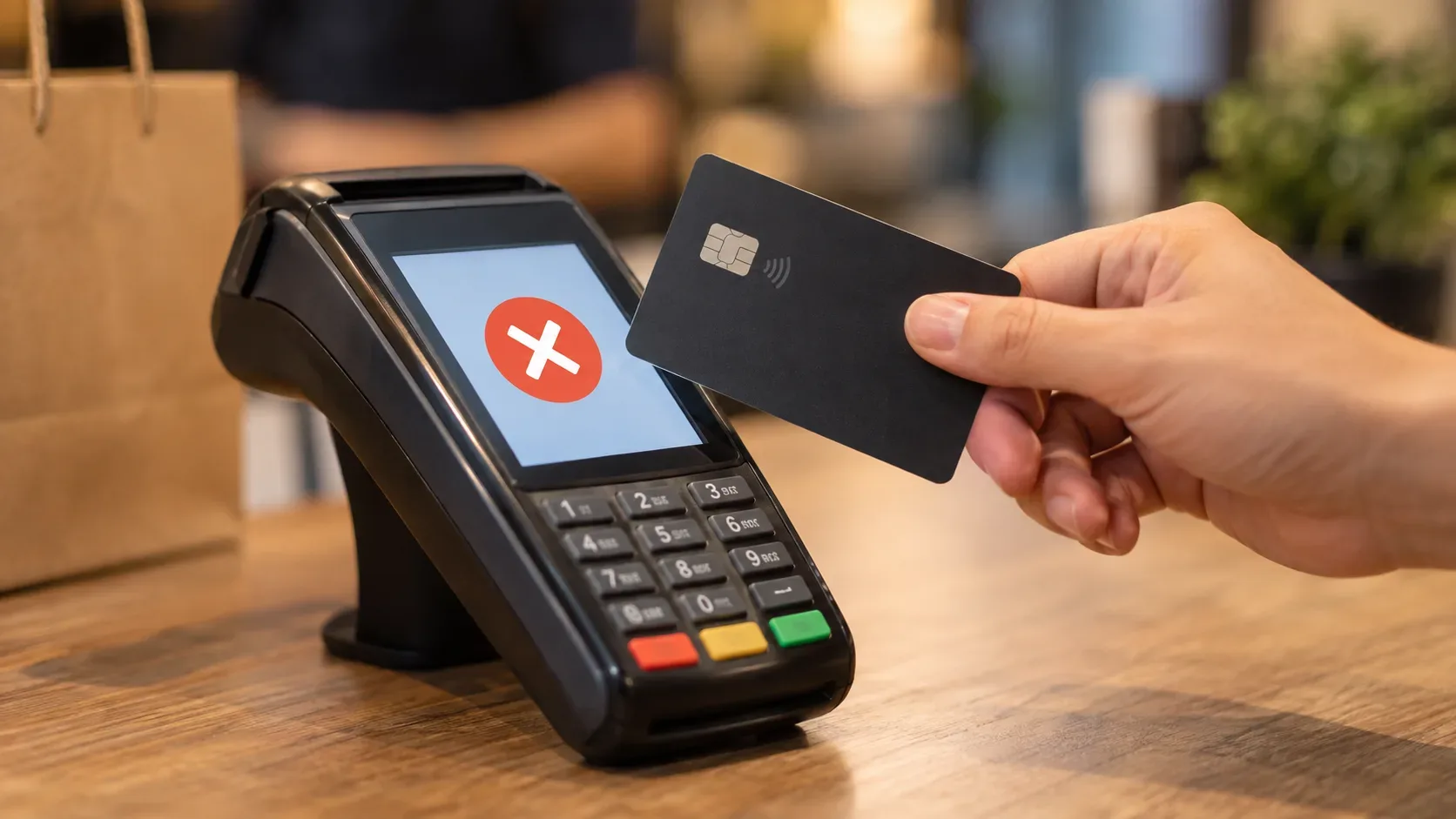
A card purchase can be declined even when the app shows enough available credit. That is because available credit is only one authorization condition: the issuer may still apply security controls, the card may have a specific limit for that type of use, and communication between the terminal, acquirer, card network and bank may fail. Repeating the same attempt several times without identifying the source of the error is therefore rarely the best first step.
In 5 minutes: find out which side the decline is coming from
- Open the card app before trying again. Check whether the attempt appears as declined, whether there is a security notification, whether the card is locked, and whether available credit is actually higher than the full purchase amount.
- Look for a specific spending limit. Some issuers or card types let you set a lower cap for a virtual card, an additional card or a particular use. That cap can block a purchase even when the account's total credit limit is higher.
- Read the terminal message. A read error, connection failure, service outage or timeout points to an operational issue that is different from a credit authorization decline.
- Make at most one test that helps isolate the cause. If contactless failed, inserting the chip may show whether the problem is card reading. If the merchant has another terminal or connection, one attempt there can help separate a terminal issue from a card issue.
- If the app shows a lock, a security alert, or the card keeps failing at different merchants, stop retrying and contact the issuer through official channels.
Nubank, for example, lists terminal instability, chip-reading errors, PIN transmission errors, a locked or cancelled card and disabled contactless payments among causes of declined in-person purchases. It also says anti-fraud mechanisms can place security blocks. Mercado Pago likewise cites security, credit limits and terminal or connection failures as possible reasons for a declined transaction.
1. Security block: when available credit is not the problem
The issuer does not look only at the remaining credit limit. Each authorization request may be evaluated by risk rules. An unusual amount, a transaction pattern outside your normal behavior or an incomplete security verification may lead to a preventive decline.
The most useful signal is often in the issuer's app: a confirmation request, a temporary card lock, a suspicious-transaction warning or an instruction to contact support. In that situation, do not try to “force” approval by repeating the purchase. Confirm the transaction only inside the app or through another official issuer channel. Never share your PIN, security code, token or SMS code with anyone claiming they need it to “release” the purchase.
If the transaction is legitimate and the issuer allows in-app validation, follow that process. If there is no clear path, or if you do not recognize an attempt, lock the card and contact official support.
2. Total credit limit and a per-purchase limit are not necessarily the same thing
“I have enough credit” can refer to different limits. The available credit shown in the app is the amount not yet committed, but some products allow sublimits for virtual cards, additional cards or specific uses. CAIXA, for example, says customers can set and change a virtual card limit while staying within the total limit of the physical card.
So a customer may have enough total credit while using a card or mode configured with a lower cap. Not every issuer offers an adjustable “per-purchase limit,” and labels vary. In the app, look for settings such as card limit, virtual card limit, maximum purchase amount, additional card limit, or specific controls for online, international and contactless purchases.
There is another common source of confusion: for installment purchases, the credit limit may be committed by the full purchase amount, not just the first installment. CAIXA explicitly states this rule for its cards. When comparing a purchase with your available credit, use the total transaction value and check how your issuer treats installments.
3. Terminal or network failure: how to recognize it
A decline does not always originate with the card. The purchase depends on communication between the merchant terminal and several participants in the payment network. Nubank describes service unavailability and timeout as communication failures that can prevent a transaction from being completed. In-person purchases can also fail because of chip-reading errors or terminal instability.
Clues that favor this explanation include a terminal that takes a long time and returns a generic error, a merchant reporting an outage, other customers having similar failures, contactless failing while chip works, or the purchase succeeding on another terminal at the same merchant. These clues do not prove the cause on their own, but they help you decide where to investigate first.
If the message indicates a communication problem, wait briefly and make one controlled retry, preferably on another terminal or with another read method. If the message is “not authorized,” the app records a security decline, or the same card fails at different merchants, the issuer becomes the priority for investigation.
How to separate the three main causes
| Signal | Most likely cause | Next step |
|---|---|---|
| App shows an alert, lock or confirmation request | Issuer security/anti-fraud | Validate only in the app or through an official channel; do not repeat the purchase until you understand the block |
| Total limit is enough, but a virtual/additional card has a lower cap | Card- or mode-specific limit | Check issuer settings and rules; change it only if the feature exists and the change is appropriate |
| Chip error, connection failure, timeout or terminal instability | Terminal/payment network | Wait and test one other terminal or read method |
| The same card fails at different merchants | Clue of a card or issuer authorization issue | Check the app and contact the issuer |
| Other cards also fail on the same terminal | Clue of a terminal or merchant connection issue | Ask for another terminal or payment method |
When you should stop retrying
Stop repeating the purchase when there is a security alert, a locked card, an attempt you do not recognize, or several identical declines with no change in conditions. A series of retries does not diagnose the cause and may add friction to risk analysis. Visa has highlighted that decline codes may be used to indicate, among other situations, blocks and repeated authorization attempts.
Do not keep entering a PIN repeatedly if you are unsure it is correct. Because issuer rules vary, do not use repeated PIN attempts as a way to troubleshoot. The safer path is to check the app and contact support if needed.
What to check in the app before contacting the issuer
- available credit and the full purchase amount;
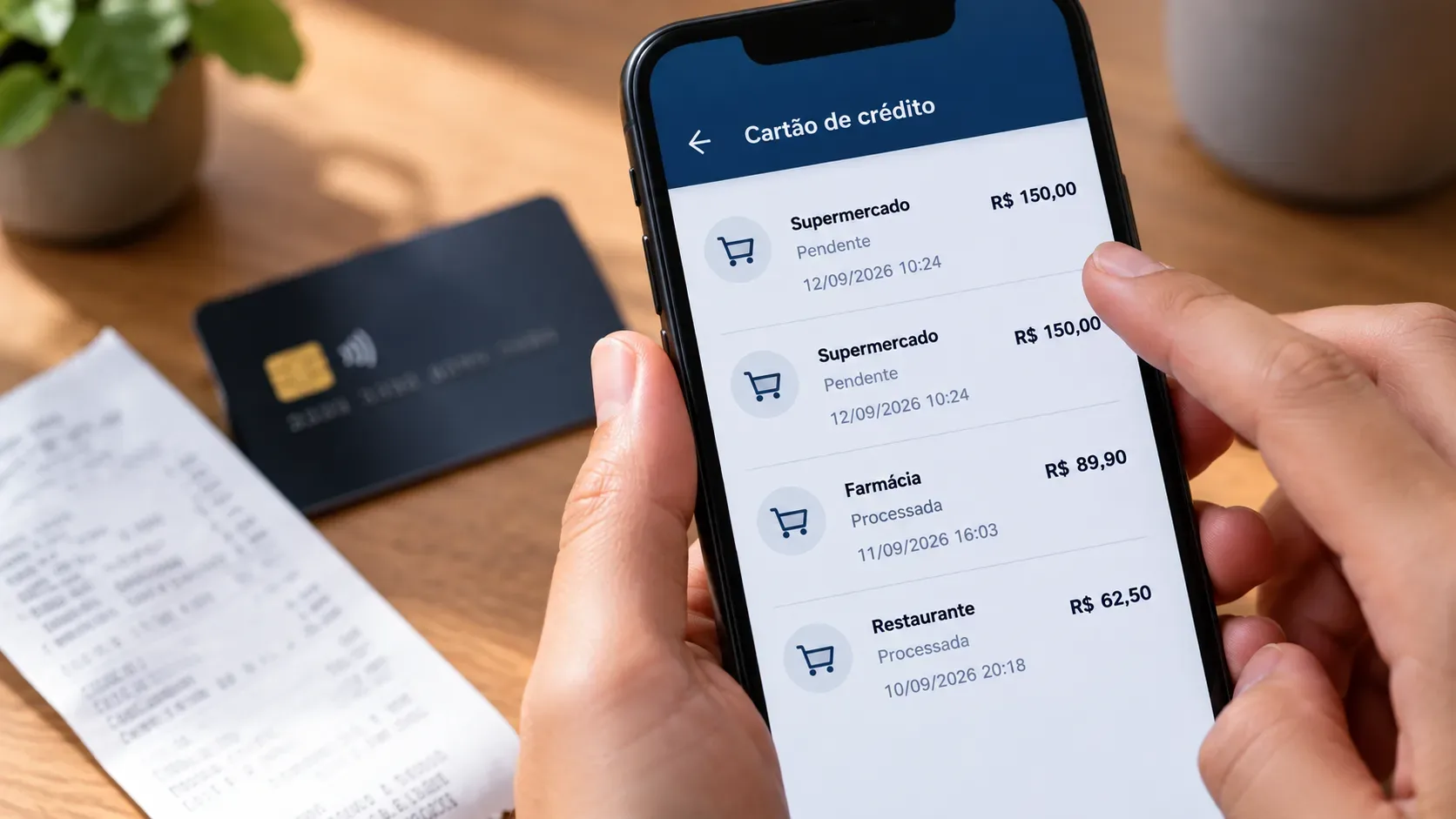
- whether there is a pending purchase or authorization that has not yet been released;
- status of the physical card and the virtual card used;
- temporary or security locks;
- a notification asking you to recognize or confirm the purchase;
- specific limits for a virtual card, additional card or purchase mode, when applicable;
- whether online, international or contactless purchases are enabled;
- card expiry and, for online purchases, the correct card number, expiry date and security code.
When to contact the issuer — and what to ask
Contact the bank or institution that issued the card when the app shows a block, the decline continues at different merchants, or there is no visible explanation despite enough available credit. Instead of asking only “why won't my card work?”, provide the approximate date and time, amount, merchant and whether the attempt was contactless, chip or online.
Ask specifically whether there was a security decline, whether there is an operational or mode-specific limit below the total credit limit, and whether the card is enabled for that type of purchase. The issuer may not disclose details of its internal anti-fraud model, but it can guide you on locks, permissions and next steps.
If the failure occurs only on one terminal and other payment methods work normally, the merchant should check the terminal, connection and acquiring service. If the same card is declined in more than one location, move the investigation to the card and issuer.
Practical summary
Available credit does not guarantee authorization. Check the app first; then see whether there is a specific cap for the card or purchase mode; finally, isolate a possible terminal failure with only one useful retry. An in-app security signal points toward the issuer. A read error, connection problem or timeout points toward the terminal or network. And when the cause remains unclear, the best next step is to stop retrying and ask the issuer for the reason through official channels.