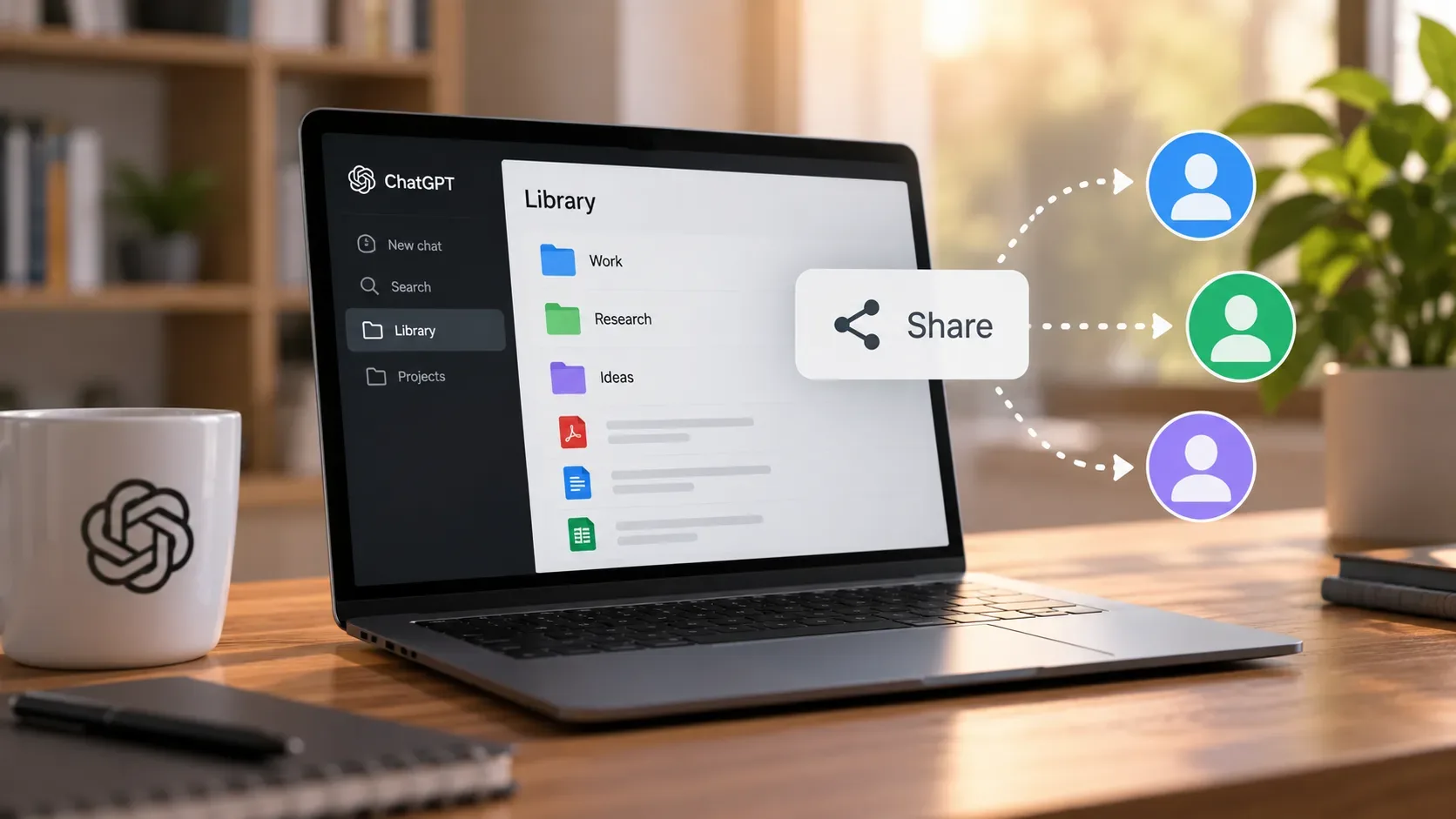
Since September 9, 2026, ChatGPT has offered sharing for files and folders in Library with specific people or, when the option is available in the environment, with the whole workspace. The point that deserves the most attention is not only choosing between Viewer and Editor: files uploaded into a shared folder follow a specific ownership rule. If you place a file in a folder owned by someone else, that file belongs to the folder owner, although the system still records who uploaded it.
The change was announced in the ChatGPT release notes for September 9, 2026. The same note also confirms the Shared with me area, later access management, and the ability to use shared files directly in conversations.
What changed in Library sharing
The new flow adds four core capabilities to Library:
- Share with specific people: invitations can be assigned Viewer or Editor access.
- Share with the workspace: the release note provides an option to make content available to everyone in the workspace.
- Manage access later: the sharing dialog lets you review who has access, change permissions, and remove access.
- Find what other people shared: received files and folders appear in Shared with me, and shared files can be used in ChatGPT conversations.
The September 9 entry does not, however, publish a full plan-by-plan availability table for each sharing option. It is therefore safer to check the controls that actually appear in your Library and your workspace policies than to assume every account has the same options.
Viewer, Editor, removal, and ownership: what is confirmed
| Action or situation | Viewer | Editor | Owner/sharing manager | What the documentation confirms |
|---|---|---|---|---|
| View a shared item | Yes | Yes | Yes | Both roles are access levels for the shared item. |
| Use a shared file in a conversation | Yes | Yes | Yes | The note confirms that shared files can be used in conversations and does not create a Viewer exception. |
| Edit shared content | Not the editing role | This is the editing role | Yes, subject to access to the item itself | The note names Viewer and Editor levels but does not enumerate every editing operation that Editor permits. |
| Change someone else's permission or remove their access | Not specified | Not specified | Access management exists in the sharing dialog | The documentation confirms access management but the launch entry does not spell out which collaborators can administer it. |
| Delete the shared file or folder | Not specified | Not specified | Not detailed in the launch note | Do not treat “Editor” as automatic permission to delete: that specific action is not described in the September 9 entry. |
| Keep a file uploaded to someone else's folder after losing access | Not applicable | Not applicable | The folder owner keeps the file | The file belongs to the folder owner; the uploader can lose access if removed from the folder. |
This distinction prevents two common mistakes: confusing removing access with deleting the file, and assuming the Editor label by itself reveals every administrative operation. Where the official note does not detail an action, the safest approach is to check the sharing dialog before acting.
How to share a file or folder without granting too much access
- Open Library and select the file or folder you want to share.
- Open the item's sharing control.
- Choose specific people and assign Viewer when the recipient only needs to review the material or use it in a conversation.
- Use Editor when editing is genuinely required. Because the launch note does not list every action included in this role, confirm the operations shown in the item's own sharing dialog.
- If sharing with the whole workspace is available and appropriate, use it only for content that should actually have broad workspace access.
After inviting people, return to the same dialog whenever you need to review access, change a permission level, or remove someone. That is preferable to creating a new copy just to change permissions.
How to use “Shared with me”
For recipients, Shared with me is the central place for items other people have shared. The official note confirms that you can access those items and use shared files in ChatGPT conversations. In practice, this removes the need to ask the sender to upload the same file again for every chat.
A simple flow is to locate the item in Shared with me, open or select the relevant file, and then use it as context in a conversation. For a folder, open it and choose the material you need. Sharing controls access to the content; it does not automatically attach every file in the folder to all of your conversations.
The rule that can make you “lose” an uploaded file
The most important rule in the release is explicit: files uploaded to a shared folder belong to the folder owner. The system still records the person who performed the upload, but uploader identity and file ownership are no longer the same thing in this scenario.
Example: Ana creates a folder and shares it with Bruno. Bruno uploads a spreadsheet from his computer to that folder. Inside the shared Library folder, the file belongs to Ana because she owns the folder. If Ana later removes Bruno's access to the folder, the spreadsheet stays in Ana's folder and Bruno loses access to that copy.
This is different from sharing a file that already exists in your own Library. The note specifically highlights the ownership rule for files uploaded into a shared folder.
How to collaborate without giving up your own copy
- Keep the original in your own Library or source storage before uploading anything to someone else's folder.
- Upload a copy to the shared folder when you need to preserve a version under your control.
- Do not use someone else's folder as the only repository for a file you need to retain after the project ends.
- Review ownership before a collaboration ends: if the only useful copy sits in another person's folder, save a copy under your control while you still have access.
These steps do not bypass the ownership rule; they simply make sure you continue to have your own copy of important material.
Permission examples for three scenarios
1. Reference material for review
You want a colleague to read a PDF and ask questions about it in ChatGPT, but they do not need to edit the content. Viewer is the more conservative level to start with.
2. A team's working folder
You want a collaborator to participate in editing the material. Editor is the role indicated for editing by the feature's structure, but it is worth confirming the concrete actions shown in the dialog. If the collaborator uploads files into a folder you own, those uploads belong to you as the folder owner.
3. Workspace reference library
When the option to make an item available to the whole workspace is present, it can reduce individual invitations for material that truly is common to the team. For sensitive documents or content intended for a small group, specific-person sharing remains the more restrictive choice.
What if the Library item comes from Google Drive?
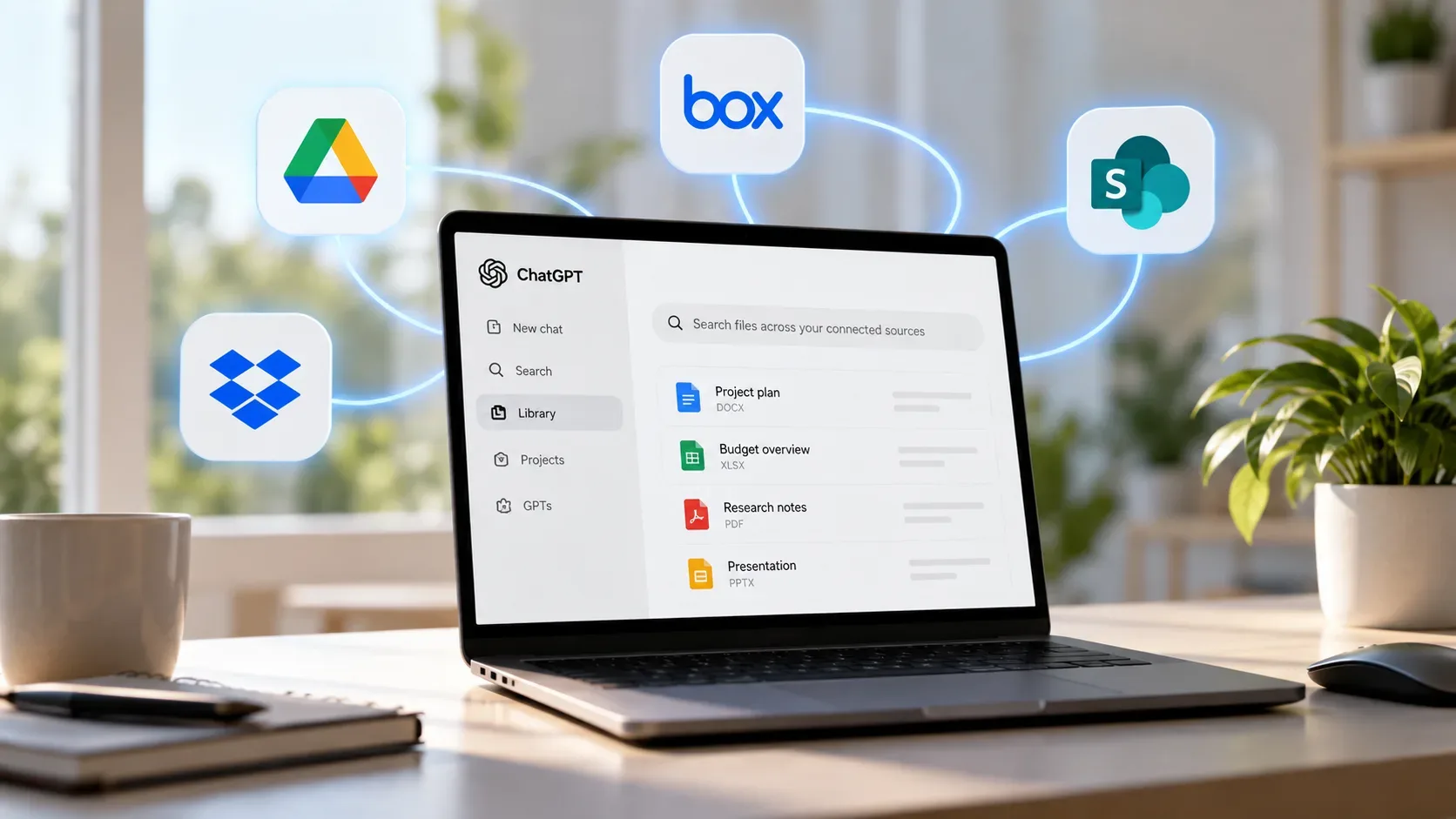
Library can also display Google Drive files and folders when the integration is connected. In that case, the Library and file storage documentation says the content stays connected to its original source and ChatGPT follows the existing Google Drive permissions. So do not automatically apply the ownership rule for a native shared Library folder to an item that remains a Drive file.
A temporary documentation inconsistency
The general Library storage page may still show an older answer saying Library does not introduce sharing or collaboration. That statement conflicts with the September 9 release note, which explicitly announces file and folder sharing. For the new feature, the newer release-note information should be treated as the reference until the help pages are brought into alignment.
Short answer
Use Viewer for review-oriented access, Editor when editing is required, and Shared with me to find content other people have shared with you. The decisive caution concerns folders owned by someone else: if you upload a file into another person's shared folder, the uploaded copy belongs to the folder owner. If you need to preserve ownership and access, keep a separate copy under your own control.