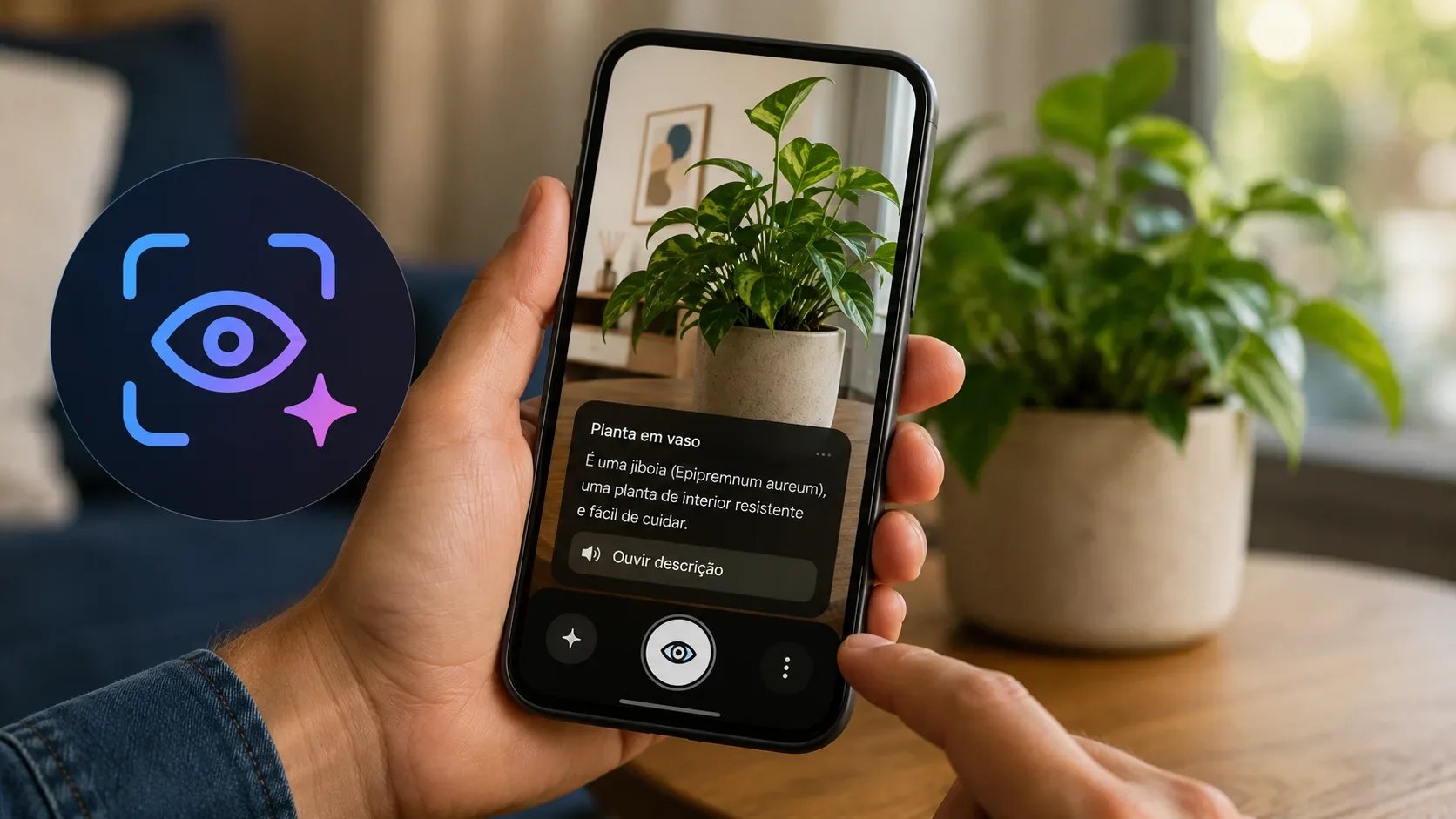
Guided vision is a new Gemini Live accessibility feature announced by Google on September 1, 2026. It uses the phone camera to describe what is in front of you and, when the framing is not useful, gives spoken instructions to reposition the device. The most important point for anyone looking for the feature right now is its status: Google says it is coming soon to phones running Android 9 or later in countries where Gemini is available. In other words, owning a compatible phone does not guarantee that the option already appears in your menus.
Who should get Guided vision
In the official September 2026 Android Drop, Google says Guided vision was designed for and with blind and low-vision communities. The announced compatibility is broad, but it depends on more than one requirement.
| Criterion | What Google announced | How to interpret it |
|---|---|---|
| Operating system | Android 9 or later | The requirement is stated for phones; the Guided vision announcement does not promise tablet support. |
| Region | A country where Gemini is available | The feature is not announced as universally available without restrictions; Gemini availability varies by country, language and account. |
| Gemini | Guided vision works in Gemini Live | You need to be able to use Gemini Apps and Live on the device and account. |
| Rollout | “Coming soon” | As of September 2, 2026, Google's public documentation does not say that every eligible user has already received the feature. |
In addition, the Gemini mobile app availability page lists general Android app requirements, including Android 9 or later and at least 2 GB of RAM. Work or school accounts also need access to Gemini Apps. Google also notes that the Gemini app cannot be used inside an Android work profile. These are general Gemini requirements, not a separate Guided vision-only specification.
How to enable it: the three access paths Google announced
The official announcement names three ways to access Guided vision. Because the rollout is still underway and Google has not yet published a detailed Guided vision-specific walkthrough, exact menu names and locations may vary by device, manufacturer and Google component version.
1. Accessibility shortcut
Google says you will be able to add Guided vision to Accessibility shortcuts for quick access. On Android, accessibility features are generally found under Settings > Accessibility, but Android Accessibility Help notes that feature names and navigation can vary by market and device. Once Guided vision has reached the phone, look for it among the available accessibility features or shortcuts and enable the shortcut method offered by the system.
2. TalkBack menu
For people who use the TalkBack screen reader, Google says Guided vision can be enabled directly from the TalkBack menu. If the item is not visible yet, that does not prove the phone is incompatible: because the feature was announced as “coming soon,” its absence may simply mean the rollout has not reached that account or device.
3. Gemini app settings
The third route is through the Gemini app settings. Google says Guided vision can be enabled from Gemini App Settings. If the option appears, turn it on and follow the on-screen instructions. If it does not appear, check the Google/Gemini app version, account eligibility and regional availability before assuming the phone will not receive it.
What the camera can describe
Guided vision builds on camera sharing inside Gemini Live. Gemini Live Help already explains that you can turn on the camera during a Live conversation to show Gemini what you see and talk about it. Guided vision adds a voice-guided experience designed to make that interaction more useful for blind and low-vision users.
Google's examples include helping with:
- reading fine print on a food label;
- understanding a menu in a dimly lit restaurant;
- identifying household objects in front of the camera;
- correcting camera framing with spoken instructions to reframe, pan across a space or center an object.
That last point is a core part of the feature: it does not only answer questions about the captured view. If the camera is poorly positioned, the system can tell the user to reframe, move across the scene or center the item so it can provide a better description.
What Guided vision should not do
Google places important limits on the feature in the announcement. Guided vision can make mistakes, is not a medical device, is not a mobility aid and is not a substitute for safe-travel guides. Google explicitly says not to use it for navigation or obstacle detection.
| Task | Appropriate use? | Why |
|---|---|---|
| Read a label or menu | Yes, as assistance | These are among Google's examples, although the answer can still be wrong. |
| Identify a household object | Yes, as assistance | This is also one of the official examples. |
| Decide whether it is safe to cross a street | No | That would be navigation and obstacle detection, uses Google says to avoid. |
| Detect steps, vehicles or barriers while traveling | No | The feature is not a mobility aid. |
| Make a medical decision based on a camera description | Not as a sole source | Google says Guided vision is not a medical device. |
In practice, the best use cases are low-risk tasks where an extra description is helpful but a mistake would not put someone in danger. For medication, financial information, documents and other sensitive situations, verify the content with a reliable source before acting.
Privacy: the camera shares your surroundings with Gemini Live
When Guided vision is in use, the camera is shared with Gemini Live. Gemini's documentation recommends respecting other people's privacy and asking permission before recording or including them in a Live conversation. It is also worth checking what appears in frame, especially passwords, documents, payment details or other personal information.
In the standard Gemini Live experience, the camera turns off automatically when Live is paused, when you leave the Gemini app or when the screen is locked. These rules help explain when video streaming is active, although the final Guided vision behavior should be checked in the interface once the feature reaches the device.
What to check if Guided vision does not appear
- Check the OS: the announcement specifies a phone running Android 9 or later.
- Check Gemini availability: confirm the Gemini app is available for your region, language and account.
- Update Google components: keep the Google/Gemini app up to date, which is already listed as a requirement for Gemini Live.
- Look in all three announced places: Accessibility shortcuts, the TalkBack menu and Gemini app settings.
- Account for the rollout: as of September 2, 2026, Google still describes the feature as “coming soon,” so its absence may be temporary.
How to use it safely when it arrives
Start with a simple, verifiable task, such as identifying a familiar object or reading a label you can independently check. Pay attention to the framing guidance and ask specific questions. If the answer involves physical safety, health, money or another high-impact matter, treat the description as assistance rather than definitive confirmation.
Guided vision extends Gemini Live's camera experience with spoken guidance focused on accessibility. The announced reach is broad — Android 9+ in countries where Gemini is available — but rollout is the decisive factor at launch: until the option appears through one of the three announced access paths, there is no separate app or alternate button that guarantees early access.