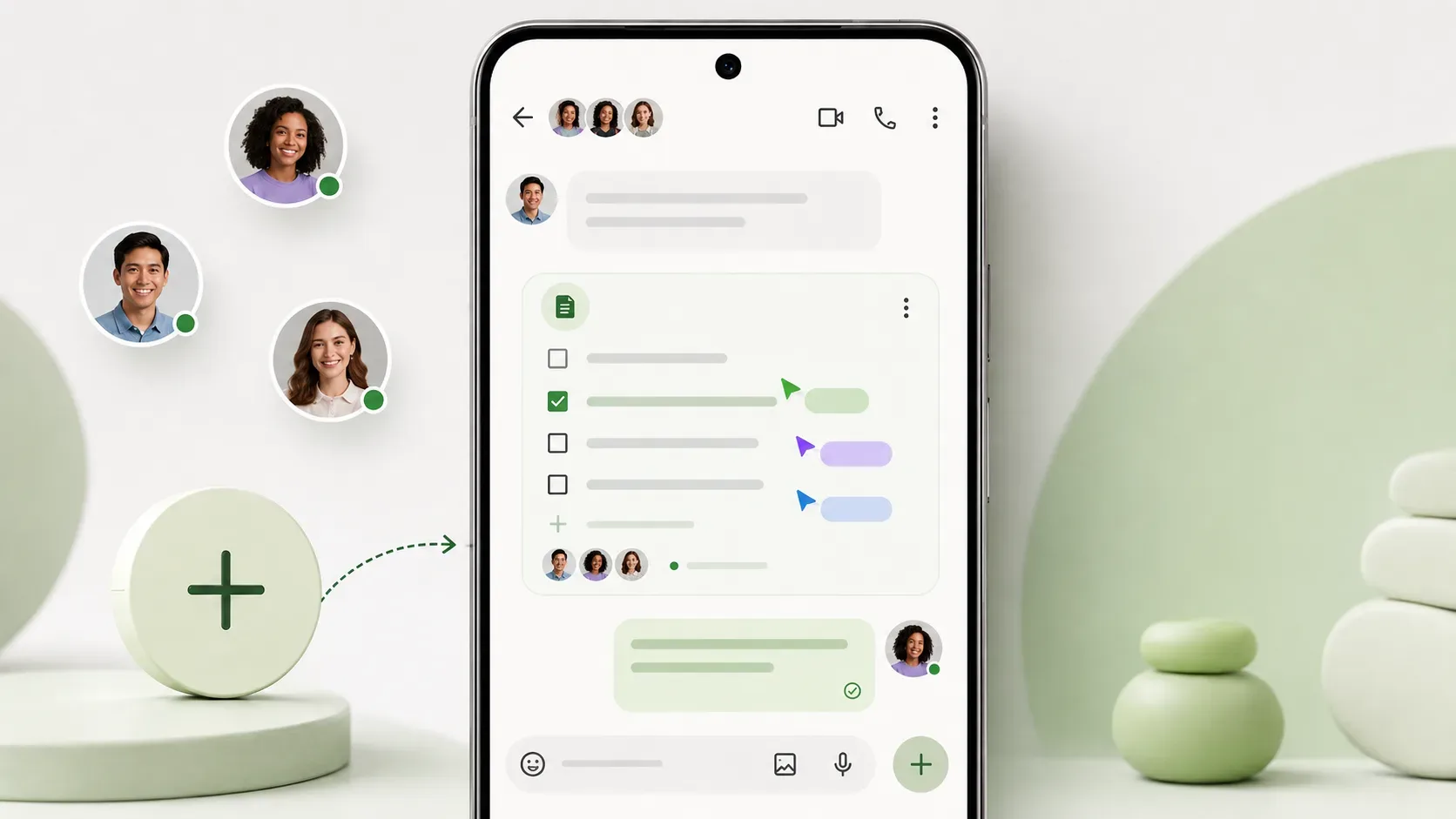
Collaborative notes in Google Messages use Google Keep from inside the conversation itself. The feature was announced in the September 1, 2026 Android Drop: by tapping the + button in a chat, users can open Keep, create a note or list, and share it without leaving Messages. Google says the rollout started on that date, which means the shortcut may not appear for everyone at the same time.
How to create and share a note in Google Messages
- Open Google Messages on an Android device.
- Open an existing conversation or start a new one.
- Tap the + button at the bottom left to open the shortcut drawer.
- Select Keep Notes.
- In the Google Keep window, write a text note or create a list.
- When you are done, tap Send.
According to Google Messages Help, Android users can see a preview of the shared note inside a conversation bubble. That preview updates as the note is edited.
How to edit a note that has already been shared
- Open the conversation in Google Messages.
- Tap the shared note you want to change.
- Edit the content in the Keep window.
- When finished, tap Close.
The key point is that the content remains a Google Keep note; Messages acts as the entry point and as the place where the note is viewed and shared. Google's published integration specifically refers to text notes and lists inside the chat.
Who can edit
In a group conversation, Google's documentation says that when a Keep note is shared, everyone in the group gets access to the note. That access is not automatically revoked if someone later leaves the group chat. For sensitive information or lists whose participants change frequently, it is worth reviewing collaborators directly in Keep.
There is also an important caveat: the support page says that in some cases you may need to request edit access from the owner of the note. Being part of the chat therefore should not be treated as a universal guarantee that you can edit every older note or a note shared through another path.
Outside the Messages integration, Google Keep allows collaborators to edit shared notes. In the Messages-specific flow, however, what Google explicitly documents is sharing text and lists.
What happens to privacy and encryption
There is an important difference between the message and the note. Eligible Google Messages conversations can use end-to-end encryption, but the shared note is hosted by Google Keep and is subject to Google's Terms of Service and Privacy Policy. In other words, the note does not become part of the encrypted message content simply because it is opened from inside the chat.
When the feature appears
The official September 2026 Android Drop announcement says the rollout started on September 1, 2026 in Google Messages. “Rollout” means a gradual release, not simultaneous availability for the entire user base.
If the shortcut is missing, open a conversation, tap +, and look for Keep Notes in the drawer. The published instructions do not list a separate activation step, and the announcement does not give an exact completion date or a detailed list of phone models or a minimum Android version for this feature. For now, the confirmed information is that Google Messages is an Android app and that the Keep integration began rolling out on September 1.
Messages and Keep have different roles
| Part | Role in the feature |
|---|---|
| Google Messages | Opens the shortcut from the + button, shows the shared note in the conversation, and lets users return to it from the chat. |
| Google Keep | Hosts the note, controls its content and collaboration permissions, and receives edits. |
| Group conversation | Provides the sharing context; when a note is sent to the group, participants receive access under Google's documented rule. |
What to check before using it with a group
- Check whether Keep Notes already appears in the + drawer.
- Confirm who really needs access before sending the note to a large group.
- Remember that leaving the group does not, by itself, remove access already granted to the note.
- If someone cannot edit, open the note and check permissions in Keep or request access from the owner.
- For private information, remember that the note is stored in Keep, separately from end-to-end encryption for messages.
In practice, the feature reduces constant switching between two apps: planning can start in the conversation while Keep remains the system that stores and syncs the note. The main caution is to treat availability as gradual and to clearly distinguish access to the chat from permission to the note.